
XIAOMI MDZ-24-AA
Instrukcja obsługi Xiaomi Mi TV Stick
Model: MDZ-24-AA
Produkt ponadview
The Xiaomi Mi TV Stick is a compact and portable streaming media player that transforms any TV with an HDMI port into a smart TV. Powered by Android TV 9.0, it provides access to a vast library of content from streaming services and apps via the Google Play Store. Its integrated Google Assistant allows for voice control, and built-in Chromecast enables seamless casting from mobile devices. The device supports 1080P HD playback with HDR, and offers immersive audio with DTS and Dolby support.

Image: The Xiaomi Mi TV Stick and its accompanying Bluetooth remote control.
Co jest zawarte
- Mi TV Stick Body
- Bluetooth Remote Control with Google Assistant
- Zasilacz
- HDMI Extension Cable (may vary by region)
Konfiguracja początkowa
Setting up your Mi TV Stick is a straightforward process. Follow these steps to get started:
- Podłącz do telewizora: Insert the Mi TV Stick directly into an available HDMI port on your television. If space is limited, use the provided HDMI extension cable.
- Podłącz do zasilania: Connect the power adapter to the Mi TV Stick's micro USB port and then plug the adapter into a power outlet.
- Wybierz wejście HDMI: Turn on your TV and use your TV remote to select the correct HDMI input source where the Mi TV Stick is connected.
- Sparuj pilota: Follow the on-screen instructions to pair the Bluetooth remote control. Typically, this involves holding down specific buttons (e.g., Home and Back buttons) until the pairing indicator appears.
- Połącz się z Wi-Fi: Once the remote is paired, select your Wi-Fi network from the list and enter the password to connect the Mi TV Stick to the internet.
- Sign in with Google Account: Sign in with your Google account to access the Google Play Store and personalize your Android TV experience.
- Zacznij odkrywać: After setup is complete, you can begin downloading your favorite streaming apps and exploring content.
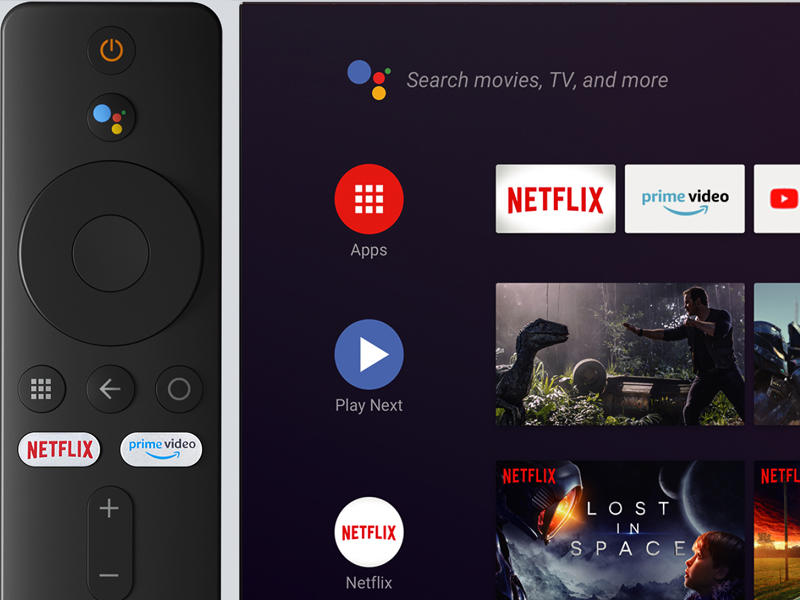
Image: The Mi TV Stick remote control positioned beside a television screen showing the Android TV home interface, ready for user interaction.
Instrukcja obsługi
Funkcje pilota zdalnego sterowania
The Mi TV Stick comes with a Bluetooth remote control designed for ease of use. It features dedicated buttons for quick access to popular streaming services and Google Assistant.
- Przycisk zasilania: Turns the Mi TV Stick on or off.
- Google Assistant Button (Mic): Press and hold to activate voice search and commands.
- Pierścień nawigacyjny: Use to navigate through menus and select items.
- Przycisk Wstecz: Powrót do poprzedniego ekranu.
- Przycisk Home: Powrót do ekranu głównego telewizora Android TV.
- Przycisk Netflix: Bezpośredni dostęp do aplikacji Netflix.
- Przycisk Prime Video: Direct access to the Amazon Prime Video application.
- Przyciski głośności (+/-): Reguluje głośność.

Obraz: szczegółowy view of the Mi TV Stick's Bluetooth remote control, highlighting the Google Assistant button and dedicated Netflix and Prime Video buttons.
Smart Features and Content
The Mi TV Stick provides a comprehensive smart TV experience:
- Android TV 9.0: Enjoy a user-friendly interface with access to thousands of apps and games from the Google Play Store.
- Asystent Google: Korzystaj z poleceń głosowych, aby wyszukiwać treści, sterować inteligentnymi urządzeniami domowymi, uzyskiwać odpowiedzi i nie tylko.
- Wbudowany Chromecast: Easily cast movies, TV shows, music, and other content from your smartphone, tablet, or laptop directly to your TV screen.
- Zainstalowane aplikacje: Quick access to popular services like Netflix and Prime Video.
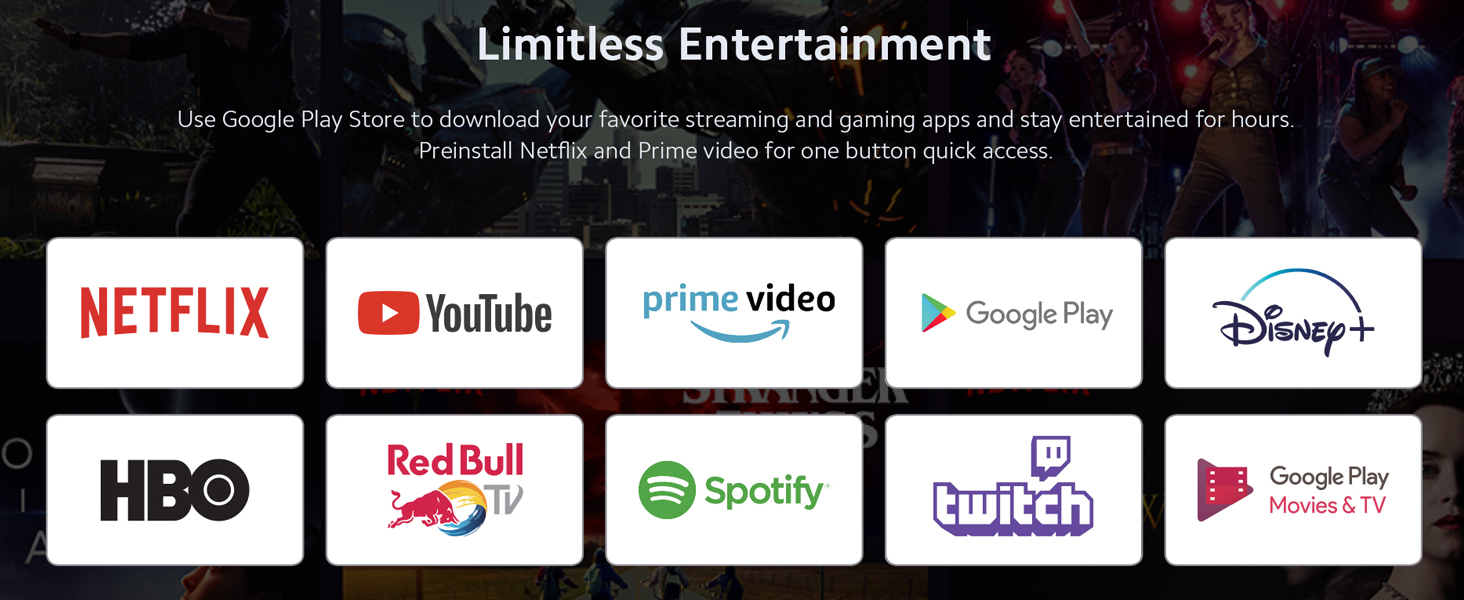
Obraz: Pokaz na ekranie telewizoraasing a wide array of streaming application logos, illustrating the limitless entertainment options available on the Mi TV Stick.
Audio and Video Quality
The Mi TV Stick is designed to deliver a high-quality viewdoświadczenie słuchania i słuchania:
- Full HD 1080P Playback: Supports video resolution up to 1920x1080 pixels for clear and detailed images.
- Obsługa HDR: Provides enhanced contrast and color for a more vibrant picture (requires HDR-compatible TV and content).
- DTS and Dolby Audio: Supports multichannel HD audio encoding for smoother, dynamic, immersive, and realistic stereo surround sound.

Image: The Dolby Audio and DTS logos displayed above a graphic representing sound waves, indicating the premium surround sound capabilities of the device.
Dane techniczne
| Funkcja | Specyfikacja |
|---|---|
| Nazwa modelu | Mój TV Stick |
| Numer modelu przedmiotu | MDZ-24-AA |
| Wymiary produktu | 0.46 x 0.31 x 1.39 cala (11.7 x 7.9 x 35.3 mm) |
| Waga przedmiotu | 1 uncji (28.35 grama) |
| System operacyjny | Android TV 9.0 |
| Rezolucja | 1080p (Pełna rozdzielczość HD) |
| Technologia łączności | Bluetooth, HDMI, Wi-Fi |
| Typ kontrolera | Pilot zdalnego sterowania, sterowanie głosowe |
| Obsługiwane usługi internetowe | Netflix, YouTube, Prime Video, Google Play Store apps |
| Baterie | 1 CR2 battery required (for remote) |
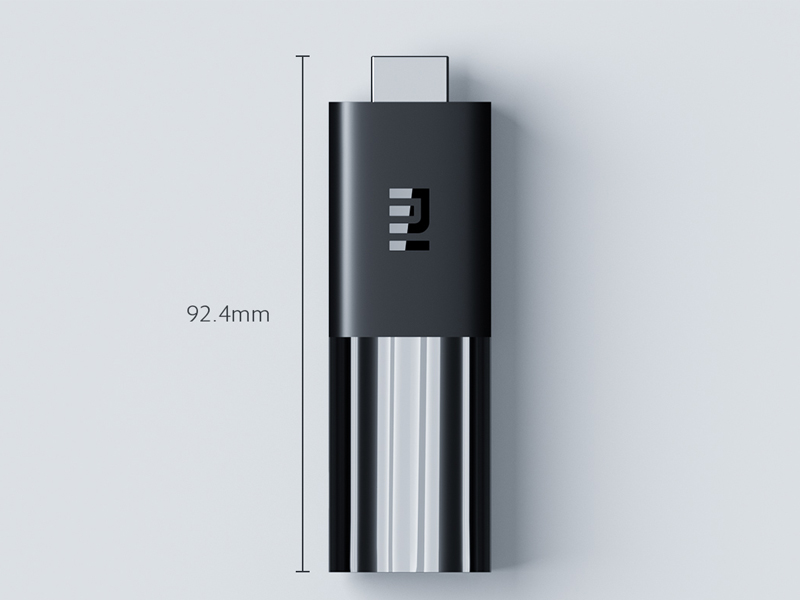
Image: A diagram illustrating the compact dimensions of the Mi TV Stick, showing its length of 92.4mm.
Rozwiązywanie problemów
If you encounter issues with your Mi TV Stick, try the following solutions:
- Brak zasilania/brak wyświetlacza:
- Ensure the power adapter is securely connected to the Mi TV Stick and a working power outlet.
- Verify that the Mi TV Stick is fully inserted into the TV's HDMI port.
- Sprawdź, czy w telewizorze wybrane jest prawidłowe źródło sygnału HDMI.
- Wypróbuj inny port HDMI w telewizorze.
- Pilot nie odpowiada:
- Wymień baterię CR2 w pilocie.
- Re-pair the remote control by following the initial setup instructions (hold Home and Back buttons).
- Upewnij się, że między pilotem a Mi TV Stick nie ma żadnych przeszkód.
- Problemy z połączeniem Wi-Fi:
- Restart your Wi-Fi router and the Mi TV Stick.
- Upewnij się, że wpisujesz prawidłowe hasło Wi-Fi.
- Move the Mi TV Stick closer to your Wi-Fi router or use an HDMI extension cable to position it away from the TV's metal casing, which can interfere with Wi-Fi signals.
- Awaria/opóźnienie aplikacji:
- Zamknij i ponownie otwórz problematyczną aplikację.
- Clear the cache and data for the app in the Mi TV Stick's settings (Settings > Apps > [App Name] > Clear cache/Clear data).
- Ensure the Mi TV Stick's software is up to date (Settings > Device Preferences > About > System update).
- If performance issues persist, consider performing a factory reset (Settings > Device Preferences > About > Factory reset). Note: This will erase all data and settings.
Konserwacja
To ensure the longevity and optimal performance of your Mi TV Stick:
- Trzymaj urządzenie w dobrze wentylowanym pomieszczeniu, aby zapobiec przegrzaniu.
- Clean the device and remote with a soft, dry cloth. Avoid using liquid cleaners.
- Regularly check for and install system updates to ensure you have the latest features and security patches.
- Unikaj wystawiania urządzenia na działanie ekstremalnych temperatur, wilgoci lub bezpośredniego światła słonecznego.
Gwarancja i wsparcie
The Xiaomi Mi TV Stick is covered by a limited manufacturer's warranty. Please refer to the warranty card included in your product packaging for specific terms and conditions, including the warranty period and coverage details.
For technical support, troubleshooting assistance, or warranty claims, please visit the official Xiaomi support webna stronie lub skontaktuj się z obsługą klienta. Więcej informacji i zasobów znajdziesz na stronie Sklep XIAOMI na Amazon.
Ask a question about this manual
Ask about setup, troubleshooting, compatibility, parts, safety, or missing instructions. Manuals+ will review the question and use this page’s manual context to help answer it.