
Wstęp
This manual provides detailed instructions for the installation, operation, and maintenance of your BINIZE Double Din Car Stereo. Please read this manual thoroughly before using the product to ensure proper functionality and to prevent damage. Keep this manual for future reference.
Produkt ponadview
The BINIZE Double Din Car Stereo is a 10.1-inch multimedia player running on an Android 13 system. It offers a range of features designed to enhance your in-car entertainment and navigation experience.
Główne cechy:
- 10.1-inch capacitive touch screen with 1024x600 resolution.
- Android 13 Operating System with Quad-core Coretex-A7 processor (up to 1.3GHz).
- 2 GB pamięci RAM + 32 GB pamięci wewnętrznej.
- Obsługa bezprzewodowego CarPlay i Android Auto.
- Wired MirrorLink for Android and iOS devices.
- Wbudowany moduł Bluetooth umożliwiający prowadzenie rozmów telefonicznych w trybie głośnomówiącym i strumieniowe przesyłanie dźwięku.
- Integrated GPS receiver for online and offline navigation.
- FM Radio tuner.
- Support for AUX, front, and rear camera inputs.
- Steering Wheel Control compatibility (manual learning required).
- Built-in Wi-Fi receiver and support for 4G communication (via external dongle, not included).
- Expandable options for OBD and tire pressure monitoring (accessories sold separately).

Figure 1: BINIZE Double Din Car Stereo Front View z wyróżnionymi kluczowymi cechami.
Konfiguracja i instalacja
Proper installation is crucial for the optimal performance of your car stereo. If you are unfamiliar with car audio wiring and installation, professional assistance is recommended.
Wymiary fizyczne:
The unit measures approximately 251mm (width) x 146mm (height) x 56mm (depth). Ensure your vehicle's dashboard opening is compatible with these dimensions.
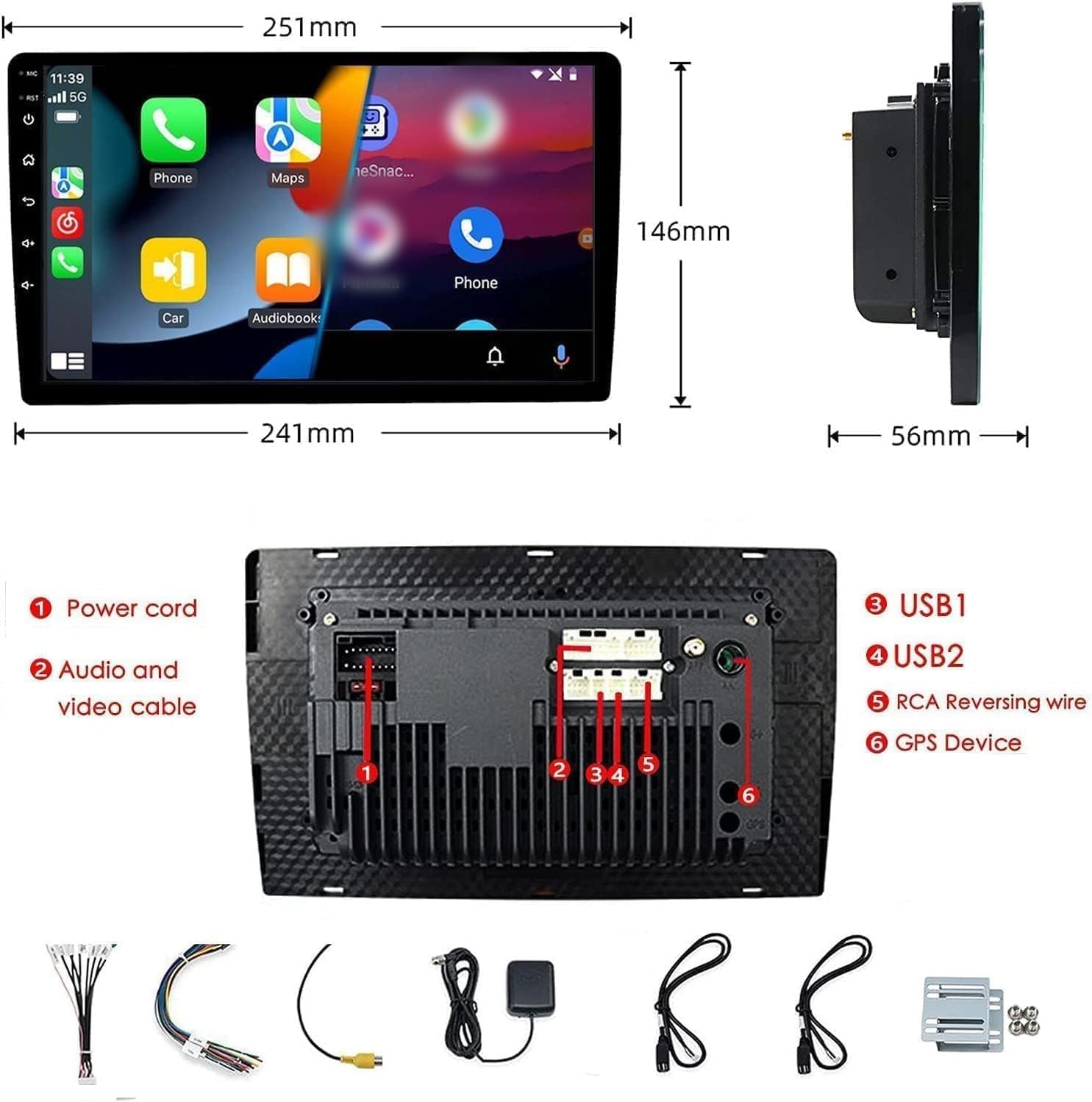
Figure 2: Unit dimensions and rear panel connection points.
Połączenia elektryczne:
Szczegółowe informacje na temat połączeń znajdują się na załączonym schemacie okablowania. Najważniejsze połączenia obejmują:
- Przewód zasilający: Podłącz do źródła zasilania pojazdu (stałe 12 V, dodatkowe 12 V, masa).
- Audio and Video Cable: Do zewnętrznych urządzeń audio/wideo.
- Porty USB (USB1, USB2): For media playback, phone charging, and wired CarPlay/Android Auto.
- RCA Reversing Wire: Connect to the backup camera trigger wire.
- GPS Device: Podłącz zewnętrzną antenę GPS, aby korzystać z funkcji nawigacji.
- Steering Wheel Control Wires (Key/SW): Do integracji ze sterowaniem na kierownicy pojazdu.
Aby zapobiec zwarciom, należy upewnić się, że wszystkie połączenia są solidne i właściwie zaizolowane.
Instrukcja obsługi
Włączanie/wyłączanie:
The unit will power on automatically when the vehicle's ignition is turned on. To manually power off or restart, use the power button on the front panel.
Obsługa ekranu dotykowego:
Navigate the interface by tapping, swiping, and pinching on the 10.1-inch capacitive touch screen, similar to a smartphone or tablet.
Radio FM:
Access the FM Radio application from the main menu. You can scan for stations, save presets, and adjust volume. The unit supports standard FM frequencies.

Rysunek 3: Interfejs radia FM.
Parowanie Bluetooth:
- Upewnij się, że Bluetooth jest włączony w Twoim telefonie komórkowym.
- Otwórz aplikację Bluetooth na samochodowym radiu.
- Szukaj available devices on your phone and select "BINIZE" or a similar device name.
- Jeśli zostaniesz o to poproszony, potwierdź kod parowania na obu urządzeniach.
- Po sparowaniu możesz wykonywać połączenia bez użycia rąk i przesyłać strumieniowo dźwięk.
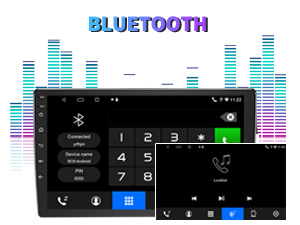
Figure 4: Bluetooth pairing screen.
Sterowanie z kierownicy:
To use your vehicle's steering wheel controls, manual learning is required. Access the Steering Wheel Control settings in the system menu and follow the on-screen instructions to map your vehicle's buttons to the stereo functions.
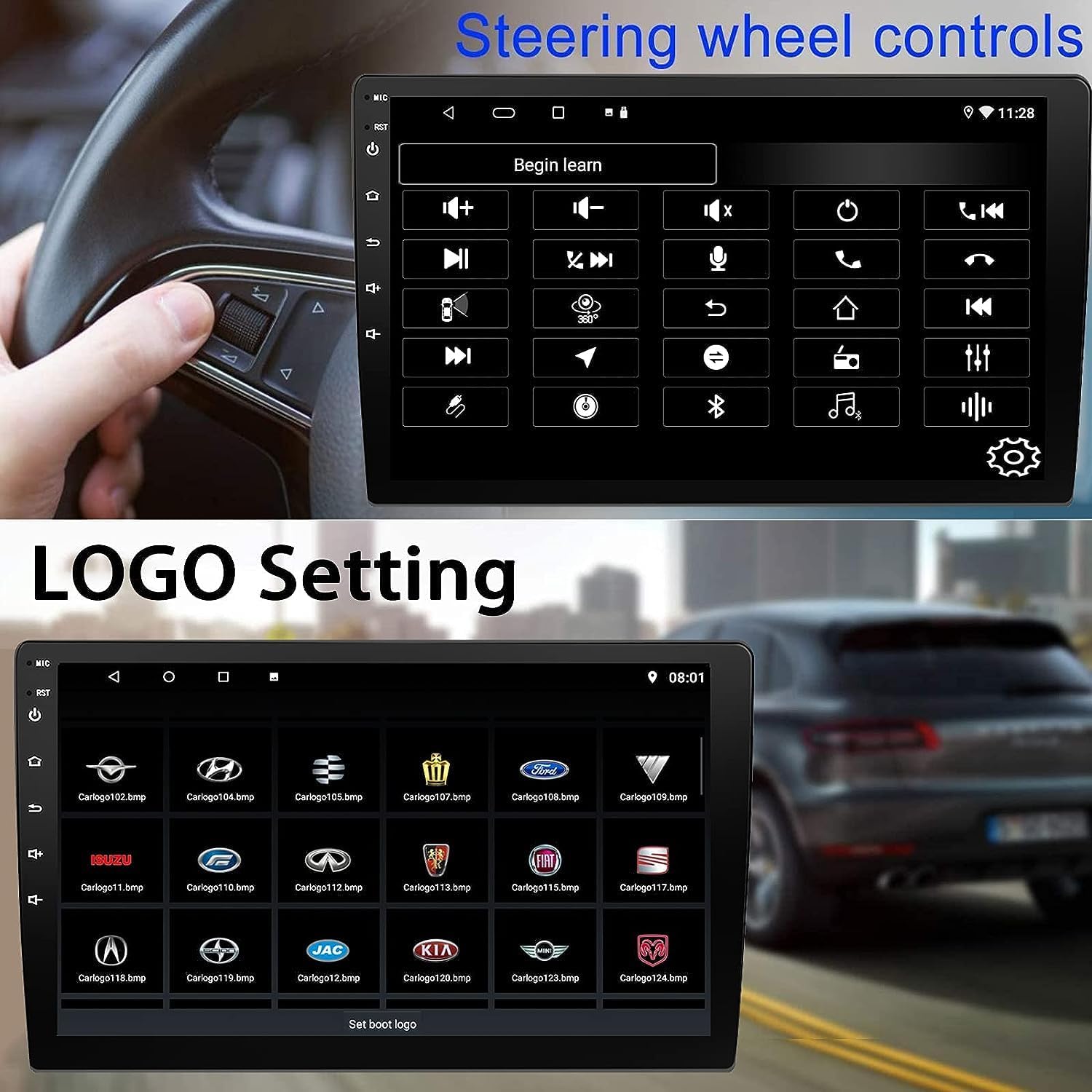
Rysunek 5: Ekran konfiguracji sterowania z kierownicy.
Connectivity: CarPlay, Android Auto, and MirrorLink
Bezprzewodowa funkcja CarPlay:
Connect your iPhone wirelessly to access CarPlay features such as navigation, music, messages, and calls directly on the stereo display. Ensure Wi-Fi and Bluetooth are enabled on your iPhone.
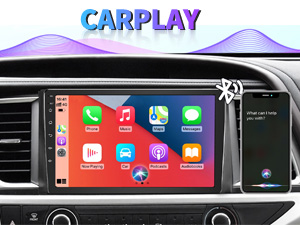
Rysunek 6: Interfejs CarPlay bezprzewodowy.
Bezprzewodowy Android Auto:
Connect your Android phone wirelessly to use Android Auto for navigation, communication, and entertainment apps. Ensure Wi-Fi and Bluetooth are enabled on your Android device.

Rysunek 7: Bezprzewodowy interfejs Android Auto.
MirrorLink:
MirrorLink allows you to display your smartphone's screen directly onto the car stereo. This feature works with both Android and iOS devices via a wired connection. Note that CarPlay/Android Auto and MirrorLink cannot be used simultaneously.

Figure 8: MirrorLink feature displaying a phone screen on the stereo.
Nawigacja
The car stereo features an integrated GPS receiver, supporting both online and offline navigation. Connect to Wi-Fi or a mobile hotspot to use online navigation apps. For offline navigation, you may need to download map data.

Rysunek 9: Wyświetlanie mapy nawigacji GPS.
Wejście kamery
Kamera cofania:
The unit supports backup camera input. When properly connected, the display will automatically switch to the rear view when the vehicle is put into reverse, providing parking assistance with guidelines.
Przód View Kamera:
The stereo also supports front view camera input, allowing for enhanced visibility when maneuvering in tight spaces.

Figure 10: Backup camera and front view wyświetlacze kamer.
Konserwacja
To ensure the longevity and optimal performance of your BINIZE car stereo, follow these maintenance guidelines:
- Czyszczenie ekranu: Delikatnie przetrzyj ekran dotykowy miękką, niepozostawiającą włókien ściereczką. W przypadku uporczywych plam delikatnie przetrzyj.ampPrzetrzyj ściereczkę wodą lub środkiem do czyszczenia ekranów. Unikaj silnych środków chemicznych i materiałów ściernych.
- Ogólne sprzątanie: Keep the unit and surrounding areas free from dust and debris. Use a soft brush or compressed air to clean vents and button areas.
- Aktualizacje oprogramowania: Periodically check for available software updates through the system settings to ensure you have the latest features and performance improvements.
- Unikaj ekstremalnych temperatur: Nie wystawiaj urządzenia na działanie ekstremalnie wysokich lub niskich temperatur przez dłuższy czas, ponieważ może to uszkodzić jego podzespoły elektroniczne.
Rozwiązywanie problemów
Jeśli masz problemy z radiem samochodowym, zapoznaj się z poniższymi typowymi problemami i ich rozwiązaniami:
| Problem | Możliwa przyczyna | Rozwiązanie |
|---|---|---|
| Urządzenie nie włącza się. | Nieprawidłowe okablowanie; Przepalony bezpiecznik; Problem z zasilaniem pojazdu. | Check power connections and vehicle fuses. Ensure constant 12V and accessory 12V are correctly wired. |
| Brak dźwięku. | Głośność jest zbyt niska; Wyciszenie włączone; Problem z okablowaniem głośników. | Zwiększ głośność. Sprawdź, czy wyciszenie jest aktywne. Sprawdź połączenia głośników. |
| CarPlay/Android Auto nie łączy się bezprzewodowo. | Bluetooth/Wi-Fi off on phone; Pairing issue; Software glitch. | Ensure phone's Bluetooth and Wi-Fi are on. Try re-pairing the device. Restart both phone and stereo. Some users reported needing to open phone's Bluetooth settings each time. |
| Screen too bright/dim at night. | Ustawienia wyświetlania nie są zoptymalizowane. | Adjust brightness settings in the display menu. Consider using a screen dimming app if available. |
| Kamera cofania nie jest wyświetlana. | Camera not connected; RCA reversing wire not connected or faulty. | Check camera and RCA reversing wire connections. Ensure the camera is powered. |
Specyfikacje
| Funkcja | Szczegół |
|---|---|
| Marka | BINIZE |
| Numer modelu | Binizować |
| System operacyjny | Android 13 |
| Rozmiar ekranu | 10.1 cali (widoczna przekątna 26 cm) |
| Rezolucja | 1024x600 |
| Edytor | Quad-core Coretex-A7, 1.3GHz |
| Pamięć (RAM) | 2 GB |
| Pamięć masowa (ROM) | 32 GB |
| Łączność | Bluetooth, Wi-Fi, USB, Auxiliary |
| Cechy specjalne | Wireless CarPlay, Wireless Android Auto, MirrorLink, GPS Navigation, Touchscreen, Built-In Bluetooth |
| Tryb wyjścia audio | Stereo (konfiguracja kanału dźwięku przestrzennego 2.0) |
| Waga przedmiotu | 2.94 funta |
| Kolor | Czarny |
Gwarancja i wsparcie
Informacje o gwarancji:
The BINIZE Double Din Car Stereo comes with a Roczna bezpłatna gwarancja od daty zakupu. Niniejsza gwarancja obejmuje wady produkcyjne i usterki powstałe w wyniku normalnego użytkowania. Prosimy zachować dowód zakupu na wypadek roszczeń gwarancyjnych.
Wsparcie techniczne:
For any technical assistance, questions, or issues not covered in this manual, please contact our professional technical support team. You can reach us via Amazon email for 24/7 online technical support. Our team is available to assist with system upgrades and parts replacement.
We are committed to providing enthusiastic customer service and ensuring your satisfaction with the BINIZE product.