
HUAWEI B818-263
Instrukcja obsługi routera LTE HUAWEI B818-263
Model: B818-263 | Brand: HUAWEI
1. Koniec produktuview
The HUAWEI B818-263 is an advanced LTE router designed to provide high-speed internet connectivity. It supports 4G+ networks, offering theoretical downlink speeds of up to 1.6 Gbps and uplink speeds of up to 150 Mbps. This device is equipped with 4x4 MIMO antenna technology and carrier aggregation for enhanced performance and stability.
The router features a sleek, minimalist design and provides multiple connectivity options, including wired Ethernet ports and dual-band Wi-Fi. It is an ideal solution for home and small office environments requiring reliable and fast wireless broadband.

Rycina 1: Przód view of the HUAWEI B818-263 LTE Router, showing the HUAWEI logo and indicator lights for Tel, Status, LAN, WiFi, and Mode.
2. Zawartość opakowania
Przed rozpoczęciem sprawdź, czy w przesyłce znajdują się wszystkie elementy:
- HUAWEI B818-263 router LTE
- Zasilacz
- Flat LAN Cable
- Skrócona instrukcja obsługi (drukowana)

Figure 2: The product packaging for the HUAWEI 4G Router 3 Prime (B818-263).
3. Przewodnik konfiguracji
3.1 Instalacja karty SIM
- Upewnij się, że router jest wyłączony.
- Locate the micro SIM card slot at the bottom of the router.
- Insert your micro SIM card into the slot with the gold contacts facing down and the notched corner oriented correctly, until it clicks into place.
3.2 Podłączanie routera
- Podłączenie zasilania: Connect the power adapter to the router's power port and then plug it into a wall outlet.
- Połączenia LAN: Use the provided LAN cable to connect your computer or other network devices to one of the two Gigabit RJ45 LAN ports on the rear of the router. One of these ports can also function as a WAN port for an external internet source.
- Połączenie USB: If desired, connect a USB storage device to the USB 2.0 port for network sharing.
- Anteny zewnętrzne (opcjonalnie): For improved signal reception, connect compatible external antennas to the two external antenna ports on the rear.
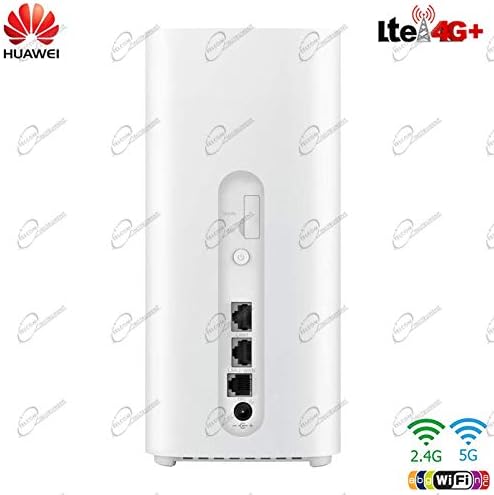
Rysunek 3: Tył view of the HUAWEI B818-263 LTE Router, highlighting the various ports and connections.
4. Instrukcja obsługi
4.1 Włączanie i kontrolki
After connecting the power, press the power button on the rear of the router. The indicator lights on the front panel will illuminate, providing status information:
- Moc: Wskazuje stan zasilania.
- Status: Wskazuje stan połączenia sieciowego.
- LAN: Wskazuje aktywność na portach LAN.
- Wi-Fi: Wskazuje status Wi-Fi.
- Tryb: Wskazuje aktualny tryb pracy lub siłę sygnału.
4.2 Dostęp do Web Interfejs zarządzania
Aby skonfigurować zaawansowane ustawienia, uzyskaj dostęp do routera web interfejs zarządzania:
- Podłącz komputer do routera za pomocą sieci Wi-Fi lub kabla Ethernet.
- Otwórz web browser and enter the router's default IP address (usually 192.168.8.1 or 192.168.1.1) into the address bar.
- Enter the default username and password (found on the label at the bottom of the router or in the Quick Start Guide) to log in.
- Follow the on-screen instructions to complete the initial setup, including changing the default Wi-Fi name and password.
4.3 Łączność sieciowa
- Wi-Fi: The router supports 802.11ac dual-band Wi-Fi. Connect your wireless devices using the Wi-Fi name (SSID) and password provided on the router's label or configured during setup.
- Ethernet: Use the LAN ports to connect wired devices such as desktop computers, smart TVs, or gaming consoles for stable, high-speed connections.
- Udostępnianie USB: Dostęp files on a connected USB storage device from any device on your network via the router's file funkcja udostępniania.
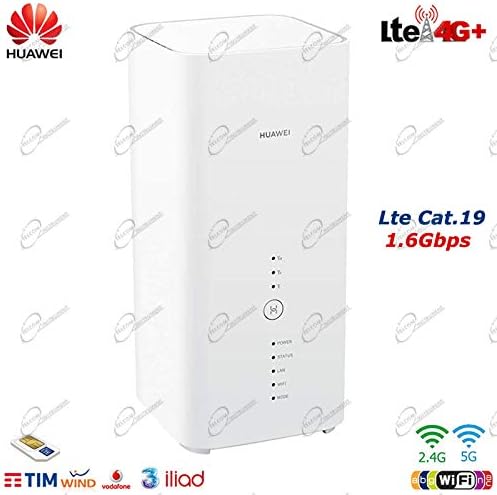
Rysunek 4: Kątowy view of the HUAWEI B818-263, highlighting its high-speed LTE capabilities.
5. Konserwacja
To ensure optimal performance and longevity of your HUAWEI B818-263 router, follow these maintenance guidelines:
- Czyszczenie: Regularly wipe the router with a soft, dry cloth. Avoid using liquid cleaners or aerosols.
- Wentylacja: Aby zapobiec przegrzaniu, należy umieścić router w dobrze wentylowanym pomieszczeniu, z dala od bezpośredniego światła słonecznego i źródeł ciepła.
- Aktualizacje oprogramowania układowego: Okresowo sprawdzaj router web management interface for available firmware updates. Keeping the firmware updated ensures the best performance, security, and compatibility.
- Ponowne uruchamianie: Jeśli wystąpią problemy z siecią, spróbuj ponownie uruchomić router, odłączając zasilacz na 10 sekund, a następnie podłączając go ponownie.
6. Rozwiązywanie Problemów
Jeśli masz problemy z routerem, zapoznaj się z poniższymi typowymi problemami i rozwiązaniami:
- Brak zasilania:
- Ensure the power adapter is securely connected to the router and a working power outlet.
- Check if the Power indicator light is on.
- Brak połączenia z internetem:
- Check the Status indicator light. If it's red or off, there might be an issue with the SIM card or network signal.
- Sprawdź, czy karta SIM jest prawidłowo włożona i aktywna.
- Sprawdź ustawienia APN w web interfejs zarządzania.
- Try moving the router to a location with better cellular signal.
- Niska prędkość Internetu:
- Check the Mode indicator light for signal strength. More bars indicate better signal.
- Zmniejsz liczbę podłączonych urządzeń lub działań wymagających dużej przepustowości.
- Upewnij się, że oprogramowanie sprzętowe routera jest aktualne.
- Jeśli siła sygnału jest stale niska, należy rozważyć użycie anten zewnętrznych.
- Nie można uzyskać dostępu Web Interfejs zarządzania:
- Upewnij się, że Twoje urządzenie jest podłączone do sieci routera (Wi-Fi lub Ethernet).
- Sprawdź, czy wpisujesz prawidłowy adres IP (np. 192.168.8.1).
- Spróbuj wyczyścić pamięć podręczną przeglądarki lub użyć innej przeglądarki.
If problems persist, consult the official HUAWEI support resources or contact your service provider.
7. Specyfikacje techniczne
| Funkcja | Specyfikacja |
|---|---|
| Marka | HUAWEI |
| Numer modelu | B818-263 (51060ELY) |
| Kolor | Biały |
| Technologia łączności | Ethernet, Wireless (LTE/4G+, Wi-Fi) |
| Standard komunikacji bezprzewodowej | 802.11 akrów |
| Frequency Class | Dwuzakresowy |
| Szybkość przesyłania danych (maks.) | 1.6 Gbps (Downlink), 150 Mbps (Uplink) |
| LTE Frequency Bands Supported | B1, B3, B7, B8, B20, B28, B32, B38, B42 |
| Technologia antenowa | 4x4 MIMO, Carrier Aggregation |
| Porty | 2x Gigabit RJ45 LAN (one WAN capable), 1x USB 2.0, 2x External Antenna ports, 1x Micro SIM slot |
| Zalecane zastosowanie | Dom |
8. Gwarancja i wsparcie
For warranty information, please refer to the warranty card included with your product or contact your point of purchase. HUAWEI provides customer support for its products. For technical assistance, troubleshooting beyond this manual, or service inquiries, please visit the official HUAWEI support webodwiedź witrynę lub skontaktuj się z infolinią obsługi klienta w swoim regionie.
Note: Availability of spare parts and software updates may vary. Please check with the manufacturer for the latest information.
Ask a question about this manual
Ask about setup, troubleshooting, compatibility, parts, safety, or missing instructions. Manuals+ will review the question and use this page’s manual context to help answer it.