
1. Koniec produktuview
The ProCase Keyboard Case is designed for Microsoft Surface Pro 7 Plus (2021), Surface Pro 7 (2019), Surface Pro 6 (2018), Surface Pro 5th Gen (2017), and Surface Pro 4 (2015) 12.3-Inch Tablets. This product combines a protective case with a functional, laptop-style detachable wireless keyboard, enhancing the usability of your tablet.
Key features include a magnetically detachable wireless keyboard, multiple adjustable viewing angles, and comprehensive protection for your device. The case also supports the Surface Pen's magnetic attachment feature and the tablet's auto Sleep/Wake function when the keyboard is not attached.

Image 1: ProCase Keyboard Case with a Microsoft Surface Pro tablet, showcasing the detachable keyboard and stand functionality.
2. Zawartość opakowania
Po otwarciu opakowania należy sprawdzić, czy znajdują się w nim wszystkie elementy:
- Klawiatura bezprzewodowa odłączana magnetycznie
- Tablet Case (with integrated stand)
- Kabel ładujący Micro-USB
- Instruction Manual / Thanks Card
Film 1: Rozpakowywanie i koniecview of the ProCase Keyboard Case components, including the keyboard, case, and charging cable.
3. Konfiguracja i instalacja
3.1 Installing the Tablet into the Case
- Align your Microsoft Surface Pro tablet with the hard shell case.
- Gently press the tablet into the case, ensuring all edges are securely fitted.
- Confirm that all ports, buttons, and the camera are accessible through the precise cutouts.

Image 2: Compatibility chart showing the ProCase Keyboard Case fits Surface Pro 7 Plus / 7 / 6 / 5 / 4 (12.3 inch) tablets.
3.2 Pairing the Wireless Keyboard
- Ensure the keyboard is charged (refer to Section 3.3 for charging instructions).
- Slide the power button on the keyboard to the 'ON' position. The blue status light will illuminate briefly and then turn off.
- Press the 'Connect' button on the keyboard. The blue Bluetooth indicator light will blink, indicating it is in pairing mode.
- On your Microsoft Surface Pro, navigate to Settings > Devices > Bluetooth & other devices. Ensure Bluetooth is turned 'On'.
- Select 'Bluetooth 3.0 Keyboard' from the list of available devices.
- If prompted, enter the displayed code on the keyboard and press 'Enter'.
- Once connected, the blue Bluetooth indicator light on the keyboard will turn off.
3.3 Ładowanie klawiatury
To charge the keyboard, connect the provided Micro-USB charging cable to the keyboard's charging port and a suitable USB power source. The Battery status light will be red while charging. Charge the keyboard for 1 to 3 hours, or until the Battery status light turns off, indicating a full charge.
4. Instrukcja obsługi
4.1 Korzystanie ze zintegrowanego stojaka
The case features three dents that allow you to prop up your tablet at different viewing angles in landscape mode. Adjust the tablet's position in the case to achieve your desired viewkąt.
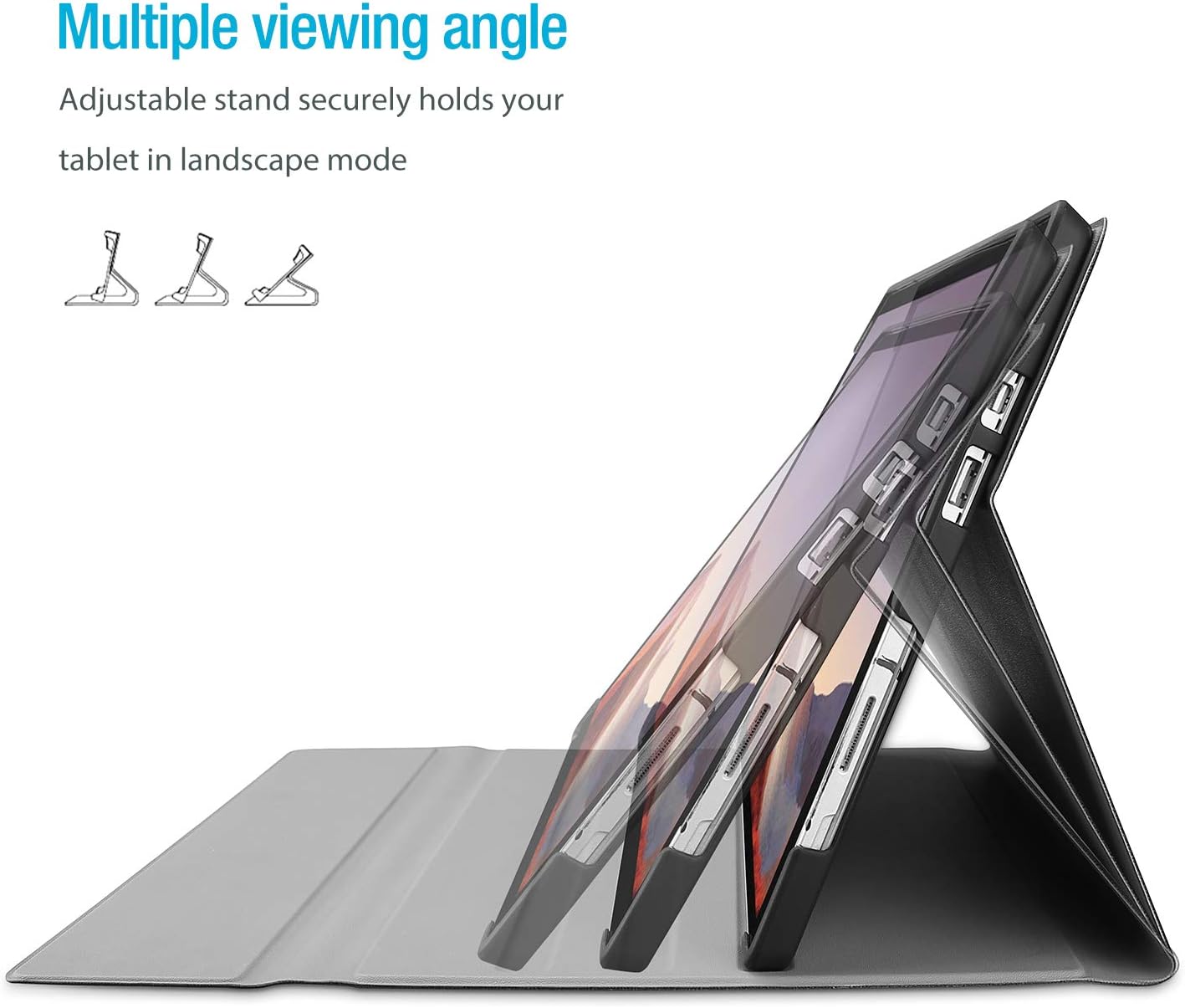
Image 3: The case's design allows for multiple viewkąty nachylenia, zapewniające elastyczność przy wykonywaniu różnych zadań.
4.2 Funkcjonalność odłączanej klawiatury
The wireless keyboard is magnetically detachable, allowing you to use the tablet independently or position the keyboard for optimal typing comfort. The laptop-style keys with a spring mechanism offer a tactile typing experience.
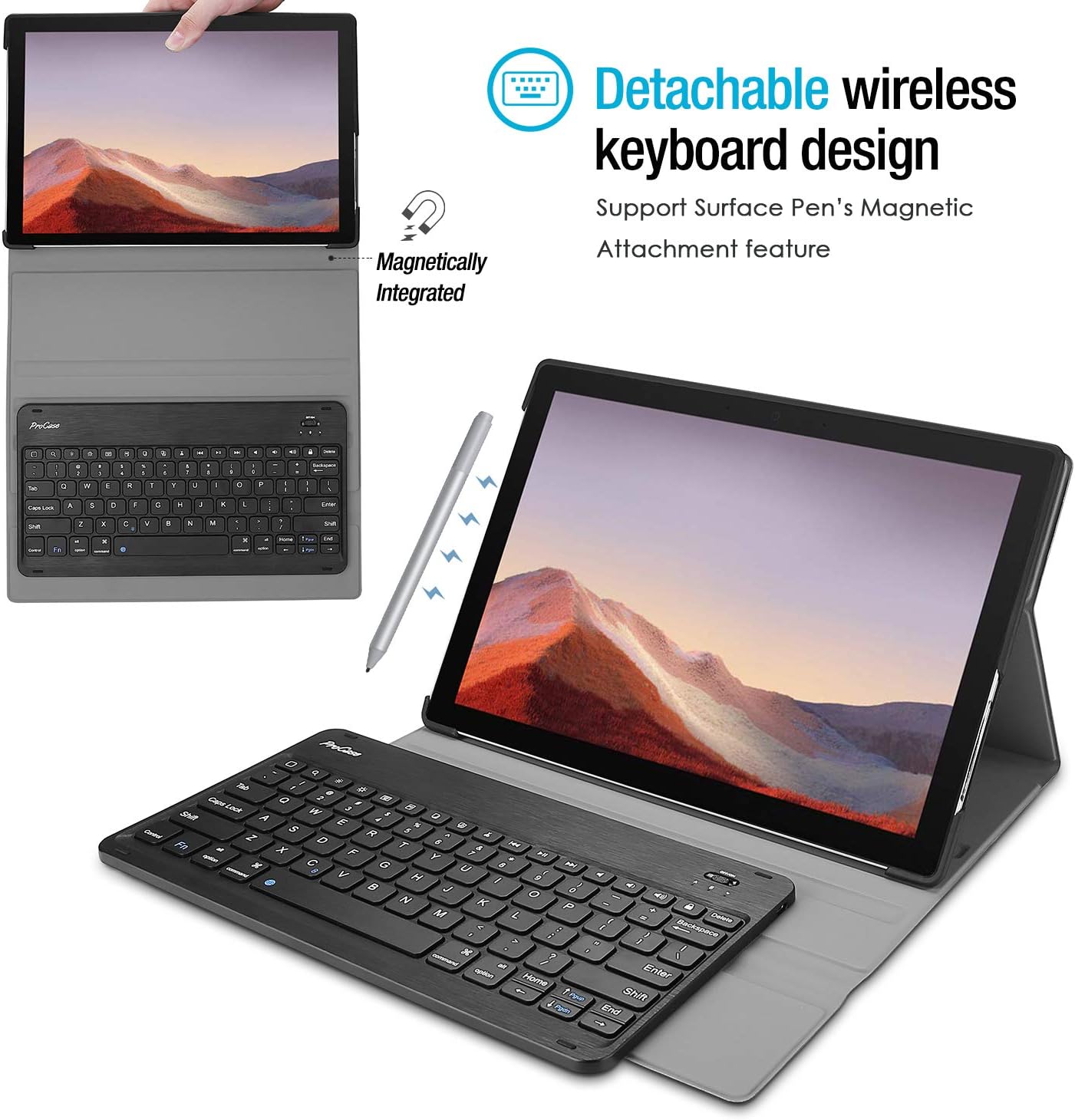
Image 4: The keyboard is magnetically integrated and supports the Surface Pen's magnetic attachment feature.
4.3 Funkcja automatycznego uśpienia/wybudzenia
The case supports the auto Sleep/Wake function of your tablet. This feature works only when the keyboard is not attached to the case. Closing the cover will put your tablet to sleep, and opening it will wake it up.
4.4 Changing Keyboard Language Settings
To change the input language of the keyboard on your tablet, navigate to Settings > General > Keyboard > Keyboards > Add New Keyboard. Select your desired language from the list. For iOS devices, you can typically switch between languages by pressing the 'Control' and 'Space' keys simultaneously.
5. Konserwacja i pielęgnacja
- Keep the keyboard and case away from sharp objects to prevent scratches or damage.
- Avoid placing heavy objects on the keyboard or case.
- Do not expose the product to microwave items.
- Do not force or distort the keyboard or the case.
- Keep the keyboard and case away from water, oil, chemical substances, or other organic liquids.
- If a key falls off, it can typically be reassembled by pressing it back into place until you hear a click.
- Clean the case and keyboard with a soft, dry cloth. Avoid abrasive cleaners.
6. Rozwiązywanie Problemów
6.1 Keyboard Not Connecting/Responding
- Sprawdź moc: Ensure the keyboard is turned 'ON' and has sufficient battery charge.
- Ponowna parowanie urządzenia: Go to your tablet's Bluetooth settings, forget the 'Bluetooth 3.0 Keyboard' device, and then repeat the pairing process (Section 3.2).
- Uruchom ponownie urządzenia: Uruchom ponownie tablet i klawiaturę.
- Ingerencja: Odsuń się od innych urządzeń bezprzewodowych, które mogą powodować zakłócenia.
6.2 Klawisze nie działają prawidłowo
- Check Language Settings: Ensure the correct keyboard language is selected on your tablet (Section 4.4). Incorrect settings can cause keys to produce unexpected characters.
- Wyczyść klawiaturę: Dust or debris under the keys can affect functionality. Gently clean around the affected keys.
- Naprawa: Try re-pairing the keyboard as described in Section 6.1.
7. Specyfikacje
| Marka | Przypadek Pro |
| Numer modelu | PC-08362125 |
| Kompatybilne urządzenia | Surface Pro 7 Plus (2021), Surface Pro 7 (2019), Surface Pro 6 (2018), Surface Pro 5th Gen (2017), Surface Pro 4 (2015) 12.3 inch Tablet |
| Technologia łączności | Bezprzewodowy |
| Opis klawiatury | Bezprzewodowy |
| Funkcja specjalna | Magnetyczny |
| Kolor | Czarny |
| Tworzywo | Akrylonitryl Butadienowo-styrenowy |
| Waga przedmiotu | 10 uncji |
| Wymiary produktu | 11.5 x 7.9 x 0.29 cala |
| Źródło zasilania | Akumulator do ponownego ładowania |
8. Gwarancja i wsparcie
8.1 Informacje o gwarancji
Warranty details for your ProCase Keyboard Case are typically included with the product packaging or can be found on the official ProCase webStrona. Zachowaj dowód zakupu na wypadek roszczeń gwarancyjnych.
8.2 Obsługa klienta
For technical assistance, troubleshooting, or any inquiries regarding your ProCase Keyboard Case, please contact ProCase customer support through their official webwitrynę lub dane kontaktowe podane w dokumentacji produktu.