
Wstęp
This manual provides essential information for setting up, operating, maintaining, and troubleshooting your Acer Aspire XC-886 desktop personal computer. Please read this manual thoroughly before using your new system to ensure proper operation and to maximize its lifespan.
Zawartość opakowania
Sprawdź, czy wszystkie wymienione poniżej elementy znajdują się w Twojej paczce. Jeśli brakuje któregokolwiek z nich lub jest on uszkodzony, skontaktuj się ze sprzedawcą.
- Acer Aspire XC-886 Desktop PC
- Klawiatura bezprzewodowa
- Mysz bezprzewodowa
- Przewód zasilający
- Dokumentacja (skrócona instrukcja obsługi, karta gwarancyjna)
- McAfee Internet Security (3-year physical card)
Organizować coś
Follow these steps to set up your Acer Aspire XC-886 desktop PC.
1. Connect Peripherals
- Podłącz monitor: Use an HDMI or D-Sub cable to connect your monitor to the corresponding port on the rear of the desktop. The system has two HDMI ports and one D-Sub port.
- Podłącz klawiaturę i mysz: Insert the wireless receiver for your keyboard and mouse into an available USB port. Both USB 2.0 and USB 3.1 Gen 1 ports are available on the front and rear of the system.
- Podłącz zasilanie: Plug the power cord into the power connector on the rear of the desktop, then plug the other end into a power outlet.
- Opcjonalne połączenia:
- Sieć: For a wired connection, connect an Ethernet cable to the LAN port on the rear. For wireless, the system supports 802.11ac Wi-Fi and Bluetooth.
- Audio: Podłącz głośniki lub słuchawki do gniazd audio z przodu lub z tyłu.
- Urządzenia USB: Connect other USB devices (e.g., external hard drives, printers) to the available USB ports. The front panel includes one USB 3.1 Gen 1 port and one USB Type-C port. The rear panel has two USB 3.1 Gen 1 ports and four USB 2.0 ports.

Rysunek 1: Przód view of the Acer Aspire XC-886 desktop PC, showing the optical drive, card reader, USB ports (including Type-C), and audio jacks.
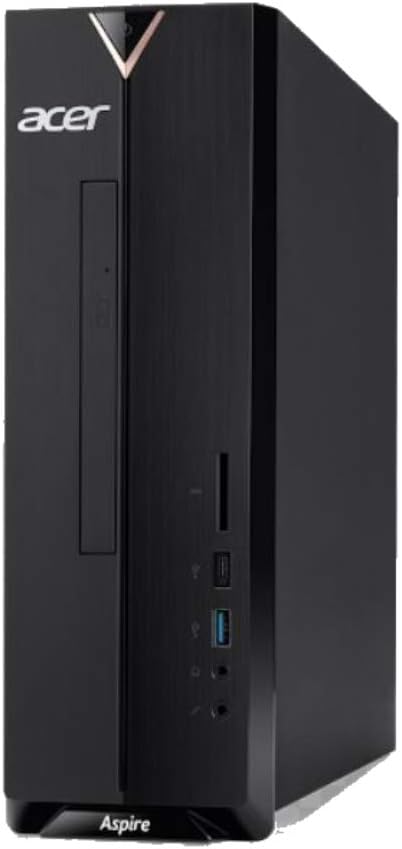
Rysunek 2: Prawa strona view of the Acer Aspire XC-886 desktop PC, illustrating the compact tower form factor and side panel design.
2. Włącz zasilanie
Press the power button located on the top front of the desktop to turn on the system. The power indicator light will illuminate.
3. Initial Operating System Setup
Po pierwszym uruchomieniu zostaniesz poprowadzony przez proces konfiguracji systemu Windows 10 Home. Postępuj zgodnie z instrukcjami wyświetlanymi na ekranie, aby skonfigurować język, region, ustawienia sieciowe i konto użytkownika.
Instrukcja obsługi
W tej sekcji opisano podstawowe operacje na komputerze stacjonarnym.
Włączanie/wyłączanie i ponowne uruchomienie
- Włączanie: Naciśnij przycisk zasilania na panelu przednim.
- Wyłączyć: Kliknij przycisk Start w systemie Windows, a następnie wybierz Zasilanie > Wyłącz.
- Zrestartować: Kliknij przycisk Start w systemie Windows, a następnie wybierz Zasilanie > Uruchom ponownie.
- Spać: Kliknij przycisk Start w systemie Windows, a następnie wybierz Zasilanie > Uśpienie.
Using the DVD Writer
The integrated DVD writer allows you to read and write CDs and DVDs. Press the eject button on the drive to open the tray, place your disc, and gently push the tray back in.
Łączenie się z Internetem
- Połączenie przewodowe: Connect an Ethernet cable from your router or modem to the LAN port on the rear of the desktop.
- Połączenie bezprzewodowe: Windows 10 will automatically detect available Wi-Fi networks. Click the network icon in the taskbar, select your desired network, and enter the password if prompted.
Using USB Ports and Card Reader
Connect USB devices such as flash drives, external hard drives, or printers to any available USB port. The integrated card reader on the front panel supports various memory card formats for easy data transfer.
Konserwacja
Proper maintenance helps ensure the longevity and optimal performance of your desktop PC.
- Utrzymuj czystość: Regularly clean the exterior of the desktop with a soft, dry cloth. Ensure ventilation openings are free from dust and obstructions to prevent overheating.
- Aktualizacje oprogramowania: Keep your Windows operating system and drivers updated. Windows Update can be accessed via Settings > Update & Security.
- Ochrona antywirusowa: Utilize the included McAfee Internet Security to protect your system from malware and viruses. Ensure its definitions are regularly updated.
- Kopia zapasowa danych: Regularnie twórz kopie zapasowe ważnych danych na dysku zewnętrznym lub w chmurze, aby zapobiec ich utracie.
- Warunki środowiskowe: Operate the desktop in a well-ventilated area, away from direct sunlight, heat sources, and excessive moisture.
Rozwiązywanie problemów
If you encounter issues with your desktop, try these basic troubleshooting steps.
- Brak zasilania:
- Ensure the power cord is securely connected to both the desktop and the power outlet.
- Sprawdź, czy gniazdko elektryczne działa prawidłowo, podłączając do niego inne urządzenie.
- Brak wyświetlacza:
- Check that the monitor is powered on and its video cable is securely connected to the desktop.
- Sprawdź, czy na monitorze wybrano właściwe źródło sygnału wejściowego.
- Klawiatura/mysz nie odpowiada:
- For wireless devices, check battery levels and ensure the wireless receiver is properly inserted into a USB port.
- Spróbuj podłączyć odbiornik do innego portu USB.
- Brak połączenia z internetem:
- W przypadku połączeń przewodowych sprawdź stan kabla Ethernet i routera/modemu.
- For wireless connections, ensure Wi-Fi is enabled in Windows and you are connected to the correct network with the correct password.
- Uruchom ponownie router/modem i komputer.
- Spowolnienie systemu:
- Zamknij niepotrzebne aplikacje.
- Uruchom pełne skanowanie systemu za pomocą oprogramowania antywirusowego.
- Sprawdź, czy są dostępne oczekujące aktualizacje systemu Windows i zainstaluj je.
If these steps do not resolve your issue, please refer to the Acer support webodwiedź witrynę lub skontaktuj się z obsługą klienta.
Specyfikacje
Detailed technical specifications for the Acer Aspire XC-886 desktop PC.
| Funkcja | Szczegół |
|---|---|
| Numer modelu | i594MR81TS73 |
| Edytor | 9th Gen Intel Core i5-9400 (up to 4.1GHz, 9MB cache) |
| System operacyjny | Windows 10 Home (64-bitowy) |
| BARAN | 8 GB pamięci RAM DDR4 |
| Składowanie | Dysk SSD PCIe NVMe o pojemności 1 TB |
| Grafika | NVIDIA GeForce GT 730, 2GB GDDR3 RAM |
| Napęd optyczny | Nagrywarka DVD |
| Łączność bezprzewodowa | Integrated AC Wireless LAN (802.11ac), Bluetooth |
| Front/Side I/O Ports |
|
| Porty wejścia/wyjścia z tyłu |
|
| Współczynnik kształtu | Wieża |
| Wymiary (pakiet) | Wymiary 49.8 x 40.8 x 17.4 cm |
| Waga (opakowanie) | 5.9 kilogramów |
| Tomtage | 220 wolty |
Gwarancja i wsparcie
Your Acer Aspire XC-886 desktop PC comes with a 1-year On-site Local Singapore WarrantyNiniejsza gwarancja obejmuje wady produkcyjne i awarie sprzętu powstałe w normalnych warunkach użytkowania.
For technical support, warranty claims, or service inquiries, please visit the official Acer support website or contact Acer customer service in Singapore. Keep your proof of purchase for warranty validation.
Wsparcie Acera Webstrona: https://www.acer.com/sg-en/support