
Wstęp
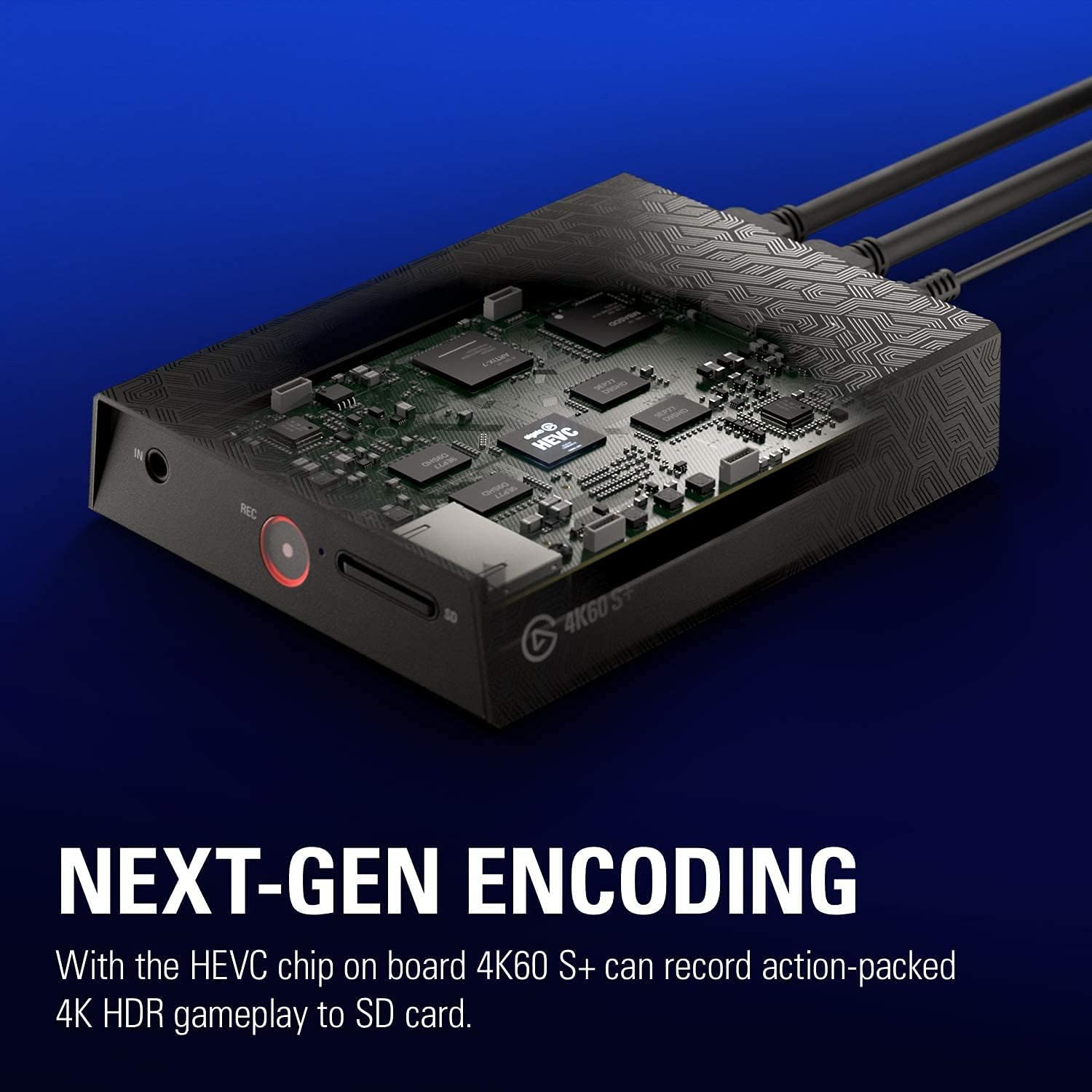
The Elgato 4K60 S+ is an external capture card designed for recording and streaming high-fidelity gameplay. It supports 4K60 HDR10 capture and features zero-lag passthrough, allowing you to play games in their original quality while recording. The device includes an SD card slot for standalone recording, eliminating the need for a PC during capture. It is compatible with popular broadcasting software like OBS Studio and Streamlabs OBS, and its onboard HEVC encoding minimizes CPU load and file sizes. Flashback Recording functionality allows for retroactive saving of gameplay.
Co jest w pudełku
Sprawdź, czy w opakowaniu znajdują się wszystkie komponenty:
- Elgato 4K60 S+ Capture Card
- Zasilacz
- 2x USB 3.0 Cables
- Kabel HDMI 2.0
- Szybki przewodnik
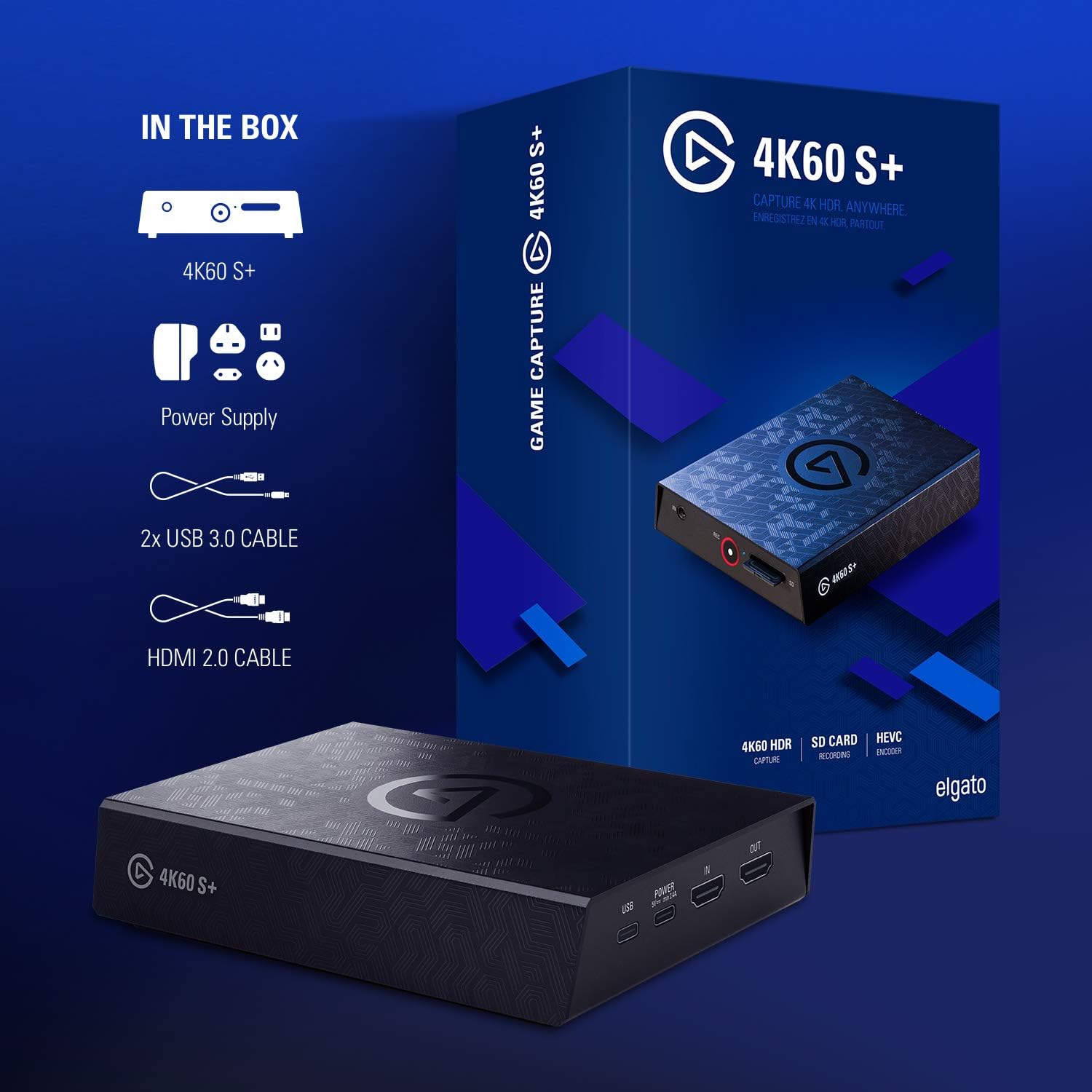
Produkt ponadview
The Elgato 4K60 S+ features a compact design with essential ports for connectivity and control.
Połączenia na tylnym panelu
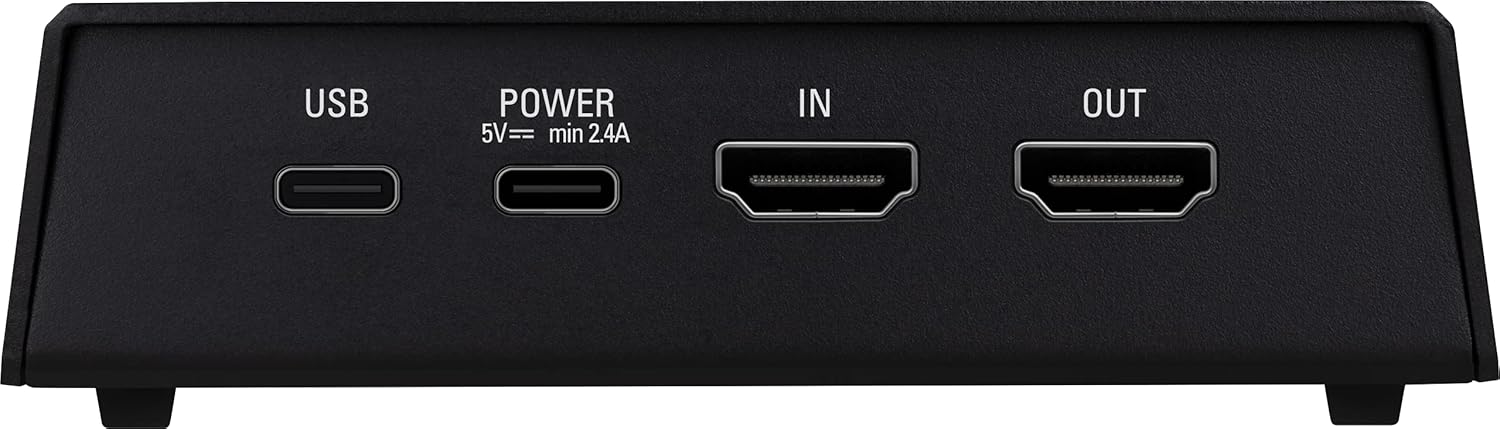
- USB: Connects to your PC for data transfer and software control.
- POWER (5V min 2.4A): Podłączany do dołączonego zasilacza.
- IN (HDMI): Connects to your game console or other video source.
- OUT (HDMI): Connects to your TV or monitor for zero-lag passthrough.
Elementy sterujące i połączenia na panelu przednim
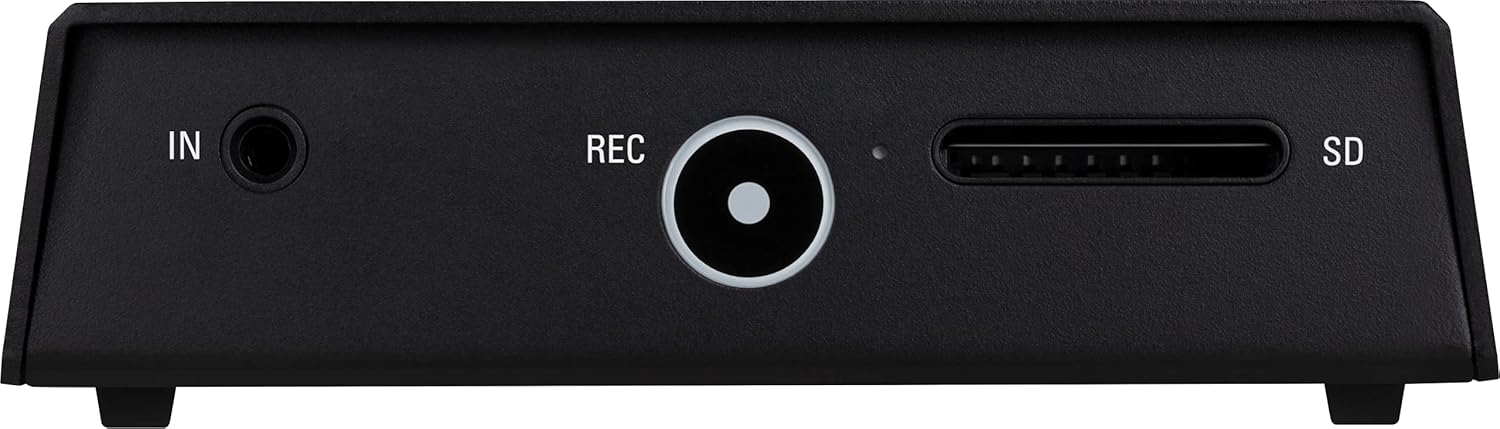
- IN (Audio): 3.5mm audio input for external audio sources.
- REC (Record Button): Initiates and stops standalone recording to the SD card.
- SD: SD card slot for standalone recording.
Organizować coś
Follow these steps to set up your Elgato 4K60 S+.
1. Connect to your Console and Display
- Connect your game console (e.g., PS5, PS4, Xbox Series X/S, Xbox One X/S) to the HDMI IN port on the Elgato 4K60 S+ using the provided HDMI 2.0 cable.
- Podłącz telewizor lub monitor do Wyjście HDMI port on the Elgato 4K60 S+ using another HDMI cable (not included). This provides zero-lag passthrough for your gameplay.
- Podłącz zasilanie do MOC port on the Elgato 4K60 S+ and plug it into a power outlet.

2. Connect to your PC (Optional for Standalone Recording)
If you plan to record or stream via a PC, follow these additional steps:
- Connect the Elgato 4K60 S+ to your PC using one of the provided USB 3.0 cables. Use a USB 3.0 port on your computer for optimal performance.
- Download and install the Elgato 4K Capture Utility software from the official Elgato website. This software is required for PC-based recording, streaming, and device configuration.
- For streaming, configure your preferred broadcasting software (e.g., OBS Studio, Streamlabs OBS) to recognize the Elgato 4K60 S+ as a video capture device.

3. SD Card Preparation for Standalone Recording
For standalone recording, an SD card (not included) is required. Ensure the SD card is formatted correctly and meets the recommended speed requirements for 4K recording.
- Insert a high-speed SD card (UHS-I / V30 or faster recommended) into the SD slot on the front of the device.
- The device will automatically create a configuration file on the SD card upon first insertion. This file can be edited via a PC to adjust recording settings such as bitrate and resolution.
Operating the Elgato 4K60 S+
PC-Based Recording and Streaming
- Ensure the Elgato 4K60 S+ is connected to your console, display, and PC as described in the Setup section.
- Launch the Elgato 4K Capture Utility software or your preferred broadcasting software (e.g., OBS Studio).
- Select the Elgato 4K60 S+ as your video input source.
- Configure your desired recording or streaming settings (resolution, frame rate, bitrate, audio sources).
- Initiate recording or streaming through the software interface.
Standalone Recording to SD Card
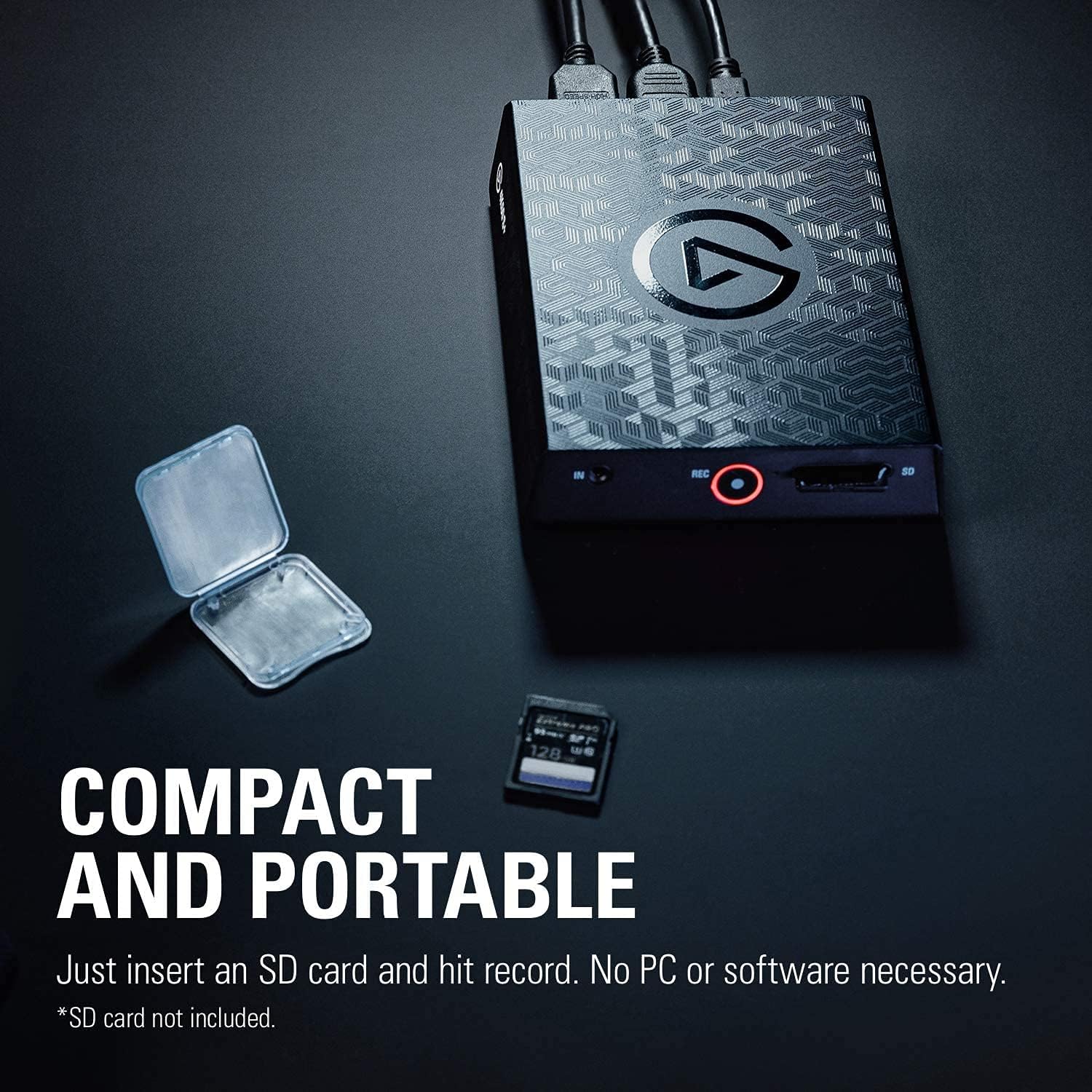
The 4K60 S+ allows recording directly to an SD card without a connected PC.
- Ensure the Elgato 4K60 S+ is connected to your console and display, and a compatible SD card is inserted.
- Naciśnij REK button on the front of the device to start recording. The LED indicator around the button will illuminate red.
- Naciśnij REK button again to stop recording. The LED indicator will turn off.
- Aby uzyskać dostęp do nagranych files, safely remove the SD card and insert it into a card reader connected to your PC.

Nagrywanie Flashback
Flashback Recording is a feature available when connected to a PC. It continuously buffers gameplay, allowing you to retroactively save moments you might have missed recording.
- With the Elgato 4K Capture Utility running, gameplay is continuously buffered.
- To save a past moment, simply drag the timeline in the software to the desired starting point and click the record button. The software will save the buffered segment.
4K HDR10 Capture and HEVC Encoding
The 4K60 S+ supports capturing in 4K resolution at 60 frames per second with HDR10. The integrated HEVC (H.265) encoder ensures efficient compression, resulting in smaller file sizes without compromising video quality, and reduces the load on your computer's CPU.

Konserwacja
Proper maintenance ensures the longevity and optimal performance of your Elgato 4K60 S+.
- Czyszczenie: Do czyszczenia zewnętrznej części urządzenia należy używać miękkiej, suchej ściereczki. Unikaj stosowania środków czyszczących o właściwościach ściernych i rozpuszczalników.
- Składowanie: Przechowywać urządzenie w chłodnym i suchym miejscu, z dala od bezpośredniego światła słonecznego i ekstremalnych temperatur.
- Aktualizacje oprogramowania układowego: Periodically check the official Elgato webStrona z aktualizacjami oprogramowania sprzętowego. Regularne aktualizowanie oprogramowania sprzętowego może poprawić wydajność i dodać nowe funkcje.
- Zarządzanie kablami: Ensure cables are not excessively bent or strained to prevent damage to the connectors and ports.
Rozwiązywanie problemów
This section addresses common issues you might encounter with the Elgato 4K60 S+.
Brak sygnału lub czarny ekran
- Sprawdź połączenia: Ensure all HDMI and power cables are securely connected.
- HDMI Cable Quality: Use high-quality HDMI 2.0 cables, especially for 4K HDR signals.
- HDCP: Verify that HDCP is disabled on your console settings if you are experiencing issues. Some consoles may require this for capture.
- Rozdzielczość/Częstotliwość odświeżania: Ensure your console's output resolution and refresh rate are supported by the 4K60 S+.
Recording Stuttering or Choppiness (Standalone)
- Szybkość karty SD: Use an SD card with sufficient write speed (UHS-I / V30 or faster is recommended for 4K recording). Lower speed cards can cause stuttering.
- Ustawienia szybkości transmisji: If you have modified the configuration file on the SD card, ensure the bitrate is not set excessively high for your SD card's capabilities.
- Oprogramowanie sprzętowe: Ensure your device firmware is up to date.
Recording Stuttering or Choppiness (PC-Based)
- Połączenie USB: Ensure the device is connected to a USB 3.0 port on your PC. Using a USB 2.0 port will limit bandwidth and can cause issues.
- PC Performance: Verify your PC meets the minimum system requirements for 4K capture and encoding. High CPU usage from other applications can affect performance.
- Ustawienia oprogramowania: Adjust bitrate and encoder settings in your capture software (e.g., OBS Studio) to match your PC's capabilities.
Device Enters Standby Mode Unexpectedly
- The device is designed to enter standby mode when inactive. To exit standby, press the capacitive record button on the device.
- If your console requires an active HDMI display connection for remote play, you may need to ensure the 4K60 S+ is active or bypass it with an HDMI coupler when not recording.
Problemy z dźwiękiem
- Wejście audio: If using the 3.5mm audio input, ensure the cable is fully inserted and the audio source is active.
- Ustawienia oprogramowania: Check audio input settings in your capture software to ensure the correct audio device is selected and levels are adjusted.
Specyfikacje
| Funkcja | Specyfikacja |
|---|---|
| Marka | Elgato |
| Numer modelu | 10GAP9901 |
| Szereg | 4K60 S+ |
| Interfejs sprzętowy | USB 3.0 |
| Rozdzielczość przechwytywania wideo | Do 4K (3840x2160) przy 60 kl./s |
| Obsługa HDR | HDR10 |
| Kodowanie | Format kompresji HEVC (H.265) |
| Przepustowość | Zero-lag 4K60 HDR10 |
| Składowanie | Gniazdo na kartę SD (karta SD nie jest dołączona) |
| System operacyjny | Okna |
| Waga przedmiotu | 12 uncji (około 340 g) |
| Wymiary produktu (dł. x szer. x wys.) | 5.59 x 4.37 x 1.26 cala (ok. 14.2 x 11.1 x 3.2 cm) |
Oficjalny film o produkcie
Watch this official video for a visual guide on the features and usage of the Elgato 4K60 S+.
Gwarancja i wsparcie
For detailed warranty information, please refer to the warranty card included with your product or visit the official Elgato website. Technical support and additional resources, including software downloads and FAQs, are available on the Elgato support pages.
Zasoby internetowe: Elgato Official Webstrona
Skontaktuj się z pomocą techniczną: Refer to the contact information provided on the official Elgato support page for assistance.


