
1. Wprowadzenie
This manual provides detailed instructions for the Amazon Basics Aluminum Type-C Docking Station. This device expands the connectivity of your USB-C enabled laptop or tablet, offering a wide range of ports for various peripherals and external displays. Please read this manual thoroughly before use to ensure proper operation and to maximize the product's functionality.
2. Funkcje produktu
- Konstrukcja wieloportowa 11 w 1: Integrates Mini DisplayPort, HDMI, VGA, 3 USB-A ports, Ethernet, SD/TF card reader, 3.5mm audio jack, and a Type-C charging port (PD 100W).
- Wyjście wideo o wysokiej rozdzielczości: Supports Ultra HD 4K output via Mini DisplayPort/HDMI and Full HD 1080P via VGA, allowing for mirroring or extending your display to HDTVs, monitors, or projectors. Note: 4K resolution is supported at 30Hz refresh rate.
- Szybki transfer danych: Three USB 3.0 A ports provide data transfer speeds up to 5Gbps, backward compatible with USB 2.0/1.0.
- Stabilne połączenie sieciowe: 1000Mbps RJ45 Ethernet port ensures a fast and reliable wired network connection.
- Universal Card Reader: Integrated SD and TF slots allow simultaneous reading of universal SD and Micro SD memory cards.
- Dostawa energii: Type-C charging port supports Power Delivery (PD) up to 100 watts for charging your host device.
- Łączność audio: Gniazdo audio 3.5 mm do podłączania słuchawek lub głośników.
- Trwała konstrukcja: Features an aluminum pedestal-style housing for enhanced durability and heat dissipation.
3. Zawartość opakowania
- Amazon Basics Aluminum Type-C Docking Station
- Instrukcja obsługi
4. Koniec produktuview i układ portu
Familiarize yourself with the various ports and their functions on your docking station.

Obraz: Zbliżenie view of the Amazon Basics Type-C Docking Station's ports, including Ethernet, Mini DisplayPort, HDMI, VGA, and USB-C.
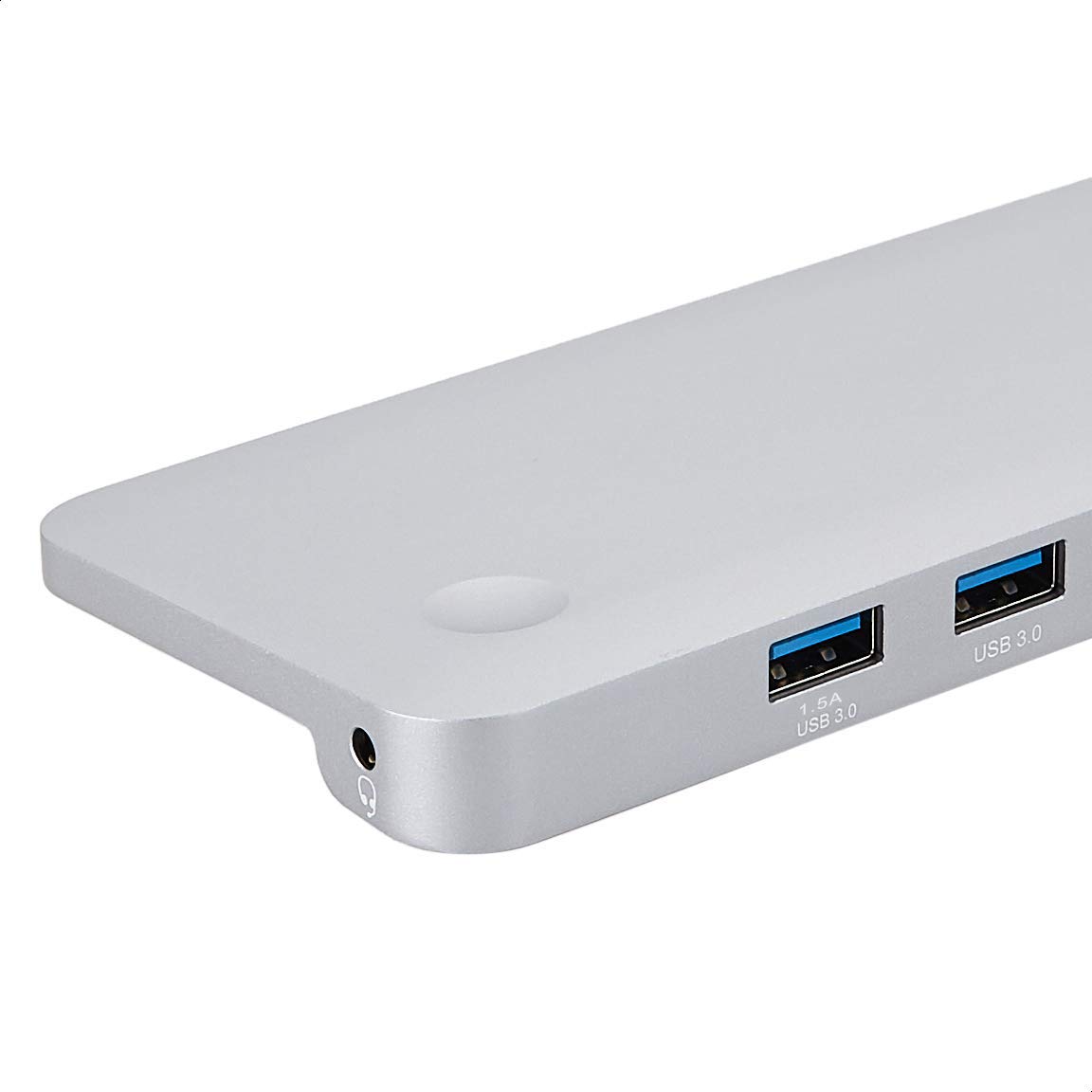
Obraz: Szczegółowy view of the USB 3.0 ports and 3.5mm audio jack on the Amazon Basics Type-C Docking Station.
- Złącze hosta USB-C: Connects to your laptop or tablet's USB-C port.
- Porty USB 3.0 (x3): For connecting USB devices such as external hard drives, keyboards, mice, or USB flash drives.
- Gniazdo karty SD: Do odczytu standardowych kart pamięci SD.
- TF Card Slot (Micro SD): For reading Micro SD memory cards.
- Port Ethernet RJ45: Do przewodowego połączenia sieciowego.
- MiniDisplayPort: Do podłączenia do zewnętrznego wyświetlacza.
- Port HDMI: Do podłączenia do zewnętrznego wyświetlacza.
- Port VGA: Do podłączenia do zewnętrznego wyświetlacza.
- Gniazdo audio 3.5 mm: Do podłączenia słuchawek lub głośników.
- Port ładowania USB-C PD: For connecting a USB-C power adapter to charge your host device and power the docking station.
5. Instrukcje konfiguracji
Aby skonfigurować stację dokującą, wykonaj następujące czynności:
- Połącz z urządzeniem hosta: Plug the integrated USB-C host connector cable from the docking station into an available USB-C port on your laptop or tablet. Ensure your host device's USB-C port supports DisplayPort Alt Mode (DP Alt Mode) for video output functionality.
- Podłącz zasilanie (opcjonalne, ale zalecane): If your host device requires charging or if you are connecting power-intensive peripherals, connect your USB-C power adapter (up to 100W) to the USB-C PD Charging Port on the docking station. This will charge your host device and provide stable power to the docking station and connected peripherals.
- Podłącz urządzenia peryferyjne: Connect your desired peripherals (e.g., external monitors, USB devices, Ethernet cable, SD/TF cards, audio devices) to the corresponding ports on the docking station.

Image: Amazon Basics Type-C Docking Station connected to a laptop, with multiple peripherals like a USB drive and external display cables plugged in.
6. Instrukcja obsługi
6.1. Wyjście wideo
- Connect your monitor or projector to the HDMI, Mini DisplayPort, or VGA port.
- Your operating system should automatically detect the external display. You may need to adjust display settings (e.g., extend, duplicate) in your computer's display preferences.
- The docking station supports 4K resolution at 30Hz refresh rate via HDMI and Mini DisplayPort. For optimal performance, ensure your display and cables support the desired resolution and refresh rate.
- Dual video display is supported, allowing you to mirror or expand your screen across multiple monitors.
6.2. Przesyłanie danych przez USB
- Plug your USB devices into the USB 3.0 ports.
- The ports support data transfer speeds up to 5Gbps.
6.3. Połączenie Ethernet
- Connect an Ethernet cable from your router or modem to the RJ45 Ethernet port on the docking station.
- Your computer should automatically establish a wired network connection.
6.4. Czytnik kart SD/TF
- Insert your SD or TF (Micro SD) card into the corresponding slot.
- The cards will appear as removable drives on your computer, allowing you to access and transfer files. Both slots can be used simultaneously.
6.5. Wyjście audio
- Connect your headphones or speakers to the 3.5mm audio jack.
- You may need to select the docking station as the default audio output device in your computer's sound settings.
6.6. Dostarczanie mocy (PD)
- Connect your laptop's USB-C power adapter to the USB-C PD Charging Port on the docking station.
- This port supports up to 100W power delivery to charge your host device while using the docking station.
7. Zgodność
This docking station is compatible with a wide range of USB-C enabled devices, including but not limited to:
- MacBook Pro 2018/2017/2016
- iPad Pro 2018
- Mac mini 2018
- MacBook Air
- iMac 2017
- Samsung Note9
- HUAWEI MateBook X
- Dell XPS 13
- ThinkPad
- Chromebook
Ważny: This product functions only with computers that support DisplayPort Alt Mode (DP Alt Mode) via their USB-C port. Please verify your computer's specifications for compatibility before use.
8. Rozwiązywanie Problemów
- Brak wyjścia wyświetlacza:
- Upewnij się, że port USB-C Twojego urządzenia obsługuje tryb DisplayPort Alt.
- Check all cable connections (USB-C to host, video cable to monitor).
- Verify the external monitor is powered on and set to the correct input source.
- Spróbuj ponownie uruchomić komputer.
- 4K Resolution Not Working at 60Hz:
- This docking station supports 4K resolution at a maximum refresh rate of 30Hz. If your monitor is set to 4K@60Hz, it will not display correctly. Adjust your display settings to 4K@30Hz or a lower resolution with a higher refresh rate if desired.
- Urządzenia USB nie są rozpoznawane lub są rozłączane:
- Ensure the docking station is receiving sufficient power. Connect a USB-C power adapter to the PD port if you are using multiple power-intensive USB devices.
- Try connecting the USB device directly to your computer to confirm it is functional.
- Reconnect the docking station to your computer.
- Brak połączenia sieciowego przez Ethernet:
- Sprawdź połączenie kabla Ethernet zarówno ze stacją dokującą, jak i z routerem/modemem.
- Verify your network settings on your computer.
- Sprawdź, czy router/modem działa prawidłowo.
- Brak wyjścia audio:
- Ensure your headphones or speakers are properly connected to the 3.5mm audio jack.
- Check your computer's sound settings and select the docking station as the default audio output device.
- Urządzenie hosta nie ładuje się:
- Ensure a compatible USB-C power adapter is connected to the docking station's USB-C PD Charging Port.
- Sprawdź, czy Twoje urządzenie hosta obsługuje technologię USB-C Power Delivery.
- Sprawdź, czy zasilacz i kabel nie są uszkodzone.
9. Specyfikacje
| Funkcja | Specyfikacja |
|---|---|
| Marka | Podstawy Amazon |
| Numer modelu | UTC-DOCK01-PRO |
| Kolor | Szary |
| Wymiary (dł. x szer. x wys.) | 28 x 7.5 x 1.4 centymetrów (11.02 x 2.95 x 0.55 cala) |
| Waga przedmiotu | 317 g (0.32 kilograma) |
| Łączna liczba portów | 11 |
| Porty USB | 3 x USB 3.0 typu A |
| Porty wyjściowe wideo | 1 x HDMI, 1 x Mini DisplayPort, 1 x VGA |
| Rozdzielczość HDMI | Do 4K@30Hz |
| Mini DisplayPort Resolution | Do 4K@30Hz |
| Port Ethernetowy | RJ45 Gigabit Ethernet (10/100/1000 Mb/s) |
| Czytnik kart | SD and TF (Micro SD) slots, simultaneous read |
| Port audio | Gniazdo audio 3.5mm |
| Port ładowania USB-C PD | Do 100 watów |
| Interfejs sprzętowy | Ethernet, HDMI, Mini DisplayPort, VGA, USB-A, USB-C, SD/TF, Audio |
10. Konserwacja
- Czyszczenie: Do czyszczenia stacji dokującej należy używać miękkiej, suchej ściereczki. Unikaj stosowania płynnych środków czyszczących i aerozoli.
- Składowanie: Przechowywać urządzenie w chłodnym i suchym miejscu, z dala od bezpośredniego światła słonecznego i ekstremalnych temperatur.
- Obsługiwanie: Unikaj upuszczania urządzenia i narażania go na silne uderzenia. Nie próbuj demontować ani modyfikować stacji dokującej.
11. Informacje dotyczące bezpieczeństwa
- Trzymaj urządzenie z dala od wody, ognia i środowisk o wysokiej wilgotności.
- Nie narażaj urządzenia na działanie ekstremalnych temperatur.
- Używaj wyłącznie kompatybilnych zasilaczy i kabli.
- Przechowywać w miejscu niedostępnym dla dzieci.
- Jeśli urządzenie jest uszkodzone lub działa nieprawidłowo, należy natychmiast zaprzestać jego używania i skontaktować się z działem obsługi klienta.
12. Gwarancja i wsparcie
This Amazon Basics product comes with a 1-roczna ograniczona gwarancja from the date of purchase. This warranty covers manufacturing defects and workmanship under normal use. It does not cover damage caused by misuse, accident, modification, or unauthorized repair.
For warranty claims, technical support, or further assistance, please contact Amazon Basics customer service through your Amazon purchase history or the official Amazon Basics support channels.