
TERIOS T-12
Instrukcja obsługi kontrolera gier mobilnych TERIOS
Modele: T-12
Wstęp
Welcome to your new TERIOS Mobile Game Controller. This manual provides detailed instructions for setup, operation, and maintenance to ensure optimal performance and an enhanced gaming experience across various platforms including Android smartphones, Windows PCs, and PlayStation 3 consoles. Please read this manual thoroughly before using the device.
Główne cechy
- Innovative Gaming: Designed to enrich your mobile gaming experience with precision and responsiveness.
- Szeroka kompatybilność: Connects via Bluetooth 4.0 to Android smartphones, and is compatible with Windows PC and PlayStation 3. Supports popular games like PUBG, Call of Duty, and Mobile Legends.
- Gaming Joysticks: Features dual analog sticks for comprehensive and precise control.
- Ergonomiczna konstrukcja: Comfortable grip with an integrated smartphone holder for extended gaming sessions.
- Funkcja turbo: Allows for rapid, continuous input with a single button press.
- Responsive Active Buttons: Includes 2 quick access buttons on the back and numerous action buttons for enhanced accuracy.
- Długa żywotność baterii: Do 12 godzin ciągłej gry na jednym ładowaniu.
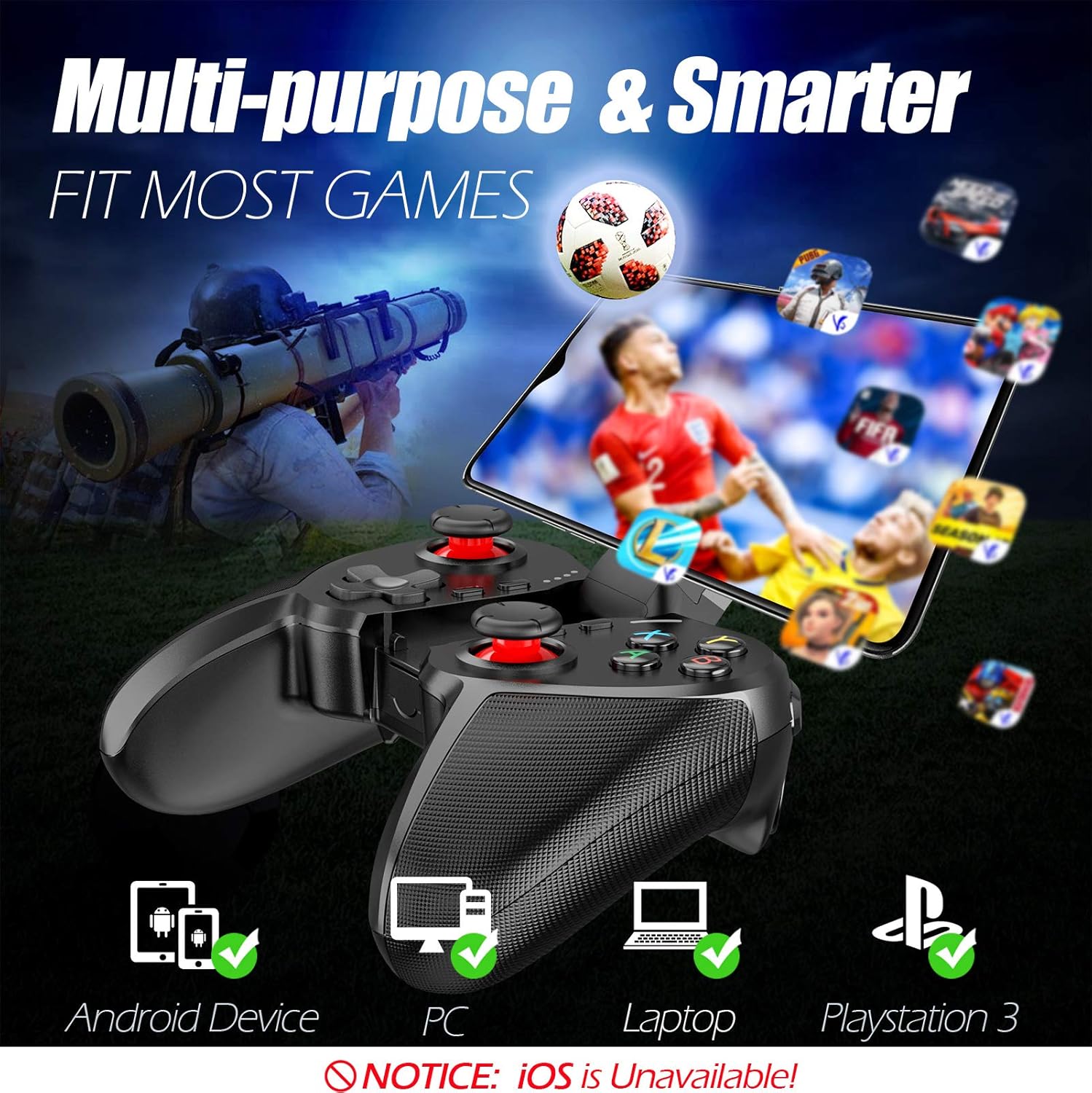
Figure 1: The TERIOS controller is compatible with Android devices, PCs, Laptops, and PlayStation 3.

Figure 2: Detail of the controller's built-in smartphone bracket, accurate buttons, and comfortable soft rubber grips.
Konfiguracja i połączenie
1. Ładowanie kontrolera
Before first use, fully charge the controller. Connect the provided Micro USB cable to the controller's charging port and the other end to a USB power source (e.g., computer USB port, USB wall adapter). The indicator lights will show charging status and turn off when fully charged.

Figure 3: The controller features a 400mAh battery, providing 12-14 hours of playtime with a 2-3 hour charging time.
2. Włączanie/wyłączanie zasilania
- Włączanie: Naciśnij i przytrzymaj DOM button for 2 seconds. The indicator lights will flash.
- Aby wyłączyć: Naciśnij i przytrzymaj DOM button for 5 seconds until the indicator lights turn off. The controller will automatically power off after 5 minutes of inactivity.
3. Bluetooth Pairing (Android Smartphones / PS3)
- Upewnij się, że kontroler jest wyłączony.
- On your Android smartphone or PS3, enable Bluetooth.
- Naciśnij i przytrzymaj DOM button on the controller until the indicator lights flash rapidly, indicating pairing mode.
- On your device, search for new Bluetooth devices. Select "TERIOS Gamepad" or similar from the list.
- Po nawiązaniu połączenia kontrolka zacznie świecić światłem ciągłym.
4. Połączenie z komputerem
For PC connection, the controller typically uses a USB dongle (often included). Insert the USB dongle into an available USB port on your PC. The controller should automatically connect. If not, press the DOM button to initiate connection.
5. Initial Setup and App (V3 App)
For optimal customization and compatibility with certain mobile games, it is recommended to download the V3 app from the Google Play Store. This app allows you to map virtual keys on your screen to the physical buttons of the controller.
- Download the "V3" app from the Google Play Store.
- Connect the TERIOS gamepad to your smartphone via Bluetooth.
- Open the V3 app and follow the on-screen instructions to customize key mappings for your desired games.

Figure 4: The V3 app allows for easy customization of virtual keys to match controller buttons, creating more combinations.
Instrukcja obsługi
1. Układ przycisków i funkcje

Figure 5: The TERIOS Mobile Game Controller with a smartphone securely mounted in its integrated holder.
- Lewy drążek analogowy: Podstawowa kontrola ruchu.
- Prawy drążek analogowy: Sterowanie kamerą lub ruch wtórny.
- D-Pad (pad kierunkowy): Precise directional input.
- Przyciski ABXY: Standardowe przyciski akcji (A, B, X, Y).
- L1/L2, R1/R2 Buttons: Shoulder and trigger buttons for various in-game actions.
- Przycisk WYBIERZ: Typically used for menu navigation or specific game functions.
- Przycisk Start: Używane zazwyczaj do wstrzymywania gry i uzyskiwania dostępu do menu.
- Przycisk DOMOWY: Powers on/off, enters pairing mode, and returns to home screen on some devices.
- Przycisk TURBO: Activates the turbo function for other buttons.
- Przycisk WYCZYŚĆ: Deactivates the turbo function.

Figure 6: The dual analog sticks are designed for precise control and execution in games.
2. Funkcja turbo
The Turbo function allows a button to be pressed repeatedly as long as you hold it down, which is useful for rapid-fire actions in games.
- Aktywować: Naciśnij i przytrzymaj TURBINA button, then press the desired action button (e.g., A, B, X, Y, L1, R1). Release both buttons. Now, holding down the action button will activate turbo fire.
- Aby dezaktywować: Naciśnij i przytrzymaj JASNE button, then press the action button for which turbo was activated. Release both buttons.

Figure 7: The dedicated Turbo button enables rapid-fire functionality with one click.
3. Smartphone Holder Usage
The integrated smartphone holder can accommodate most smartphone sizes. Gently extend the holder and place your smartphone securely within the clamps. Ensure the phone is centered for balance.
Konserwacja
- Czyszczenie: Do czyszczenia kontrolera należy używać miękkiej, suchej ściereczki. Nie należy używać środków czyszczących o właściwościach ściernych ani rozpuszczalników.
- Składowanie: Przechowuj kontroler w chłodnym, suchym miejscu, z dala od bezpośredniego światła słonecznego i ekstremalnych temperatur.
- Pielęgnacja baterii: Aby przedłużyć żywotność baterii, unikaj częstego całkowitego rozładowywania kontrolera. Ładuj go regularnie, nawet jeśli nie jest używany przez dłuższy czas.
Rozwiązywanie problemów
| Wydanie | Możliwa przyczyna | Rozwiązanie |
|---|---|---|
| Controller not connecting via Bluetooth. | Controller not in pairing mode; device Bluetooth off; interference. | Ensure controller is in pairing mode (rapid flashing lights). Check device Bluetooth settings. Move closer to the device. Try restarting both controller and device. |
| Przyciski nie reagują lub działają z opóźnieniem. | Low battery; software glitch; interference. | Charge the controller fully. Restart the controller. Ensure no other strong wireless signals are nearby. For mobile games, check V3 app settings. |
| Kontroler często się rozłącza. | Niski poziom naładowania baterii; zbyt duża odległość od urządzenia; zakłócenia. | Charge the controller. Stay within the recommended Bluetooth range. Minimize wireless interference. |
| Turbo function not working. | Incorrect activation sequence; button not supported. | Ensure you press and hold TURBO, then press the desired action button, then release both. Some games or buttons may not fully support turbo. |
Specyfikacja produktu
| Funkcja | Szczegół |
|---|---|
| Marka | TERIOSY |
| Model | T-12 |
| Technologia łączności | Bluetooth 4.0 |
| Kompatybilne urządzenia | Android Smartphones, Windows PC, PlayStation 3 |
| Źródło zasilania | Zasilany bateryjnie (litowo-polimerowo) |
| Pojemność baterii | 400mAh (approx. 1.48 Watt Hours) |
| Czas na zabawę | Do 12-14 godzin |
| Czas ładowania | 2-3 godzin |
| Liczba przycisków | 16 (including ABXY, D-pad, analog sticks, L/R triggers/bumpers, Select, Start, Home, Turbo, Clear) |
| Cechy specjalne | Turbo Function, Dual Analog Sticks, In-built Smartphone Holder, Responsive Action Buttons |
| Wymiary (pakiet) | Wymiary 17 x 12.4 x 7.7 cm |
| Waga (opakowanie) | 310 gramów |
Informacje o gwarancji i pomocy technicznej
The TERIOS Mobile Game Controller is designed for durability and performance. For any product-related inquiries, technical support, or warranty claims, please refer to the contact information provided with your purchase or visit the official TERIOS support webStrona. Zachowaj dowód zakupu w celach gwarancyjnych.