
Hohem iSteady Pro 3-Axis Handheld Gimbal Stabilizer User Manual
Model: iSteady Pro
Wstęp
The Hohem iSteady Pro is a 3-axis handheld gimbal stabilizer designed to capture smooth, professional-grade footage with your action camera. This device is compatible with various sports cameras, including DJI OSMO Action, GoPro Hero 7/6/5/4/3, YI, and SJCAM models. This manual provides detailed instructions for proper setup, operation, maintenance, and troubleshooting to ensure optimal performance and longevity of your gimbal.
1. Konfiguracja
1.1 Rozpakowywanie i komponenty
Ostrożnie wypakuj wszystkie elementy z pudełka. Upewnij się, że znajdują się w nim następujące elementy:
- Hohem iSteady Pro Gimbal
- Miniaturowy statyw
- Kabel ładujący USB
- Camera Charging Cables (various types)
- Etui transportowe
- Instrukcja obsługi (ten dokument)
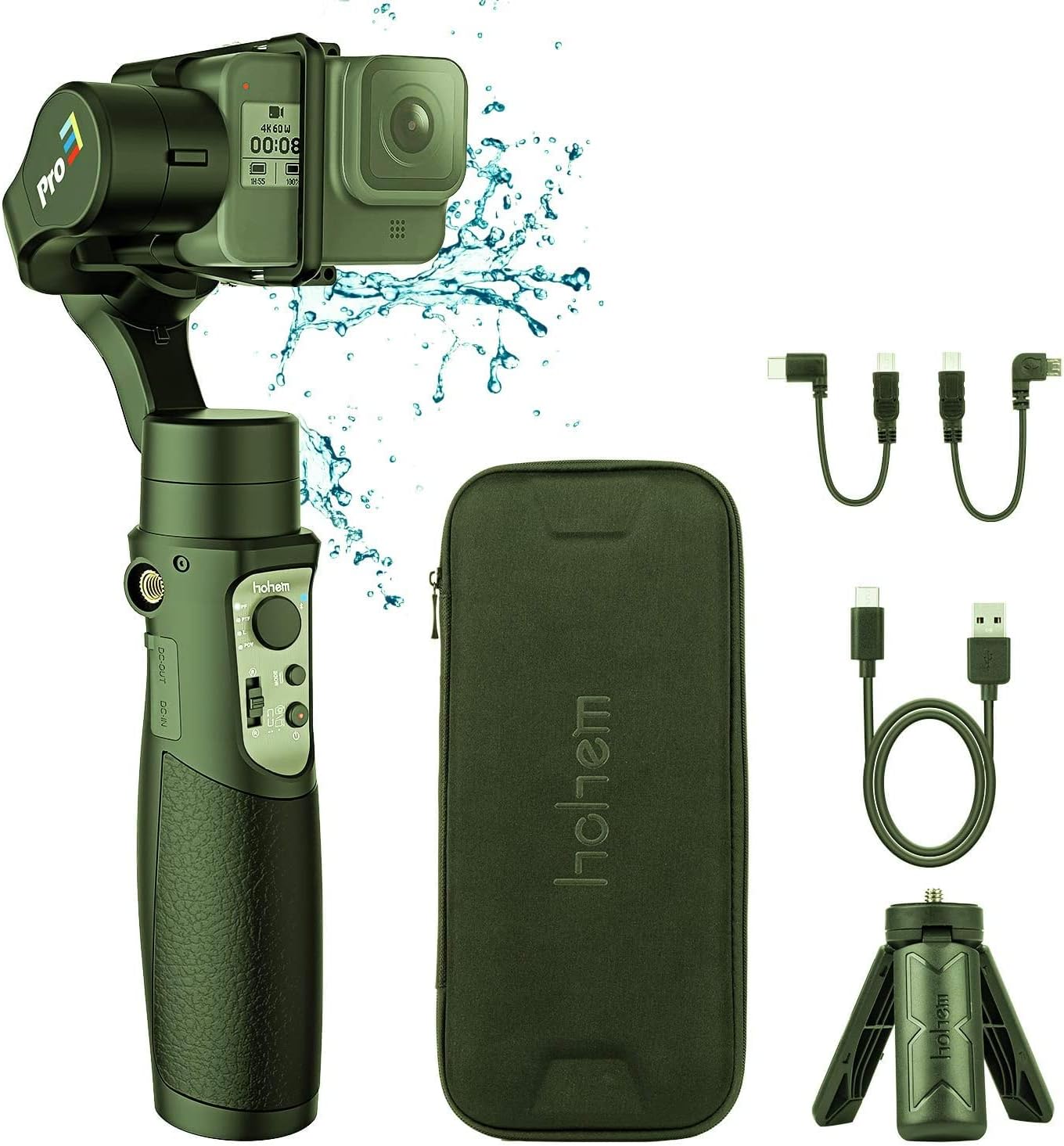
Image: Hohem iSteady Pro Gimbal, carrying case, mini tripod, and various charging cables.
1.2 Ładowanie gimbala
Before initial use, fully charge the gimbal. Connect the USB charging cable to the gimbal's DC-IN port and a 5V/2A power adapter (not included). The indicator light will show charging status and turn solid when fully charged.
Notatka:
- The gimbal can also act as a power bank to charge your action camera via the DC-OUT port.
1.3 Montaż kamery sportowej
Mount your action camera securely onto the gimbal. Ensure the camera is balanced to prevent motor strain and ensure optimal stabilization. Adjust the sliding arm until the camera remains level when the gimbal is powered off.
Ważny:
- Always balance the camera before powering on the gimbal.
- Some cameras, like the GoPro Hero 7 Black, may have limited access to buttons or ports depending on mounting orientation.
2. Instrukcja obsługi
2.1 Włączanie/wyłączanie zasilania
Naciśnij i przytrzymaj przycisk zasilania przez 3 sekundy, aby włączyć lub wyłączyć gimbal.
2.2 Tryby gimbala
The iSteady Pro features multiple operating modes for various shooting scenarios:
- Pan Following (PF) Mode: Kamera porusza się w lewo/prawo, dostosowując się do ruchów dłoni, a osie pochylenia i obrotu pozostają zablokowane.
- Pan & Tilt Following (PTF) Mode: Kamera porusza się w lewo/prawo i przechyla w górę/dół, dostosowując się do ruchów dłoni, a oś obrotu jest zablokowana.
- All Lock (AL) Mode: Wszystkie trzy osie (panoramowanie, pochylenie, obrót) są zablokowane, dzięki czemu kamera jest skierowana w określonym kierunku.
- All Following (AF) Mode: All three axes follow your hand movements.
- Tryb sportowy: Provides faster response and stronger motor torque for dynamic shots.
Switch between modes using the mode button on the handle.
2.3 Sterowanie joystickiem
Use the joystick to manually control the pan and tilt direction of the camera.
2.4 Połączenie Bluetooth
Connect the gimbal to your smartphone via Bluetooth to use the Hohem Gimbal App for advanced controls, parameter adjustments, and firmware updates. Refer to the app's instructions for detailed usage.
2.5 Kalibracja
If the gimbal is not level or drifts, perform a calibration. This can usually be done via the Hohem Gimbal App or by following a specific button sequence on the gimbal itself (refer to the quick start guide for specific button combinations).
3. Konserwacja
3.1 Czyszczenie
Wipe the gimbal with a soft, dry cloth. Avoid using harsh chemicals or abrasive materials. Ensure no dust or debris enters the motor joints.
3.2 Przechowywanie
Store the gimbal in its carrying case in a cool, dry place when not in use. Avoid extreme temperatures and direct sunlight. For long-term storage, ensure the battery is charged to approximately 50%.
3.3 aktualizacji oprogramowania sprzętowego
Regularly check for firmware updates via the Hohem Gimbal App to ensure optimal performance and access to new features. Follow the app's instructions carefully during the update process.
4. Rozwiązywanie Problemów
| Problem | Możliwa przyczyna | Rozwiązanie |
|---|---|---|
| Gimbal nie włącza się. | Niski poziom naładowania baterii. | Naładuj całkowicie gimbal. |
| Gimbal vibrates or makes noise. | Camera not balanced correctly. | Re-balance the camera on the gimbal. |
| Gimbal drifts or is not level. | Wymaga kalibracji. | Perform a gimbal calibration via the app or button sequence. |
| Problemy z połączeniem Bluetooth. | App or device issues. | Ensure Bluetooth is enabled on your phone. Restart the gimbal and phone. Reinstall the Hohem Gimbal App. |
5. Specyfikacje
- Model: iSteady Pro
- Osie: 3-Axis Stabilization
- Zgodność: DJI OSMO Action, GoPro Hero 7/6/5/4/3, YI, SJCAM Sports Cams
- Poziom wodoodporności: Wodoodporny
- Producent: wysoki
Note: Specific battery life and charging times may vary. Refer to product packaging or the official Hohem website for the most up-to-date specifications.
6. Gwarancja i wsparcie
The Hohem iSteady Pro comes with a limited warranty. For detailed warranty terms and conditions, please refer to the warranty card included with your product or visit the official Hohem website. For technical support, troubleshooting assistance, or service inquiries, please contact Hohem customer service through their official channels.
Official Hohem Webstrona: www.hohem.com