
1. Wprowadzenie
The Hohem iSteady X is a lightweight, foldable 3-axis smartphone gimbal stabilizer designed to capture smooth and stable video footage with your mobile device. This manual provides detailed instructions for setup, operation, maintenance, and troubleshooting to ensure optimal performance.
2. Co znajduje się w pudełku
Upon unboxing your Hohem iSteady X, verify that all components are present:
- Hohem iSteady X Gimbal Stabilizer
- Miniaturowy statyw
- Kabel ładujący (USB-C)
- Pasek na nadgarstek
- Torebka do przechowywania
- Szybki przewodnik
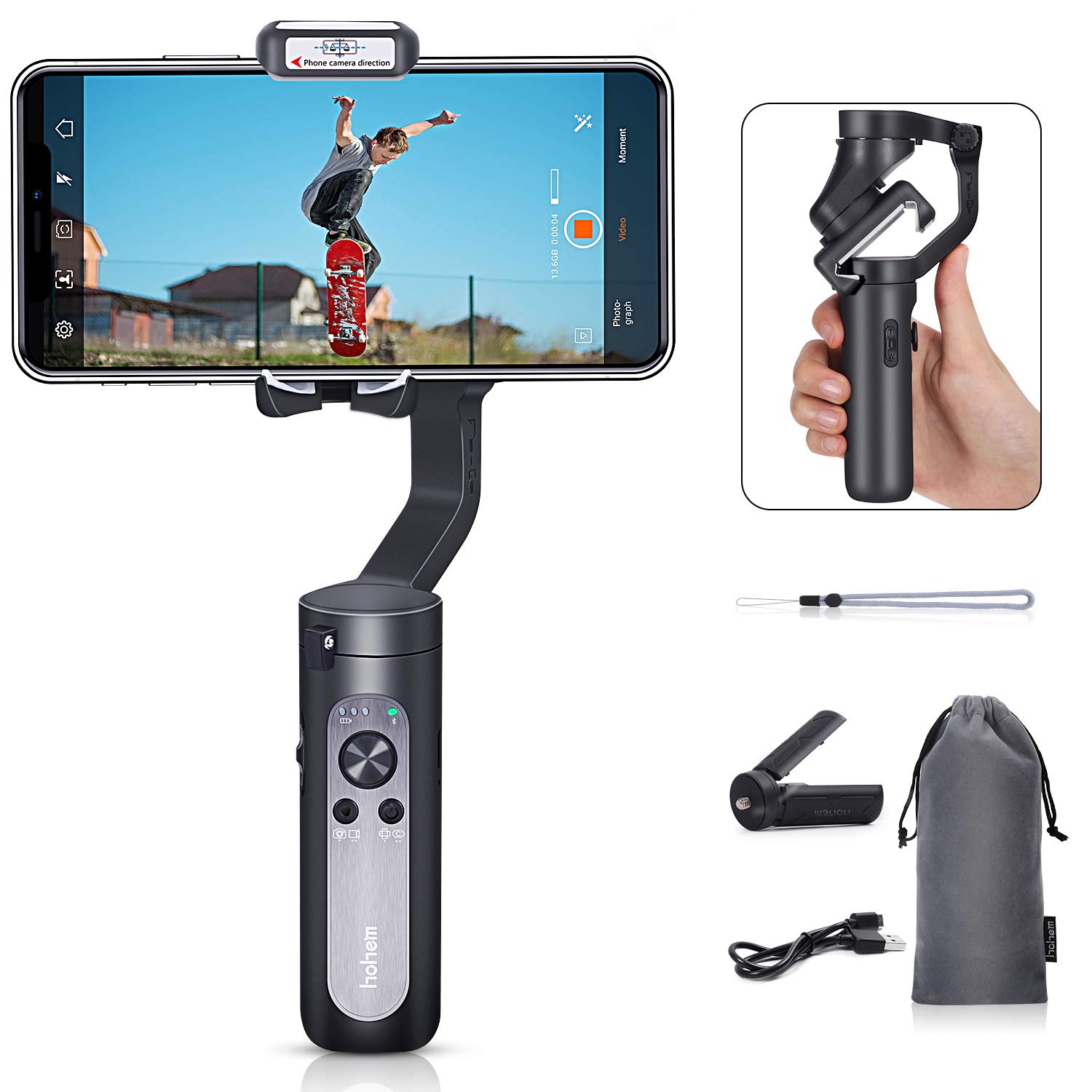
Figure 2.1: Contents of the Hohem iSteady X package, including the gimbal, mini tripod, charging cable, wrist strap, and storage pouch.
3. Konfiguracja
3.1 Rozkładanie gimbala
The iSteady X is designed to be compact when folded. To unfold, gently extend the gimbal arm until it locks into its operational position. Ensure all motor buckles are unlocked before powering on.

Figure 3.1: Visual guide for unfolding the gimbal, securing the smartphone, and unlocking the motor axes.
3.2 Montaż i wyważanie smartfona
- Ensure your smartphone is removed from its case for proper balancing.
- Place your smartphone securely in the phone clamp.
- Dostosuj położenie telefonu w klamp to achieve a balanced state. The phone should remain level when the gimbal is powered off.
3.3 Pobieranie i aktywacja aplikacji
Before first use, the iSteady X requires activation via the Hohem Pro app. Download the app from your smartphone's app store (iOS App Store or Google Play Store).
- Włącz Bluetooth w swoim smartfonie.
- Launch the Hohem Pro app.
- The app will detect the iSteady X. Tap 'Connect' and then 'Pair' when prompted for Bluetooth pairing.
- Follow the on-screen instructions to complete the activation process. Do not turn off the phone or gimbal during activation.
4. Instrukcja obsługi
4.1 Podstawowe sterowanie
Gimbal posiada intuicyjne sterowanie na uchwycie:
- Przycisk zasilania: Long press to power on/off. Single press to switch between photo/video mode. Double press to switch between horizontal/vertical shooting.
- Drążek sterowy: Kontroluje ruchy panoramiczne i pochylane.
- Suwak powiększenia (T/W): Controls digital zoom within the Hohem Pro app.
- Przycisk spustowy: Press and hold to enter All Lock mode. Double press to recenter the gimbal. Triple press to enter Inception mode.
4.2 Tryby fotografowania
The Hohem Pro app offers various shooting modes to enhance your video creation:
- Standard Follow Mode (Tilt/Pan Follow): The camera follows your hand movements on both tilt and pan axes, maintaining a steady horizon.
- Tryb panoramowania: The camera only follows your pan (horizontal) movements.
- All Lock Mode: The camera remains fixed in its current orientation, ignoring all movements.
- POV (punkt widzenia) View) Tryb: The camera follows all three axes (pan, tilt, roll) for dynamic first-person perspective shots.
- Horizontal & Vertical Switch: Easily switch between landscape and portrait orientations for different platforms.

Figure 4.1: The gimbal supports smart switching between horizontal and vertical shooting modes.
- Śledzenia twarzy: The gimbal automatically tracks a detected face, keeping it centered in the frame.

Figure 4.2: The Hohem Pro app enables smart face-tracking for hands-free recording.
- Upływ czasu w ruchu: Capture time-lapse videos with dynamic camera movement.

Figure 4.3: The Motion Timelapse feature allows for creative time-lapse videos with programmed movements.
- Auto Low-Angle Shots: The gimbal can automatically adjust to capture stable low-angle footage.

Figure 4.4: The gimbal facilitates smooth auto low-angle shots.
- Auto Inception Mode (270° Roll): Create cinematic spinning shots with a 270-degree roll.

Figure 4.5: Auto Inception Mode allows for dynamic 270-degree rotating video effects.
- Tryb selfie sticka: The gimbal can be used as an extended selfie stick for wider shots.

Figure 4.6: The gimbal can be quickly switched to selfie stick mode for convenient self-portraits or group shots.
5. Konserwacja
- Utrzymuj gimbal w czystości, bez kurzu i zanieczyszczeń. Do czyszczenia używaj miękkiej, suchej ściereczki.
- Unikaj wystawiania gimbala na działanie ekstremalnych temperatur i wilgoci.
- Store the gimbal in its provided pouch when not in use to prevent damage.
- Aby zachować sprawność akumulatora, należy go regularnie ładować, nawet jeśli nie używasz go często.
6. Rozwiązywanie Problemów
- Gimbal się nie włącza: Ensure the battery is charged. Connect to the charging cable and try again.
- Brak równowagi gimbala: Remove the smartphone case. Re-center the smartphone in the clamp.
- Problemy z połączeniem Bluetooth: Ensure Bluetooth is enabled on your phone. Restart the Hohem Pro app and try connecting again. If issues persist, restart both the phone and the gimbal.
- Niestabilny footage: Ensure the smartphone is properly balanced. Check for any obstructions to the gimbal's movement.
7. Specyfikacje
| Funkcja | Specyfikacja |
|---|---|
| Wymiary produktu | 7.04 x 3.11 x 1.53 inches (folded: 179mm x 79mm x 39mm) |
| Waga przedmiotu | 8 uncji (227 grama) |
| Baterie | Wymagane 2 baterie litowo-jonowe (w zestawie) |
| Kompatybilne urządzenia | Telefon komórkowy |
| Kolor | Czarny |
| ASIN | B07R2J372X |
| UPC | 749390448534 |
8. Gwarancja i wsparcie
For warranty information and customer support, please refer to the official Hohem webOdwiedź stronę internetową lub skontaktuj się bezpośrednio z działem obsługi klienta. Zachowaj paragon jako dowód zakupu.


