1. Wprowadzenie
This manual provides essential information for setting up, operating, maintaining, and troubleshooting your HP Elite E7500 Desktop Computer. This renewed system is designed for reliable performance in various environments, from business to home and educational use. Please read this manual thoroughly to ensure proper use and longevity of your computer system.
2. Co znajduje się w pudełku
Po rozpakowaniu należy sprawdzić, czy w opakowaniu znajdują się wszystkie poniższe elementy:
- HP Elite E7500 Desktop Tower
- Klawiatura
- Mysz
- Adapter WiFi
- Kabel zasilający
- Monitor Cables (VGA/DVI/DisplayPort/HDMI, as applicable for your specific monitors)
- Dual 19-inch LCD Monitors (Brands Vary)
3. Przewodnik konfiguracji
3.1. Podłączanie monitorów
- Place your monitors on a stable surface.
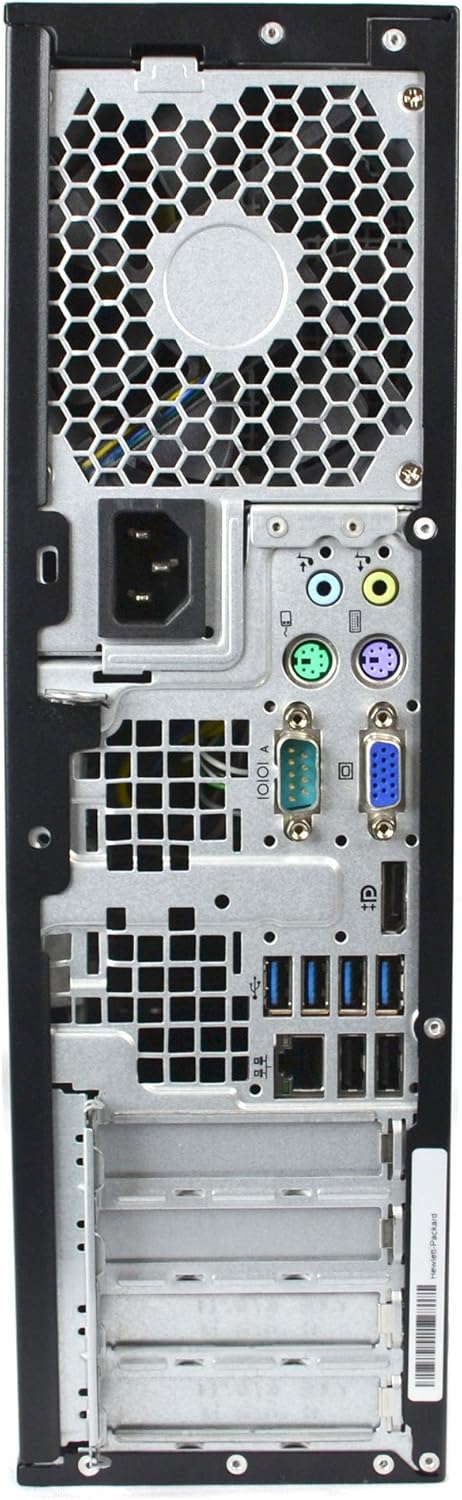
- Connect the video cables from the monitors to the corresponding video output ports on the back of the HP Elite desktop tower. Your system may have VGA, DVI, DisplayPort, or HDMI ports. Ensure a secure connection.
- Connect the power cables from the monitors to a power outlet.

Rysunek 3.1: Tył view of the HP Elite E7500 desktop tower, highlighting the various connectivity ports including video outputs, USB ports, and audio jacks.
3.2. Podłączanie urządzeń peryferyjnych
- Klawiatura: Connect the keyboard's USB cable to any available USB port on the desktop tower.
- Mysz: Connect the mouse's USB cable to any available USB port on the desktop tower.
- Karta WiFi: Insert the provided USB WiFi adapter into an available USB port. Drivers for the adapter should install automatically with Windows 10.
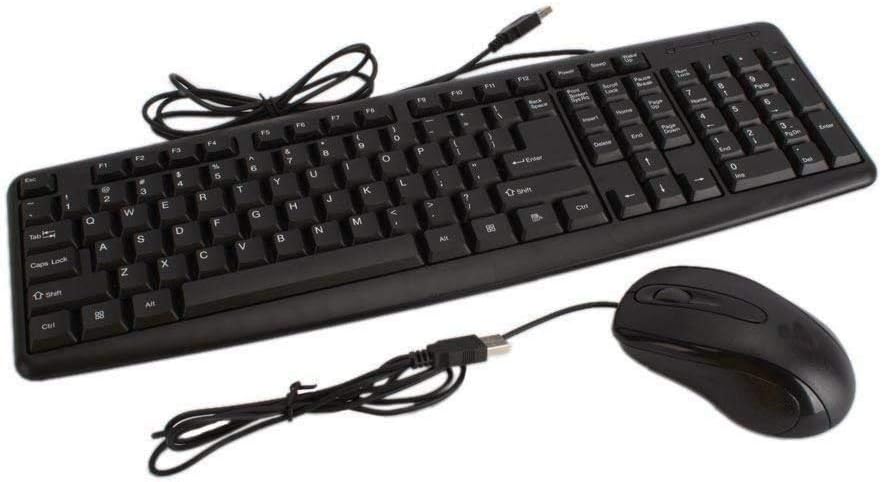
Figure 3.2: Wired keyboard and mouse, typically connected via USB ports on the desktop.

Figure 3.3: A typical USB WiFi adapter, used for wireless internet connection.
3.3. Włączanie
- Connect the desktop tower's power cable to the power input on the back of the tower, then plug it into a power outlet.
- Press the power button on the front of the desktop tower.
- Press the power button on each monitor.
- The system will boot into Windows 10. Follow any on-screen prompts for initial setup.
Rycina 3.4: Przód view of the HP Elite E7500 desktop tower, showing the power button and front USB/audio ports.
4. Operating System (Windows 10)
Your HP Elite E7500 Desktop Computer comes with a fresh installation of Windows 10 Home. Here are some basic operating instructions:
- Pierwszy rozruch: The system may guide you through a brief setup process to personalize your Windows experience, including setting up a user account and connecting to a network.
- Połączenie internetowe: If using the WiFi adapter, click the network icon in the system tray (bottom right of the screen), select your network, and enter the password. For wired connections, simply plug an Ethernet cable into the network port on the back of the PC.
- Aktualizacje: It is recommended to regularly check for and install Windows updates to ensure system security and performance. Go to Ustawienia > Aktualizacja i zabezpieczenia > Windows Update.
- Konfiguracja dwóch monitorów: To configure your dual monitors, right-click on the desktop and select Ustawienia wyświetlania. From there, you can arrange your displays, change resolution, and set display modes (e.g., Extend, Duplicate).
5. Główne cechy i specyfikacje
The HP Elite E7500 Desktop Computer is configured with the following specifications:
| Część | Specyfikacja |
|---|---|
| Edytor | Intel Core 2 Duo E7500 @ 2.9 GHz |
| BARAN | 8 GB pamięci DDR3 SDRAM |
| Składowanie | 1 TB SATA Hard Disk Drive (HDD) |
| System operacyjny | Windows 10 Home |
| Grafika | Integrated Graphics (Dedicated Graphics Card Interface: PCI Express) |
| Napęd optyczny | Napęd DVD |
| Łączność | WiFi (802.11bgn), Ethernet |
| Porty USB | Łącznie 10 porty USB |
| Wyjście wideo | DisplayPort, HDMI (may vary based on specific unit/graphics card) |
| Monitory | Dual 19-inch LCD Monitors (Brands Vary) |
6. Konserwacja
Regular maintenance helps ensure the optimal performance and longevity of your HP Elite E7500 Desktop Computer:
- Utrzymuj czystość: Regularly dust the exterior of the computer and monitors with a soft, dry cloth. Use compressed air to clear dust from vents and ports to prevent overheating.
- Aktualizacje oprogramowania: Keep your Windows operating system and all installed software up to date. This includes security patches and driver updates.
- Ochrona antywirusowa: Ensure you have active antivirus software and perform regular scans to protect against malware.
- Kopia zapasowa danych: Okresowo wykonuj kopie zapasowe ważnych informacji filena dysk zewnętrzny lub do pamięci masowej w chmurze, aby zapobiec utracie danych.
- Prawidłowe wyłączenie: Always shut down the computer properly through the Windows Start menu rather than simply cutting power.
7. Rozwiązywanie Problemów
Oto rozwiązania niektórych typowych problemów, z którymi możesz się spotkać:
7.1. No Display on Monitors
- Sprawdź moc: Ensure both the computer and monitors are plugged in and powered on.
- Sprawdź kable: Verify that all video cables are securely connected to both the computer and monitors. Try reseating them.
- Źródło sygnału wejściowego: On your monitor, press the 'Input' or 'Source' button to cycle through available video inputs (e.g., VGA, DVI, HDMI, DisplayPort) to match the connection type.
- Single Monitor Test: If using dual monitors, try connecting only one monitor at a time to isolate the issue.
7.2. Brak połączenia internetowego
- Karta WiFi: Ensure the USB WiFi adapter is properly inserted and its drivers are installed. Check the network icon in the system tray.
- Kabel Ethernet: If using a wired connection, ensure the Ethernet cable is securely plugged into both the computer and the router/modem.
- Router/Modem: Uruchom ponownie router internetowy i modem.
- Windows Network Troubleshooter: Right-click the network icon in the system tray and select "Troubleshoot problems."
7.3. Niska wydajność
- Zamknij nieużywane programy: Close any applications running in the background that are not actively being used.
- Oczyszczanie dysku: Run Windows Disk Cleanup to remove temporary files. Szukaj "Disk Cleanup" in the Start menu.
- Defragment Hard Drive: For HDD systems, regularly defragmenting the drive can improve performance. Szukaj "Defragment and Optimize Drives" in the Start menu.
- Sprawdź, czy nie ma złośliwego oprogramowania: Perform a full system scan with your antivirus software.
8. Gwarancja i pomoc techniczna
This HP Elite E7500 Desktop Computer is a renewed product. Please refer to the specific warranty information provided by your seller at the time of purchase. Typically, renewed products come with a limited warranty covering hardware defects.
For technical support, please contact the seller or the Microsoft Authorized Refurbisher (MAR) from whom you purchased the system. Contact information should be included with your purchase documentation.
Additional support resources for Windows 10 can be found on the official Microsoft Support webstrona: support.microsoft.com/en-us/windows