
1. Wprowadzenie
Thank you for choosing the Gembird MUS-6B-01 Optical USB Mouse. This manual provides essential information for setting up, operating, maintaining, and troubleshooting your new mouse. Please read these instructions carefully to ensure optimal performance and longevity of your device.

Image: The official Gembird brand logo, featuring the company name in a stylized font with a geometric design.
2. Koniec produktuview
The Gembird MUS-6B-01 is a reliable 6-button optical USB mouse designed for comfortable and precise navigation. Its ambidextrous design makes it suitable for both left and right-handed users.
Główne cechy:
- Śledzenie optyczne: Provides smooth and accurate cursor control.
- 6 Przyciski: Includes standard left/right click, scroll wheel, DPI adjustment, and two side buttons for enhanced functionality.
- Łączność USB: Simple plug-and-play connection to your computer.
- Oburęczna konstrukcja: Wygodny zarówno dla użytkowników prawo- jak i leworęcznych.
Składniki:
- Lewy przycisk myszy
- Prawy przycisk myszy
- Scroll Wheel (also functions as a middle click button)
- Przycisk regulacji DPI
- Przycisk do przodu (bok)
- Przycisk wstecz (bok)
- Optical Sensor (underside)
- USB Connector (at the end of the cable)
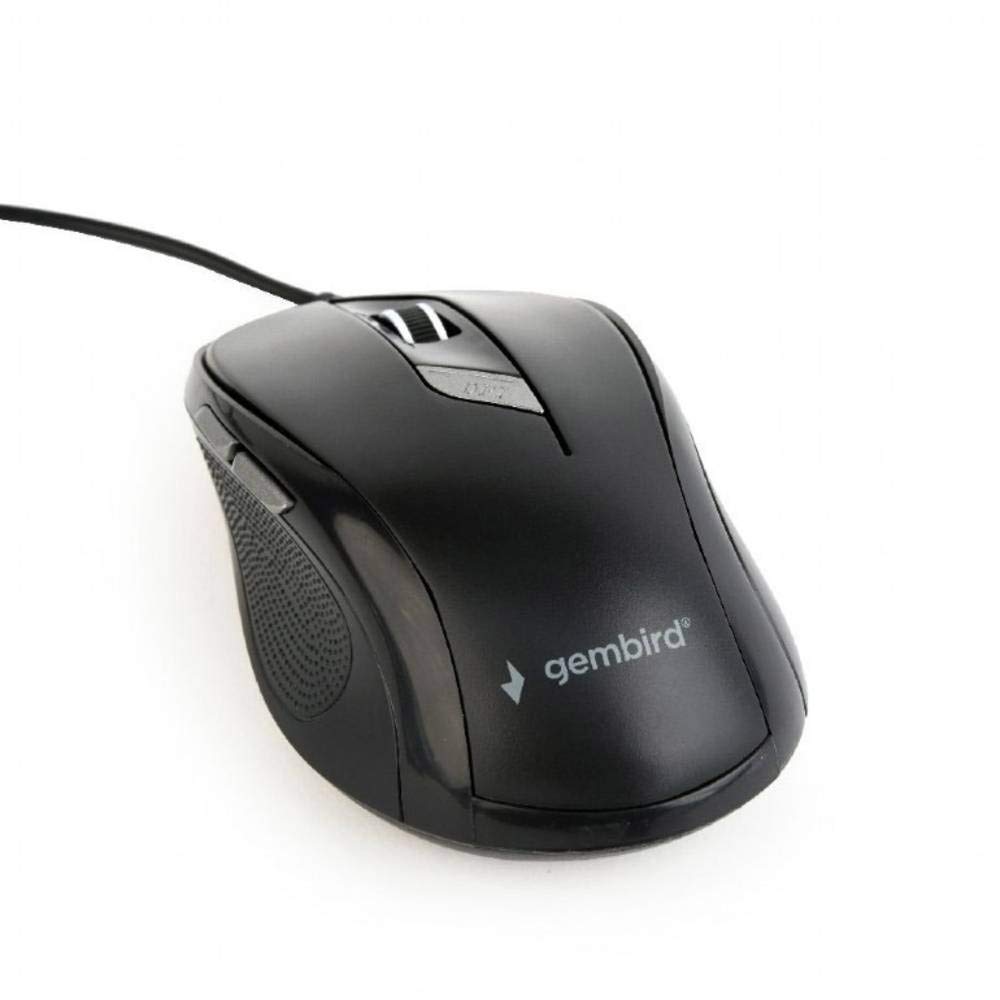
Obraz: widok z góry view of the Gembird MUS-6B-01 optical USB mouse. The mouse is black with a matte finish, featuring a scroll wheel, left and right click buttons, a DPI button, and two side buttons. A black USB cable extends from the front of the mouse.
3. Konfiguracja
Setting up your Gembird MUS-6B-01 mouse is a simple plug-and-play process.
Kroki instalacji:
- Znajdź dostępny port USB na swoim komputerze.
- Plug the USB connector of the Gembird MUS-6B-01 mouse firmly into the USB port.
- Your operating system (Windows, Linux) will automatically detect and install the necessary drivers. This process may take a few moments.
- Po zainstalowaniu sterowników mysz będzie gotowa do użycia.
No additional software installation is typically required for basic functionality.
4. Instrukcja obsługi
Familiarize yourself with the functions of each button on your Gembird MUS-6B-01 mouse.
Podstawowe funkcje:
- Lewy przycisk myszy: Primary action, selecting items, opening files.
- Kliknij prawym przyciskiem myszy: Opens context menus, provides additional options.
- Kółko przewijania: Przewijaj dokumenty w górę lub w dół i web stron.
- Kliknięcie środkowym przyciskiem (naciśnięcie kółka przewijania): Often used to open links in new tabs or for specific application functions.
Funkcje zaawansowane:
- Przycisk regulacji DPI: Located behind the scroll wheel, this button allows you to cycle through different sensitivity (DPI) settings. Press it to change the cursor speed to suit your preference.
- Przycisk „Do przodu” (bok): Zwykle przechodzi do przodu web przeglądarki lub file odkrywcy.
- Przycisk wstecz (bok): Zwykle nawiguje wstecz web przeglądarki lub file odkrywcy.
The functionality of the side buttons may vary depending on the application or operating system settings. Some operating systems allow customization of these buttons.
5. Konserwacja
Proper care will help extend the life of your Gembird MUS-6B-01 mouse.
Czyszczenie:
- Przed czyszczeniem odłącz mysz od komputera.
- Użyj miękkiego, lekko damp, lint-free cloth to wipe the surface of the mouse.
- For stubborn dirt, a small amount of mild soap solution can be applied to the cloth (not directly to the mouse).
- Use a cotton swab or compressed air to clean around the scroll wheel and between buttons.
- Ensure the optical sensor on the underside is clean and free of dust or debris.
- Nie należy używać silnych środków chemicznych ani środków czyszczących o właściwościach ściernych, ani zanurzać myszy w wodzie.
Składowanie:
When not in use for extended periods, store the mouse in a clean, dry environment away from extreme temperatures and direct sunlight.
6. Rozwiązywanie Problemów
If you encounter issues with your Gembird MUS-6B-01 mouse, try the following troubleshooting steps:
| Problem | Możliwe rozwiązanie |
|---|---|
| Mysz nie reaguje |
|
| Erratic or jumpy cursor movement |
|
| Przyciski nie działają |
|
7. Specyfikacje
Detailed technical specifications for the Gembird MUS-6B-01 Optical USB Mouse:
| Funkcja | Specyfikacja |
|---|---|
| Marka | Gembird |
| Nazwa modelu | MUS-6B-01 |
| Technologia łączności | Przewodowy (USB) |
| Technologia wykrywania ruchu | Optyczny |
| Ilość przycisków | 6 |
| Orientacja dłoni | Oburęczny |
| Kompatybilne systemy operacyjne | Linux, Windows 7, Windows XP (i nowsze wersje) |
| Platforma sprzętowa | Komputer osobisty |
| Długość kabla | 5.0 metrów |
| Waga przedmiotu | 74 gram |
| Tworzywo | Plastikowy |
| Kolor | Czarny |
| Wymagane baterie | NIE |
8. Informacje dotyczące bezpieczeństwa
Należy przestrzegać następujących wskazówek bezpieczeństwa:
- Nie wystawiaj myszy na działanie wody ani nadmiernej wilgoci.
- Unikaj upuszczania myszy i narażania jej na silne uderzenia.
- Nie próbuj samodzielnie demontować ani naprawiać myszy. Skontaktuj się z wykwalifikowanym personelem serwisowym.
- Trzymaj urządzenie z dala od ekstremalnych temperatur i bezpośredniego światła słonecznego.
- Odpady elektroniczne należy utylizować zgodnie z lokalnymi przepisami.
9. Gwarancja i wsparcie
Gembird products are designed for reliability and performance. For specific warranty terms and conditions, please refer to the warranty card included with your product or visit the official Gembird website. For technical support or further assistance, please contact your retailer or the Gembird customer service department.