
1. Wprowadzenie
This manual provides comprehensive instructions for the setup, operation, and maintenance of your TP-Link Archer C5400X Tri Band WiFi Gaming Router. The Archer C5400X is designed to deliver high-performance wireless connectivity, especially optimized for gaming, with its tri-band Wi-Fi, powerful CPU, and advanced features like MU-MIMO and Link Aggregation.
Przed użyciem urządzenia należy dokładnie przeczytać tę instrukcję, aby mieć pewność, że zostanie ono prawidłowo zainstalowane i będzie działać z optymalną wydajnością.
2. Koniec produktuview
2.1 Zawartość opakowania
- TP-Link Archer C5400X MU-MIMO Wireless Tri-Band Gigabit Gaming Router
- Zasilacz
- Kabel Ethernet
- Quick Installation Guide (this manual serves as the detailed user manual)
2.2 Komponenty sprzętowe
The Archer C5400X features a robust design with multiple antennas and various ports for connectivity.

Rycina 2.2.1: Przód View of Archer C5400X Router. This image displays the top and front of the TP-Link Archer C5400X router, highlighting its distinctive black and red design with eight large, adjustable external antennas. The top surface features a perforated design for ventilation and a central TP-Link logo.
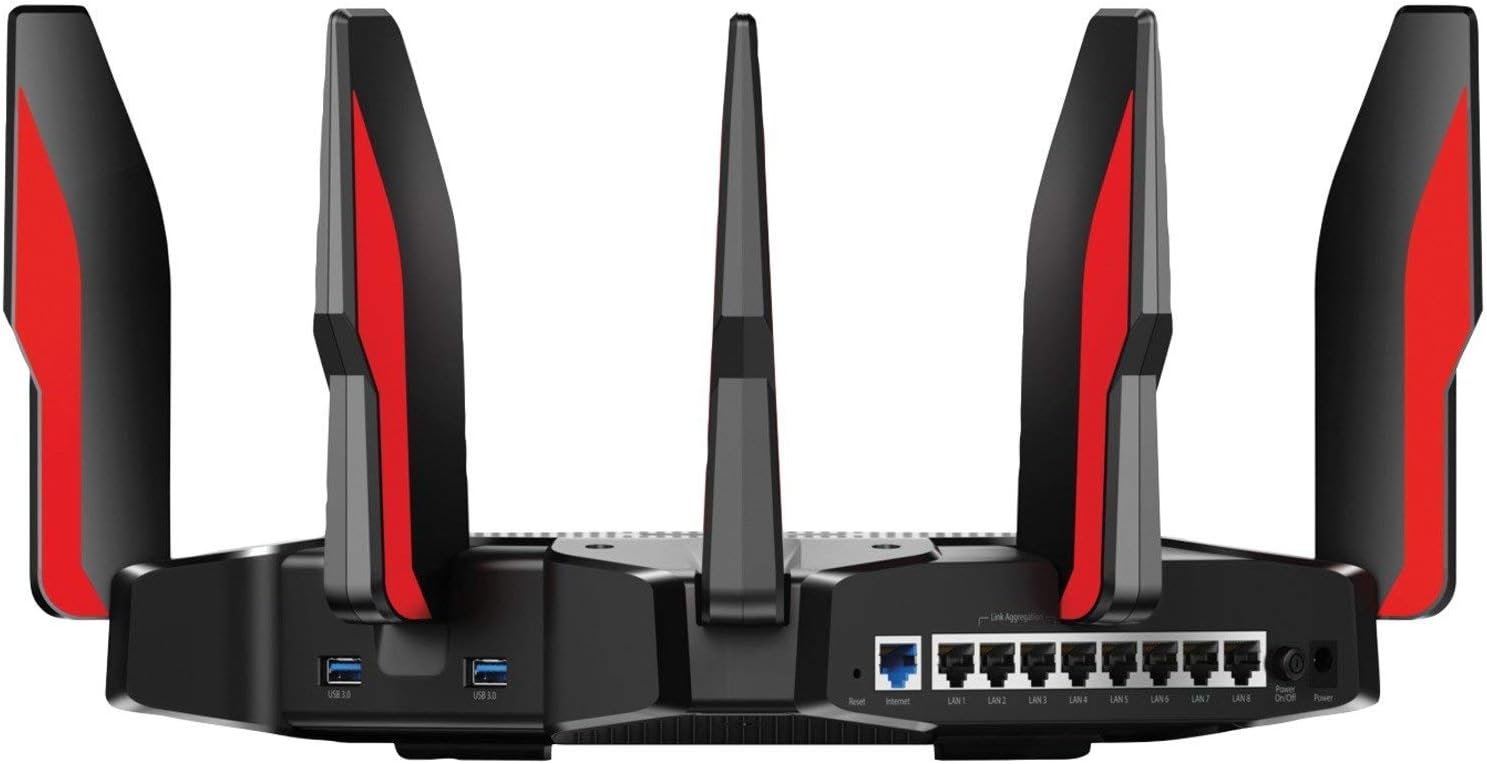
Rysunek 2.2.2: Tył View of Archer C5400X Router. This image shows the rear panel of the Archer C5400X, detailing its connectivity options. From left to right, it includes two USB 3.0 ports, a Reset button, the Internet (WAN) port, eight Gigabit LAN ports (LAN1-LAN8), a Wi-Fi On/Off button, and the Power On/Off button. The Link Aggregation feature is indicated above LAN ports 1 and 2, and 7 and 8.
2.2.1 Porty i przyciski
| Część | Opis |
|---|---|
| Port zasilania | Podłączany do dostarczonego zasilacza. |
| Przycisk włączania/wyłączania zasilania | Włącza lub wyłącza router. |
| Port internetowy (WAN). | Connects to your modem or main internet line. |
| Porty LAN (1-8) | Connects to wired devices such as computers, gaming consoles, or network storage. Supports Gigabit Ethernet. |
| Porty USB 3.0 | Connects USB storage devices for file sharing or media server functionality. |
| Przycisk resetowania | Naciśnij i przytrzymaj przez 5–10 sekund, aby przywrócić ustawienia fabryczne. |
| Przycisk włączania/wyłączania Wi-Fi | Włącza lub wyłącza sygnał bezprzewodowy. |
3. Przewodnik konfiguracji
Follow these steps to set up your Archer C5400X router.
3.1 Połączenie sprzętowe
- Wyłączone: Odłącz zasilanie modemu i routera (jeśli dotyczy).
- Podłącz modem: Podłącz jeden koniec kabla Ethernet do portu Ethernet modemu, a drugi koniec do Internet (WAN) port on your Archer C5400X router.
- Podłącz zasilanie: Connect the power adapter to the router's Power port and plug it into a power outlet. Press the Włączanie/wyłączanie zasilania button if the router does not power on automatically.
- Włącz modem: Włącz modem i poczekaj, aż się w pełni uruchomi (co zwykle sygnalizowane jest świeceniem się kontrolek).
- Włącz router: Wait for the router's indicator lights to stabilize, indicating it is ready for configuration.
3.2 Konfiguracja sieci
Możesz skonfigurować swój router za pomocą web przeglądarki lub aplikacji TP-Link Tether.
3.2.1 Poprzez Web Przeglądarka
- Połącz się z routerem:
- Połączenie przewodowe: Podłącz komputer do jednego z portów LAN routera za pomocą kabla Ethernet.
- Połączenie bezprzewodowe: Podłącz urządzenie bezprzewodowe do domyślnej sieci Wi-Fi routera (identyfikator SSID i hasło znajdują się na etykiecie na spodzie routera).
- Dostęp Web Interfejs: Otwórz web przeglądarka i typ
http://tplinkwifi.netorhttp://192.168.0.1do paska adresu. - Login: Create a new password for future logins. If you are logging in for the first time, the default username and password might be administracja (wszystkie małe litery).
- Uruchom szybką konfigurację: Postępuj zgodnie z instrukcjami wyświetlanymi na ekranie kreatora szybkiej konfiguracji, aby skonfigurować połączenie internetowe i ustawienia sieci bezprzewodowej.
3.2.2 Via TP-Link Tether App
- Pobierz aplikację: Pobierz aplikację TP-Link Tether z Apple App Store lub Google Play Store.
- Połącz się z routerem: Połącz urządzenie mobilne z domyślną siecią Wi-Fi routera.
- Uruchom aplikację: Open the Tether app and follow the instructions to add your router and complete the setup.
4. Instrukcja obsługi
The Archer C5400X offers various features to optimize your network.
4.1 Ustawienia bezprzewodowe
- Wi-Fi trójzakresowe: The router operates on one 2.4 GHz band and two 5 GHz bands. You can manage each band's SSID and password independently or enable Smart Connect to combine them into a single SSID.
- Sieć gości: Create separate Wi-Fi networks for guests to ensure the security of your main network.
- WPS (konfiguracja chroniona Wi-Fi): Use the WPS button on the router or the web interfejs umożliwiający szybkie podłączanie urządzeń zgodnych z WPS bez konieczności podawania hasła.
4.2 Funkcje zaawansowane
- Metoda MU-MIMO: Multi-User, Multiple-Input, Multiple-Output technology allows the router to communicate with multiple devices simultaneously, improving network efficiency.
- Sprawiedliwość w czasie antenowym: Ensures that older, slower devices do not monopolize Wi-Fi bandwidth, allowing faster devices to transmit data more efficiently.
- RangeBoost: Enhances the router's ability to detect and receive Wi-Fi signals from distant devices, improving overall range and reliability.
- Kształtowanie wiązki: Focuses the Wi-Fi signal directly towards connected devices, providing stronger and more reliable connections.
- Agregacji łącza: Combine two Gigabit LAN ports or one LAN with the WAN port to double the connection speed for compatible devices like NAS (Network Attached Storage) or high-performance PCs.
- Jakość usług (QoS): Prioritize network traffic for specific applications or devices (e.g., gaming, streaming) to reduce lag and ensure smooth performance.
- HomeCare™ Security: Integrated antivirus and parental controls to protect all connected devices from cyber threats and manage internet access for family members.
5. Konserwacja
Regularna konserwacja pomaga zapewnić długowieczność i optymalną wydajność routera.
- Aktualizacje oprogramowania układowego: Periodically check for and install the latest firmware updates from the TP-Link webwitrynę lub przez router web Interfejs. Aktualizacje oprogramowania układowego często obejmują poprawę wydajności, poprawki błędów i ulepszenia zabezpieczeń.
- Czyszczenie fizyczne: Przechowuj router w czystym, wolnym od kurzu otoczeniu. Delikatnie przetrzyj obudowę miękką, suchą ściereczką. Upewnij się, że otwory wentylacyjne nie są zasłonięte.
- Optymalne rozmieszczenie: Place the router in a central location, away from obstructions and sources of interference (e.g., microwaves, cordless phones, large metal objects) to maximize Wi-Fi coverage.
- Ponowne uruchomienie: Occasionally rebooting the router (power cycling) can resolve minor network issues and improve performance.
6. Rozwiązywanie Problemów
This section addresses common issues you might encounter with your Archer C5400X router.
6.1 Brak dostępu do Internetu
- Sprawdź połączenia: Ensure all cables are securely connected to the router and modem. Verify the Ethernet cable from the modem is plugged into the router's Internet (WAN) port.
- Ponowne uruchomienie urządzeń: Power cycle your modem first, then your router. Wait for each device to fully boot up.
- Status dostawcy usług internetowych: Skontaktuj się ze swoim dostawcą usług internetowych (ISP), aby potwierdzić, że nie ma żadnych usług.tagw Twojej okolicy.
6.2 Słaby sygnał Wi-Fi lub martwe strefy
- Umiejscowienie routera: Przenieś router w bardziej centralne miejsce w domu, z dala od ścian, dużych metalowych przedmiotów i innych urządzeń elektronicznych, które mogą powodować zakłócenia.
- Regulacja anteny: Adjust the router's antennas for optimal signal dispersion.
- Ingerencja: Identify and minimize sources of wireless interference (e.g., cordless phones, microwaves, Bluetooth devices).
- Optymalizacja kanału: W routerze web interface, try changing the wireless channel for your 2.4 GHz and 5 GHz bands to a less congested one.
6.3 Brak dostępu do routera Web Strona zarządzania
- Zweryfikuj adres IP: Upewnij się, że Twój komputer jest skonfigurowany tak, aby automatycznie uzyskiwać adres IP (DHCP).
- Prawidłowy adres: Double-check that you are typing the correct address:
http://tplinkwifi.netorhttp://192.168.0.1. - Wyczyść pamięć podręczną przeglądarki: Wyczyść swoje web pamięć podręczną i pliki cookie przeglądarki lub spróbuj innej przeglądarki.
- Zapora sieciowa/Oprogramowanie antywirusowe: Tymczasowo wyłącz na swoim komputerze wszelkie zapory sieciowe i programy antywirusowe, które mogą blokować dostęp.
6.4 Forgotten Wi-Fi Password or Login Password
- Domyślne hasło: The default Wi-Fi SSID and password are printed on the label on the bottom of the router.
- Zresetuj router: If you have changed the passwords and forgotten them, you will need to perform a factory reset. Press and hold the Nastawić button on the back of the router for approximately 5-10 seconds until the lights flash. This will revert all settings to factory defaults, including Wi-Fi and login passwords. You will then need to reconfigure the router.
7. Specyfikacje
| Funkcja | Szczegół |
|---|---|
| Model | Łucznik C5400X |
| Marka | TP-Link |
| Wymiary (dł. x szer. x wys.) | 17.2 x 13.2 x 7.7 cala |
| Waga przedmiotu | 5.56 funta |
| Klasa pasma częstotliwości | Trójpasmowy (2.4 GHz, 5 GHz, 5 GHz) |
| Standard komunikacji bezprzewodowej | 802.11ac (WiFi 5) |
| Technologia łączności | Bezprzewodowy, Ethernet |
| Porty | 1x WAN Gigabit, 8x LAN Gigabit, 2x USB 3.0 |
| Cechy specjalne | WPS, MU-MIMO, Airtime Fairness, RangeBoost, Beamforming, Link Aggregation, HomeCare™ Security |
| Procesor | 1.8 GHz 64-bit Quad-Core |
8. Gwarancja i wsparcie
Your TP-Link Archer C5400X router comes with a Limited 90-Day Warranty. For detailed warranty terms and conditions, please refer to the warranty card included in your product packaging or visit the official TP-Link webstrona.
8.1 Wsparcie techniczne
For technical assistance, troubleshooting, or further inquiries, please contact TP-Link Technical Support. Support resources typically include:
- Oficjalny TP-Link Webstrona: Odwiedzać www.tp-link.com for product information, FAQs, firmware downloads, and support contact details.
- Infolinia wsparcia: Sprawdź TP-Link webstrona z regionalnymi numerami telefonów pomocy technicznej.
- Wsparcie e-mailowe: Submit a support ticket via the TP-Link webstrona.
Please have your product model number (Archer C5400X) and serial number ready when contacting support.