
1. Wprowadzenie
This manual provides instructions for the installation, configuration, and operation of your TP-Link TL-WR850N N300 Wi-Fi Router. This device offers 300 Mbps wireless speed, 2.4GHz single band connectivity, and supports features like IPv6, Parental Controls, and Guest Network. Please read this manual thoroughly before use.
2. Zawartość opakowania
Sprawdź, czy w przesyłce znajdują się następujące elementy:
- Wireless N Router TL-WR850N
- Jednostka zasilająca
- Kabel Ethernet
- Szybki przewodnik instalacji

Rycina 2.1: Przód view of the TP-Link TL-WR850N N300 Wi-Fi Router, showing its two external antennas and status indicators.
3. Koniec sprzętuview
3.1 Front Panel (LED Indicators)
The front panel features LED indicators that display the router's status. Refer to the Quick Installation Guide for detailed LED behavior.

Rysunek 3.1: Kątowy view of the TP-Link TL-WR850N N300 Wi-Fi Router, highlighting the status LEDs on the top panel.
3.2 Rear Panel (Ports and Buttons)
The rear panel contains all the necessary ports for connecting the router to your network and power source.
- Port zasilania: Podłączany do dostarczonego zasilacza.
- Port WAN (niebieski): Łączy się z modemem lub siecią dostawcy usług internetowych (ISP).
- Porty LAN (żółte): Łączy się z urządzeniami przewodowymi, takimi jak komputery, telewizory Smart TV i konsole do gier.
- Przycisk WPS/Reset: Used for Wi-Fi Protected Setup (WPS) or to reset the router to factory defaults.

Rysunek 3.2: Tył view of the TP-Link TL-WR850N N300 Wi-Fi Router, showing the power port, WAN port, LAN ports, and WPS/Reset button.
4. Konfiguracja
4.1 Połączenie sprzętowe
- Wyłączone: Odłącz zasilanie modemu i routera (jeśli dotyczy).
- Podłącz modem: Connect your modem to the router's blue WAN port using an Ethernet cable.
- Podłącz urządzenia (opcjonalnie): Connect your computer or other wired devices to the router's yellow LAN ports using Ethernet cables.
- Włączanie: Connect the power adapter to the router's power port and plug it into an electrical outlet. Power on your modem, then the router. Wait for the router's indicators to stabilize.
4.2 Konfiguracja początkowa
The router can be configured using a web browser. The Quick Installation Guide provides initial access details.
- Połącz się z routerem: Connect your computer to the router either via an Ethernet cable or wirelessly using the default Wi-Fi name (SSID) and password printed on the label at the bottom of the router.
- Dostęp Web Interfejs: Otwórz web przeglądarki i wprowadź domyślny adres dostępu (np.
http://tplinkwifi.netor192.168.0.1). - Login: Wprowadź domyślną nazwę użytkownika i hasło (zwykle
admindla obu). - Uruchom szybką konfigurację: Postępuj zgodnie z instrukcjami wyświetlanymi na ekranie kreatora szybkiej konfiguracji, aby skonfigurować połączenie internetowe i ustawienia sieci bezprzewodowej.
Figure 4.1: Illustration of the easy setup process, emphasizing the user-friendly interface for quick online access.
5. Obsługa routera
5.1 Ustawienia bezprzewodowe
The TL-WR850N provides 300 Mbps wireless N speed, suitable for various network tasks.
- Nazwa sieci (SSID): You can change the default wireless network name (SSID) in the router's web interfejs.
- Bezprzewodowe hasło: It is recommended to set a strong WPA2-PSK password for your wireless network.
- CCA Technology: Clear Channel Assessment (CCA) automatically avoids channel conflicts, enhancing wireless performance.
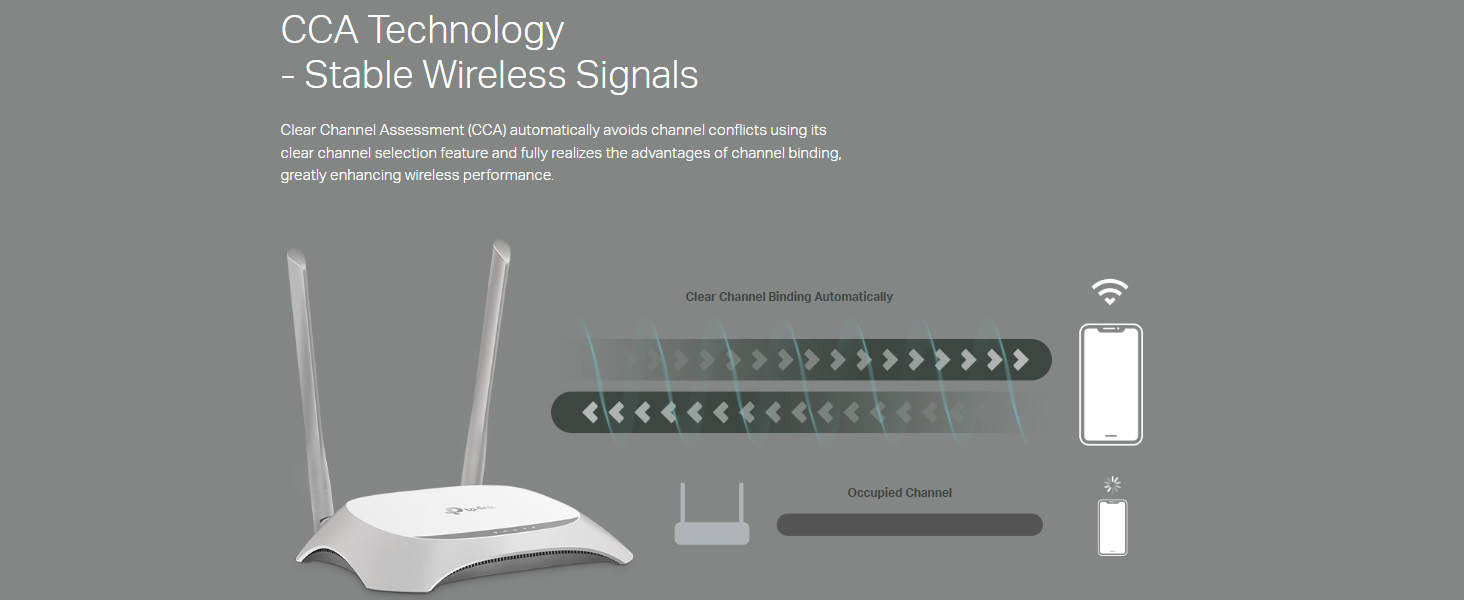
Figure 5.1: Diagram illustrating CCA Technology, which helps in selecting clear channels to improve wireless signal stability and performance.
5.2 Sieć gości
Enable the Guest Network feature to provide separate Wi-Fi access for guests, keeping your main network secure and private.
- Access the Guest Network settings in the web interfejs.
- Enable the Guest Network and configure its SSID and password.
- You can also set bandwidth limits or access restrictions for guest users.
5.3 Kontrola rodzicielska
Manage when and how connected devices can access the internet using Parental Controls.
- Navigate to the Parental Control section in the router's web interfejs.
- Specify devices to control and set time limits or website restrictions.
5.4 Obsługa IPv6
The router is compatible with IPv6 (Internet Protocol version 6), supporting the latest internet standards.
5.5 IP QoS (Quality of Service)
IP-based bandwidth control allows administrators to determine how much bandwidth is allocated to each connected device or user, optimizing performance for critical applications.
Figure 5.2: Visual representation of IP QoS, indicating its role in managing and allocating network bandwidth.
5.6 Aginet Config Support
The router supports Aginet Config, which enables Internet Service Providers (ISPs) to customize default configurations. This feature helps resolve issues that may arise when end-users reset the device, ensuring consistent service delivery.
Figure 5.3: Graphic indicating support for Aginet Config, a feature for ISP customization of router settings.
6. Konserwacja
6.1 Aktualizacja oprogramowania sprzętowego
Regularnie sprawdzaj dostępność aktualizacji oprogramowania sprzętowego i instaluj je, aby zapewnić sobie optymalną wydajność, bezpieczeństwo i dostęp do nowych funkcji.
- Odwiedź oficjalną pomoc techniczną TP-Link website for your model (TL-WR850N).
- Pobierz najnowsze oprogramowanie układowe file.
- Uzyskaj dostęp do routera web interface and navigate to the Firmware Upgrade section (usually under System Tools).
- Postępuj zgodnie z instrukcjami wyświetlanymi na ekranie, aby przesłać i zainstalować nowe oprogramowanie sprzętowe. Do not power off the router during the update process.
6.2 Przywracanie ustawień fabrycznych
If the router is not functioning correctly or you forget the login password, you can reset it to factory default settings.
- Metoda 1 (przycisk sprzętowy): With the router powered on, press and hold the WPS/Reset button on the rear panel for approximately 5-10 seconds until the system LED blinks rapidly. Release the button and wait for the router to restart.
- Metoda 2 (Web Interfejs): Uzyskaj dostęp do routera web interface, navigate to System Tools > Factory Defaults, and click the Restore button. Confirm the action when prompted.
Note: A factory reset will erase all your custom configurations, and you will need to set up the router again.
7. Rozwiązywanie Problemów
7.1 Brak dostępu do Internetu
- Check all cable connections between the modem, router, and your computer. Ensure they are secure.
- Sprawdź, czy dioda WAN na routerze świeci się, co wskazuje na połączenie z modemem.
- Restart your modem and router. Power off both devices, wait 30 seconds, then power on the modem first, wait for it to fully boot, then power on the router.
- Confirm your internet settings in the router's web interface match those provided by your ISP.
7.2 Nie można uzyskać dostępu do routera Web Strona zarządzania
- Sprawdź, czy Twoje urządzenie jest prawidłowo podłączone do routera (przewodowo lub bezprzewodowo).
- Verify that the router's IP address (e.g.,
http://tplinkwifi.netor192.168.0.1) is entered correctly in the browser. - Wyczyść pamięć podręczną i pliki cookie przeglądarki lub spróbuj użyć innej przeglądarki.
- If you have changed the router's login credentials and forgotten them, perform a factory reset (refer to Section 6.2).
7.3 Problemy z sygnałem Wi-Fi
- Umiejscowienie routera: Position the router in a central location, away from obstructions and interference sources (e.g., microwaves, cordless phones).
- Orientacja anteny: Ustaw anteny tak, aby uzyskać optymalny odbiór sygnału.
- Zakłócenia kanału: In the wireless settings, try changing the Wi-Fi channel to a less congested one.
- Oprogramowanie sprzętowe: Upewnij się, że oprogramowanie sprzętowe routera jest aktualne.
8. Specyfikacje
| Funkcja | Szczegół |
|---|---|
| Marka | TP-Link |
| Nazwa modelu | TL-WR850N |
| standard bezprzewodowy | 802.11b/g/n |
| Pasmo częstotliwości | Jednopasmowy (2.4 GHz) |
| Prędkość bezprzewodowa | Do 300 Mb/s |
| Typ łączności | Wi-Fi, Ethernet |
| Porty | 1 WAN, 4 LAN |
| Cechy specjalne | CCA Technology, Easy Setup, Guest Mode, Parental Control, QoS, IPv6 Support, Aginet Config |
| Wsparcie systemu operacyjnego | Linux, Mac OS, Windows |
| Moc wejściowa | 9 V (prąd stały) |
| Wymiary (dł. x szer. x wys.) | 20 x 15 x 15 centymetrów |
| Waga przedmiotu | 650 gramów |
9. Gwarancja i wsparcie
9.1 Informacje o gwarancji
For warranty details, please refer to the warranty card included with your product or visit the official TP-Link website for your region. Keep your purchase receipt for warranty claims.
9.2 Wsparcie techniczne
If you encounter any issues that cannot be resolved using this manual, please contact TP-Link technical support.
- Bezpłatny kontakt: 1800 2094 168 (Indie)
- Wsparcie e-mailowe: support.in@tp-link.com
- Zasoby internetowe: Odwiedź oficjalną stronę TP-Link webwitryna z odpowiedziami na często zadawane pytania, oprogramowaniem układowym do pobrania i dodatkową dokumentacją pomocy technicznej.
Producent: TP-Link
Importer: TP-link India Private ltd. Office no 201, 2nd floor A-wing Time Square Building, Marol naka, Andheri Kurla Road, Andheri East, Mumbai.