
1. Wprowadzenie
This manual provides comprehensive instructions for setting up, operating, and maintaining your Huawei Wireless Router. Please read this manual carefully before using the device to ensure proper functionality and safety. This router is designed to provide high-speed internet access via 4G LTE and Wi-Fi connectivity for multiple devices.
2. Zawartość opakowania
Sprawdź, czy w opakowaniu produktu znajdują się wszystkie elementy:
- Huawei Wireless Router
- Zasilacz
- Kabel Ethernet
- Szybki przewodnik
- Karta gwarancyjna
3. Koniec produktuview
Zapoznaj się z podzespołami i wskaźnikami routera.

Rycina 3.1: Przód View. This image shows the Huawei Wireless Router from the front, highlighting its compact design and the illuminated top panel, which indicates device status.
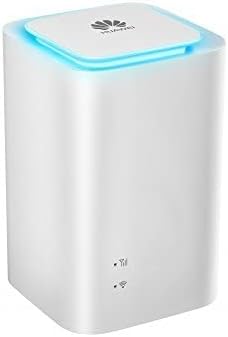
Rysunek 3.2: Strona View. This image displays the side of the Huawei Wireless Router, showing the various ports (RJ45, RJ11) and LED indicators for signal strength and Wi-Fi status.
Wskaźniki LED:
- Dioda LED zasilania: Wskazuje stan zasilania.
- Dioda sieciowa: Shows network connectivity (4G/LTE).
- Dioda Wi-Fi: Wskazuje status Wi-Fi.
Porty:
- Port RJ45: Do przewodowego połączenia LAN.
- Port RJ11: For telephone connection (if supported by model).
- Port zasilania: Łączy się z zasilaczem.
- Gniazdo karty SIM: Insert your 4G LTE SIM card here.
4. Konfiguracja
- Włóż kartę SIM: Locate the SIM card slot, usually on the bottom or side. Insert your standard 4G LTE SIM card into the slot until it clicks into place. Ensure the SIM card is correctly oriented.
- Podłącz zasilanie: Connect the power adapter to the router's power port and then plug the adapter into a power outlet. The Power LED should light up.
- Włączanie: Press the Power button (if available) or wait for the router to automatically power on. The router will begin to boot up.
- Połączenie internetowe: Wait for the Network LED to turn solid, indicating a successful connection to the 4G LTE network. This may take a few minutes.
- Początkowe połączenie Wi-Fi: On your device (smartphone, tablet, laptop), search for available Wi-Fi networks. The default Wi-Fi name (SSID) and password (Wi-Fi Key) are typically printed on a label on the bottom or back of the router. Select the router's SSID and enter the password to connect.
- Dostęp Web Interfejs: Otwórz web browser and enter the default IP address (e.g., 192.168.8.1 or 192.168.1.1) found on the router's label. Log in using the default username and password (also on the label) to configure advanced settings.
5. Instrukcja obsługi
Podłączanie urządzeń:
- Wi-Fi: Use the SSID and password to connect wireless devices. The router supports up to 32 wireless users simultaneously.
- wired: Connect devices like desktop computers or gaming consoles to the RJ45 LAN port using an Ethernet cable.
Zarządzanie ustawieniami:
Uzyskaj dostęp do web management interface (refer to Setup Step 6) to:
- Zmień identyfikator SSID i hasło Wi-Fi.
- Configure network settings (APN, roaming).
- View podłączone urządzenia.
- Aktualizacja oprogramowania.
- Set up parental controls or guest networks.
6. Konserwacja
- Czyszczenie: Do czyszczenia routera używaj miękkiej, suchej ściereczki. Nie używaj płynów ani aerozoli czyszczących.
- Wentylacja: Upewnij się, że router znajduje się w dobrze wentylowanym miejscu, aby zapobiec przegrzaniu. Nie zasłaniaj otworów wentylacyjnych.
- Aktualizacje oprogramowania układowego: Regularnie sprawdzaj dostępność aktualizacji oprogramowania sprzętowego i instaluj je za pośrednictwem web interfejs zarządzania zapewniający optymalną wydajność i bezpieczeństwo.
- Ponowne uruchamianie: If you experience connectivity issues, try restarting the router by unplugging the power adapter, waiting 10 seconds, and plugging it back in.
7. Rozwiązywanie Problemów
| Problem | Możliwa przyczyna | Rozwiązanie |
|---|---|---|
| Brak diody LED zasilania | Zasilacz nie jest podłączony lub jest uszkodzony. | Sprawdź podłączenie zasilania. Spróbuj użyć innego gniazdka elektrycznego. |
| No Network Connection (Network LED off/red) | SIM card not inserted correctly or no signal. | Reinsert SIM card. Move router to an area with better signal. Contact your service provider. |
| Nie można połączyć się z siecią Wi-Fi | Nieprawidłowe hasło Wi-Fi lub Wi-Fi wyłączone. | Verify password. Check Wi-Fi settings in the web interfejs. |
| Niska prędkość Internetu | Poor signal, too many connected devices, or network congestion. | Relocate router. Disconnect unused devices. Contact service provider. |
8. Specyfikacje
| Funkcja | Szczegół |
|---|---|
| Marka | Huawei |
| Numer modelu | 2724329958597 |
| Wymiary produktu | Wymiary 7.8 x 13.6 x 11.2 cm |
| Waga przedmiotu | 1.52 kilograma |
| Kolor | Biały |
| Technologia łączności | Wi-Fi |
| Standard komunikacji bezprzewodowej | 802.11b/g/n |
| Częstotliwość | 2.4 GHz |
| Klasa pasma częstotliwości | Dwuzakresowy |
| Kompatybilne urządzenia | Smartfon, tablet, laptop |
| Funkcja specjalna | Tryb punktu dostępu |
| Zawarte komponenty | Router |
9. Gwarancja i wsparcie
Your Huawei Wireless Router comes with a standard manufacturer's warranty. Please refer to the warranty card included in your package for specific terms and conditions. For technical support, product inquiries, or warranty claims, please visit the official Huawei support website or contact their customer service hotline. Keep your purchase receipt for warranty validation.