
1. Wprowadzenie
The ENHANCE Infiltrate USB Gaming Mouse is designed for an enhanced gaming experience, featuring customizable controls and dynamic lighting. This manual provides instructions for setting up, operating, and maintaining your gaming mouse.

Image: The ENHANCE Infiltrate USB Gaming Mouse, showcasindzięki ergonomicznej konstrukcji i eleganckiemu, czarnemu wykończeniu.
2. Główne cechy
- Multi-Color LED Light: Dynamic rainbow lighting pattern illuminates the mouse accents, slowly fading between colors.
- On-the-Fly DPI Adjustment: Quickly select from 4 DPI intervals (800, 1200, 1600, 2400) using the dedicated DPI button.
- Ergonomic Design with Smooth Rubber Grip: The top features a sleek rubber coating, while the side includes two extra thumb buttons with a textured grip for comfort.
- 6 programowalnych przycisków: Customize your gaming experience with additional buttons for macros or specific functions.
- Projekt typu Plug & Play: Connects easily to your PC via a gold-plated USB connector for immediate use.
- Durable Braided Cable: Designed for longevity and resistance to tangles.
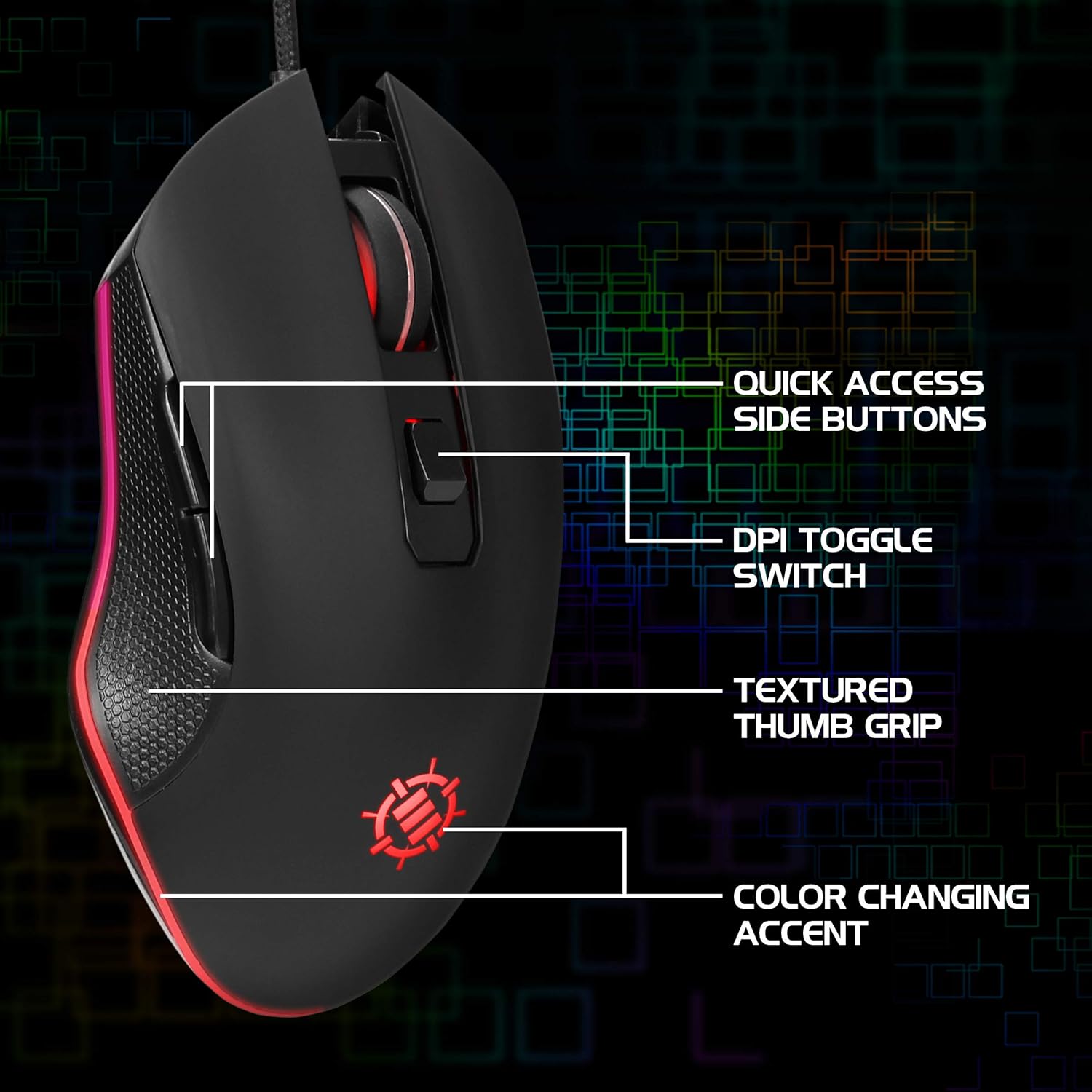
Image: Diagram highlighting key features of the ENHANCE Infiltrate mouse, including quick access side buttons, DPI toggle switch, textured thumb grip, and color-changing accent.
3. Przewodnik konfiguracji
- Rozpakuj mysz: Carefully remove the ENHANCE Infiltrate USB Gaming Mouse from its packaging.
- Połącz z komputerem: Locate an available USB port on your computer. Insert the gold-plated USB connector of the mouse into the USB port. The mouse is plug-and-play, so no additional drivers are typically required for basic functionality.
- Pierwsze rozpoznanie: Twój system operacyjny powinien automatycznie wykryć i zainstalować niezbędne sterowniki. Ten proces może potrwać chwilę.
- Sprawdź funkcjonalność: Once installed, the mouse's LED lighting should activate, and you should be able to move the cursor on your screen.

Obraz: Zbliżenie view of the heavy-duty braided cable and gold-plated USB connector, ready for connection.
For a visual guide on connecting and using the mouse, please watch the official product video below.
Video: Official product video demonstrating the ENHANCE Infiltrate USB Gaming Mouse, including connection and feature highlights.
4. Instrukcja obsługi
4.1 Podstawowe funkcje myszy
The ENHANCE Infiltrate mouse functions like a standard USB mouse. It includes left-click, right-click, and a scroll wheel with a clickable middle button.

Image: A hand demonstrating the ergonomic grip of the ENHANCE Infiltrate Gaming Mouse on a gaming mouse pad.
4.2 Regulacja DPI
The mouse features a dedicated DPI button located behind the scroll wheel. Press this button to cycle through four preset DPI (Dots Per Inch) sensitivity levels:
- 800 DPI
- 1200 DPI
- 1600 DPI
- 2400 DPI
Each DPI setting may correspond to a different LED color on the mouse, providing visual feedback for the current sensitivity level.
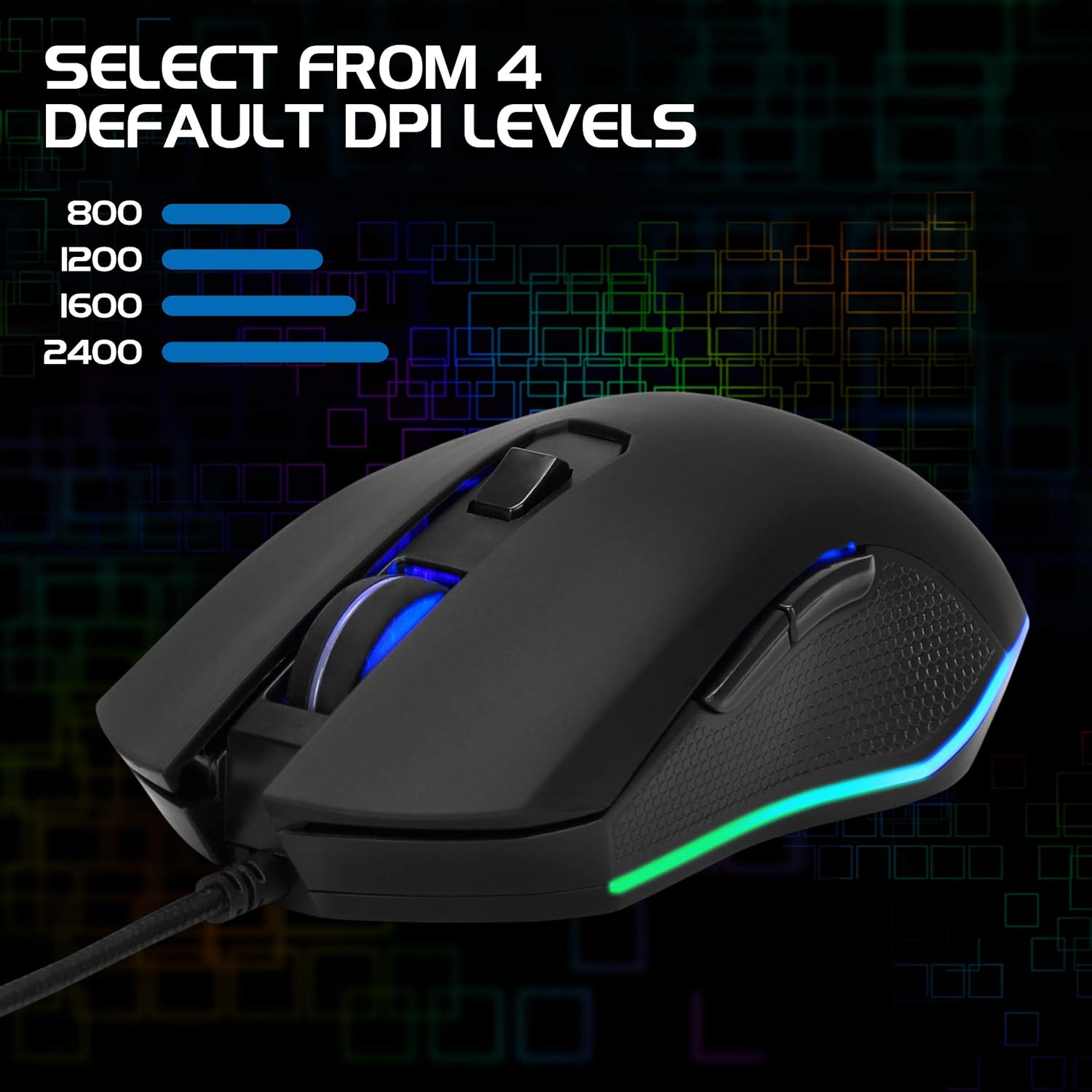
Image: The ENHANCE Infiltrate Gaming Mouse illustrating the four selectable DPI levels (800, 1200, 1600, 2400) and their corresponding LED indicators.
4.3 Multi-Color LED Lighting
The Infiltrate mouse features dynamic multi-color LED lighting that cycles through a rainbow pattern. This lighting is automatic and provides an aesthetic enhancement to your gaming setup.

Image: The ENHANCE Infiltrate Gaming Mouse displaying its sleek color-changing lighting accents.

Obraz: Profesjonalista z bokufile of the ENHANCE Infiltrate Gaming Mouse, showcasing its blue LED lighting.
4.4 programowalne przyciski
The mouse includes 6 programmable buttons. For advanced customization and programming of these buttons, please refer to your operating system's mouse settings or any third-party software compatible with generic gaming mice. Specific software for this model is not provided by the manufacturer.
5. Konserwacja
- Czyszczenie: Do przecierania powierzchni myszy użyj miękkiej, suchej ściereczki. W przypadku uporczywych zabrudzeń, delikatnie przetrzyj powierzchnię.amp Można użyć ściereczki, aby mieć pewność, że do wnętrza podzespołów nie dostanie się wilgoć.
- Czujnik optyczny: Periodically clean the optical sensor area on the underside of the mouse with a cotton swab to ensure optimal tracking performance.
- Pielęgnacja kabli: Aby zapobiec uszkodzeniom, należy unikać ostrego zginania i nadmiernego ciągnięcia plecionego kabla USB.
- Składowanie: Gdy nie używasz myszy, przechowuj ją w czystym i suchym miejscu, chroniąc ją przed ekstremalnymi temperaturami.
6. Rozwiązywanie Problemów
- Mysz nie odpowiada:
- Sprawdź, czy kabel USB jest prawidłowo podłączony do działającego portu USB w komputerze.
- Spróbuj podłączyć mysz do innego portu USB.
- Uruchom ponownie komputer.
- Przetestuj mysz na innym komputerze, aby ustalić, czy problem dotyczy myszy czy systemu.
- Ruch kursora jest nieregularny lub skokowy:
- Wyczyść czujnik optyczny znajdujący się na spodzie myszy.
- Upewnij się, że używasz myszy na czystej, nieodbijającej światła powierzchni. Zalecamy użycie podkładki pod mysz.
- Check for any software conflicts or outdated drivers on your computer.
- Oświetlenie LED nie działa:
- Sprawdź, czy mysz jest prawidłowo podłączona do komputera.
- The LED lighting is automatic and should activate upon connection. If not, try a different USB port or computer.
- Przycisk DPI nie zmienia czułości:
- Ensure the mouse is fully recognized by your computer.
- Naciśnij mocno przycisk DPI.
7. Specyfikacje
| Marka | ZWIĘKSZYĆ |
| Numer modelu | ENINMNU100BOEW |
| Platforma sprzętowa | Mac, PC |
| Waga przedmiotu | 4.4 uncji |
| Wymiary produktu (dł. x szer. x wys.) | 4.92 x 2.68 x 1.56 cala |
| Kolor | Czarny |
| Źródło zasilania | Elektryczny przewodowy (USB) |
| Technologia łączności | USB |
| Funkcja specjalna | Ergonomiczna konstrukcja |
| Technologia wykrywania ruchu | Optyczny |
| Poziomy DPI | 800, 1200, 1600, 2400 |
8. Gwarancja i wsparcie
The ENHANCE Infiltrate USB Gaming Mouse is backed by a Roczna gwarancja producentaNiniejsza gwarancja obejmuje wady materiałowe i wykonawcze powstałe w wyniku normalnego użytkowania.
For warranty claims or technical support, please contact ENHANCE customer service. Keep your proof of purchase for warranty validation.
For further assistance, visit the official ENHANCE Gaming webodwiedź witrynę lub skontaktuj się z ich kanałami wsparcia.