
1. Wprowadzenie
Welcome to the user manual for your RugGear RG910 Rugged 8-inch Tablet. This document provides essential information for setting up, operating, maintaining, and troubleshooting your device. The RG910 is engineered for demanding environments, offering superior durability and connectivity for outdoor work and extreme conditions.
Please read this manual carefully to ensure proper use and to maximize the lifespan of your tablet.
2. Koniec produktuview
The RugGear RG910 is a robust tablet featuring an 8-inch WUXGA touchscreen, designed to withstand harsh conditions. It incorporates advanced sealing technology for high water and dust resistance, and is built to endure drops and impacts.

Rycina 2.1: Przód view of the RugGear RG910 rugged tablet, showcasing its durable design and display.
Key features include Push-to-Talk (PTT) functionality, a long-lasting 6000 mAh battery, and an Android 8 (Oreo) operating system optimized for performance and power efficiency. The device is IP68 certified, allowing submersion in water up to 1.2 meters for 60 minutes, and is drop-resistant up to 1.5 meters.

Figure 2.2: Infographic highlighting the RG910's reliable performance, PTT capability, long battery life, Android 8 optimization, IP68 rating, and dual stereo speakers.
Connectivity options include 4G LTE, Wi-Fi 802.11b/g/n, and Bluetooth 4.0. It also features 8MP and 2MP cameras, GPS, A-GPS, GLONASS, and Beidou for navigation. The display is protected by Corning Gorilla Glass for enhanced durability and readability in sunlight.
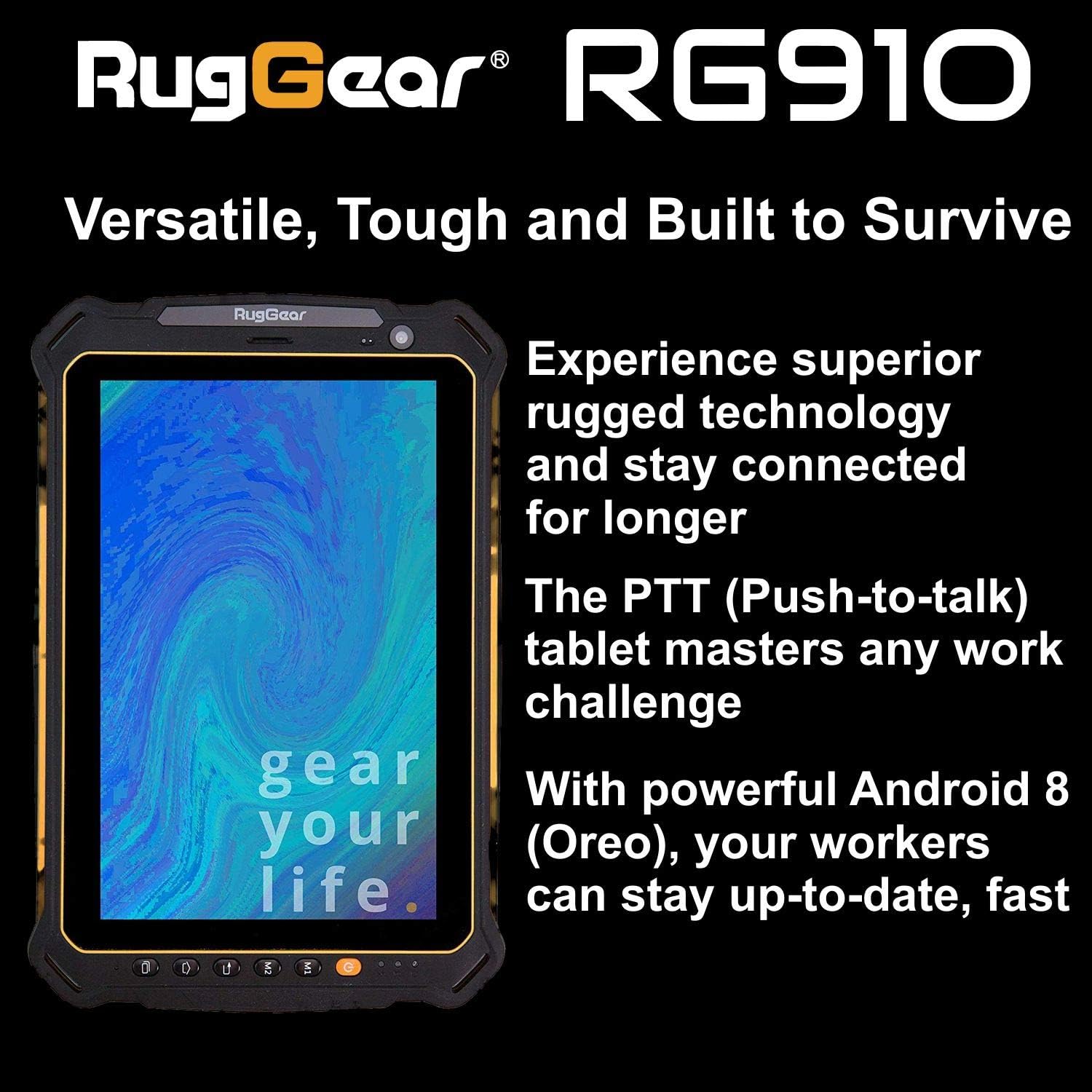
Figure 2.3: The RugGear RG910 tablet being used, illustrating its robust construction and suitability for various tasks.
3. Konfiguracja
3.1 Ładowanie urządzenia
Before initial use, fully charge the tablet using the provided charger and USB cable. Connect the charger to a power outlet and the USB cable to the tablet's charging port. The charging indicator will show the charging status.
3.2 Inserting SIM and Micro-SD Cards
- Locate the SIM/Micro-SD card slot cover on the side of the tablet.
- Ostrożnie otwórz pokrywę.
- Insert the Nano-SIM card into the designated slot with the gold contacts facing down, ensuring it is correctly oriented.
- If using, insert a Micro-SD card (up to 64GB) into its dedicated slot.
- Close the cover securely to maintain the device's water and dust resistance.
3.3 Pierwsze włączenie i konfiguracja
Press and hold the Power button until the RugGear logo appears. Follow the on-screen instructions to complete the initial setup, which includes selecting your language, connecting to a Wi-Fi network, and setting up your Google account.
4. Instrukcja obsługi
4.1 Włączanie/wyłączanie zasilania
- Włączanie: Naciśnij i przytrzymaj przycisk zasilania, aż ekran się podświetli.
- Aby wyłączyć: Naciśnij i przytrzymaj przycisk zasilania, aż pojawią się opcje zasilania, a następnie wybierz opcję „Wyłącz”.
- Zrestartować: Naciśnij i przytrzymaj przycisk zasilania, aż pojawią się opcje zasilania, a następnie wybierz opcję „Uruchom ponownie”.
4.2 Podstawowa nawigacja
The RG910 uses a capacitive touchscreen. Use standard Android gestures:
- Uzyskiwać: Wybierz element lub otwórz aplikację.
- Trzepnąć: Przewijaj listy i przełączaj się między ekranami głównymi.
- Szczypta: Powiększaj lub pomniejszaj obrazy i web stron.
- Długie naciśnięcie: Uzyskaj dostęp do menu kontekstowych i przenieś ikony.
4.3 Push-to-Talk (PTT) Functionality
The RG910 supports Push-to-Talk (PTT) communication. A dedicated PTT button may be present on the device. Consult your service provider or PTT application instructions for specific setup and usage details.
4.4 Obsługa kamery
To use the cameras:
- Otwórz aplikację Aparat z ekranu głównego lub szuflady aplikacji.
- Dotknij ekranu, aby ustawić ostrość.
- Tap the Shutter button to take a photo or start/stop video recording.
- Przełączaj się między przednim i tylnym aparatem za pomocą ikony przełączania aparatu.
4.5 Łączność
- Wi-Fi: Idź do Ustawienia > Sieć i internet > Wi-Fi aby połączyć się z dostępnymi sieciami.
- 4G LTE: Ensure your SIM card is inserted and mobile data is enabled in Ustawienia > Sieć i internet > Sieć komórkowa.
- Bluetooth: Włącz Bluetooth w Ustawienia > Podłączone urządzenia > Bluetooth aby sparować z innymi urządzeniami.
5. Konserwacja
5.1 Czyszczenie urządzenia
Do czyszczenia tabletu należy używać miękkiej,amp cloth. Avoid using harsh chemicals, abrasive cleaners, or solvents, as these can damage the device's ruggedized coating and seals. Ensure all port covers are securely closed before cleaning with moisture.
5.2 Odporność na wodę i kurz (IP68)
The RG910 is IP68 certified, meaning it is protected against dust ingress and can withstand submersion in fresh water up to 1.2 meters for 60 minutes. To maintain this rating:
- Ensure all port covers (USB, SIM/Micro-SD slot) are firmly closed before exposure to water or dust.
- Do not expose the device to salt water, chlorinated water, or other liquids.
- If the device gets wet, dry it thoroughly with a clean cloth before opening any covers or charging.
5.3 Pielęgnacja baterii
- Unikaj ekstremalnych temperatur, które mogą obniżyć wydajność akumulatora.
- Używaj wyłącznie oryginalnej lub certyfikowanej kompatybilnej ładowarki i kabla.
- Nie przekłuwać, nie rozmontowywać ani nie modyfikować akumulatora.
5.4 Aktualizacje oprogramowania
Regularnie sprawdzaj dostępność aktualizacji oprogramowania i instaluj je, aby zapewnić optymalną wydajność, bezpieczeństwo i dostęp do nowych funkcji. Przejdź do Ustawienia > System > Aktualizacja systemu.
6. Rozwiązywanie Problemów
This section addresses common issues you might encounter with your RugGear RG910 tablet.
| Wydanie | Możliwe rozwiązanie |
|---|---|
| Urządzenie nie włącza się | Upewnij się, że bateria jest naładowana. Podłącz ładowarkę i odczekaj kilka minut przed ponowną próbą włączenia. Jeśli urządzenie nie reaguje, wykonaj wymuszony restart, przytrzymując przycisk zasilania przez 10–15 sekund. |
| Ekran nie reaguje | Uruchom ponownie urządzenie. Jeśli problem nadal występuje, upewnij się, że ekran jest czysty i suchy. |
| Cannot connect to Wi-Fi/4G | Check Wi-Fi settings and ensure the network password is correct. For 4G, verify SIM card insertion, mobile data is enabled, and you have network coverage. Restart the tablet. |
| Bateria szybko się rozładowuje | Reduce screen brightness, close unused applications, disable unnecessary connectivity features (Bluetooth, GPS), and check for background app activity in settings. |
| Urządzenie działa wolno lub zawiesza się | Close background applications. Clear cache for problematic apps. Restart the device. Consider a factory reset if the issue is persistent (back up data first). |
7. Specyfikacje
Detailed technical specifications for the RugGear RG910 tablet:
| Funkcja | Opis |
|---|---|
| Marka | RugGear |
| Numer modelu | 98300000 |
| System operacyjny | Android 8 (Oreo) |
| Wyświetlacz | 8-inch WUXGA (1920 x 1200 pixels) with Corning Gorilla Glass |
| Edytor | Procesor Qualcomm Snapdragon 625 |
| BARAN | 3 GB |
| Pamięć wewnętrzna | 32 GB (expandable up to 64 GB via Micro-SD) |
| Bateria | 6000 mAh Li-ion |
| Łączność | 4G LTE, Wi-Fi 802.11b/g/n, Bluetooth 4.0, GPRS |
| Kamery | Tył: 8 MP, Przód: 2 MP |
| Nawigacja | GPS, A-GPS, GLONASS, Beidou |
| Trwałość | IP68 certified (water/dust resistant), Drop-resistant up to 1.5 meters |
| Wymiary (dł. x szer. x wys.) | Wymiary 21.3 x 14.1 x 2 cm |
| Waga | 906 gram |
| Cechy specjalne | Ruggedized Construction, Push-to-Talk (PTT) functionality, Adjustable back strap |
| Rok modelowy | 2018 |
8. Gwarancja i wsparcie
Your RugGear RG910 tablet is covered by a manufacturer's warranty. Please refer to the warranty card included with your product packaging for specific terms and conditions, including warranty duration and coverage details. For technical support, service, or further assistance, please contact RugGear customer service or your authorized dealer.


