
Wstęp
The Nyko Wireless Core Controller is designed to enhance your gaming experience across multiple platforms, including Nintendo Switch, Android devices, and PC. This controller features an ergonomic design, reliable Bluetooth connectivity, and a programmable turbo function. Please read this manual thoroughly to ensure proper setup and operation of your new controller.
Co jest zawarte
Sprawdź, czy w opakowaniu znajdują się wszystkie elementy:
- 1x Nyko Wireless Core Controller
- 1x kabel ładujący USB typu C

Image: Contents of the Nyko Wireless Core Controller package, showing the controller and its USB Type-C charging cable.
Cechy
The Nyko Wireless Core Controller offers a range of features for an optimized gaming experience:
- Połączenie bezprzewodowe: Utilizes Bluetooth for a responsive, lag-free connection.
- Ergonomiczna konstrukcja: Full-sized controller with comfortable grips for extended gameplay sessions.
- Funkcja turbo: Programmable turbo button for any face buttons or triggers, allowing for rapid, automatic inputs.
- Akumulator: Internal battery provides up to 20 hours of playtime, recharged via the included USB Type-C cable.
- Sterowanie ruchem: Integrated gyroscope supports games requiring motion control.
- Wibracje: Zapewnia wciągające wrażenia dotykowe podczas rozgrywki.
- Zgodność z wieloma platformami: Works with Nintendo Switch, Android, and PC.
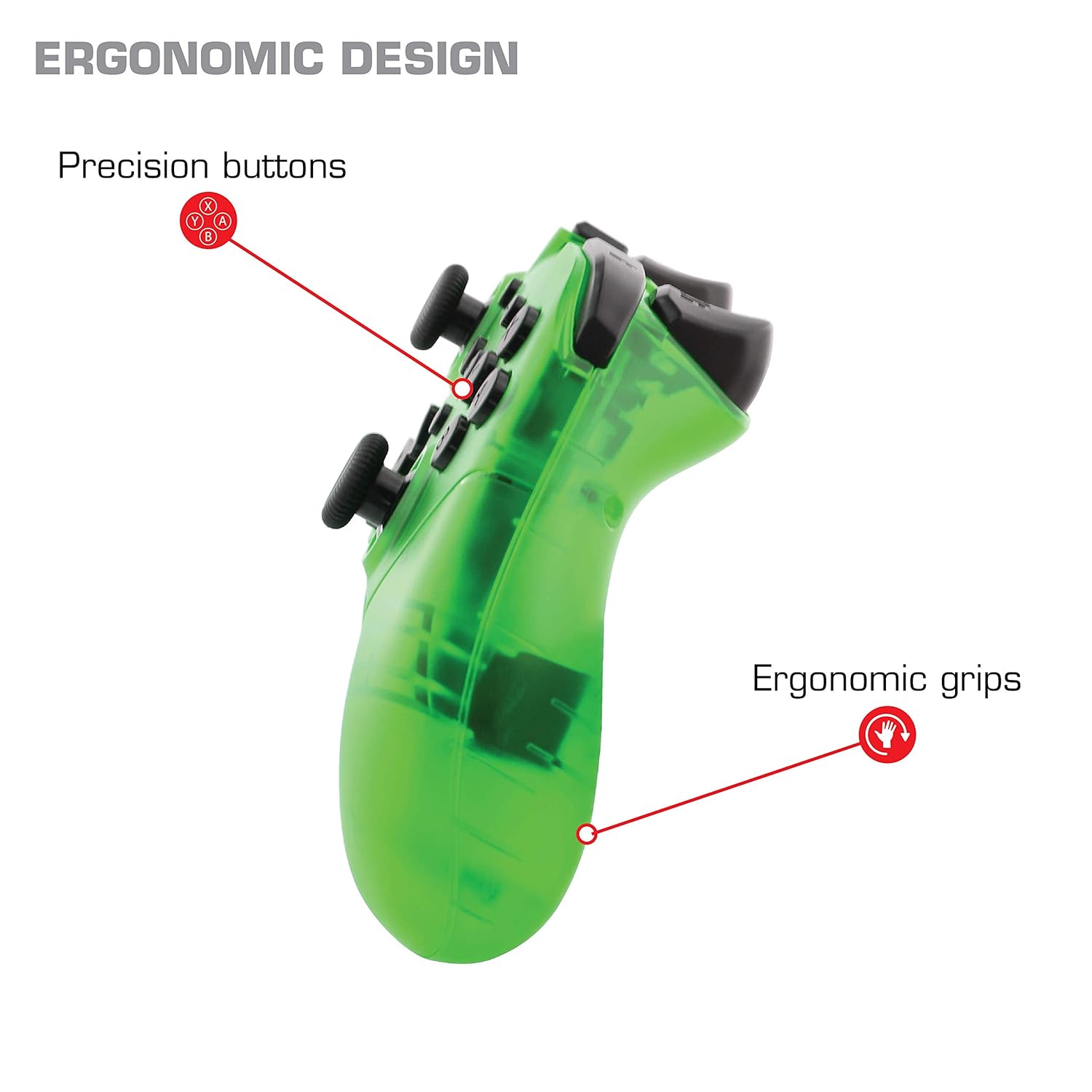
Obraz: Zbliżenie view of the Nyko Wireless Core Controller highlighting its ergonomic design and precision buttons.

Obraz: Przód view of the Nyko Wireless Core Controller, indicating its compatibility with PC, the turbo feature, and LED player indicators.
Video: A comparison between the Nyko Wireless Core Controller and a standard Nintendo Switch Pro Controller, showcasing their similar layouts and features.
Organizować coś
Początkowe ładowanie
Before first use, fully charge the controller using the included USB Type-C cable. Connect the small end of the cable to the controller's USB-C port and the larger end to a USB power source (e.g., Nintendo Switch dock, PC, or USB wall adapter).
Parowanie z Nintendo Switch
- Upewnij się, że Twoja konsola Nintendo Switch jest włączona i ma zainstalowane najnowsze oprogramowanie systemowe.
- Z menu HOME wybierz „Kontrolery” > „Zmień uchwyt/kolejność”.
- While on this screen, press and hold the SYNC button on the top of the Nyko controller for a few seconds until the player indicator LEDs begin to flash.
- Once the controller is recognized and paired, the player indicator LED(s) will light up solid.
- Notatka: For the first connection, it may be necessary to connect the controller physically to the Switch dock via the USB-C cable to initiate pairing.
Pairing with Android/PC
- Sprawdź, czy Bluetooth jest włączony w Twoim urządzeniu z systemem Android lub komputerze.
- Na swoim urządzeniu przejdź do ustawień Bluetooth i wyszukaj nowe urządzenia.
- Press and hold the SYNC button on the top of the Nyko controller until the player indicator LEDs begin to flash, indicating it's in pairing mode.
- Select "Nyko Core Controller" (or similar name) from the list of available devices on your Android/PC.
- Once paired, the player indicator LED(s) will light up solid.
Instrukcja obsługi
Podstawowe sterowanie
The controller features standard button layouts including A, B, X, Y buttons, D-Pad, Left and Right Analog Sticks, L/R and ZL/ZR shoulder buttons, HOME, +, -, and Screenshot buttons. Refer to your game's instructions for specific button functions.
Programmable Turbo Functionality
The turbo function allows for rapid, repeated input of a button press. This can be set for multiple buttons simultaneously.

Image: Diagram of the Nyko Wireless Core Controller indicating which buttons are programmable for turbo functionality and which are not.
Enabling Turbo and Auto-Fire
- To enable Turbo: Naciśnij i przytrzymaj Przycisk Turbo, then press any face button (Y, X, B, A) or trigger (L, R, ZL, ZR) you wish to have turbo functionality. While holding the assigned button, it will rapidly input.
- To enable Auto-Fire: Naciśnij i przytrzymaj Przycisk Turbo, then press the desired button dwa razy. The button will now continuously input without needing to be held down.
Disabling Turbo and Auto-Fire
- To disable Turbo/Auto-Fire for a specific button: Naciśnij i przytrzymaj Przycisk Turbo, then press the assigned button dwa razy.
- To reset all Turbo/Auto-Fire settings: Naciśnij i przytrzymaj Przycisk Turbo i (-) przycisk jednocześnie.
Changing the Speed of Turbo and Auto-Fire
This setting affects the speed of all active turbo/auto-fire enabled buttons.
- Naciśnij i przytrzymaj Przycisk Turbo.
- To increase speed, tilt the right analog stick up.
- To decrease speed, tilt the right analog stick down.
- Uwolnij Przycisk Turbo when your desired speed is set.
Konserwacja
Czyszczenie
Do czyszczenia kontrolera należy używać miękkiej, suchej ściereczki. W przypadku uporczywych zabrudzeń należy delikatnie przetrzećampPrzetrzyj ściereczkę wodą. Unikaj stosowania silnych środków chemicznych, rozpuszczalników i ściernych środków czyszczących, ponieważ mogą one uszkodzić wykończenie i wewnętrzne elementy kontrolera.
Pielęgnacja baterii
The controller contains a built-in Lithium Ion battery. To prolong battery life:
- Unikaj częstego całkowitego rozładowywania akumulatora.
- Jeśli kontroler nie będzie używany przez dłuższy czas, należy go przechowywać w chłodnym i suchym miejscu.
- Nie wystawiaj kontrolera na działanie ekstremalnych temperatur.
Rozwiązywanie problemów
Kontroler nie łączy się/utrata połączenia
- Sprawdź baterię: Ensure the controller is fully charged. A completely drained battery may prevent initial connection.
- Ponowna parowanie kontrolera: Follow the pairing instructions in the "Setup" section. For Nintendo Switch, try connecting via USB-C to the dock first.
- Odległość i zakłócenia: Ensure the controller is within range of the console/device and there are no major obstructions or sources of wireless interference.
- Aktualizacja systemu: Ensure your Nintendo Switch console or PC operating system is up to date.
Przyciski nie odpowiadają
- Re-sync: Try re-syncing the controller with your device.
- Uruchom ponownie: Power off and on both the controller and the console/device.
- Czysty: Upewnij się, że wokół przycisków nie zgromadziły się żadne zanieczyszczenia.
Rumble is Too Strong
The controller's vibration feature is designed to provide strong feedback. If the rumble intensity is too high, check the in-game settings of the specific game you are playing, as some games allow for rumble intensity adjustment. The controller itself does not have a direct setting to adjust rumble strength.
Specyfikacje
- Numer modelu: 87264
- Łączność: Bluetooth bezprzewodowy
- Port ładowania: USB typu C
- Typ baterii: Litowo-jonowy (w zestawie)
- Przybliżony czas odtwarzania: Do 20 godzin
- Wymiary produktu: 6.3 x 2.76 x 5.91 cala
- Waga przedmiotu: 10.6 uncji
- Producent: Nyko
- Zgodność: Nintendo Switch, Android, PC
Gwarancja i wsparcie
Nyko products are manufactured to high-quality standards. For specific warranty information, please refer to the warranty card included with your product or visit the official Nyko website. For technical support, troubleshooting assistance, or to inquire about replacement parts, please contact Nyko Customer Support through their official channels.
Wsparcie online: www.nyko.com/support