
SkanowanieSnap iX1500
Fujitsu ScanSnap iX1500 Color Duplex Document Scanner
Instrukcja obsługi
Brand: ScanSnap | Model: iX1500
1. Wprowadzenie
The ScanSnap iX1500 is a versatile color duplex document scanner designed for efficient document management in home or small office environments. It features a user-friendly touch screen and supports both wireless and USB connectivity, making it easy to integrate into various setups.
Główne cechy:
- Large, intuitive 4.3 inch touch screen for easy one-touch scanning.
- PC-less scanning to popular cloud services (Google Drive, Dropbox), desktop folders, and mobile devices.
- Sharing capabilities with multiple users via one scanner, allowing for unique user profiles and specific folder destinations.
- Includes ScanSnap Home software for comprehensive document capture, organization, and management.
- Flexible connectivity options with Wi-Fi and USB.
- Fast Startup mode for immediate scanning upon opening the lid.
- Gently rounded feeding chute to prevent paper curling and reduce misfeeds.
- High-speed scanning at 30 sheets per minute with a 50-sheet automatic document feeder.
- Automated features for perfect scans: auto color detection, size detection, blank page removal, deskew, and rotation.

Figure 1: ScanSnap iX1500 Document Scanner
This image displays the Fujitsu ScanSnap iX1500 scanner in its open position, revealing the document feeder and the central touch screen. The scanner is white with dark gray accents.
2. Konfiguracja
2.1 Rozpakowywanie i umieszczanie
Carefully remove all components from the packaging. Ensure all protective materials are removed from the scanner. Place the scanner on a stable, flat surface with adequate space for document feeding and output. The compact design allows for flexible placement.
- Wymiary: 11.5 x 6 x 6.3 cali (szer. X gł. X wys.)
- Waga przedmiotu: 7.5 funta
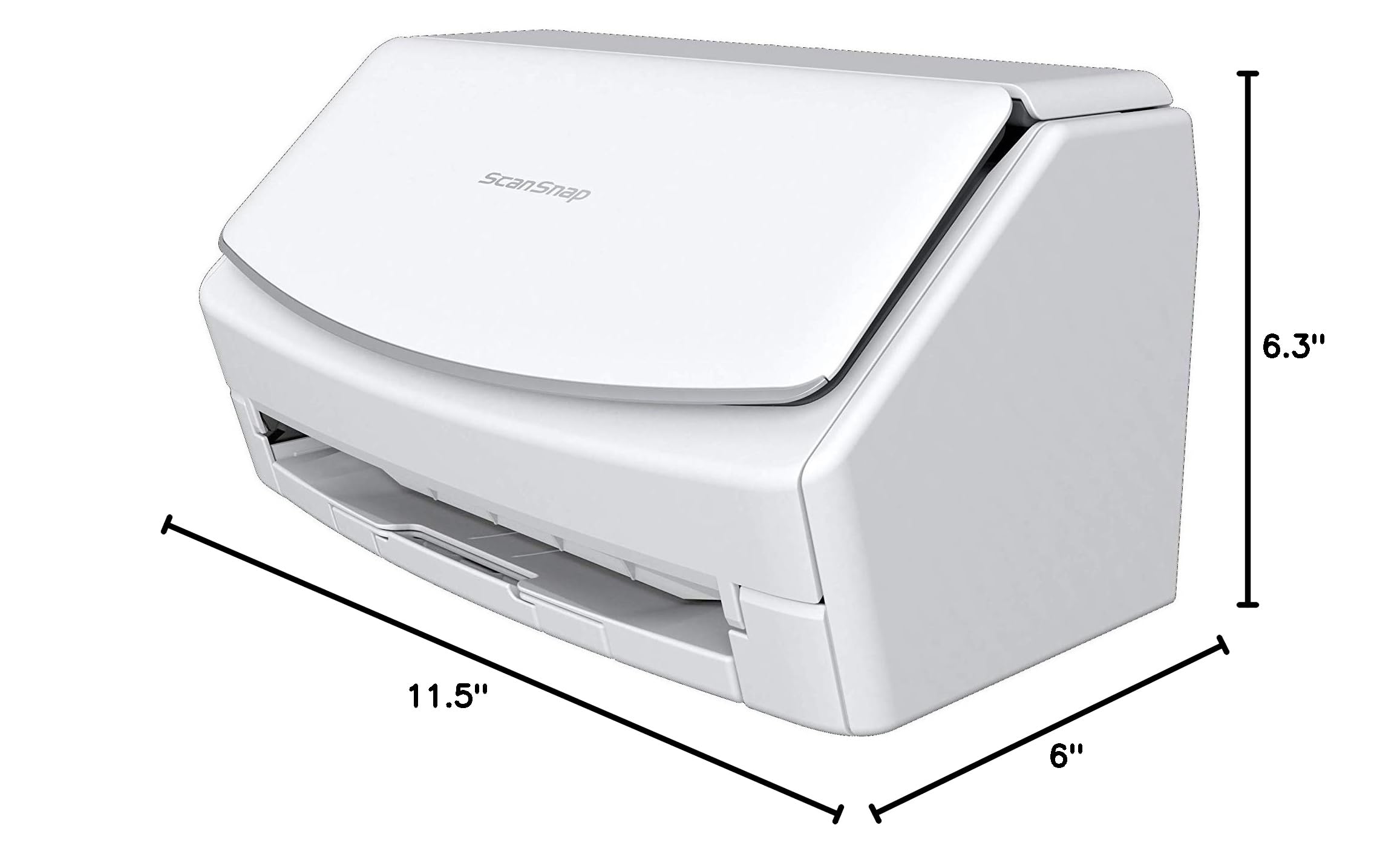
Figure 2: ScanSnap iX1500 Dimensions
This image shows the ScanSnap iX1500 scanner from a side-front angle with its key dimensions (width, depth, height) clearly marked, highlighting its compact form factor.
2.2 Podłączanie skanera
The ScanSnap iX1500 offers both USB and Wi-Fi connectivity.
- Podłączenie zasilania: Connect the AC adapter to the scanner and plug it into a power outlet.
- Połączenie USB (opcjonalnie): For a direct connection, use the provided USB 3.1 cable to connect the scanner to your computer.
- Połączenie Wi-Fi:
- Włącz skaner.
- Follow the on-screen instructions on the touch screen to connect to your wireless network. The scanner supports 2.4 GHz and 5 GHz networks.
2.3 Instalacja oprogramowania
The ScanSnap iX1500 requires the ScanSnap Home software for full functionality. This software allows you to manage settings, organize documents, and utilize advanced scanning features.
- Automatyczne pobieranie: In many cases, connecting the scanner to your computer via USB will automatically trigger the download prompt for the necessary software.
- Podręcznik Pobieranie: If the automatic download does not occur, visit the official ScanSnap support website to download the latest ScanSnap Home software for your operating system (Mac or PC).
- Instalacja: Postępuj zgodnie z instrukcjami wyświetlanymi na ekranie, aby zakończyć instalację oprogramowania.
Zawartość pudełka: ScanSnap iX1500, AC Cable, AC Adapter, USB 3.1 Cable, Receipt Guide, Nuance License.
3. Obsługa skanera
3.1 Ładowanie dokumentów
The ScanSnap iX1500 features an automatic document feeder (ADF) that holds up to 50 sheets of standard office paper. It can also handle various media types including business cards, photos, and receipts.
- Open the scanner lid to activate Fast Startup mode.
- Dopasuj prowadnice papieru do szerokości dokumentów.
- Place documents face-down into the feeder. Ensure the documents are aligned properly to prevent misfeeds. The gently rounded feeding chute helps prevent curling.

Figure 3: Loading Documents
This image shows a stack of documents, including a business card, being placed into the automatic document feeder of the ScanSnap iX1500 scanner, ready for scanning.
3.2 Korzystanie z ekranu dotykowego
The 4.3-inch touch screen provides an intuitive interface for selecting scan profilei miejsc docelowych.
- Wybierz profesjonalistęfile: Tap on the desired icon on the touch screen to select a pre-configured scan profile (e.g., Auto Scan, Manage Business, Household Expense, Share Docs).
- Dostosuj ustawienia: You can customize scan settings such as resolution, color mode, and duplex scanning through the ScanSnap Home software. These settings can be saved as shortcut buttons on the touch screen for easy retrieval.
- Rozpocznij skanowanie: Press the large "Scan" button on the touch screen or the physical scan button on the scanner to begin scanning.

Rysunek 4: Interakcja z ekranem dotykowym
This image captures a hand with a finger poised to press the "Scan" button on the vibrant touch screen of the ScanSnap iX1500, demonstrating the ease of operation.
3.3 Saving Scanned Documents
After scanning, the ScanSnap Home software will prompt you to save your documents. You can choose from various destinations:
- Pamięć lokalna: Save directly to your computer's desktop or specified folders.
- Usługi w chmurze: Easily scan to popular cloud services such as Google Drive, Dropbox, and others. ScanSnap Cloud can automatically determine document type and destination.
- Urządzenia mobilne: Send scanned documents directly to your connected mobile devices.
The software also allows for editing, naming, and viewing metadata of your documents.
4. Konserwacja
Regular maintenance ensures optimal performance and longevity of your ScanSnap iX1500 scanner.
4.1 Czyszczenie skanera
Dust and paper residue can accumulate inside the scanner, affecting scan quality. It is recommended to clean the scanner regularly.
- Przed czyszczeniem wyłącz skaner i odłącz go od zasilania.
- Delikatnie użyj miękkiej, niestrzępiącej się szmatki dampprzetrzeć powierzchnię zewnętrzną wodą lub delikatnym, nieściernym środkiem czyszczącym.
- Open the scanner and gently wipe the glass scanning surface and rollers with a clean, dry, lint-free cloth. Avoid using harsh chemicals or abrasive materials.
- Ensure all parts are dry before closing the scanner and plugging it back in.
4.2 Aktualizacje oprogramowania
Periodically check for updates to the ScanSnap Home software. Updates often include performance improvements, bug fixes, and new features.
- Open ScanSnap Home software on your computer.
- Navigate to the update section (usually found in settings or help menu) and check for available updates.
- Install any recommended updates to ensure compatibility and optimal functionality.
5. Rozwiązywanie Problemów
This section addresses common issues you might encounter with your ScanSnap iX1500 scanner.
5.1 Zacięcia papieru
If a paper jam occurs, the scanner will typically stop and indicate an error. Follow these steps:
- Wyłącz skaner.
- Open the scanner lid and carefully remove any jammed paper. Be gentle to avoid tearing the paper or damaging internal components.
- Close the lid and turn the scanner back on.
- Attempt to scan again.
5.2 Problemy z łącznością
If the scanner is not connecting to your computer or network:
- Połączenie USB: Upewnij się, że kabel USB jest prawidłowo podłączony do skanera i komputera. Spróbuj użyć innego portu USB lub kabla.
- Połączenie Wi-Fi:
- Verify that the scanner is connected to the correct Wi-Fi network. Check network settings on the scanner's touch screen.
- Sprawdź, czy router Wi-Fi działa prawidłowo i znajduje się w zasięgu.
- Restart both the scanner and your Wi-Fi router.
5.3 Software-Related Issues
Some users may experience challenges with initial software setup or document management conflicts:
- Trudność instalacji: The installation process can sometimes be complex. Refer to the detailed setup guides available on the official ScanSnap support webstronie, aby uzyskać instrukcje krok po kroku.
- Ustawienia domyślne: If scan results are not as expected, check the default settings within the ScanSnap Home software. Adjust resolution, color, and other parameters to suit your needs.
- ScanSnap Home Document Management: If you use other applications (e.g., Adobe Acrobat, PDF Expert) in your workflow, ScanSnap Home might become unresponsive after using these apps. To resolve this, you can either restart ScanSnap Home or disable its document management feature within the software settings if you prefer to manage documents with external applications.
6. Specyfikacje
| Funkcja | Specyfikacja |
|---|---|
| Wymiary produktu | 11.5 x 6 x 6.3 cala |
| Waga przedmiotu | 7.5 funta |
| Typ skanera | Document Scanner (Color Duplex) |
| Technologia łączności | USB, Wi-Fi |
| Rezolucja | 600 dpi |
| Prędkość skanowania | 30 sheets per minute |
| Pojemność automatycznego podajnika dokumentów (ADF) | 50 arkuszy |
| Obsługiwane typy nośników | Wizytówka, papier, zdjęcie, paragon |
| Rozmiar arkusza | List, A4 |
| Nazwa modelu | iX1500 China White |
| Numer modelu przedmiotu | 5NQ887 |
7. Gwarancja i wsparcie
For detailed warranty information and technical support, please refer to the official ScanSnap website or contact Fujitsu customer service.
The ScanSnap Home software also provides resources and guides to assist with common questions and issues.
Zasoby internetowe:
- Odwiedź ScanSnap Store on Amazon Aby uzyskać informacje o produkcie i akcesoriach.
- Consult the comprehensive online user manual for the ScanSnap iX1500 for more in-depth guidance.