
1. Wprowadzenie
The SUNMI L2 SmartOrder is a rugged industrial terminal designed for various business applications requiring mobility and data capture. It features an Android 7.1 operating system, a 5-inch display, and an integrated 1D/2D Zebra scanner. This manual provides essential information for the proper setup, operation, and maintenance of your device.
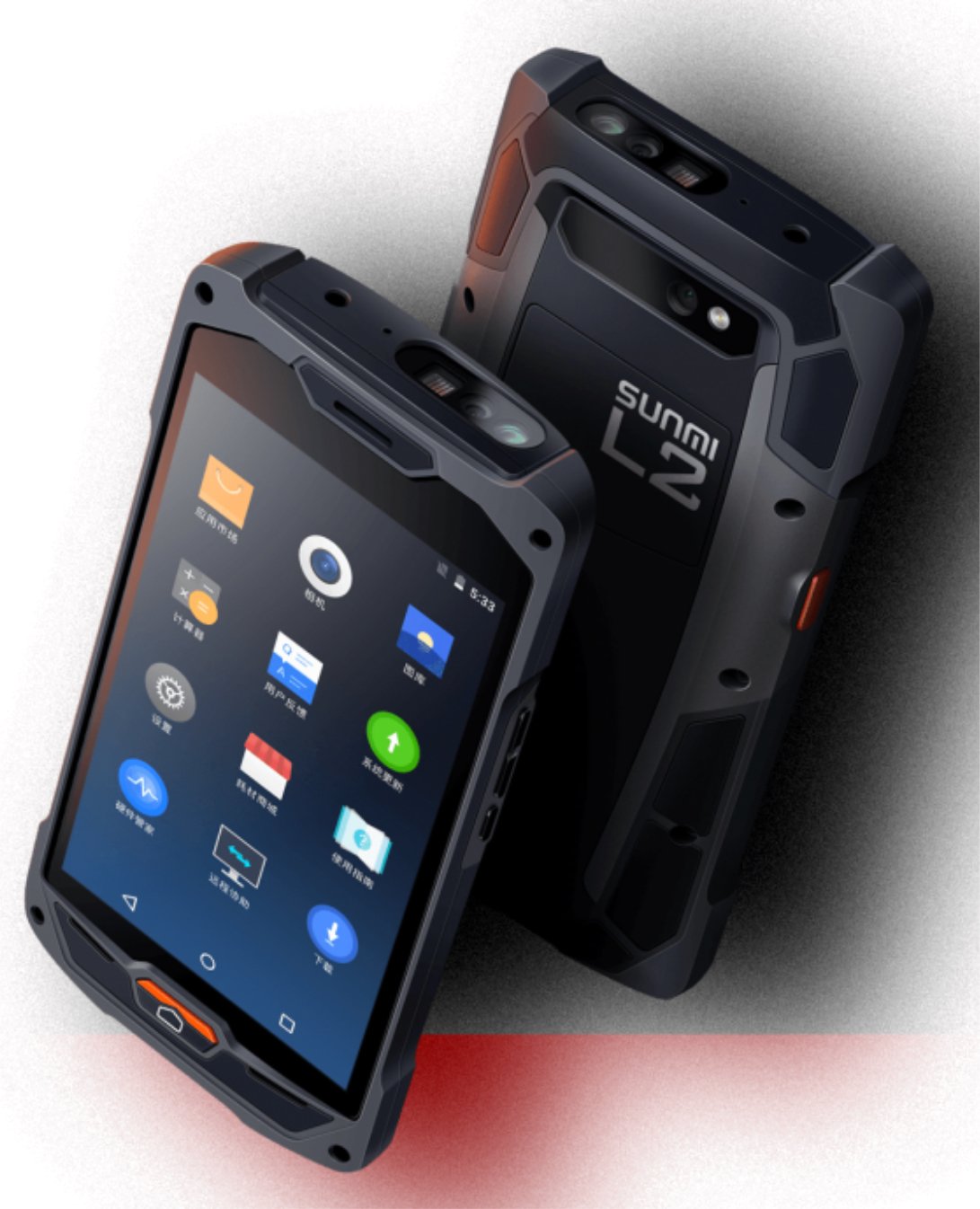
Rysunek 1: Przód i tył view of the Sunmi L2 SmartOrder industrial terminal.
2. Informacje dotyczące bezpieczeństwa
Przed użyciem urządzenia należy przeczytać wszystkie instrukcje bezpieczeństwa, aby zapobiec obrażeniom lub uszkodzeniom. Zachowaj tę instrukcję do wykorzystania w przyszłości.
- Nie wystawiaj urządzenia na działanie ekstremalnych temperatur, bezpośredniego światła słonecznego i wysokiej wilgotności.
- Use only SUNMI-approved accessories and power adapters.
- Unikaj upuszczania urządzenia i narażania go na silne uderzenia, pomimo jego solidnej konstrukcji.
- Nie próbuj samodzielnie demontować ani naprawiać urządzenia. Skontaktuj się z wykwalifikowanym personelem serwisowym.
- Trzymaj urządzenie z dala od urządzeń medycznych, gdyż może to zakłócać ich działanie.
3. Urządzenie ponadview
The SUNMI L2 SmartOrder is designed for durability and functionality. Key features include:
- 5-calowy wyświetlacz: High-resolution touchscreen for clear visibility.
- 1D/2D Zebra Scanner: Integrated for efficient barcode and QR code scanning.
- Port USB-C: Do ładowania i przesyłania danych.
- Gniazdo karty SIM: Do łączności z siecią komórkową.
- Gniazdo karty TF: Do rozszerzania pamięci masowej.
- PSAM Card Slot (Optional): For enhanced security in professional applications.
- Obszar indukcji NFC: For near-field communication.

Rysunek 2: Tył view showing SIM card slot, TF card slot, PSAM card slot, and NFC induction area.

Figure 3: Three different scanner options for the Sunmi L2: Zebra Code Scanner, Standard Code Scanner, and without scanner.
4. Konfiguracja
4.1. Montaż i ładowanie akumulatora
The device is equipped with a 5000mAh high-volume battery. Ensure the battery is fully charged before initial use.
- Podłącz dołączony kabel USB-C do portu USB-C w urządzeniu.
- Connect the other end of the USB-C cable to a compatible power adapter and plug it into a power outlet.
- The charging indicator will illuminate. Allow the device to charge completely before disconnecting.

Figure 4: Illustration of the 5000mAh high-volume battery with Quick Charge technology.
4.2. Instalacja karty SIM i TF
To install SIM or TF cards:
- Locate the card slot cover on the rear of the device (refer to Figure 2).
- Ostrożnie otwórz pokrywę.
- Insert the SIM card into the designated SIM card slot with the gold contacts facing down.
- Insert the TF card (microSD) into the TF card slot if additional storage is required.
- Zamknij dokładnie pokrywę gniazda karty, aby zachować klasę ochrony IP67 urządzenia.
4.3. Pierwsze włączenie zasilania
After charging, press and hold the power button located on the side of the device until the screen illuminates and the SUNMI logo appears. The device will boot into the Android 7.1 operating system.
5. Instrukcja obsługi
5.1. Podstawowa nawigacja
The SUNMI L2 operates on Android 7.1. Navigate the interface using the touchscreen. Swipe to unlock, tap icons to open applications, and use the navigation buttons (Home, Back, Recent Apps) as standard for Android devices.
5.2. Using the 1D/2D Zebra Scanner
The integrated Zebra scanner is located at the top of the device.
- Otwórz aplikację skanującą na swoim urządzeniu.
- Point the scanner window at the barcode or QR code you wish to scan.
- Press the dedicated scan button (if available on your model) or trigger the scan via the software interface.
- Ensure the barcode is well-lit and within the scanner's optimal range for accurate reading.

Rysunek 5: Dół view of the Sunmi L2, highlighting its rugged design and integrated scanner.
5.3. Łączność
Urządzenie obsługuje różne opcje łączności:
- WLAN (Wi-Fi): Supports 2.4 GHz and 5 GHz bands. Access Wi-Fi settings from the Android system menu to connect to available networks.
- Bluetooth (BT): Pair with other Bluetooth-enabled devices such as printers or headsets via the Bluetooth settings.
- GPRS/LTE: Utilize cellular data by inserting a SIM card and configuring network settings.
- NFC: For short-range wireless communication, typically used for contactless payments or data exchange.
6. Konserwacja
6.1. Czyszczenie urządzenia
Aby zachować wydajność i wygląd urządzenia:
- Użyj miękkiej, niestrzępiącej się ściereczki, lekko wyczyśćampprzemyć wodą lub łagodnym środkiem do czyszczenia ekranów.
- Avoid using harsh chemicals, abrasive cleaners, or solvents, as these can damage the device's surface and seals.
- Ensure all port covers are securely closed before cleaning to maintain water and dust resistance.
6.2. Pielęgnacja baterii
Prawidłowa pielęgnacja akumulatora wydłuża jego żywotność:
- Unikaj częstego całkowitego rozładowywania akumulatora.
- Nie wystawiaj urządzenia na działanie ekstremalnie wysokich lub niskich temperatur, ponieważ może to obniżyć wydajność baterii.
- If storing the device for an extended period, charge the battery to approximately 50% and store it in a cool, dry place.
6.3. Przechowywanie
When not in use, store the SUNMI L2 in a cool, dry environment, away from direct sunlight and corrosive materials.
7. Rozwiązywanie Problemów
This section addresses common issues you might encounter with your SUNMI L2 device.
- Urządzenie się nie włącza: Ensure the battery is sufficiently charged. Connect the device to a power source and attempt to power it on again.
- Skaner nie działa: Verify that the scanning application is active and the scanner is enabled in the device settings. Ensure the barcode is clean, undamaged, and properly illuminated.
- Problemy z łącznością (Wi-Fi/komórkowa): Check your Wi-Fi network connection or cellular data settings. Ensure the SIM card is correctly inserted. Try restarting the device.
- Ekran dotykowy nie reaguje: Uruchom ponownie urządzenie. Jeśli problem będzie się powtarzał, skontaktuj się z pomocą techniczną.
8. Specyfikacje
Key technical specifications for the SUNMI L2 SmartOrder:
| Numer modelu | Sunmi L2 Zebra T8900 |
| System operacyjny | Android 7.1 |
| Wyświetlacz | 5 cali |
| Procesor | Czterordzeniowy |
| BARAN | 2 GB |
| ROM | 16 GB |
| Skaner | 1D/2D Zebra Scanner |
| Łączność | USB-C, WLAN 2.4/5 GHz, Bluetooth, GPRS, LTE, NFC |
| Bateria | 5000mAh (up to 2 days use, 30 days standby) |
| Trwałość | IP67 rated (dust-proof, water-resistant, drop-resistant) |
| Temperatura pracy | -20°C do +55°C |
| Waga | 349.27 gramów |
| Kompatybilne urządzenia | Desktop computer, Laptop, POS, Smartphone, Tablet |

Figure 6: Sunmi L2 device partially submerged in water, demonstrating its IP67 dust-proof and water-resistant capabilities.
9. Gwarancja i wsparcie
For detailed warranty information, technical support, or service inquiries, please refer to the official SUNMI website or contact your authorized SUNMI distributor. Please retain your purchase receipt as proof of purchase for any warranty claims.