
Wstęp
This manual provides instructions for the setup, operation, and maintenance of your ENHANCE Infiltrate Membrane Gaming Keyboard. This keyboard is designed for gaming, featuring quiet hybrid mechanical switches, customizable RGB lighting, and a spill-resistant design.

Obraz: kątowy view of the ENHANCE Infiltrate Membrane Gaming Keyboard, showcasing its full layout and active RGB backlighting.
Organizować coś
- Rozpakowywanie: Ostrożnie wyjmij klawiaturę z opakowania. Upewnij się, że wszystkie elementy są obecne.
- Połączenie: Connect the keyboard's USB cable to an available USB port on your computer.
- Instalacja sterownika: Klawiatura działa w trybie plug-and-play i zazwyczaj nie wymaga dodatkowych sterowników. System operacyjny powinien automatycznie wykryć i zainstalować niezbędne sterowniki.
- Umieszczenie: Position the keyboard comfortably on your desk. The integrated kickstands at the rear can be used to adjust the typing angle.
Instrukcja obsługi
Efekty świetlne
The Infiltrate keyboard features customizable RGB backlighting with 7 static colors and 9 dynamic lighting effects. The transparent letters and symbols on each key ensure clear visibility in low-light conditions.
- Zmiana efektów świetlnych: Naciśnij FN klucz + 1 Poprzez 9 keys to cycle through the 9 dynamic lighting effects.
- Changing Static Colors: Naciśnij FN klucz + ~ (tilde) key to cycle through the 7 static color options.
- Regulacja jasności: Naciśnij FN klucz + Strona w górę or Strona w dół keys to increase or decrease the backlight brightness.
- Sound Response Mode: One of the dynamic effects is a Sound Response mode, where the keyboard's lighting pulses and changes color in response to audio input (music, in-game sounds).

Image: Close-up of the keyboard illustrating the FN key combinations for toggling LED effects, colors, and brightness.

Image: The keyboard positioned with external speakers, visually representing the sound response lighting feature where lights react to audio.
Multimedia and Gaming Features
- Klucze multimedialne: The keyboard includes 12 quick-access multimedia keys (F1-F12 functions when combined with FN key) for controlling audio, video, and other system functions.
- Anti-Ghosting and 19-Key Rollover: Designed for precise input, the keyboard supports 19-key rollover and anti-ghosting, ensuring that multiple simultaneous key presses are registered accurately during intense gaming sessions.
- Hybrid Mechanical Switches: The keyboard utilizes hybrid mechanical switches, providing a tactile keystroke experience similar to mechanical keyboards but with reduced noise, suitable for environments where quiet operation is preferred.

Image: A graphic overlay on the keyboard highlighting its advanced features, including multiple color modes, lighting effects, anti-ghosting, and 19-key rollover.

Obraz: Powiększony view of a keycap removed, revealing the hybrid mechanical switch mechanism underneath, designed for tactile yet quiet keystrokes.
Konserwacja
Spill and Dust Resistance
The ENHANCE Infiltrate keyboard features a special raised switch design and rear drainage ports, providing water and dust resistance. This design helps protect the internal components from accidental spills and dust accumulation.
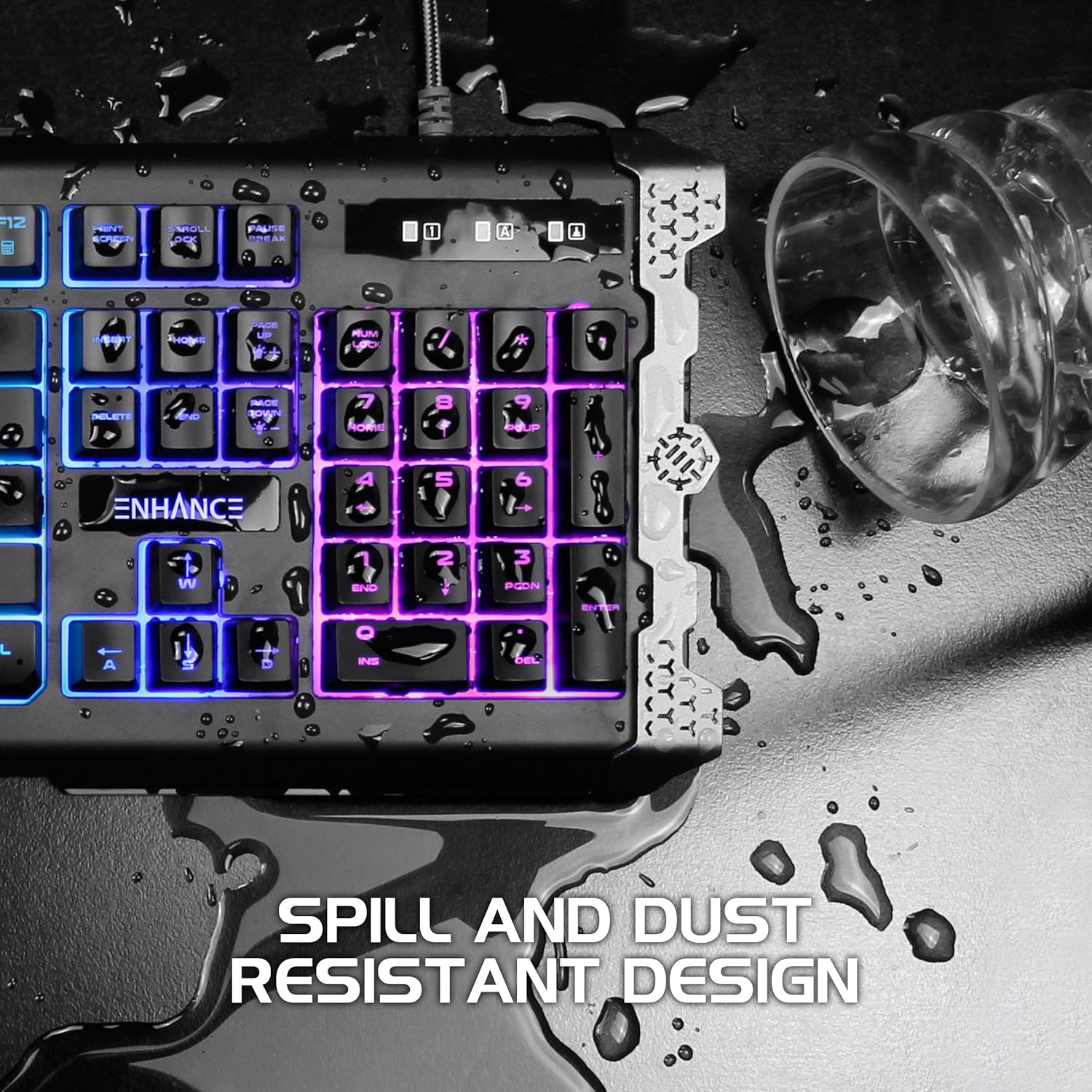
Image: The keyboard with water droplets on its surface, illustrating its spill-resistant design and drainage capabilities.
Instrukcje czyszczenia
- Ogólne sprzątanie: Regularnie przecieraj powierzchnię klawiatury miękką, suchą szmatką.
- Usuwanie kurzu: Za pomocą sprężonego powietrza usuń kurz i zanieczyszczenia spomiędzy klawiszy.
- Sprzątanie wycieków: In case of a liquid spill, immediately disconnect the keyboard from your computer. Gently wipe away the liquid with a clean cloth. Allow the keyboard to air dry completely before reconnecting. Do not use harsh chemicals or abrasive materials.
Rozwiązywanie problemów
- Klawiatura nie odpowiada:
- Sprawdź, czy kabel USB jest prawidłowo podłączony do klawiatury i komputera.
- Spróbuj podłączyć klawiaturę do innego portu USB.
- Uruchom ponownie komputer.
- Przetestuj klawiaturę na innym komputerze, aby ustalić, czy problem dotyczy klawiatury czy portu/sterowników komputera.
- Backlighting Not Working or Inconsistent:
- Ensure the backlight brightness is not set to the lowest level (use FN + Page Up).
- Cycle through different lighting effects and colors (FN + 1-9, FN + ~) to see if the issue persists across all modes.
- If specific keys or sections of the lighting are consistently out, this may indicate a hardware issue.
- Klucze nie są rejestrowane:
- Sprawdź, czy pod klawiszem nie znajdują się żadne przeszkody fizyczne.
- Clean the keyboard as per the maintenance instructions.
- If only specific keys are affected, it might be a hardware malfunction.
Specyfikacje
| Funkcja | Szczegół |
|---|---|
| Marka | ZWIĘKSZYĆ |
| Numer modelu | ENINKNL100BKUS |
| Platforma sprzętowa | PC |
| Technologia łączności | USB |
| Opis klawiatury | Hazard |
| Funkcja specjalna | Odporność na zalanie |
| Podświetlenie klawiatury | RGB (7 colors, 9 dynamic effects) |
| Przewijanie kluczy | 19-klawiszowy rollover |
| Anty-ghosting | Tak |
| Typ przełącznika | Hybrid Mechanical Membrane |
| Tworzywo | Metal Accents |
| Waga przedmiotu | 1.84 funta |
| Wymiary produktu (dł. x szer. x wys.) | 18.75 x 6.75 x 2 cala |
Gwarancja
The ENHANCE Infiltrate Membrane Gaming Keyboard comes with a 3-letnia gwarancja producentaNiniejsza gwarancja obejmuje wady materiałowe i wykonawcze powstałe w wyniku normalnego użytkowania. Prosimy zachować dowód zakupu na potrzeby roszczeń gwarancyjnych.
For detailed warranty terms and conditions, please refer to the official ENHANCE webodwiedź witrynę lub skontaktuj się z działem obsługi klienta.
Wsparcie
If you encounter any issues not covered in this manual or require further assistance, please contact ENHANCE customer support.
- Zasoby internetowe: Visit the official ENHANCE website for FAQs, updated manuals, and support articles.
- Informacje kontaktowe: Refer to the product packaging or the ENHANCE website for the most current customer service contact details (phone, email, or support portal).
Informacje dodatkowe
Ten produkt pochodzi od marki małej firmy. Doceniamy Twoje wsparcie.