
1. Wprowadzenie
The DinoFire X16-DF-US is a rechargeable wireless presentation clicker designed to enhance your presentations. It offers a reliable 2.4GHz wireless connection, a bright red laser pointer, and intuitive controls for seamless navigation through slides. This manual provides detailed instructions for setup, operation, maintenance, and troubleshooting to ensure optimal performance of your device.

Image 1: DinoFire X16-DF-US Rechargeable Wireless Presentation Clicker. This image displays the sleek, black design of the presentation remote with its control buttons and red laser light emitting from the front.
2. Zawartość opakowania
Sprawdź, czy w przesyłce znajdują się wszystkie elementy:
- 1 x Wireless Presenter Remote Control
- 1 x bezprzewodowy odbiornik USB
- 1 x kabel ładujący USB
- 1 x Instrukcja obsługi (ten dokument)
3. Koniec produktuview
Familiarize yourself with the components and controls of your DinoFire presentation clicker.

Image 2: Detailed diagram of the DinoFire X16-DF-US presentation clicker. This image shows multiple views of the device, highlighting the 'Light Hole', 'Manage Volume' buttons, 'Page UP' and 'Page Down' buttons, 'Play/Full Screen' and 'Black Screen' functions, 'Charing Port', 'USB Receiver', 'Pointer Button', 'Switch on/off' slider, 'Switch Windows' button, 'Open the Hyperlink' button, and 'Select Hyperlink' button.
- Light Hole: Emits the red laser pointer.
- Zarządzaj głośnością: Adjusts system volume (buttons labeled '+' and '-').
- Strona w górę: Navigates to the previous slide.
- Strona w dół: Navigates to the next slide.
- Play/Full Screen: Single press for Play, Press and Hold for Full Screen.
- Czarny ekran: Single press for Black Screen, Press and Hold for Black Screen.
- Port ładowania: Micro USB port for recharging the device.
- Odbiornik USB: Stores securely within the presenter via magnetism.
- Pointer Button: Activates the red laser pointer.
- Przełącznik włączone / wyłączone: Power slider to turn the device on or off.
- Przełącz okna: Long press the TAB key button to switch between open windows.
- Open the Hyperlink: Double press the dedicated hyperlink button to open a selected hyperlink.
- Select Hyperlink: Single press the dedicated hyperlink button to select a hyperlink.
4. Konfiguracja
4.1 Charging the Presenter
The DinoFire X16-DF-US features a built-in rechargeable battery. Before first use, or when the low power indicator flashes, charge the device using the provided USB cable.
- Connect the micro USB end of the charging cable to the charging port on the side of the presenter.
- Podłącz standardowy koniec USB kabla do źródła zasilania USB (np. portu USB komputera, zasilacza ściennego USB).
- A full charge typically takes about one hour. The device can operate for more than one week on a single charge, depending on usage.

Image 3: The DinoFire X16-DF-US presentation clicker connected to a laptop via a USB charging cable. This image illustrates the charging process, highlighting the micro USB port on the device and the USB-A connector plugged into a laptop.
4.2 Podłączanie odbiornika USB
The wireless receiver is stored magnetically within the presenter for convenience and to prevent loss.
- Gently pull out the USB receiver from the bottom end of the presenter.
- Insert the USB receiver into an available USB port on your computer or laptop.
- System automatycznie wykryje i zainstaluje niezbędne sterowniki. Ręczna instalacja sterowników nie jest wymagana.

Obraz 4: Zbliżenie view of the DinoFire X16-DF-US presentation clicker showing the magnetic storage for the USB receiver. The image demonstrates how the mini USB receiver is securely stored within the presenter's body, preventing it from being easily lost.
4.3 Włączanie/wyłączanie
Locate the ON/OFF switch on the side of the presenter. Slide it to the 'ON' position to power on the device before use, and to 'OFF' when not in use to conserve battery.
5. Instrukcja obsługi
The DinoFire X16-DF-US offers a range of functions to control your presentation effectively.
5.1 Basic Presentation Controls
- Page Up (▲ button): Press to move to the previous slide.
- Page Down (▼ button): Press to move to the next slide.
- Play/Full Screen (□ button): Single press to start/resume presentation. Press and hold to enter full screen mode.
- Black Screen (□ button): Single press to black out the screen. Press and hold to black out the screen.
5.2 zaawansowane funkcje
- Hyperlink Control:
- Single press the dedicated hyperlink button to select a hyperlink.
- Double press the dedicated hyperlink button to open the selected hyperlink.
- Regulacja głośności: Use the '+' and '-' buttons on the side of the presenter to adjust the system volume.
- Przełącz okna: Long press the 'TAB' button (often integrated with another function button) to switch between open application windows on your computer.

Image 5: The DinoFire X16-DF-US presentation clicker demonstrating the 'Switch Windows' function. The image shows the presenter in front of a computer screen displaying multiple open application windows, illustrating the ability to switch between them.
5.3 Laser Pointer Operation
Press and hold the dedicated pointer button (often marked with a sun or star icon) to activate the red laser pointer. Release the button to turn it off.

Image 6: Close-up of the DinoFire X16-DF-US presentation clicker emitting a bright red laser beam. The image also includes a warning symbol against pointing the laser at eyes, emphasizing laser safety.
Safety Warning: Do not point the laser beam directly at people's eyes or at highly reflective surfaces. The laser is bright and can cause temporary vision impairment or eye damage.
The red laser light is effective against most backgrounds but is not recommended for use on LED, LCD, or TV screens.
5.4 Zgodność
The DinoFire X16-DF-US is widely compatible with various operating systems and presentation software:
- Systemy operacyjne: Windows 2003, XP, Windows Vista, Windows 7, 8, 10, Linux, Android, Mac OS.
- Oprogramowanie: Microsoft PowerPoint, Keynote, Google Slides, Prezi, MS Word, Excel, ACD See, and web przeglądarek.
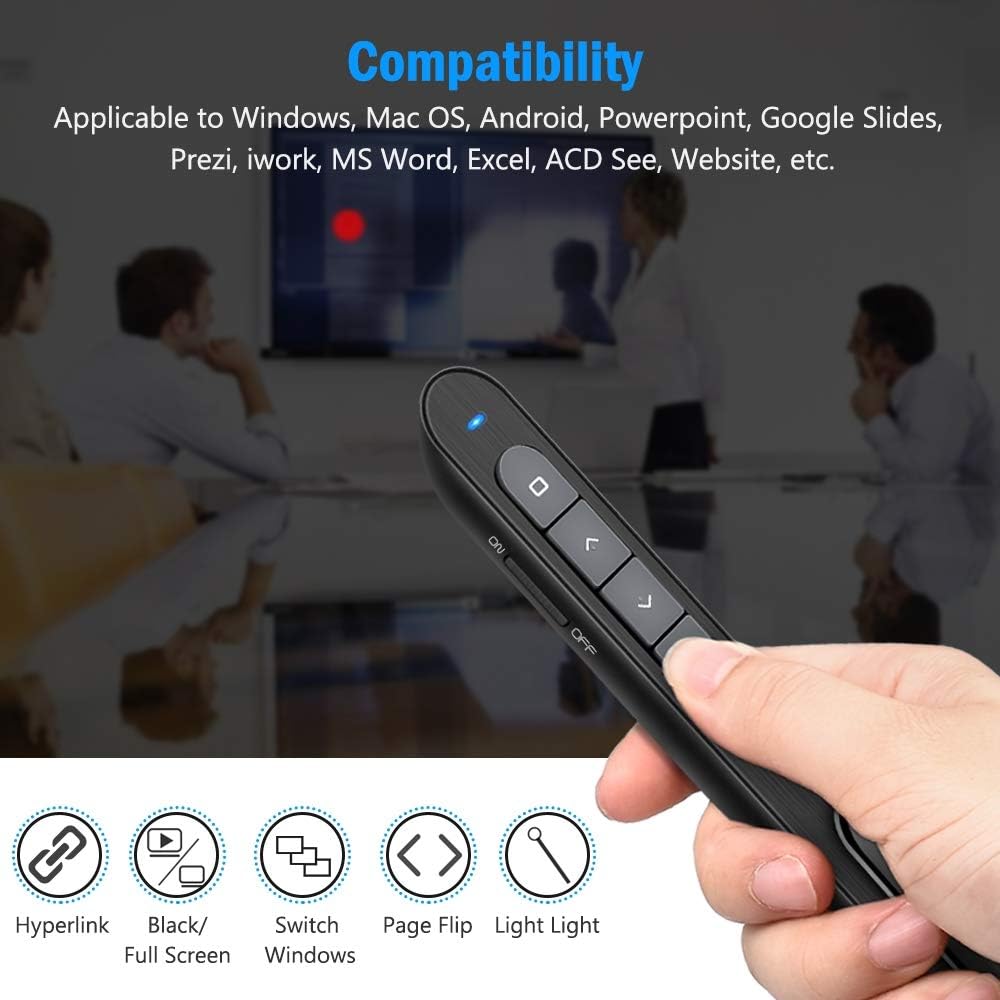
Image 7: The DinoFire X16-DF-US presentation clicker shown with various compatibility icons. This image highlights the device's compatibility with Windows, Mac OS, Android, PowerPoint, Google Slides, Prezi, iWork, MS Word, Excel, ACD See, and general website navigation.
5.5 Wireless Control Range
The presenter operates on a 2.4GHz RF frequency, providing a wireless control range of up to 100 feet (30 meters). The red laser light has a range of over 300 feet (90 meters).

Image 8: A person using the DinoFire X16-DF-US presentation clicker in a large room, pointing at a projected screen. The image emphasizes the long control range of the device, indicating a presenter control range of over 328ft and a red light range of over 656ft.
6. Konserwacja
6.1 Pielęgnacja baterii
- Całkowicie naładuj urządzenie przed pierwszym użyciem.
- Unikaj częstego całkowitego rozładowywania akumulatora, aby przedłużyć jego żywotność.
- Przechowuj urządzenie w chłodnym i suchym miejscu, jeśli nie będziesz go używać przez dłuższy czas.
6.2 Czyszczenie
Przetrzyj urządzenie miękką, suchą ściereczką. Nie używaj silnych środków chemicznych ani ściernych środków czyszczących.
6.3 Przechowywanie odbiornika USB
Always store the USB receiver inside the magnetic compartment of the presenter when not in use to prevent loss.
7. Rozwiązywanie Problemów
- Presenter not responding:
- Ensure the presenter is powered on (ON/OFF switch).
- Check if the USB receiver is securely plugged into the computer's USB port.
- Verify the presenter's battery level. Recharge if the low power indicator is flashing.
- Spróbuj podłączyć odbiornik USB do innego portu USB.
- Uruchom ponownie komputer.
- Wskaźnik laserowy nie działa:
- Sprawdź, czy prezenter jest włączony.
- Press and hold the laser pointer button firmly.
- Sprawdź poziom naładowania baterii.
- Wskaźnik niskiego poboru mocy:
- When the indicator light flashes continuously, it signifies low battery. Please charge the device immediately.
- The device will enter auto-sleep mode if unused for approximately 5 minutes to save energy.
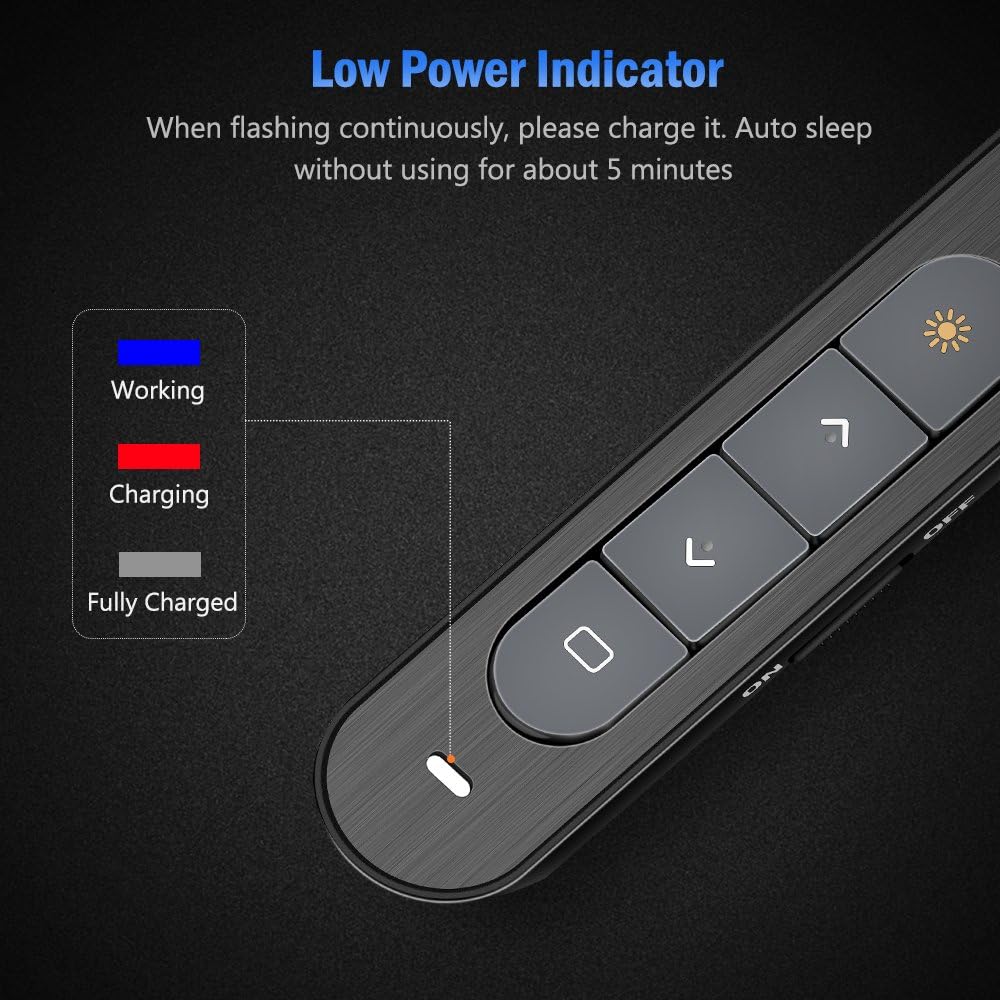
Image 9: Close-up of the DinoFire X16-DF-US presentation clicker showing the low power indicator light. The image displays a legend for the indicator light colors: blue for 'Working', red for 'Charging', and gray for 'Fully Charged', along with a visual representation of the indicator flashing when low on power.
8. Specyfikacje
| Funkcja | Specyfikacja |
|---|---|
| Numer modelu | X16-DF-US |
| Technologia | Częstotliwość radiowa (RF) |
| Częstotliwość | 2.4 GHz |
| Kontrola odległości | Do 100 stóp (30 m) |
| Kolor światła laserowego | Czerwony |
| Laser Light Distance | Over 300ft (90m) |
| Maksymalna moc lasera | <5mW |
| Typ baterii | 160 mAh litowo-polimerowy |
| Czas ładowania | Około 1 godziny |
| Objętość roboczatage | 1.5 V |
| Prąd uśpienia | Mniej niż 10uA |
| Wymiary | 5.5 x 0.8 x 0.8 cala (w przybliżeniu) |
| Waga przedmiotu | 1.76 uncji |
| Wersja USB | USB 1.1, kompatybilny z USB 2.0, USB 3.0 |
| Kompatybilne systemy operacyjne | Windows 2003/XP/Vista/7/8/10, Mac OS, Linux, Android |
9. Gwarancja i wsparcie
DinoFire offers a commitment to product quality. If the USB receiver is lost within one year of purchase, a free replacement may be provided. For further support or inquiries, please refer to the DinoFire official webwitryny lub skontaktuj się z obsługą klienta.