
WISE TIGER WT-RT8501
Instrukcja obsługi routera bezprzewodowego WISE TIGER AC1200
Model: WT-RT8501
1. Koniec produktuview
The WISE TIGER AC1200 Wireless Router is a high-speed dual-band router designed for robust wireless internet connectivity in homes, offices, and restaurants. It features 802.11AC/N/G/B/A Wi-Fi technology, beamforming for enhanced signal reliability, and four external 5dBi antennas to ensure long-range coverage, even in basements or attics.
This router supports up to 300Mbps at 2.4GHz and 866Mbps at 5GHz, providing smooth online gaming and video streaming experiences. It also includes a WAN port and four LAN Fast ports (10/100Mbps) for wired connections. Security features include WPA/WPA2-PSK encryption, firewall, parental controls, and guest network capabilities.

Rycina 1: Przód view of the WISE TIGER AC1200 Wireless Router.
2. Zawartość opakowania
Sprawdź, czy w przesyłce znajdują się wszystkie elementy:
- Dwupasmowy router bezprzewodowy AC1200
- Jednostka zasilająca
- Szybki przewodnik instalacji
- Kabel sieciowy
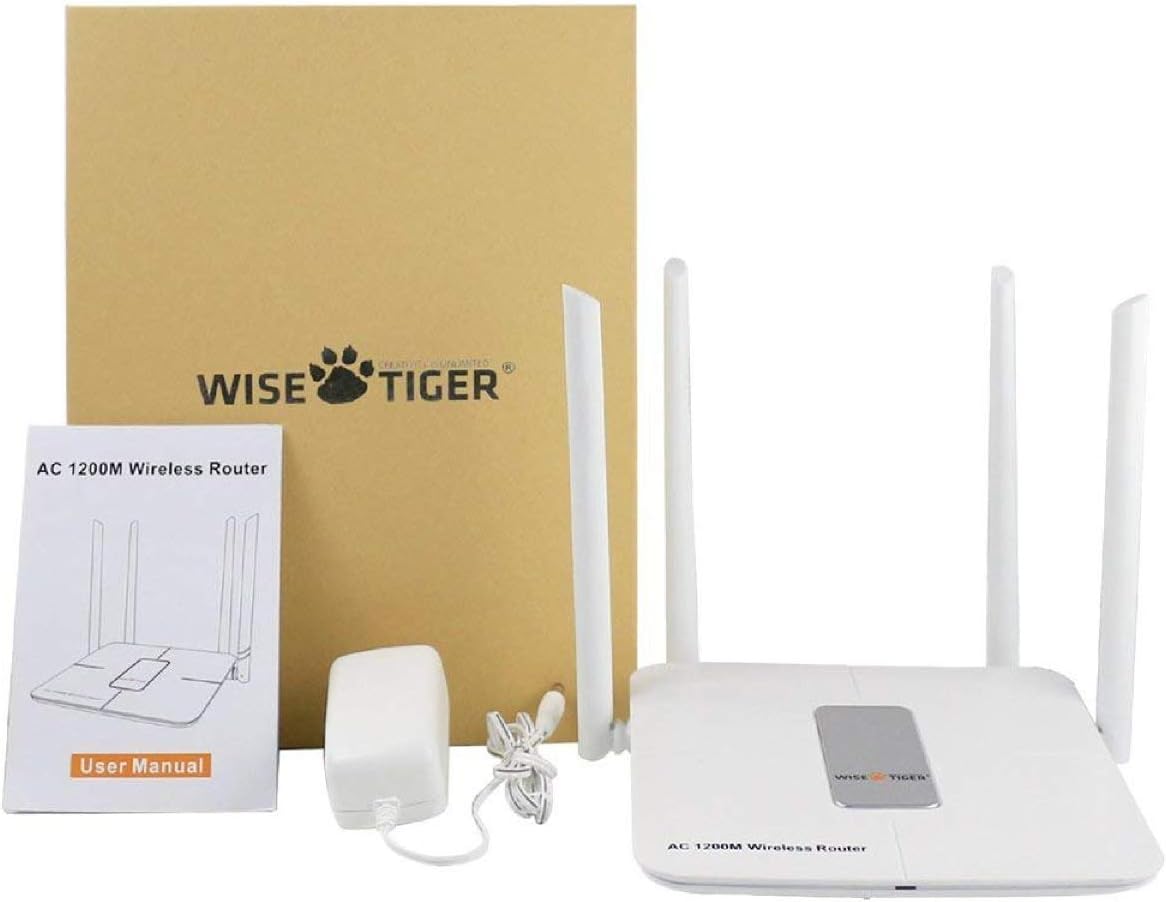
Figure 2: All components included in the WISE TIGER AC1200 Wireless Router package.
3. Diagram produktu i porty
Familiarize yourself with the router's physical layout and ports:

Rysunek 3: Tył view of the router with labeled ports.
- Porty LAN (x4): Connect your wired devices such as computers, gaming consoles, or smart TVs.
- Port internetowy (WAN): Aby uzyskać dostęp do Internetu, podłącz kabel Ethernet modemu do tego portu.
- Pobór mocy: Podłącz tutaj dołączony zasilacz.
- Przycisk resetowania: Used to restore the router to factory default settings. Press and hold for several seconds while the router is powered on.
- Przycisk WPS: For quick and secure wireless connection setup with WPS-compatible devices.
4. Specyfikacje
| Funkcja | Specyfikacja |
|---|---|
| Marka | MĄDRY TYGRYS |
| Nazwa modelu | WT-RT8501 |
| Typ bezprzewodowy | 802.11a/b/g/n/ac |
| Klasa pasma częstotliwości | Dwuzakresowy (2.4 GHz i 5 GHz) |
| Szybkość przesyłu danych | Up to 300Mbps (2.4GHz), 866Mbps (5GHz) |
| Antena | 4 zewnętrzne anteny 5 dBi |
| Porty Ethernet | 1 x WAN, 4 x LAN (10/100Mbps) |
| Pikolak | WPS, Reset |
| Bezpieczeństwo | WPA/WPA2-PSK, Firewall, Parental Controls, Guest Network |
| Zgodność z systemem operacyjnym | Windows XP/7/8/10/Vista, Mac, Android |
| Waga przedmiotu | 2.75 uncji |
| Wymiary produktu | 1.48 x 6.6 x 5.58 cala |

Figure 4: Router dimensions for placement planning.
5. Przewodnik konfiguracji
Follow these steps to set up your WISE TIGER AC1200 Wireless Router:
5.1 Początkowe połączenie sprzętowe
- Podłącz kabel WAN: Plug the broadband wire from your modem into the blue WAN port on the router.
- Podłącz kabel LAN (opcjonalnie): For wired devices, connect one end of the network patch cable to a yellow LAN port on the router and the other end to your PC's LAN network port.
- Włączanie: Connect the power adapter to the router's power input and plug it into an electrical outlet.
5.2 Dostęp do Web Interfejs
- Join Wi-Fi: On your computer or mobile device, connect to the router's default Wi-Fi network. The default Wi-Fi name (SSID) and password can usually be found on a sticker on the bottom of the router.
- Otwórz przeglądarkę: Otwórz web przeglądarka (np. Chrome, Firefox, Edge).
- Wprowadź adres IP: W pasku adresu wpisz
192.168.0.1i naciśnij Enter. - Login: Enter the default username and password. Typically, both are
admin.
5.3 WAN Setup (Internet Connection Type)
Select the connection type provided by your Internet Service Provider (ISP):
- PPPoE: If your ISP provides a username and password for internet access, select PPPoE and enter the credentials.
- Stałe IP: If your ISP provided a fixed IP address, subnet mask, default gateway, and DNS settings, select Static IP and input these details.
- Dynamiczny adres IP: If your ISP uses a DHCP server, select Dynamic IP. The router will automatically obtain network settings. No account or static IP info is needed.
- PPTP/L2TP: If your ISP provided PPTP/L2TP connection details including a server IP or domain, select this option and enter the required information.
- WISP (Wireless ISP): This mode allows the router to connect to another Wi-Fi network as its internet source, acting as a Wi-Fi repeater. Select a Wi-Fi network from the list and log in with its password.
5.4 Ustawienia bezprzewodowe
Configure your Wi-Fi networks for both 2.4GHz and 5GHz bands:
- Nazwa sieci Wi-Fi (SSID): Change the default Wi-Fi name to a custom one for easy identification.
- Szyfrowanie: Select a strong encryption type, such as WPA2-PSK, for network security.
- Hasło Wi-Fi: Ustaw silne i unikalne hasło do swojej sieci Wi-Fi.
- Przepustowość łącza: Adjust the channel width for optimal performance (e.g., 20/40MHz for 2.4GHz, 40/80MHz for 5GHz).
Video 1: Official product video demonstrating the unboxing, features, and installation process of the WISE TIGER AC1200 Wireless Router.
6. Obsługa routera
6.1 Optymalne rozmieszczenie
For the best wireless performance, place your router in a central location, away from obstructions like thick walls, metal objects, and other electronic devices that may cause interference. The four high-gain external antennas are designed to provide extensive coverage.

Figure 5: Illustration of the router's high-power signal penetration.

Figure 6: Visual representation of 2.4GHz (longer distance) and 5GHz (faster transmission) band characteristics.
6.2 Funkcje zaawansowane
- Kontrola rodzicielska: Zarządzaj dostępem do Internetu i ograniczaj go dla określonych urządzeń lub użytkowników.
- Sieć gości: Create separate Wi-Fi networks for guests, providing internet access without sharing your main network password or resources. The router supports up to 3 guest access points.
- Zapora sieciowa: The built-in firewall helps protect your network from unauthorized access and malicious attacks.
- MAC Filtering (Restricted List): You can block or allow specific devices on your network based on their MAC addresses. This feature is found under the 'Restricted list' in the web interfejs.
- Kontrola przepustowości: Allocate specific download and upload limits to connected devices to manage network traffic effectively. This can be configured in the 'Bandwidth Control' section of the web interfejs.
7. Konserwacja
Regularna konserwacja zapewnia optymalną wydajność i długowieczność routera:
- Aktualizacje oprogramowania układowego: Periodically check the WISE TIGER official webStrona z aktualizacjami oprogramowania sprzętowego. Aktualizacja oprogramowania sprzętowego może poprawić wydajność, dodać nowe funkcje i naprawić błędy.
- Regularne ponowne uruchomienie: Rebooting your router every few weeks can help clear its memory and resolve minor connectivity issues. Simply unplug the power adapter, wait 10 seconds, and plug it back in.
- Czyszczenie: Utrzymuj router w czystości i zapobiegaj jego zakurzeniu. Do czyszczenia zewnętrznej części używaj miękkiej, suchej ściereczki. Upewnij się, że otwory wentylacyjne nie są zablokowane.
8. Rozwiązywanie Problemów
Jeśli masz problemy z routerem, wypróbuj następujące rozwiązania:
- Brak dostępu do internetu:
- Check all cable connections (WAN, LAN, Power) to ensure they are secure.
- Verify your modem is working correctly. Try rebooting both the modem and the router.
- Potwierdź ustawienia sieci WAN w routerze web interfejs spełnia wymagania Twojego dostawcy usług internetowych.
- Słaby sygnał Wi-Fi lub martwe strefy:
- Przenieś router w bardziej centralne miejsce w domu lub biurze.
- Dostosuj anteny routera, aby uzyskać lepszy kierunek sygnału.
- Zminimalizuj zakłócenia wywoływane przez inne urządzenia elektroniczne (telefony bezprzewodowe, kuchenki mikrofalowe).
- Consider using the WISP mode to extend coverage if you have another Wi-Fi network.
- Nie można uzyskać dostępu do routera Web Interfejs:
- Upewnij się, że urządzenie jest podłączone do sieci Wi-Fi routera lub podłączone do portu LAN za pomocą kabla Ethernet.
- Sprawdź, czy wpisujesz poprawny adres IP (
192.168.0.1). - Wyczyść pamięć podręczną i pliki cookie przeglądarki lub spróbuj użyć innej przeglądarki.
- Jeśli zapomniałeś danych logowania, może być konieczne przywrócenie ustawień fabrycznych.
- Przywrócenie ustawień fabrycznych: If all else fails, use a paperclip or pin to press and hold the Reset button on the back of the router for about 10 seconds while it is powered on. This will restore all settings to their factory defaults, including Wi-Fi name and password. You will then need to reconfigure the router.
9. Gwarancja i wsparcie
WISE TIGER provides a 1-letnia gwarancja for this product. In case the product does not meet your satisfaction or experiences issues within this period, a new replacement will be provided.
For technical support or warranty claims, please refer to the contact information provided in your product packaging or visit the official WISE TIGER webwitryna zawierająca najnowsze zasoby pomocy technicznej.
Prosimy zachować dowód zakupu w celach gwarancyjnych.
Ask a question about this manual
Ask about setup, troubleshooting, compatibility, parts, safety, or missing instructions. Manuals+ will review the question and use this page’s manual context to help answer it.