
1. Wprowadzenie
The VisionTek VT1000 Universal Dual Full HD USB 3.0 Laptop Monitor Docking Station is designed to expand the connectivity of your laptop, whether it runs Windows, macOS, or Chrome OS. This docking station allows you to connect to dual displays and a variety of peripherals through a single USB connection, transforming your laptop into a complete workstation.
Produkt ponadview
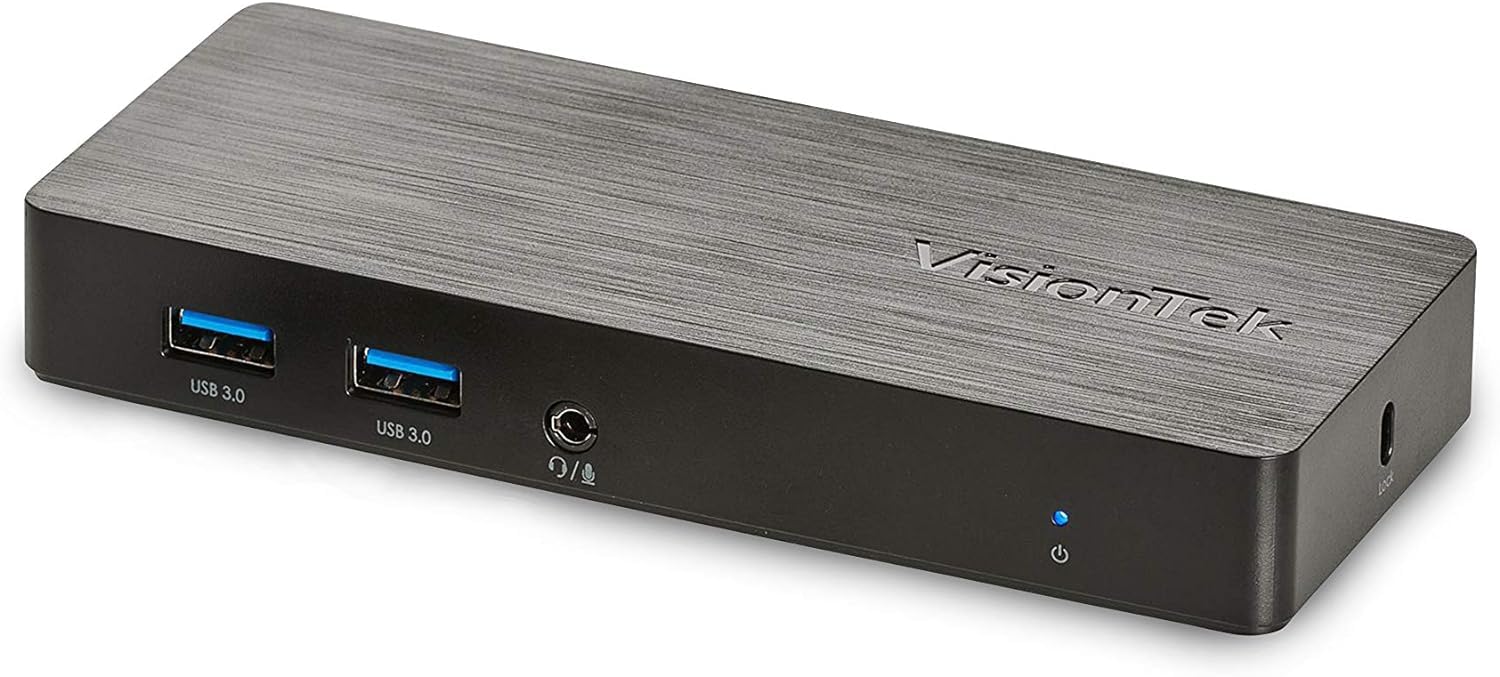
Obraz: Przód view of the VisionTek VT1000 docking station.
Co jest w pudełku
- Uniwersalna stacja dokująca USB 1000 VT3.0 z dwoma wyświetlaczami
- Kabel USB 3.0
- Instrukcja obsługi (Szybki przewodnik instalacji)
- Zasilacz

Image: The VisionTek VT1000 docking station and its included accessories.
2. Główne cechy
- Dual Full HD Displays: Connect two monitors to your laptop with full HD resolution (1920 x 1080 @ 60Hz) via 1x DisplayPort, 1x HDMI, and 1x 1080P VGA.
- Rozszerzona łączność: Features 3x USB 3.0 ports (5 Gbps transfer speed), 1x RJ45 (10/100/1000) Gigabit Ethernet port, and a headphone audio line in/out jack.
- Plug and Display: Utilizes DisplayLink drivers for plug-and-play functionality, simplifying setup for various workspaces.
- Szeroka kompatybilność z systemami operacyjnymi: Compatible with Ultrabook, MacBook, Microsoft Surface Pro, Chromebook, Windows 11, Windows 10, Windows 8.1, Windows 7, and Mac OS 10.13 and up operating systems.
- Kompaktowa konstrukcja: Designed to be compact, taking up minimal desk space while providing extensive functionality.
3. Porty i wskaźniki
The VT1000 docking station provides a comprehensive set of ports for various connectivity needs. Refer to the video below for a visual guide to the ports.
Panel przedni
- 2 porty USB 3.0: Do podłączania urządzeń USB o dużej prędkości.
- Wyjście audio (gniazdo słuchawkowe): Do podłączenia słuchawek lub głośników zewnętrznych.
- Wejście mikrofonowe: Do podłączenia mikrofonu.
- Wskaźnik zasilania LED: Illuminates when the dock is powered on.
Panel tylny
- 1x port VGA: Do podłączenia monitora VGA.
- 1x port HDMI: For connecting an HDMI monitor.
- 1x DisplayPort: For connecting a DisplayPort monitor.
- 1x RJ45 Gigabit Ethernet Port: Do przewodowego połączenia sieciowego.
- 1x port USB 3.0: Do podłączania urządzeń USB o dużej prędkości.
- USB-B Port (Upstream): For connecting the dock to your laptop via the included USB 3.0 cable.
- Wejście zasilania 5 V DC: Do podłączenia zasilacza.
- Gniazdo blokady bezpieczeństwa: For securing the docking station.
Official Product Video: VisionTek VT1000 Universal Dual Display USB 3.0 Dock
Video: This official VisionTek video provides a visual overview of the VT1000 docking station, highlighting its features, ports, and connectivity options. It demonstrates how the dock can expand your laptop's capabilities into a full workstation.
4. Instrukcje konfiguracji
- Podłącz zasilanie: Plug the included power adapter into the DC 5V input port on the rear of the VT1000 docking station, then plug the adapter into a power outlet. The power indicator LED on the front of the dock should illuminate.
- Połącz z laptopem: Use the provided USB 3.0 cable to connect the USB-B port on the rear of the docking station to an available USB 3.0 port on your laptop.
- Podłącz monitory: Connect your external monitors to the desired video output ports on the rear of the docking station (HDMI, DisplayPort, or VGA). The VT1000 supports dual displays.
- Podłącz urządzenia peryferyjne: Connect your keyboard, mouse, external hard drives, printers, webcams, or other USB devices to the USB 3.0 ports on the front and rear of the docking station.
- Połącz sieć (opcjonalnie): For a wired internet connection, connect an Ethernet cable from your router or network switch to the RJ45 Gigabit Ethernet port on the rear of the docking station.
- Podłącz dźwięk (opcjonalnie): If desired, connect headphones or speakers to the audio out jack and a microphone to the mic in jack on the front of the docking station.
- Instalacja sterownika: The VT1000 features DisplayLink Plug and Play technology, typically requiring no manual driver installation on compatible operating systems. If prompted, follow on-screen instructions or visit the VisionTek support website for the latest DisplayLink drivers.
5. Instrukcja obsługi
Once the VT1000 docking station is set up, it operates seamlessly with your connected laptop.
- Konfiguracja wyświetlacza: After connecting your monitors, your operating system should automatically detect them. You can configure display settings (e.g., extend, duplicate, primary display) through your computer's display settings.
- USB Device Usage: Connected USB devices will function as if directly connected to your laptop.
- Dostęp sieciowy: Port Gigabit Ethernet zapewnia stabilne i szybkie przewodowe połączenie sieciowe.
- Audio Functionality: The audio ports allow for external audio output and microphone input. Ensure your operating system's sound settings are configured to use the docking station's audio device.
- Zarządzanie energią: The docking station requires external power and does not supply power to your laptop. Ensure your laptop's power adapter is connected for charging.
6. Specyfikacje
| Funkcja | Szczegół |
|---|---|
| Marka | VisionTek |
| Numer modelu | 901147 (VT1000 Series) |
| Zgodność z systemem operacyjnym | Windows 11, Windows 10, Windows 8.1, Windows 7, macOS 10.13 and later, Chrome OS |
| Waga przedmiotu | 8 uncji |
| Wymiary produktu (dł. x szer. x wys.) | 5.95 x 2.8 x 0.8 cala |
| Interfejs sprzętowy | DisplayPort, Ethernet, HDMI, USB, USB 3.0, VGA |
| Kompatybilne urządzenia | Laptop |
| Łączna liczba portów USB | 3 (USB 3.0) |
| Wszystkie porty HDMI | 1 |
| Cotage | 20 watów |
7. Rozwiązywanie Problemów
- Brak wyjścia wyświetlacza:
- Ensure the docking station's power adapter is securely connected and the power indicator LED is on.
- Verify that the USB 3.0 cable connecting the dock to your laptop is firmly seated at both ends.
- Check that monitor cables (HDMI, DisplayPort, VGA) are securely connected to both the dock and the monitors.
- Confirm that your monitors are powered on and set to the correct input source.
- Uruchom ponownie laptopa i stację dokującą.
- Ensure DisplayLink drivers are installed and up-to-date, if necessary. Although typically plug-and-play, some systems may benefit from manual driver installation from the DisplayLink webstrona.
- Urządzenia USB nie działają:
- Sprawdź, czy stacja dokująca jest włączona i podłączona do laptopa.
- Try connecting the USB device to a different USB port on the dock or directly to your laptop to rule out device issues.
- Some high-power USB devices may require their own external power supply.
- Problemy z połączeniem sieciowym:
- Verify the Ethernet cable is securely connected to both the dock and your network.
- Sprawdź ustawienia sieciowe laptopa i upewnij się, że karta Ethernet jest włączona.
- Restart your router/modem, the docking station, and your laptop.
- Dźwięk nie działa:
- Check your laptop's sound settings to ensure the docking station's audio output is selected as the default playback device.
- Ensure headphones/speakers are properly connected to the audio out jack.
- Adjust volume levels on both your laptop and the connected audio device.
8. Konserwacja
- Czyszczenie: Do czyszczenia zewnętrznej części stacji dokującej należy używać miękkiej, suchej ściereczki. Unikaj stosowania płynnych środków czyszczących i rozpuszczalników.
- Składowanie: Store the docking station in a cool, dry place away from direct sunlight and extreme temperatures when not in use for extended periods.
- Zarządzanie kablami: Aby zapobiec uszkodzeniom, należy zadbać o to, aby kable nie były nadmiernie wygięte lub splątane.
9. Gwarancja i wsparcie
The VisionTek VT1000 Universal Dual Full HD USB 3.0 Laptop Monitor Docking Station comes with a 2-roczna ograniczona gwarancja. To ensure coverage, register your product with VisionTek within 30 days of purchase.
VisionTek offers excellent US-based customer support for any technical assistance or inquiries you may have. For support, please visit the official VisionTek webodwiedź witrynę lub zapoznaj się z informacjami kontaktowymi znajdującymi się na opakowaniu produktu.
For further information and driver downloads, please visit: Wsparcie VisionTeka