
Wstęp
This manual provides detailed instructions for the TECWARE Phantom 87 Key RGB Mechanical Gaming Keyboard. Please read this manual thoroughly before using the product to ensure proper operation and to maximize your experience.
Informacje dotyczące bezpieczeństwa
- Nie narażaj klawiatury na działanie płynów ani nadmiernej wilgoci.
- Unikaj ekstremalnych temperatur.
- Do not attempt to disassemble or modify the keyboard. This may void your warranty.
- Przechowywać w miejscu niedostępnym dla dzieci.
- Stosować wyłącznie z kompatybilnymi urządzeniami i źródłami zasilania.
Zawartość opakowania
Sprawdź, czy w przesyłce znajdują się wszystkie elementy:
- TECWARE Phantom 87 Key RGB Mechanical Gaming Keyboard
- 4x Spare Mechanical Switches (Outemu Red)
- 1x przełącznik ściągacz
- 1x ściągacz klawiszy
- 1x Instrukcja obsługi

Figure 1: TECWARE Phantom 87 Key RGB Mechanical Gaming Keyboard with key features such as low latency, 16.8M RGB colors, gaming-oriented design, full N-key rollover, and durable fiberglass PCB.
Organizować coś
1. Podłączanie klawiatury
- Locate the USB-A cable attached to your TECWARE Phantom keyboard.
- Plug the USB-A connector into an available USB port on your computer.
- The keyboard will automatically be detected and drivers will install (Windows/macOS).
2. Instalacja oprogramowania (opcjonalnie)
For advanced customization, including per-key RGB lighting, macro recording, and user profiles, download the TECWARE software from the official TECWARE webwitrynę. Postępuj zgodnie z instrukcjami wyświetlanymi na ekranie, aby przeprowadzić instalację.

Figure 2: The TECWARE software allows for custom per-key RGB lighting, 18 lighting effects control, macro recording and assignment, and up to 3 user profiles, along with brightness and speed adjustments.
Instrukcja obsługi
Podstawowe funkcje
- Pisanie na maszynie: The keyboard features Outemu Red linear switches for a smooth and quiet typing experience.
- Najazd na klawisz N: All key presses are registered simultaneously, preventing ghosting during rapid input.
- Blokada systemu Windows: Use the dedicated Windows Lock key (often Fn + Win key) to disable the Windows key during gaming to prevent accidental interruptions.
Sterowanie oświetleniem RGB
The Phantom keyboard offers 16.8 million RGB colors and 18 pre-set lighting effects. These can be controlled directly on the keyboard or through the TECWARE software.
- Zmiana trybów oświetlenia: Use the Fn key combined with specific function keys (refer to your keyboard's keycaps for symbols) to cycle through the 18 pre-set lighting modes.
- Regulacja jasności/prędkości: Use Fn + Arrow keys (or other designated keys) to adjust the brightness and speed of the lighting effects.
- Personalizacja: For per-key lighting and advanced effects, use the TECWARE software.
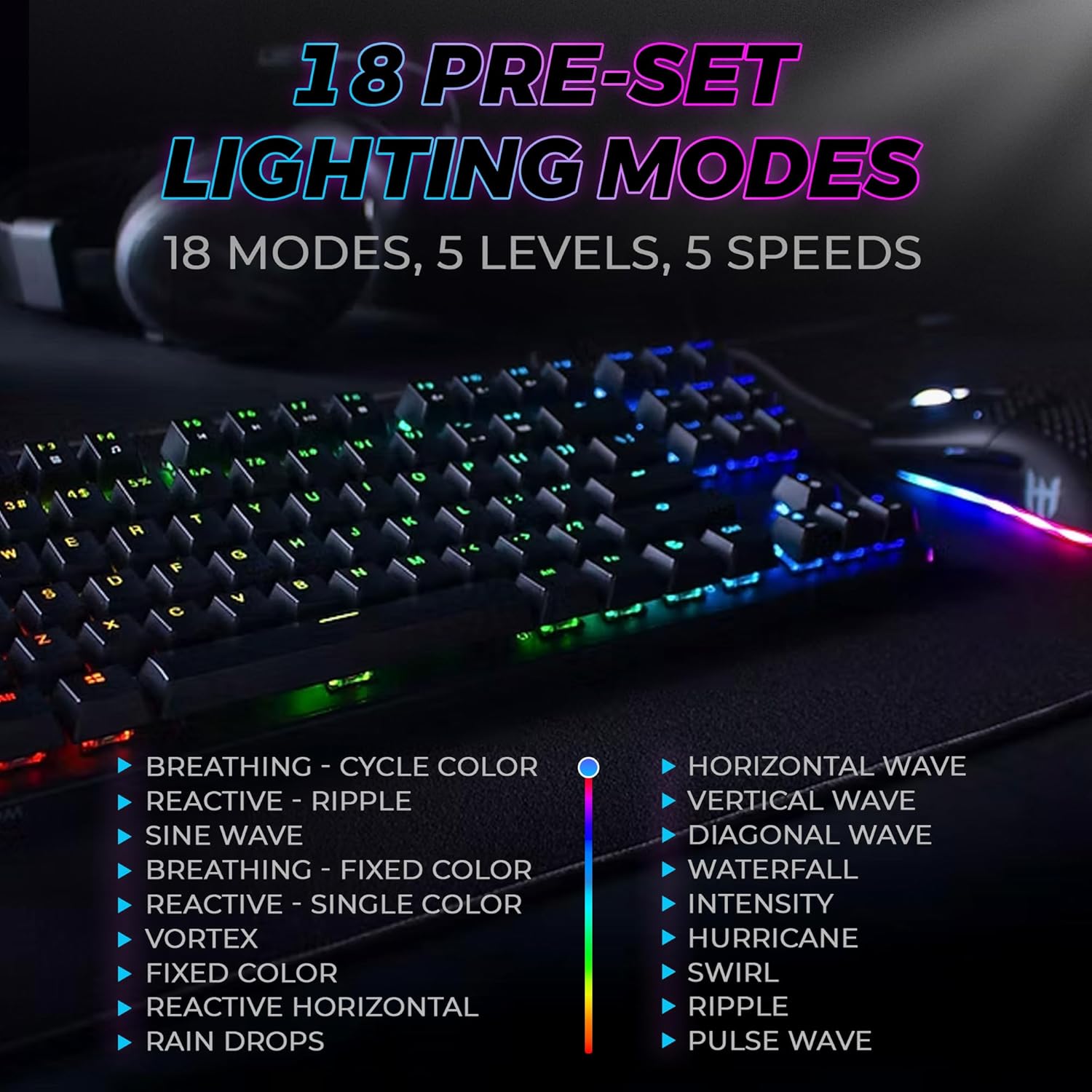
Figure 3: The keyboard features 18 pre-set lighting modes with 5 levels of brightness and 5 levels of speed, including effects like Breathing, Ripple, Sine Wave, Vortex, Waterfall, and Pulse Wave.
Klawisze multimedialne
Access multimedia controls by pressing the Fn key in combination with the F-keys (F1-F12). The specific functions are typically indicated by icons on the keycaps.
- Exampna: Fn + F7 (Play/Pause), Fn + F8 (Stop), Fn + F9 (Mute).
Video 1: Official TECWARE branded video showcasing various products, including the Phantom keyboard, highlighting its features and design philosophy.
Konserwacja
Czyszczenie
- Przed czyszczeniem odłącz klawiaturę od komputera.
- Do przecierania klawiszy i obudowy używaj miękkiej, suchej ściereczki.
- For deeper cleaning, use the provided keycap puller to remove keycaps and compressed air to clear debris from under the keys.
Wymiana przełącznika
The TECWARE Phantom keyboard features hot-swappable Outemu mechanical switches, allowing for easy replacement without soldering.
- Za pomocą dołączonego ściągacza klawiszy ostrożnie zdejmij wybrany klawisz.
- Use the provided switch puller to carefully grip the switch and pull it straight up to remove it.
- Dopasuj piny nowego przełącznika do otworów na płytce PCB.
- Delikatnie dociśnij nowy przełącznik, aż usłyszysz kliknięcie.
- Załóż ponownie nakładkę klawisza.
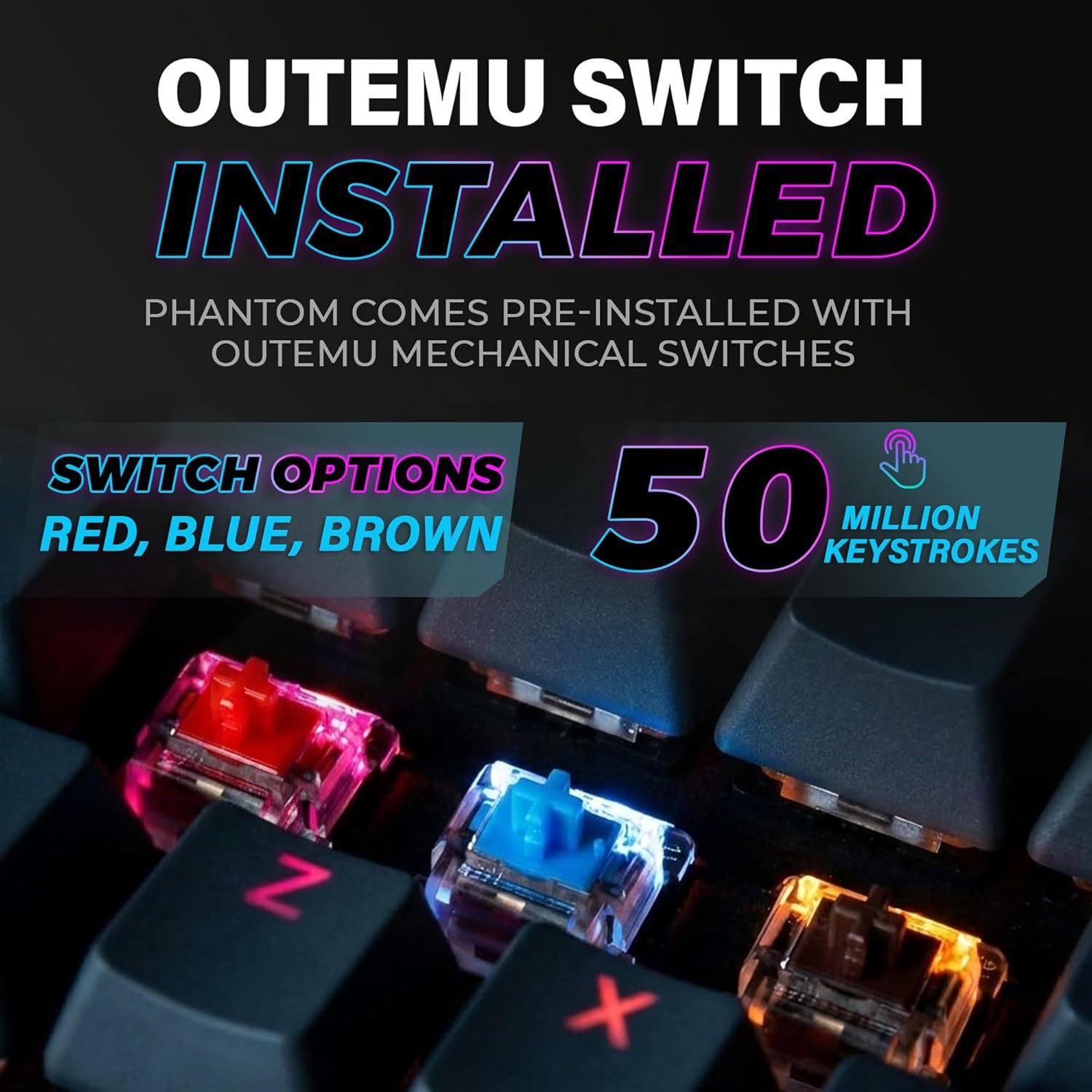
Figure 4: The keyboard comes with pre-installed Outemu switches, available in Red, Blue, and Brown options, rated for 50 million keystrokes.

Figure 5: An Outemu Red linear switch, detailing its pre-travel of 2.00mm, operating force of 45 gf/CN, and total travel of 4.00mm.
Rozwiązywanie problemów
| Wydanie | Możliwe rozwiązanie |
|---|---|
| Klawiatura nie odpowiada | Ensure the USB cable is securely connected to both the keyboard and the computer. Try a different USB port or computer. |
| Nie działa oświetlenie RGB | Check if the lighting is turned off or set to minimum brightness using the Fn key combinations. Reinstall the TECWARE software if using custom profiles. |
| Niektóre klawisze nie działają | If you have hot-swappable switches, try replacing the faulty switch with one of the spare switches provided. Ensure the switch is properly seated. |
| Keys feel inconsistent | Ensure keycaps are fully pressed down. Clean under the keycaps for any debris. |
Video 2: Official TECWARE Phantom video demonstrating various features and functionalities of the keyboard.
Specyfikacje
| Funkcja | Szczegół |
|---|---|
| Numer modelu | TWKB-P87ZORD |
| Typ przełącznika | Outemu Red Mechanical (Linear) |
| Liczba kluczy | 87 klucze |
| Oświetlenie RGB | 16.8 Million Colors, 18 Pre-set Modes |
| Współczynnik sondowania | 1000 Hz |
| N-Key Rollover | Pełne nawrócenie N-Key |
| Łączność | Przewodowy USB-A |
| Płytka drukowana | Dual-layer Fiberglass PCB |
| Wymiary (dł. x szer. x wys.) | 14.21 x 5.24 x 1.61 cala |
| Waga | 2.53 funta |
Gwarancja i wsparcie
TECWARE products are designed for durability and performance. For warranty information, technical support, or to download the latest software and drivers, please visit the official TECWARE webOdwiedź witrynę lub skontaktuj się z działem obsługi klienta. Zachowaj paragon jako dowód zakupu na wypadek reklamacji.
Zasoby internetowe:
- Official TECWARE Webstrona: www.tecware.co
- Strona pomocy technicznej produktu: TECWARE Amazon Store