1. Wprowadzenie
The MOXA NPort 5450 is a 4-port serial device server designed to connect serial devices to an Ethernet network. It supports RS-232, RS-422, and RS-485 serial interfaces, allowing for versatile integration of various industrial and commercial serial equipment into an IP-based network. This manual provides comprehensive instructions for the installation, configuration, operation, and maintenance of your NPort 5450 device server.
Key features include 10/100M auto-sensing Ethernet, built-in 15 KV ESD surge protection for all serial signals, and versatile socket operation modes such as TCP Server, TCP Client, UDP, and Real COM. Configuration can be performed via Web console, Telnet console, or a Windows utility.
2. Funkcje produktu
- 10/100M auto-sensing Ethernet connectivity.
- Four serial ports, supporting RS-232, RS-422, and RS-485 standards.
- Integrated 15 KV ESD surge protection for all serial signals, enhancing reliability.
- Multiple socket operation modes: TCP Server, TCP Client, UDP, and Real COM.
- Obsługa protokołu SNMP MIB-II do zarządzania siecią.
- Flexible configuration options: Web console, Telnet console, and Windows utility.
3. Opis sprzętu
The NPort 5450 features a robust design with clearly labeled ports and indicators for easy setup and monitoring.

Rysunek 3.1: Przód pod kątem view of the MOXA NPort 5450, showing the display, control buttons, and serial ports.

Rysunek 3.2: Góra view of the MOXA NPort 5450, highlighting the Ready, Ethernet, and Port (P1-P4) LED indicators, along with the MENU, arrow, and SEL buttons.
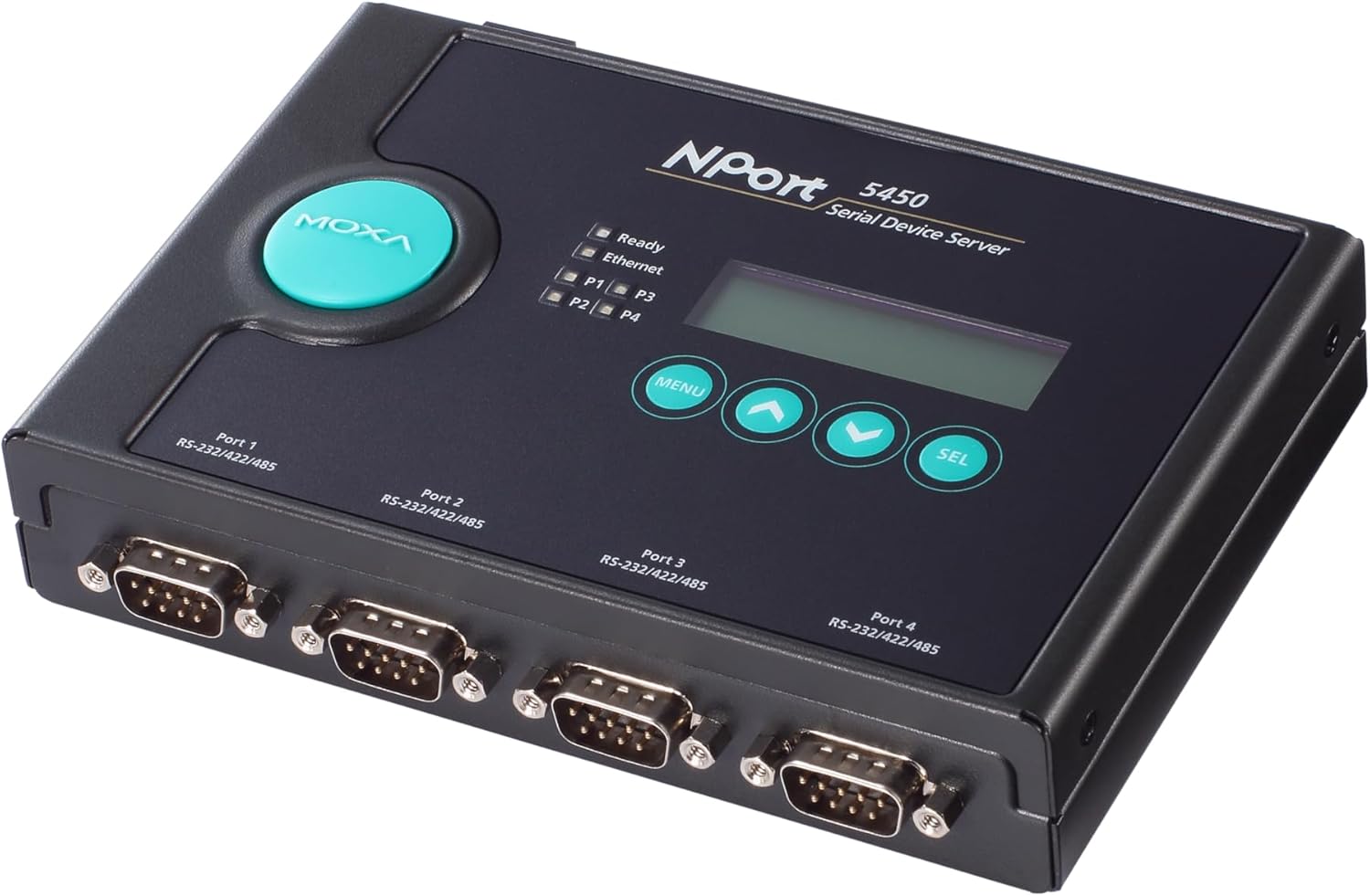
Rysunek 3.3: Tył pod kątem view of the MOXA NPort 5450, clearly showing the four DB-9 serial ports (Port 1 to Port 4) and their RS-232/422/485 compatibility.
3.1. Panel przedni
- Wskaźniki LED:
- Gotowy: Wskazuje stan operacyjny urządzenia.
- Ethernet: Indicates Ethernet link and activity.
- P1-P4: Indicate activity for each serial port.
- Wyświetlacz LCD: Shows device status and configuration menus.
- Control Buttons (MENU, Arrows, SEL): Used for navigating and selecting options on the LCD display.
3.2. Panel tylny
- Serial Ports (DB-9): Four ports (Port 1 to Port 4) supporting RS-232, RS-422, and RS-485.
- Port Ethernet (RJ45): 10/100BaseT(X) auto-sensing Ethernet connection.
- Pobór mocy: DC power jack for connecting the included 110V adapter.
4. Konfiguracja i instalacja
Follow these steps to set up your NPort 5450 device server.
4.1. Zawartość opakowania
Sprawdź, czy w przesyłce znajdują się następujące elementy:
- MOXA NPort 5450 4-Port Device Server
- Zasilacz 110 V.
- Quick Installation Guide (refer to manufacturer's website for full manual)
- Karta gwarancyjna
Jeśli brakuje jakiegokolwiek elementu lub jest on uszkodzony, prosimy o natychmiastowy kontakt ze sprzedawcą.
4.2. Instalacja sprzętu
- Montowanie: Place the NPort 5450 on a stable, flat surface or mount it using appropriate mounting kits (sold separately) if required for your application. Ensure adequate ventilation around the device.
- Podłącz kabel Ethernet: Connect a standard RJ45 Ethernet cable from your network switch or router to the Ethernet port on the rear panel of the NPort 5450.
- Podłącz urządzenia szeregowe: Connect your serial devices (e.g., PLCs, sensors, barcode scanners) to the DB-9 serial ports (Port 1-4) on the NPort 5450. Ensure correct pin assignments for RS-232, RS-422, or RS-485 as per your device's requirements.
- Podłącz zasilanie: Plug the 110V power adapter into the power input jack on the NPort 5450, then plug the adapter into a suitable power outlet. The device will power on automatically.
Notatka: Always ensure power is disconnected before connecting or disconnecting serial cables to prevent potential damage from electrical surges.
5. Instrukcja obsługi
The NPort 5450 offers several methods for configuration and operation.
5.1. Wstępna konfiguracja
For initial setup, it is recommended to use the Windows utility or the Web konsola.
- Windows Utility: Download the latest NPort Windows utility from the Moxa official website. This utility can automatically discover NPort devices on your local network and allow for easy configuration of IP settings, serial port parameters, and operation modes.
- Web Konsola: If the NPort 5450 has a default or known IP address, you can access its web-based configuration interface by entering the IP address into a web browser. The default IP address is typically 192.168.127.254.
- Telnet Console: For command-line based configuration, you can Telnet to the NPort's IP address. This method is generally used by advanced users.
5.2. Podstawowe tryby pracy
The NPort 5450 supports various operation modes to suit different application needs:
- Real COM Mode: This mode allows Windows/Linux hosts to access serial devices connected to the NPort as if they were local COM ports. This requires installing Moxa's Real COM driver on the host PC.
- Tryb serwera TCP: The NPort listens for incoming TCP connections from host applications. When a connection is established, data is transparently exchanged between the serial device and the TCP client.
- Tryb klienta TCP: The NPort actively initiates a TCP connection to a specified host IP address and port. This is useful for connecting to centralized servers.
- Tryb UDP: Data is transmitted using UDP packets, which is connectionless and suitable for applications where speed is critical and some data loss is acceptable.
Refer to the detailed NPort 5450 user manual (available on Moxa's website) for in-depth configuration of each operation mode and advanced settings.
6. Konserwacja
Regular maintenance ensures the longevity and optimal performance of your NPort 5450.
- Aktualizacje oprogramowania układowego: Okresowo sprawdzaj Moxa website for firmware updates. Firmware updates can provide new features, performance improvements, and bug fixes. Follow the instructions provided by Moxa for safe firmware upgrades.
- Czyszczenie: Utrzymuj urządzenie w czystości i zapobiegaj jego zakurzeniu. Do czyszczenia obudowy używaj miękkiej, suchej ściereczki. Nie używaj płynnych środków czyszczących ani aerozoli.
- Warunki środowiskowe: Ensure the device operates within its specified temperature and humidity ranges to prevent damage. Avoid exposing the device to direct sunlight or extreme temperatures.
7. Rozwiązywanie Problemów
This section provides solutions to common issues you might encounter with your NPort 5450.
7.1. Stan wskaźnika LED
| Wskaźnik | Status | Opis / Działanie |
|---|---|---|
| Gotowy | Wyłączony | Device is not powered on or is faulty. Check power connection. |
| Gotowy | Jednolity zielony | Urządzenie jest włączone i działa normalnie. |
| Sieć Ethernetowa | Wyłączony | No Ethernet link. Check Ethernet cable connection and network device. |
| Sieć Ethernetowa | Jednolity zielony | Nawiązano połączenie Ethernet. |
| Sieć Ethernetowa | Migające zielone | Ethernet data activity. |
| P1-P4 | Wyłączony | No serial data activity on the port. |
| P1-P4 | Migające zielone | Serial data activity on the port. |
7.2. Typowe problemy
- Cannot connect to NPort via network:
- Sprawdź połączenie kabla Ethernet.
- Check network settings (IP address, subnet mask, gateway) of the NPort and your PC. Ensure they are on the same subnet or properly routed.
- Temporarily disable firewall on your PC to rule out blocking issues.
- Use the NPort Windows utility to discover the device's IP address.
- Serial device not communicating:
- Verify serial cable connection and pinout (RS-232, RS-422, RS-485).
- Check serial port settings on the NPort (baud rate, data bits, parity, stop bits, flow control) match the connected serial device.
- Ensure the NPort's operation mode (e.g., Real COM, TCP Server) is correctly configured for your application.
- Check the Px LED for activity. If no blinking, there's no data flow.
For more detailed troubleshooting, refer to the full NPort 5450 user manual on the Moxa support website or contact Moxa technical support.
8. Specyfikacje
| Funkcja | Specyfikacja |
|---|---|
| Numer modelu | NPort 5450 |
| Sieć Ethernetowa | 10/100BaseT(X) auto-sensing |
| Porty szeregowe | 4 (DB-9 male) |
| Standardy seryjne | RS-232, RS-422, RS-485 |
| Ochrona ESD | 15 KV for all serial signals |
| Metody konfiguracji | Web console, Telnet console, Windows utility |
| Moc wejściowa | 110V AC (via included adapter) |
| Wymiary opakowania | 15 x 6.73 x 3.58 cala |
| Waga przedmiotu | 2.27 funta |
| Producent | Moxa Inc. |
| Data pierwszej dostępności | 12 stycznia 2018 r. |
9. Informacje o wsparciu i gwarancji
For technical support, detailed documentation, drivers, and firmware updates, please visit the official Moxa website. You can find comprehensive user manuals, FAQs, and contact information for customer service.
Webstrona: www.moxa.pl
Information regarding the product warranty is typically provided with the purchase documentation or can be found on the Moxa webStrona. Zachowaj dowód zakupu na wypadek roszczeń gwarancyjnych.