
1. Wprowadzenie
The BENFEI 2 Port USB KM Link Cable is designed to facilitate the control of two computer systems using a single keyboard and mouse set. This device also enables seamless clipboard sharing and file transfers between the connected systems via a single USB cable. It operates without requiring driver installation, offering a plug-and-play experience with clear LED indicators for operational status. This solution is ideal for environments where multiple computers need to be managed efficiently from a single workstation, such as office setups or technical support benches.
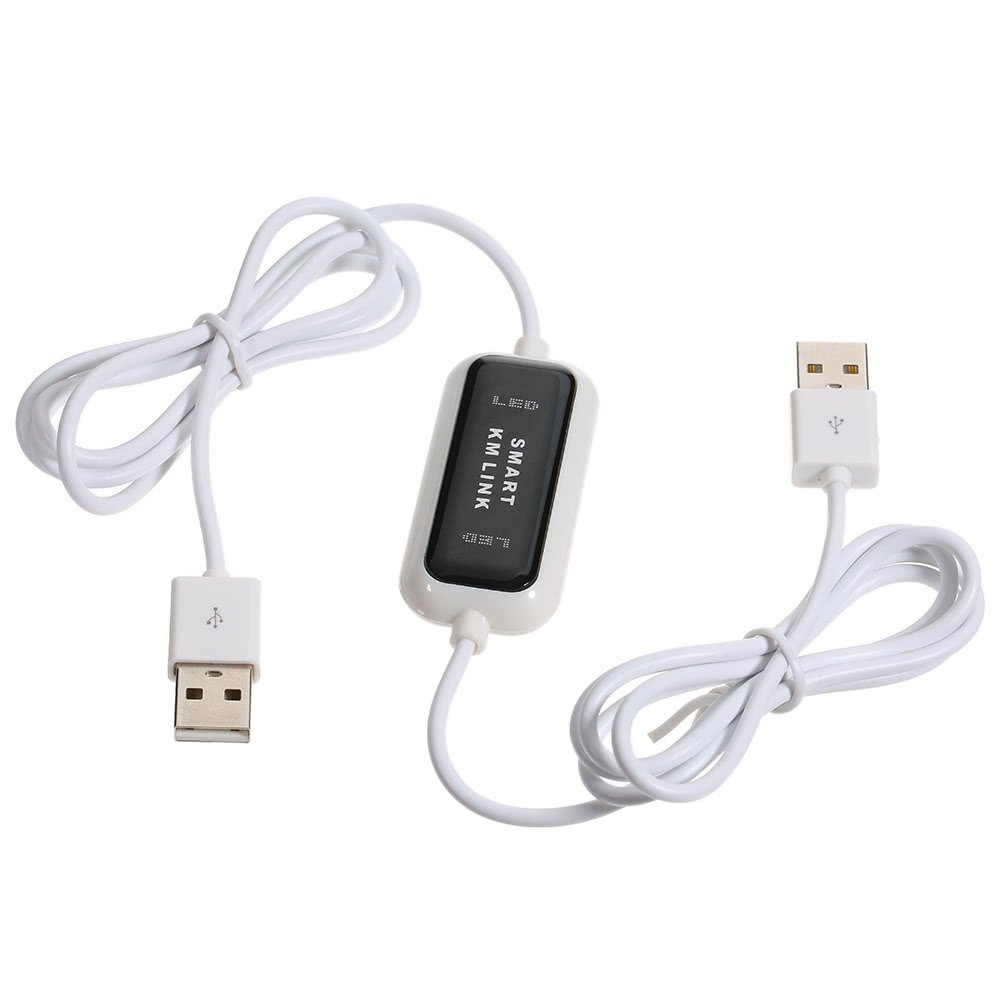
Obraz 1: Koniecview of the BENFEI 2 Port USB KM Link Cable. This image shows the white cable with two USB-A connectors and the central "SMART KM LINK" module.
2. Zawartość opakowania
- 1 x BENFEI 2 Port USB KM Link Cable (White)
3. Specyfikacje
| Marka | BENFEI |
| Numer modelu | 2 Port USB KM Keyboard Mouse Switch |
| Kolor | Biały |
| Tworzywo | Akrylonitryl-butadien-styren (ABS) |
| Interfejs sprzętowy | USB 2.0 |
| Kompatybilne urządzenia | Keyboards, Mice |
| Łączna liczba portów USB | 2 |
| Szybkość przesyłu danych | 480 megabitów na sekundę (teoretycznie) |
| Długość kabla | Około 150 cm / 59.1 cala |
| Wsparcie systemu operacyjnego | Windows 2000 / 7 / 8 / XP / Vista, Windows 98SE / ME |
| Multi-language Auto-recognition | English, Chinese, Japanese, French, German, Italian, Spanish, Portuguese, Russian, Korean |
| Obsługa gorącej wtyczki | Tak |
4. Instrukcje konfiguracji
- Connect to First Computer: Plug one end of the BENFEI KM Link Cable's USB-A connector into an available USB 2.0 port on your first computer (e.g., Desktop PC).
- Connect to Second Computer: Plug the other end of the BENFEI KM Link Cable's USB-A connector into an available USB 2.0 port on your second computer (e.g., Laptop).
- Automatyczne rozpoznawanie: The operating systems on both computers should automatically detect the device. No driver installation is required. The LED indicators on the central module will illuminate to confirm a successful connection.

Image 2: Diagram illustrating the connection of the KM Link Cable between a desktop computer and a laptop, highlighting features like File Transfer, Mouse Sharing, Keyboard Sharing, and Driver-Free operation.
5. Instrukcja obsługi
5.1 Keyboard and Mouse Sharing
Once connected, your primary keyboard and mouse (connected to one of the computers) will automatically control both systems. To switch control between computers, simply move your mouse cursor to the edge of one screen, and it will seamlessly transition to the other screen, allowing you to control the second computer. The keyboard input will follow the active mouse cursor.
5.2 File Transfer and Clipboard Sharing
The KM Link Cable supports direct file transfer and clipboard sharing between the two connected computers.
- Clipboard Sharing: Copy text, images, or other data from one computer's clipboard (e.g., using Ctrl+C) and paste it directly onto the other computer (e.g., using Ctrl+V). This works across various clipboard formats, including text, images (JPG), and documents (WORD, PPT, TXT).
- File Transfer: Przeciągnij i upuść files or folders directly from one computer's desktop or file explorer to the other computer's desktop or an open folder. The high-speed USB 2.0 connection (up to 480Mbps) ensures efficient data transfer.
The device also supports hot keys and hot click areas for quick access to these functions, providing a more convenient alternative to traditional drag-and-drop methods across monitors.
5.3 Multi-language Auto-recognition
The KM Link Cable automatically recognizes and supports 10 common languages without requiring manual configuration on your computer. This includes English, Chinese, Japanese, French, German, Italian, Spanish, Portuguese, Russian, and Korean, simplifying usage in diverse linguistic environments.
6. Konserwacja
- Czyszczenie: Do czyszczenia urządzenia używaj miękkiej, suchej ściereczki. Unikaj płynnych środków czyszczących i materiałów ściernych.
- Składowanie: Store the cable in a cool, dry place away from direct sunlight and extreme temperatures when not in use.
- Obsługiwanie: Avoid bending the cable sharply or applying excessive force to the connectors to prevent damage.
7. Rozwiązywanie Problemów
- Urządzenie nie zostało wykryte:
- Ensure both USB connectors are fully inserted into active USB 2.0 ports on both computers.
- Try connecting to different USB ports on each computer.
- Restart both computers and reconnect the cable.
- Keyboard/Mouse Sharing Not Working:
- Verify that the device is detected by both operating systems (check device manager).
- Ensure your mouse cursor is moved to the very edge of the screen to initiate the switch.
- Confirm that the LED indicators on the KM Link module are lit.
- File Transfer/Clipboard Sharing Issues:
- Ensure both computers recognize the KM Link Cable.
- Check if any security software or firewalls on either computer are blocking data transfer.
- Dla dużych files, ensure sufficient disk space on the destination computer.
8. Gwarancja i wsparcie
For warranty information or technical support, please refer to the product packaging or contact BENFEI customer service directly. Contact details can typically be found on the manufacturer's official webna stronie internetowej lub w miejscu zakupu.