
Wstęp
The Mercusys MW150US N150 Wireless Nano USB Adapter is a compact and convenient device designed to provide wireless internet connectivity to your desktop or laptop computer. With wireless speeds of up to 150 Mbps, it is suitable for essential internet activities such as web browsing, email, and stable online communication. Its miniature design allows it to remain connected to a USB port without obstruction.
This adapter also features a Soft AP function, enabling your computer to act as a Wi-Fi hotspot, sharing its wired internet connection with other wireless devices like smartphones and tablets.
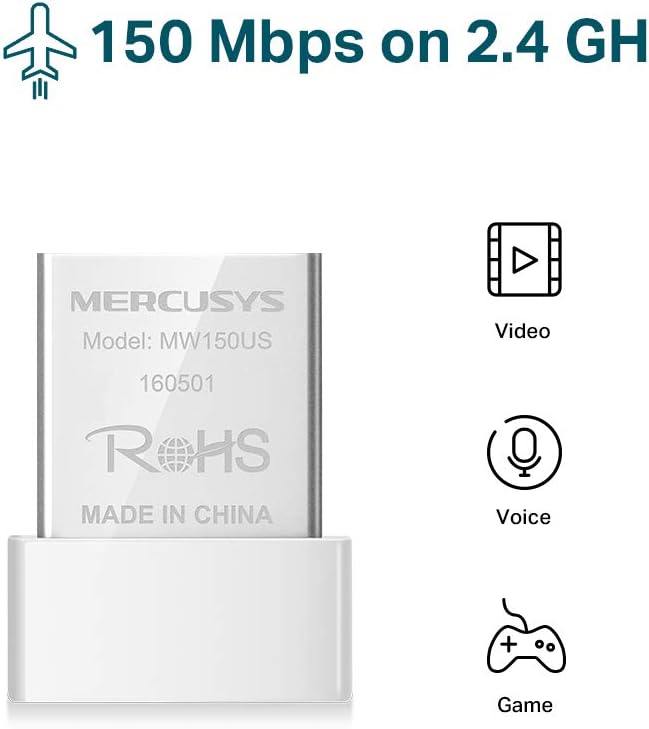
Image: The Mercusys MW150US N150 Wireless Nano USB Adapter, a compact device for wireless connectivity.
Przewodnik po konfiguracji
Follow these steps to install and set up your Mercusys MW150US N150 Wireless Nano USB Adapter:
- Włóż adapter: Carefully insert the MW150US adapter into an available USB port on your computer.
- Zainstaluj sterowniki:
- Using the included CD: Insert the driver CD into your computer's CD-ROM drive and follow the on-screen instructions to install the necessary drivers.
- Downloading from Mercusys webstrona: If your computer does not have a CD-ROM drive, or if you prefer the latest drivers, visit the official Mercusys webwitryna (np. www.mercusys.com/en/download/MW150US) to download the drivers for your specific operating system.
- Uwaga dla użytkowników systemu Windows 10: In many cases, Windows 10 may automatically install the necessary drivers upon insertion, making manual installation unnecessary.
- Połączyć się z siecią: After driver installation, your computer should detect available Wi-Fi networks. Select your desired network from the list and enter the password to connect.

Image: Visual guide for the three easy setup steps: insert, install software, and connect to Wi-Fi.

Image: The Mercusys MW150US adapter is compatible with Windows 10, 8.1, 8, 7, and XP.
Instrukcja obsługi
Łączenie się z siecią Wi-Fi
Once the adapter is installed and drivers are loaded, you can connect to any available Wi-Fi network.
- Kliknij ikonę Wi-Fi na pasku zadań komputera (w systemie Windows zwykle znajduje się ona w prawym dolnym rogu).
- A list of available wireless networks will appear. Select the name (SSID) of your desired network.
- Click "Connect" and enter the network's security key or password when prompted.
- Po nawiązaniu połączenia ikona Wi-Fi poinformuje o pomyślnym nawiązaniu połączenia i będziesz mieć dostęp do Internetu.
Using Soft AP Function (Wi-Fi Hotspot)
The Soft AP function allows your computer to share its wired internet connection wirelessly. This feature requires your computer to have a wired internet connection.
- Upewnij się, że komputer jest podłączony do Internetu za pomocą kabla Ethernet.
- Open the Mercusys utility software (usually installed with the drivers).
- Znajdź i włącz funkcję „Soft AP” lub „Hotspot” w narzędziu.
- Configure the hotspot's name (SSID) and password.
- Other wireless devices can now connect to your computer's Wi-Fi hotspot using the configured SSID and password.
Konserwacja
The Mercusys MW150US adapter is designed for durability and requires minimal maintenance.
- Zachowaj czystosc: Periodically wipe the adapter with a soft, dry cloth to remove dust. Avoid using liquid cleaners.
- Chroń przed uszkodzeniem: While its nano size is convenient, avoid bending or applying excessive force to the adapter when it's plugged into a USB port.
- Składowanie: Gdy adapter nie jest używany, należy go przechowywać w czystym i suchym miejscu, chroniąc przed ekstremalnymi temperaturami.

Image: The miniature design of the Mercusys MW150US adapter, highlighting its compact size for portability and convenience.
Rozwiązywanie problemów
If you encounter issues with your Mercusys MW150US adapter, refer to the following common solutions:
- Adapter nie został wykryty:
- Upewnij się, że adapter jest całkowicie włożony do działającego portu USB. Spróbuj użyć innego portu USB.
- Verify that the drivers are correctly installed. Check Device Manager (Windows) for any yellow exclamation marks next to the network adapter. Reinstall drivers if necessary.
- Uruchom ponownie komputer.
- Nie można połączyć się z siecią Wi-Fi:
- Sprawdź dokładnie hasło Wi-Fi.
- Upewnij się, że router Wi-Fi jest włączony i nadaje sygnał.
- Zbliż się do routera Wi-Fi, aby poprawić siłę sygnału.
- Restart your Wi-Fi router and your computer.
- Niska prędkość Internetu:
- Ensure you are within a reasonable range of your Wi-Fi router.
- Check for potential interference from other electronic devices (e.g., microwaves, cordless phones).
- Sprawdź, czy Twój dostawca usług internetowych (ISP) zapewnia oczekiwaną prędkość.
- Update the adapter's drivers to the latest version from the Mercusys webstrona.
Specyfikacje
| Marka | MERKUSY |
| Numer modelu | MW150US |
| Interfejs sprzętowy | USB |
| Szybkość przesyłu danych | 150 Mb/s |
| Kompatybilne urządzenia | Desktop, Laptop, Smartphone (for Soft AP) |
| Kompatybilne systemy operacyjne | Windows (XP, 7, 8, 8.1, 10) |
| Waga przedmiotu | 50 gram |
| Kolor | Czerwony |
Informacje o gwarancji
The Mercusys MW150US N150 Wireless Nano USB Adapter comes with a 4-letnia gwarancja directly from the manufacturer. Please retain your proof of purchase for warranty claims.
Wsparcie
For technical assistance, driver downloads, or warranty inquiries, please contact Mercusys customer support directly. Support services are provided by the manufacturer.
You can typically find contact information and support resources on the official Mercusys webstrona: www.mercusys.pl.


