
Wstęp
This manual provides comprehensive instructions for the setup, operation, and maintenance of your NETUM NT-R3 Mini 1D CCD Bluetooth Barcode Scanner. Please read this guide thoroughly to ensure proper use and to maximize the performance of your device.
Zawartość opakowania
Po rozpakowaniu sprawdź, czy wszystkie wymienione poniżej przedmioty znajdują się na miejscu i są w dobrym stanie:
- 1 x NETUM Mini Bluetooth Barcode Scanner (NT-R3)
- 1 x kabel ładujący USB
- 1 x Skrócona instrukcja obsługi
- 1 x 2.4 GHz Adapter
Produkt ponadview
The NETUM NT-R3 is a compact and versatile 1D CCD barcode scanner designed for portability and ease of use. Its ring-style design allows for comfortable wear, enhancing productivity in various environments.

Image: The NETUM NT-R3 Mini Barcode Scanner, a small black electronic device with a screen and button, designed to be worn on a finger with an adjustable ring structure.
Główne cechy:
- Ring Design: Stop magnezu casing and trigger for durability and ease of use.
- Obrót o 180°: Unique rotatable design for scanning from various angles.
- CCD Scanning: Reads 1D barcodes directly from LCD screens of computers or mobile devices, including poorly printed or damaged barcodes.
- Połączenie bezprzewodowe: Supports Bluetooth (SPP, HID) and 2.4 GHz wireless connections.
- Szeroka kompatybilność: Compatible with Windows XP/7/8/8.1/10, Google Android, iOS, and Mac OS X.
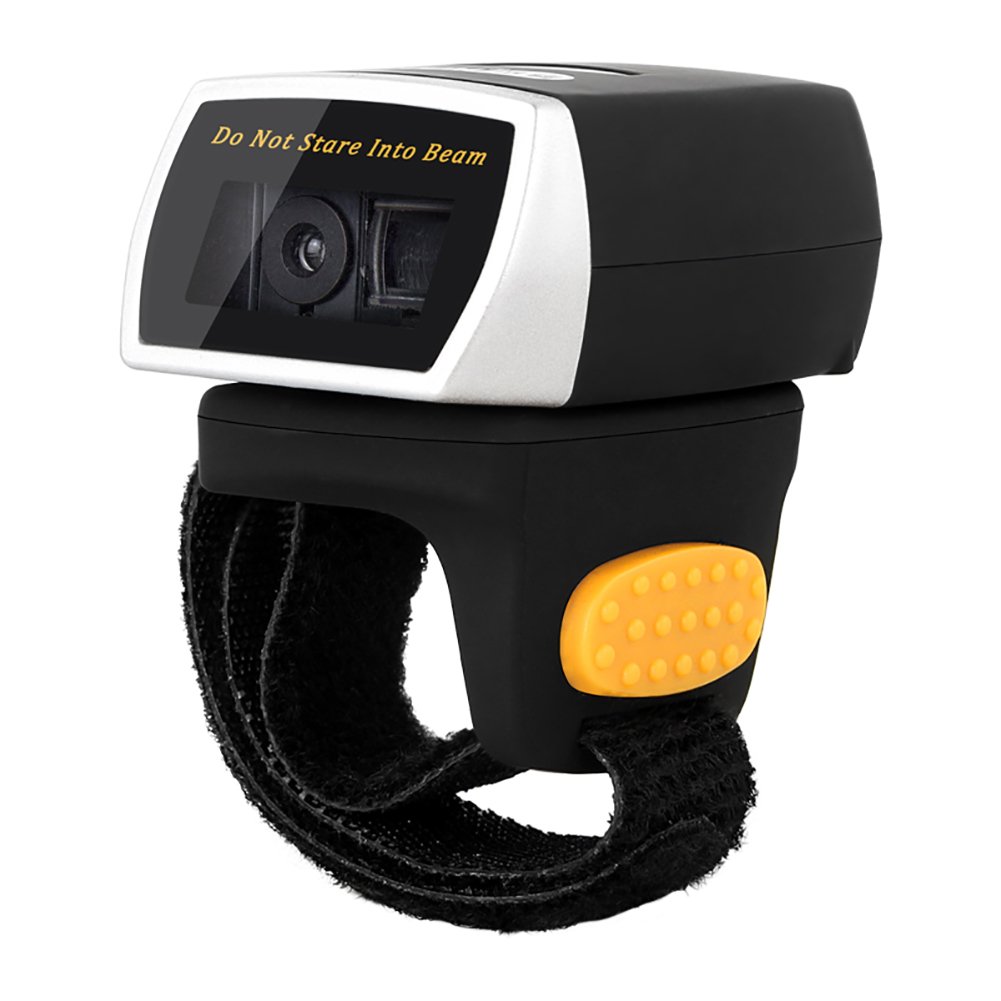
Image: The NETUM NT-R3 Mini Barcode Scanner demonstrating its 180-degree rotation design, allowing for flexible scanning angles.

Image: The NETUM NT-R3 Mini Barcode Scanner held in a hand, illustrating its compact dimensions (50mm x 44mm x 38mm) and light weight (50g), emphasizing its strong compatibility with various devices.
Konfiguracja i łączność
1. Ładowanie skanera
Before initial use, fully charge the scanner using the provided USB charging cable. Connect the small end of the USB cable to the scanner's charging port and the other end to a USB power source (e.g., computer, USB wall adapter). The charging indicator light will show the charging status.
2. Włączanie/wyłączanie zasilania
To power on the scanner, press and hold the trigger button for a few seconds until you hear a beep and see the indicator light. To power off, press and hold the trigger button again until the indicator light turns off.
3. Opcje łączności
The NT-R3 scanner offers two primary connectivity methods:
Bluetooth Connection (HID Mode - Keyboard Emulation)
- Sprawdź, czy skaner jest włączony.
- Scan the "Bluetooth HID Mode" barcode (refer to the Quick Start Guide for specific barcodes).
- Na urządzeniu hosta (smartfonie, tablecie, komputerze) włącz Bluetooth i wyszukaj dostępne urządzenia.
- Select "NETUM Barcode Scanner" or a similar name from the list of devices.
- The scanner will beep to confirm successful pairing.
In HID mode, scanned barcodes are input directly as keyboard entries into any active text field.
Bluetooth Connection (SPP Mode - Serial Port Profile)
SPP mode is typically used for applications that require direct data communication with the scanner. This mode requires specific software on the host device to interpret the data. Refer to your application's documentation for SPP setup.
- Sprawdź, czy skaner jest włączony.
- Scan the "Bluetooth SPP Mode" barcode (refer to the Quick Start Guide).
- Follow the instructions provided by your specific application for connecting to an SPP device.
Połączenie bezprzewodowe 2.4 GHz
- Plug the provided 2.4 GHz adapter into a USB port on your computer.
- Sprawdź, czy skaner jest włączony.
- Scan the "2.4G Wireless Mode" barcode (refer to the Quick Start Guide).
- The scanner will automatically connect to the adapter. A successful connection is indicated by a specific beep or light pattern (refer to the Quick Start Guide for details).
The 2.4 GHz connection offers a wireless range of up to 10 meters (30 feet).
Tryby pracy
The NETUM NT-R3 scanner supports two data upload modes:
1. Tryb natychmiastowego przesyłania
In this mode, scanned barcodes are immediately transmitted to your connected device. This is suitable for real-time data entry.
2. Tryb przechowywania
The scanner can store up to 2000 barcodes in its built-in flash memory. This mode is useful when working out of range of your host device. Barcodes can be uploaded later when a connection is established.
Image: A visual representation of the two upload modes. Instant Upload Mode shows barcodes being sent directly to a device. Storage Mode shows barcodes being stored internally and then uploaded later.
To switch between modes, scan the corresponding configuration barcodes found in the Quick Start Guide.
Skanowanie kodów kreskowych
Aby zeskanować kod kreskowy:
- Ustaw skaner tak, aby okienko skanowania było skierowane w stronę kodu kreskowego.
- Press the trigger button. A red scanning line will appear.
- Align the red scanning line across the entire barcode.
- Once successfully scanned, the scanner will emit a beep, and the indicator light will flash.
The NT-R3 is capable of reading 1D barcodes from various surfaces, including:
- Etykiety drukowane
- LCD screens (computers, smartphones, tablets)
- Poorly printed or damaged barcodes
Konserwacja
Pielęgnacja baterii
- Aby przedłużyć żywotność baterii, należy unikać częstego całkowitego rozładowywania baterii.
- Regularnie ładuj skaner, nawet jeśli nie używasz go ciągle.
- Jeśli skaner nie będzie używany przez dłuższy czas, należy go przechowywać w chłodnym i suchym miejscu.
Czyszczenie
- Do czyszczenia zewnętrznej części skanera należy używać miękkiej, suchej i niepozostawiającej włókien ściereczki.
- For the scanning window, use a lens cleaning cloth or a soft cloth lightly dampSpłukać wodą lub łagodnym, nieściernym środkiem czyszczącym.
- Do not use harsh chemicals, solvents, or abrasive materials, as these can damage the device.
Rozwiązywanie problemów
| Problem | Możliwa przyczyna | Rozwiązanie |
|---|---|---|
| Skaner się nie włącza. | Niski poziom naładowania baterii. | Ładuj skaner przez co najmniej 2 godziny. |
| Scanner does not connect via Bluetooth. | Incorrect mode selected; device not discoverable; out of range. | Ensure "Bluetooth HID Mode" or "SPP Mode" is scanned. Make sure Bluetooth is enabled on the host device and the scanner is within 10 meters. Try re-pairing. |
| Scanner does not connect via 2.4 GHz adapter. | Adapter not properly inserted; incorrect mode selected. | Ensure the 2.4 GHz adapter is securely plugged in. Scan the "2.4G Wireless Mode" barcode. |
| Skaner nie odczytuje kodów kreskowych. | Barcode is unreadable; scanner not aligned; scanner in storage mode. | Ensure the barcode is clear and well-lit. Align the red line across the entire barcode. If in storage mode, switch to instant upload mode or upload stored data. |
| Zeskanowane dane są wyświetlane nieprawidłowo. | Keyboard layout mismatch (for HID mode). | Scan the appropriate keyboard layout barcode (e.g., US, UK, French) from the Quick Start Guide. |
Dane techniczne
| Funkcja | Szczegół |
|---|---|
| Numer modelu | NT-R3 |
| Technologia skanowania | 1D CCD |
| Łączność | Bluetooth (SPP, HID), 2.4 GHz Wireless, USB |
| Kompatybilne systemy operacyjne | Windows XP/7/8/8.1/10, Google Android, iOS, Mac OS X |
| Szybkość skanowania | 260 sekundaamples na sekundę |
| Pojemność magazynowa | Up to 2000 barcodes (in Storage Mode) |
| Typ baterii | 1 bateria litowo-metalowa (w zestawie) |
| Źródło zasilania | Zasilany bateryjnie |
| Objętość operacyjnatage | 5 wolty |
| Maksymalna temperatura przechowywania | 45 stopni Celsjusza |
| Certyfikaty | CE, ISO, RoHS |
| Producent | Guangzhou Netum Electronic Technology Co.,Ltd. |
| Kraj pochodzenia | Chiny |
Gwarancja i wsparcie
Zasady zwrotu
Zgodnie z polityką zwrotów sprzedawcy, produkt ten podlega zwrotowi lub wymianie w ciągu 30 dni od daty zakupu.
Informacje producenta
Manufacturer: Guangzhou Netum Electronic Technology Co.,Ltd.
For further assistance or technical support, please refer to the contact information provided in your Quick Start Guide or visit the official NETUM webstrona.
Note: Information regarding spare parts availability and guaranteed software updates is not available at this time.