
Xerox C505/X
Instrukcja obsługi kolorowego urządzenia wielofunkcyjnego laserowego Xerox VersaLink C505/X
Model: C505/X
1. Wprowadzenie
This manual provides detailed instructions for the setup, operation, and maintenance of your Xerox VersaLink C505/X Color Laser Multifunction Printer. The C505/X is designed for efficient performance in fast-paced work environments, offering print, copy, scan, and fax functionalities.
Key features include a customizable 7-inch color touchscreen for intuitive control, mobile and cloud connectivity, and robust security measures.
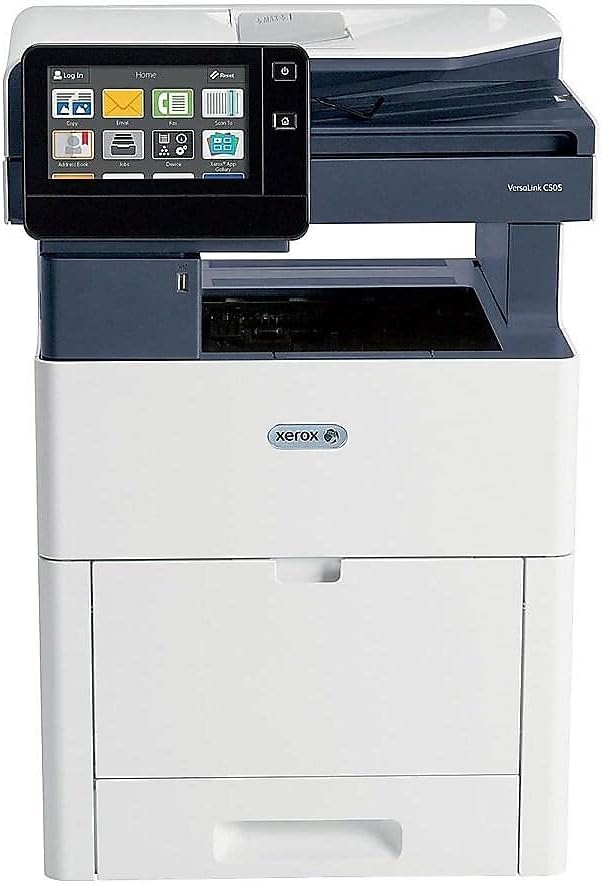
Rycina 1: Przód view of the Xerox VersaLink C505/X Multifunction Printer.
2. Konfiguracja
2.1 Rozpakowanie i wstępna kontrola
Carefully remove the printer from its packaging. Verify that all components listed below are present and undamaged:
- Xerox VersaLink C505 Color MFP
- Starter capacity toner cartridges (one each of cyan, magenta, yellow: 2,400 capacity; black: 5,000 capacity)
- Płyta CD z oprogramowaniem i dokumentacją
- Instrukcja instalacji
- Quick User Guides
- Przewód zasilający
2.2 Połączenie zasilania
- Drukarkę należy ustawić na stabilnej i równej powierzchni.
- Connect the provided power cord to the printer's power input and then to a grounded electrical outlet.
- Nie włączaj urządzenia, dopóki nie wykonasz wszystkich pozostałych połączeń.
2.3 Instalacja wkładu z tonerem
Install the starter toner cartridges into their respective slots. Refer to the Quick User Guides for specific instructions on opening the toner access panel and inserting cartridges.

Figure 2: Toner cartridge access panel open, showing toner installation.
2.4 Sieć i połączenie USB
The printer supports both Ethernet and USB connectivity.
- Ethernet: Podłącz kabel Ethernet do portu Ethernet drukarki i routera lub przełącznika sieciowego.
- USB: Podłącz kabel USB do portu USB drukarki i komputera.
2.5 Instalacja oprogramowania
Insert the provided software and documentation CD into your computer's CD/DVD drive. Follow the on-screen instructions to install the necessary drivers and utilities. Alternatively, visit the official Xerox support webstrona z najnowszymi sterownikami.
3. Obsługa drukarki
3.1 Interfejs dotykowy
The 7-inch color touchscreen provides access to all printer functions. Navigate through menus by tapping and swiping, similar to a smartphone. The home screen displays icons for various functions such as Print, Copy, Scan, and Fax.

Figure 3: Close-up of the 7-inch color touchscreen control panel.
3.2 Drukowanie
Aby wydrukować dokumenty:
- Sprawdź, czy drukarka jest podłączona do komputera lub sieci.
- Open the document on your computer and select the print option.
- Choose the Xerox VersaLink C505/X from the list of available printers.
- Adjust print settings (e.g., color/monochrome, duplex printing, paper size) as needed. The printer supports up to 43 ppm color and 45 ppm monochrome, with automatic duplexing.
- Confirm the print job.
3.3 Kopiowanie
Aby wykonać kopie:
- Umieść oryginalny dokument na szybie skanera lub w automatycznym podajniku dokumentów (ADF).
- On the touchscreen, tap the "Copy" icon.
- Select desired settings such as number of copies, color/black and white, and two-sided copying. The maximum copy speed is 45 ppm (black & white) with resolutions up to 1200 x 2400 dpi.
- Naciśnij przycisk „Start”.
3.4 Skanowanie
To scan documents:
- Umieść dokument na szybie skanera lub w podajniku ADF.
- On the touchscreen, tap the "Scan" icon.
- Choose the scan destination (e.g., email, network folder, USB drive) and adjust scan settings.
- Naciśnij przycisk „Start”.
3.5 Faksowanie
Aby wysłać faks:
- Umieść dokument na szybie skanera lub w podajniku ADF.
- On the touchscreen, tap the "Fax" icon.
- Wprowadź numer faksu odbiorcy.
- Dostosuj wszelkie niezbędne ustawienia faksu.
- Naciśnij przycisk „Start”.
3.6 Mobile and Cloud Connectivity
The VersaLink C505/X offers out-of-the-box connectivity to cloud services like Google Drive, Microsoft OneDrive, and DropBox. Additional options are available through the Xerox App Gallery, allowing for flexible workflow integration.
4. Konserwacja
4.1 Wymiana wkładu z tonerem
When a toner cartridge is low or empty, the printer's display will indicate which cartridge needs replacement. Always use genuine Xerox toner cartridges for optimal performance and print quality.
- Open the front access panel of the printer.
- Ostrożnie wyjmij pusty wkład z tonerem, pociągając go prosto.
- Rozpakuj nowy wkład z tonerem i delikatnie nim potrząśnij, aby rozprowadzić toner.
- Włóż nowy wkład do odpowiedniego gniazda, aż zatrzaśnie się na miejscu.
- Close the front access panel.
4.2 Czyszczenie
Regularne czyszczenie pomaga zachować jakość druku i wydłuża żywotność drukarki.
- Zewnętrzny: Przetrzyj zewnętrzne powierzchnie miękką, damp, ściereczka nie pozostawiająca włókien.
- Szyba skanera: Use a soft cloth moistened with glass cleaner to clean the scanner glass. Ensure no residue remains.
- Komponenty wewnętrzne: Refer to the detailed user manual on the software and documentation CD for instructions on cleaning internal components, such as the print heads or rollers, if necessary.
5. Rozwiązywanie Problemów
This section addresses common issues you might encounter with your Xerox VersaLink C505/X. For more complex problems, consult the full user manual or contact support.
5.1 Zacięcia papieru
If a paper jam occurs, the touchscreen will display an error message indicating the location of the jam. Follow the on-screen instructions to clear the jammed paper. Always pull paper in the direction of the paper path to avoid tearing.
5.2 Problemy z jakością druku
If printouts show streaks, faded areas, or incorrect colors:
- Sprawdź poziom tonera i wymień wkłady, których poziom jest niski.
- Upewnij się, że używasz odpowiedniego papieru do danego zadania drukowania.
- Wykonaj diagnostykę jakości druku z panelu sterowania drukarki.
- Clean the print heads or other internal components as instructed in the detailed manual.
5.3 Problemy z łącznością
If the printer is not communicating with your computer or network:
- Verify that all cables (power, USB, Ethernet) are securely connected.
- Uruchom ponownie drukarkę i komputer/router.
- Check network settings on the printer's touchscreen.
- Sprawdź, czy na Twoim komputerze zainstalowano odpowiednie sterowniki drukarki.
6. Specyfikacje
| Funkcja | Szczegół |
|---|---|
| Nazwa modelu | Xerox C505/X VersaLink |
| Funkcje | Drukowanie, kopiowanie, skanowanie, faksowanie |
| Technologia druku | Kolorowy laser |
| Maksymalna prędkość drukowania (monochromatyczna) | 45 stron na milion |
| Maksymalna prędkość drukowania (kolor) | 43 stron na milion |
| Maksymalna rozdzielczość wydruku (czarno-biała) | 2400 dpi |
| Maksymalna rozdzielczość druku (kolor) | 1200 x 2400 dpi |
| Drukowanie dwustronne | Automatyczny |
| Typ skanera | Dokument |
| Maksymalna prędkość kopiowania (czarno-białe) | 45 stron na milion |
| Maksymalna rozdzielczość kopii (kolor) | Do 1200 x 2400 dpi |
| Metoda kontroli | App, Touch (7-inch display) |
| Łączność | USB-Ethernet |
| Maksymalna pojemność arkuszy wejściowych | 3250 arkuszy |
| Tace standardowe | 2 (550 Sheet Tray, 150 Sheet Multi Purpose Tray) |
| Obsługiwane rozmiary nośników | Letter (8.5 x 11 inches), Legal (8.5 x 14 inches) |
| Rodzaj tuszu | Toner (Black, Cyan, Magenta, Yellow) |
| Pojemność pamięci masowej | 4096 MB |
| Wymiary produktu | 26" gł. x 23" szer. x 31" wys. |
| Waga przedmiotu | 77.2 funta |
| Cotage | 600 watów |
7. Gwarancja i wsparcie
7.1 Gwarancja na produkt
The Xerox VersaLink C505/X Color Laser MFP comes with a standard one-year full warranty from the date of purchase. This warranty covers defects in materials and workmanship under normal use. For detailed terms and conditions, please refer to the warranty documentation included with your product or visit the official Xerox webstrona.
7.2 Obsługa klienta
For technical assistance, troubleshooting, or service requests, please contact Xerox customer support. Support contact information can be found on the Xerox webstronie internetowej lub w dokumentacji dostarczonej wraz z drukarką.
Zasoby internetowe: Visit the official Xerox support website for FAQs, driver downloads, and additional user guides.
Ask a question about this manual
Ask about setup, troubleshooting, compatibility, parts, safety, or missing instructions. Manuals+ will review the question and use this page’s manual context to help answer it.