
1. Wprowadzenie
This manual provides essential information for the safe and efficient operation of your Xerox AltaLink C8030 Multifunction Printer. Please read these instructions carefully before using the device and retain them for future reference. This device integrates printing, scanning, copying, and faxing capabilities to support various office tasks.
2. Informacje dotyczące bezpieczeństwa
Always follow basic safety precautions to reduce the risk of fire, electric shock, and injury. Ensure the device is connected to a grounded power outlet. Do not block ventilation openings. Keep the device away from water and excessive humidity. Refer to the safety labels on the product for specific warnings.
3. Koniec produktuview
The Xerox AltaLink C8030 is a color multifunction printer designed for high-volume office environments. It features a 10-inch touchscreen for intuitive navigation and control. Key capabilities include:
- Print Speed: Up to 30 pages per minute (ppm) for both color and monochrome.
- Copy Resolution: 600 x 600 DPI.
- Memory: 8 GB RAM, 1 GB RAM, 250 GB HDD.
- Connectivity: NFC, Wireless, USB.
- Paper Supply: Multiple trays including 2 x 520-sheet trays, a 2,000-sheet high-capacity tandem tray, and a 100-sheet bypass tray.
- Features: Single Pass DADF, Data Security, Job Accounting, PostScript Kit, Network Scanning, Server Fax, iFax, Standard Output Tray, Office Finisher LX.
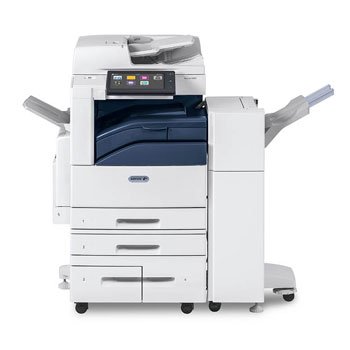
Obraz: Przód view of the Xerox AltaLink C8030 multifunction printer, showing its various paper trays and the integrated touchscreen control panel.
4. Konfiguracja
4.1 Rozpakowywanie i umieszczanie
- Ostrożnie wyjmij drukarkę z opakowania.
- Drukarkę należy ustawić na stabilnej i równej powierzchni, zapewniającej odpowiednią wentylację.
- Ensure sufficient space around the printer for maintenance and paper loading.
4.2 Połączenie zasilania
- Podłącz przewód zasilający do drukarki, a następnie do uziemionego gniazdka elektrycznego.
- Naciśnij przycisk zasilania, aby włączyć urządzenie.
4.3 Ładowanie papieru
- Open the desired paper tray (e.g., Tray 1, Tray 2, or Bypass Tray).
- Dopasuj prowadnice papieru do rozmiaru papieru.
- Załaduj stos papieru, upewniając się, że nie przekracza on linii maksymalnego zapełnienia.
- Zamknij dokładnie tacę papieru.
4.4 Sieć i połączenie USB
- Sieć: Connect an Ethernet cable to the printer's network port and to your network router/switch. Configure network settings via the touchscreen if necessary.
- Bezprzewodowy: Access the network settings on the touchscreen, select your Wi-Fi network, and enter the password.
- USB: Connect a USB cable from your computer to the printer's USB port for direct connection.
5. Instrukcja obsługi
5.1 Drukowanie
- Na komputerze lub urządzeniu mobilnym otwórz dokument, który chcesz wydrukować.
- Wybierz opcję „Drukuj” z menu aplikacji.
- Choose the Xerox AltaLink C8030 as your printer.
- Adjust print settings (e.g., number of copies, color/monochrome, paper size) as needed.
- Kliknij „Drukuj”.
5.2 Skanowanie
- Place your document face-down on the scanner glass or face-up in the Automatic Document Feeder (ADF).
- On the printer's touchscreen, select the 'Scan' function.
- Wybierz miejsce docelowe skanowania (np. e-mail, folder sieciowy, dysk USB).
- Configure scan settings (e.g., resolution, file format, color mode).
- Press 'Start' to begin scanning.
5.3 Kopiowanie
- Umieść dokument na szybie skanera lub w podajniku ADF.
- On the touchscreen, select the 'Copy' function.
- Enter the desired number of copies.
- Adjust copy settings (e.g., enlargement/reduction, 2-sided, color/monochrome).
- Naciśnij „Start”, aby rozpocząć kopiowanie.
5.4 Faksowanie
- Umieść dokument na szybie skanera lub w podajniku ADF.
- Na ekranie dotykowym wybierz funkcję „Faks”.
- Wprowadź numer faksu odbiorcy.
- Configure fax settings (e.g., resolution, delayed send).
- Naciśnij „Start”, aby wysłać faks.
6. Konserwacja
6.1 Wymiana wkładów z tonerem
- Otwórz przednią pokrywę drukarki.
- Identify the empty toner cartridge.
- Grasp the handle and pull the cartridge out.
- Unpack the new toner cartridge and shake it gently.
- Insert the new cartridge until it clicks into place.
- Zamknij przednią pokrywę.
6.2 Czyszczenie szyby skanera
- Wyłącz drukarkę i odłącz przewód zasilający.
- Otwórz pokrywę skanera.
- Przetrzyj szybę skanera miękką, niepozostawiającą włókien ściereczką.ampened with a mild glass cleaner.
- Ensure the glass is dry before closing the cover and restoring power.
7. Rozwiązywanie Problemów
7.1 Zacięcia papieru
- Postępuj zgodnie z instrukcjami wyświetlanymi na ekranie, aby zlokalizować i usunąć zacięty papier.
- Open all accessible covers and trays to check for jammed paper.
- Gently pull the paper in the direction of the paper path.
7.2 Problemy z jakością druku
- Check toner levels and replace cartridges if low.
- Wykonaj czyszczenie lub kalibrację głowicy drukującej z menu konserwacyjnego drukarki.
- Upewnij się, że używasz odpowiedniego rodzaju papieru do danego zadania drukowania.
7.3 Problemy z łącznością
- Verify all cables (Ethernet, USB) are securely connected.
- For wireless connections, check Wi-Fi signal strength and network settings.
- Restart the printer, router, and computer/device.
8. Specyfikacje
| Funkcja | Specyfikacja |
|---|---|
| Marka | fotokopiarka |
| Nazwa modelu | AltaLink C8030 |
| Technologia druku | Laser |
| Wyjście drukarki | Kolor |
| Maksymalna prędkość drukowania (monochromatyczna) | 30 stron na milion |
| Maksymalna prędkość kopiowania (czarno-białe) | 30 stron na milion |
| Technologia łączności | NFC, Wireless |
| Waga przedmiotu | 349 funtów |
| Metoda kontroli | Zdalny, dotykowy |
| Kompatybilne urządzenia | PC |
| GTIN / UPC | 095205880151 |
9. Gwarancja i wsparcie
For warranty information, please refer to the documentation included with your product or visit the official Xerox website. For technical support, driver downloads, or service requests, please contact Xerox customer support through their official channels. Keep your product's serial number and purchase date readily available when contacting support.
Zasoby internetowe: Xerox Official Webstrona