
HP CR322A
HP CR322A Print Head Replacement Kit User Manual
Model: CR322A | Brand: HP
1. Wprowadzenie
The HP CR322A Print Head Replacement Kit is designed to revitalize your compatible HP OfficeJet Pro printer, ensuring continued high-quality printing. This kit includes a genuine HP print head and setup ink cartridges, engineered to work seamlessly with your device.

Image: The HP CR322A Print Head Replacement Kit, featuring the print head and a setup ink cartridge.
Key features of this replacement kit include:
- Smart Cartridges: Provide ongoing status feedback for clear, sharp results without guesswork.
- Laser-Quality Black Printouts: Achieve professional-grade black printouts on various paper types.
- Individually Replaceable Color Ink Cartridges: Designed to save money and prevent ink waste by allowing replacement of only the colors that run out.

Image: Promotional graphic highlighting the HP CR322A Print Head Replacement Kit's ability to revitalize HP printers.
2. Kompatybilne modele drukarek
This HP CR322A Print Head Replacement Kit is compatible with a range of HP OfficeJet Pro printers. Ensure your printer model is listed below for proper functionality:
- HP OfficeJet Pro 251dw
- HP OfficeJet Pro 276dw
- HP OfficeJet Pro 8100
- HP OfficeJet Pro 8600
- HP OfficeJet Pro 8610
- HP OfficeJet Pro 8615
- HP OfficeJet Pro 8616
- HP OfficeJet Pro 8620
- HP OfficeJet Pro 8625
- HP OfficeJet Pro 8630
- HP OfficeJet Pro 8640
- HP OfficeJet Pro 8660
- HP OfficeJet Pro 8600 Plus
- HP OfficeJet Pro 8600 Premium

Image: A list of compatible HP OfficeJet Pro printer models for the print head.
3. Konfiguracja i instalacja
Follow these steps to correctly install your new HP CR322A Print Head Replacement Kit:
- Przygotuj drukarkę: Ensure your printer is turned on. Open the ink cartridge access door. The print carriage should move to the center. Wait until the carriage is idle and silent before proceeding.
- Wyjmij starą głowicę drukującą: Gently lift the latch handle on the print carriage. Carefully remove the old print head by pulling it straight up.
- Unpack New Print Head: Remove the new print head from its packaging. Be careful to only touch the black plastic body and avoid touching the electrical contacts or nozzles.
- Zainstaluj nową głowicę drukującą: Insert the new print head into the empty slot, pushing it down firmly until it clicks into place. Lower the latch handle.
- Install Setup Cartridges: Unpack the included setup ink cartridges (HP 950/951 series). Insert each cartridge into its corresponding color-coded slot until it clicks. Ensure all cartridges are securely seated.
- Zamknij drzwi dostępowe: Close the ink cartridge access door. The printer will begin an initialization process, which may take several minutes. Do not interrupt this process.
- Wydrukuj stronę wyrównania: Once initialization is complete, the printer may prompt you to print an alignment page. Follow the on-screen instructions to complete the alignment.
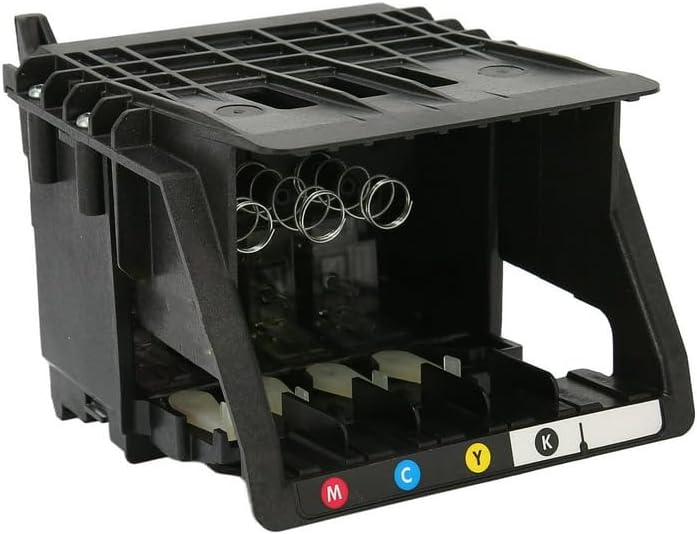
Obraz: szczegółowy view of the HP print head, showing its components.
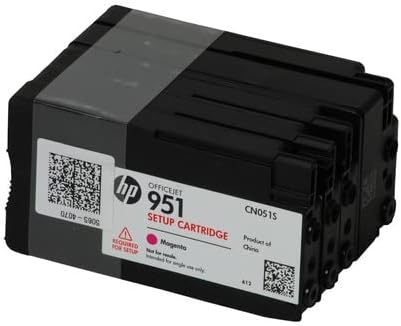
Image: A close-up of an HP OfficeJet 951 setup cartridge, included with the kit.

Image: Depiction of effortless installation, emphasizing ease of replacement.
4. Operating Your Printer with the New Print Head
Once installed, the new print head works in conjunction with your HP printer to deliver consistent, high-quality prints. The smart cartridge technology provides real-time ink level monitoring and ensures optimal performance.
Achieving Optimal Print Quality:
- Używaj oryginalnego tuszu HP: For best results and to maintain print head longevity, always use genuine HP ink cartridges.
- Regularne drukowanie: Print at least once a week to prevent ink from drying in the nozzles.
- Proper Paper Selection: Use appropriate paper types for your printing needs (e.g., photo paper for photos, plain paper for documents).

Obraz: Byłyample of vibrant colors and rich blacks achieved with HP printing.

Image: Illustration of fade-resistant prints, highlighting the longevity of HP prints.

Image: Graphic emphasizing clear, crisp results from the HP printhead.
5. Konserwacja
Proper maintenance ensures the longevity and optimal performance of your HP print head:
- Czyszczenie głowicy drukującej: If print quality degrades (e.g., streaks, faded colors), perform a print head cleaning cycle through your printer's control panel or software. Refer to your printer's user manual for specific instructions.
- Avoid Running Ink Dry: Do not wait until ink cartridges are completely empty before replacing them. Running cartridges completely dry can potentially damage the print head.
- Przechowuj prawidłowo: If you need to remove the print head for an extended period, store it in an airtight container to prevent drying of the nozzles.
- Use Original HP Supplies: HP parts, supplies, and printers are designed to work together seamlessly, optimizing quality and reliability, and resulting in less downtime.

Image: Graphic illustrating the trouble-free intelligence and seamless operation of HP parts and supplies.
6. Rozwiązywanie typowych problemów
If you encounter problems after installing your new print head, consider the following solutions:
- "Printer Failure" or "Ink System Problem" Error:
- Ensure the print head is seated correctly and the latch handle is fully lowered.
- Verify that all ink cartridges are genuine HP and are properly installed and clicked into place.
- Restart the printer by unplugging it from the power source for 60 seconds, then plugging it back in.
- Printer Not Recognizing Cartridges:
- Remove and reinsert each cartridge, ensuring a firm click.
- Clean the electrical contacts on the cartridges and inside the print carriage with a lint-free cloth.
- Ensure you are using the setup cartridges provided with the new print head for initial installation.
- Poor Print Quality (Streaks, Faded Colors, Missing Colors):
- Perform a print head cleaning cycle from your printer's maintenance menu.
- Run a print head alignment.
- Check ink levels and replace any low or empty cartridges with genuine HP ink.
If issues persist, consult your printer's specific user manual or contact HP Support.
7. Specyfikacje
| Atrybut | Szczegół |
|---|---|
| Marka | HP |
| Numer modelu | CR322A |
| Producent | Hewlett Packard Office |
| Waga przedmiotu | 1.36 funta |
| Wymiary produktu | 4.6 x 6.8 x 13 cala |
| Kolor | Czarny |
| Liczba elementów | 1 |
| Kompatybilne wkłady atramentowe | HP 950, HP 951 series |
| Data pierwszej dostępności | 9 czerwca 2017 r. |
8. Gwarancja i wsparcie
This HP CR322A Print Head Replacement Kit is backed by HP's commitment to quality. For specific warranty details, please refer to the documentation included with your product or visit the official HP support webstrona.
Zasady zwrotu:
The standard return policy for this product allows for a return or replacement within 30 days of purchase. Please check with your retailer for their specific return procedures.
Plany ochrony:
Extended protection plans may be available for purchase to cover your product beyond the standard warranty period. Options may include 3-Year or 4-Year Protection Plans, or a Complete Protect plan.
Obsługa klienta:
Aby uzyskać pomoc techniczną, rozwiązać problemy lub zadać dalsze pytania, odwiedź oficjalną stronę Wsparcie HP webstrona lub skontaktuj się bezpośrednio z ich obsługą klienta.