
SNBC BTP-M300
SNBC BTP-M300 Impact Receipt Printer User Manual
Model: BTP-M300 | Part Number: 132081
1. Koniec produktuview
The SNBC BTP-M300 Impact Receipt Printer is a reliable and efficient solution for point-of-sale environments. Designed for durability and ease of use, it provides fast and clear receipt printing using a ribbon mechanism. Its versatile connectivity and robust features make it an ideal choice for various business applications.
Główne cechy:
- Wszechstronna łączność: Supports USB, Serial, and Ethernet interfaces for flexible integration.
- Wysoka prędkość drukowania: Achieves a fast 4.7 lines per second print speed.
- Łatwe ładowanie papieru: Features a "Drop and Print" paper loading mechanism.
- Logo Image Printing: Capable of storing and printing custom logo images.
- Built-in Wall Mount: Allows for flexible placement and space-saving installation.
- Trwała konstrukcja: Engineered for dependable performance in demanding environments.
2. Przewodnik konfiguracji
2.1 Rozpakowanie i zawartość opakowania
Carefully unpack the printer and verify all components are present. The standard package includes:
- SNBC BTP-M300 Impact Receipt Printer
- Przewód zasilający
- Instrukcja obsługi (ten dokument)
2.2 Podłączanie drukarki
The BTP-M300 offers multiple connectivity options. Choose the appropriate connection for your system.

Rysunek 2.2.1: Tył view of the SNBC BTP-M300 printer, highlighting the USB, Ethernet, and power ports for connectivity.
- Podłączenie zasilania: Connect the supplied power cord to the printer's power input port and then to a standard electrical outlet. Ensure the power switch is in the OFF position before connecting.
- Połączenie USB: For direct connection to a computer, plug one end of a USB cable (not included) into the printer's USB port and the other end into an available USB port on your computer.
- Połączenie szeregowe: For serial communication, connect a serial cable (not included) to the printer's serial port and to your host device.
- Połączenie Ethernet: For network printing, connect an Ethernet cable (not included) from the printer's Ethernet port to your network router or switch.
2.3 Ładowanie papieru
The BTP-M300 features a "Drop and Print" paper loading system for quick and easy paper replacement.

Rysunek 2.3.1: Widok z góry na dół view of the SNBC BTP-M300 printer with the cover open, illustrating the paper roll compartment and the path for paper loading.
- Open the printer cover by lifting the latch.
- Insert a new paper roll into the compartment, ensuring the paper feeds from the bottom of the roll.
- Wyciągnij niewielką ilość papieru poza obcinarkę.
- Close the printer cover firmly until it clicks into place. The printer will automatically feed the paper to the correct position.
2.4 Montaż na ścianie
The printer includes built-in wall mount capability for flexible installation. Locate the mounting holes on the back of the unit and secure it to a sturdy surface using appropriate screws (not included).

Rysunek 2.4.1: Tył view of the SNBC BTP-M300 printer, highlighting the integrated mounting holes for wall installation.
3. Instrukcja obsługi
3.1 Włączanie/wyłączanie
Locate the power switch on the side of the printer. Flip the switch to the 'ON' position to power on the printer. The 'POWER' indicator light will illuminate. To power off, flip the switch to the 'OFF' position.
3.2 Instalacja sterownika (Windows/macOS)
Before printing, you may need to install the appropriate printer drivers for your operating system. Drivers are typically available on the SNBC official website or included on a CD with the printer (if applicable). Follow the on-screen instructions during installation.
3.3 Podstawowe drukowanie
Once connected and drivers are installed, you can print receipts from your POS software or application. Ensure the printer is selected as the default printer in your system settings or application.
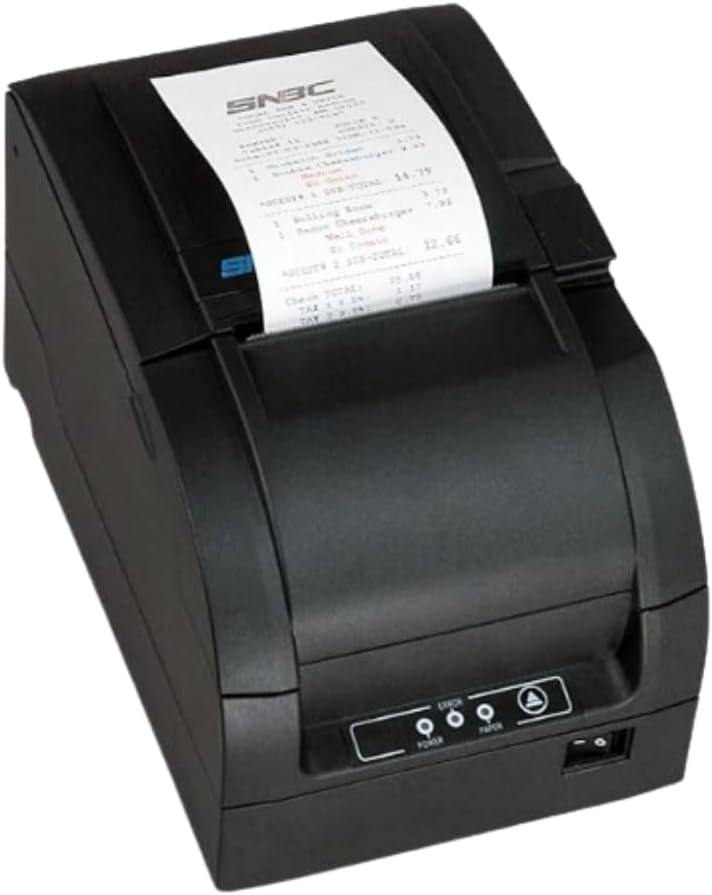
Figure 3.3.1: The SNBC BTP-M300 printer in operation, with a sample receipt being printed and emerging from the top slot.
3.4 Auto Paper Cutting
The BTP-M300 features an auto-cutter with selectable full or partial cut options. This function automatically cuts the receipt after printing. Refer to your printer's utility software or driver settings to configure the cutting mode.
3.5 Printing Logo Images
The printer supports storing and printing custom logo images. This feature typically requires specific software or utility tools provided by SNBC to upload and manage the logo data. Consult the software's documentation for detailed instructions on logo programming.
4. Konserwacja
4.1 Czyszczenie drukarki
Regularne czyszczenie pomaga zachować jakość druku i wydłuża żywotność drukarki.
- Zewnętrzny: Przetrzyj powierzchnię zewnętrzną miękką,amp ściereczka. Nie należy używać środków czyszczących o właściwościach ściernych ani rozpuszczalników.
- Głowica drukująca: The print head should be cleaned periodically, especially if print quality degrades. Use a cotton swab lightly dampSpryskać alkoholem izopropylowym. Delikatnie przetrzeć powierzchnię głowicy drukującej. Pozostawić do całkowitego wyschnięcia przed użyciem.
- Paper Path/Cutter: Remove any paper dust or debris from the paper path and around the auto-cutter using a soft brush or compressed air.
4.2 Wymiana rolki papieru
Replace the paper roll as described in Section 2.3 when the 'PAPER' indicator light illuminates or when the paper is running low.
4.3 Wymiana wkładu z taśmą
As an impact printer, the BTP-M300 uses a ribbon cartridge. Replace the ribbon when print output becomes faint or illegible. Refer to the printer's internal diagrams or a dedicated ribbon replacement guide for specific instructions on accessing and replacing the cartridge.
5. Rozwiązywanie Problemów
This section addresses common issues you might encounter with your SNBC BTP-M300 printer.
| Problem | Możliwa przyczyna | Rozwiązanie |
|---|---|---|
| Drukarka się nie włącza. | Przewód zasilający nie jest podłączony; wyłącznik zasilania jest wyłączony; gniazdko nie ma prądu. | Ensure power cord is securely connected. Flip power switch to ON. Test outlet with another device. |
| No printing/Faint receipts. | Paper loaded incorrectly; Out of paper; Ribbon needs replacement; Incorrect driver/settings; Cable disconnected. | Reload paper correctly (refer to Section 2.3). Replace paper roll. Replace ribbon cartridge (refer to Section 4.3). Verify driver installation and printer selection. Check USB/Serial/Ethernet cable connections. |
| Niska jakość druku. | Dirty print head; Worn ribbon. | Clean the print head (refer to Section 4.1). Replace the ribbon cartridge (refer to Section 4.3). |
| Zacięcie papieru. | Paper loaded incorrectly; Foreign object in paper path. | Open cover, remove jammed paper carefully. Ensure paper is loaded straight. Remove any obstructions. |
| Komputer nie rozpoznaje drukarki. | Driver not installed; Incorrect cable; USB port issue. | Install/reinstall printer drivers. Use a different USB cable or port. Restart computer and printer. |
6. Specyfikacje
Detailed technical specifications for the SNBC BTP-M300 Impact Receipt Printer.
| Funkcja | Opis |
|---|---|
| Nazwa modelu | BTP-M300 |
| Numer modelu przedmiotu | 132081 |
| Technologia druku | Impact (Dot Matrix) |
| Prędkość drukowania | 4.7 linii na sekundę |
| Wyjście drukarki | Monochrome (Black/Red capable with appropriate ribbon) |
| Technologia łączności | USB, szeregowy, Ethernet |
| Metoda kontroli | App (via drivers/SDK) |
| Wymiary produktu | 6 x 6 x 6 cala |
| Waga przedmiotu | 9.11 funta |
| Zasilacz | Included Power Cord |
| Cechy specjalne | Network-Ready, Auto-Cutter, Wall Mount Capability, Logo Printing |
7. Gwarancja i wsparcie
For warranty information and technical support, please refer to the official SNBC webOdwiedź witrynę lub skontaktuj się z autoryzowanym dealerem. Zachowaj paragon jako dowód zakupu.
Aby uzyskać dalszą pomoc, możesz odwiedzić stronę SNBC Brand Store on Amazon.
Ask a question about this manual
Ask about setup, troubleshooting, compatibility, parts, safety, or missing instructions. Manuals+ will review the question and use this page’s manual context to help answer it.