
1. Wprowadzenie
This manual provides essential information for setting up, operating, maintaining, and troubleshooting your Microsoft Surface Pro Model 1796. The Surface Pro is a versatile 2-in-1 device designed to function as both a high-performance laptop and a portable tablet. Please read these instructions carefully to ensure optimal use and longevity of your device.
2. Koniec produktuview
The Microsoft Surface Pro Model 1796 features a 12.3-inch PixelSense multi-touch display, an Intel Core i5 processor, 4GB of RAM, and a 128GB SSD. It operates on Windows 10 Pro, offering a full desktop experience in a portable form factor. The device supports a detachable keyboard (Surface Pro Signature Type Cover) and a digital pen (Surface Pen), both sold separately, to enhance its functionality.

Figure 2.1: Microsoft Surface Pro in tablet mode, displaying the lock screen.
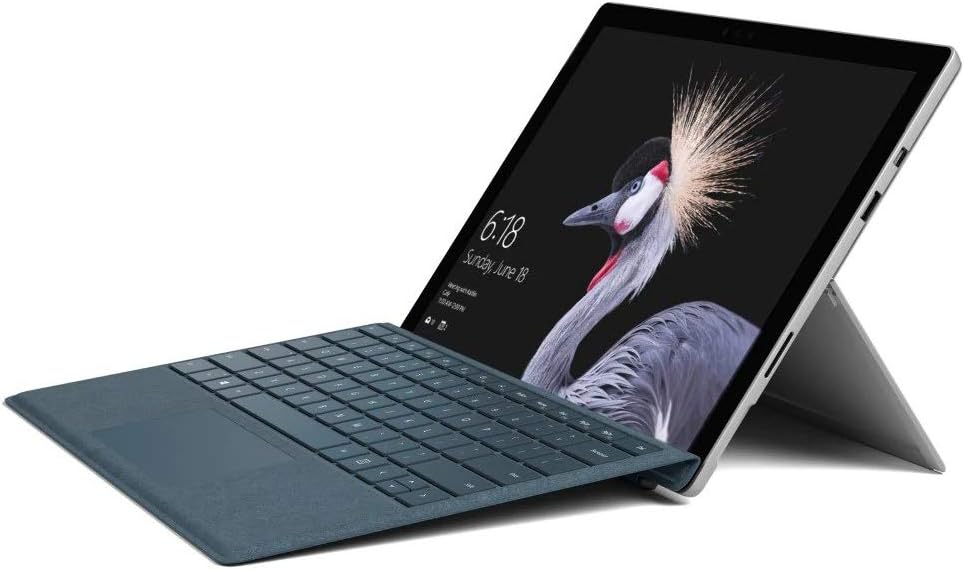
Figure 2.2: Microsoft Surface Pro with Signature Type Cover attached, configured as a laptop.

Figure 2.3: Microsoft Surface Pro tablet and detached Signature Type Cover.
3. Konfiguracja
3.1 Pierwsze włączenie zasilania
- Connect the power supply to the Surface Pro and a power outlet.
- Naciśnij przycisk zasilania znajdujący się na górnej krawędzi urządzenia.
- Postępuj zgodnie z instrukcjami wyświetlanymi na ekranie, aby ukończyć początkową konfigurację systemu Windows 10 Pro, obejmującą wybór języka, nawiązanie połączenia sieciowego i utworzenie konta użytkownika.
3.2 Podłączanie akcesoriów
- Surface Pro Signature Type Cover: Align the Type Cover with the magnetic connector along the bottom edge of the Surface Pro until it clicks into place.
- Pióro Surface: The Surface Pen connects via Bluetooth. Go to Ustawienia > Urządzenia > Bluetooth i inne urządzenia to pair the pen.
3.3 Ładowanie urządzenia
Use the provided power adapter to charge your Surface Pro. The charging port is located on the right side of the device. A full charge provides approximately 13 hours of typical device usage.
4. Instrukcja obsługi
4.1 Podstawowa nawigacja
- Dotykać: Use multi-touch gestures on the PixelSense display for navigation, zooming, and scrolling.
- Type Cover: Utilize the keyboard and trackpad for traditional laptop input.
- Pióro Surface: Write, draw, and annotate directly on the screen.
4.2 Funkcje systemu Windows 10 Pro
Your Surface Pro comes with Windows 10 Pro, offering features such as:
- Windows Hello: For fast, secure, password-free sign-in using facial recognition.
- Cortana: Your personal digital assistant.
- Microsoft Edge: Domyślnie web przeglądarka.
- Tryb tabletu: Automatically or manually switch to a touch-optimized interface when the Type Cover is detached.
4.3 Ustawienia wyświetlania
The 12.3-inch PixelSense display has a resolution of 2736 x 1824 pixels. You can adjust display settings such as brightness, resolution, and scaling through Ustawienia > System > Wyświetlacz.
5. Konserwacja
5.1 Czyszczenie urządzenia
- Użyj miękkiej, niestrzępiącej się szmatki dampened with water or an approved screen cleaner to clean the display.
- For the device body, use a soft, dry cloth. Avoid harsh chemicals or abrasive materials.
5.2 Aktualizacje oprogramowania
Regularly check for and install Windows updates to ensure your device has the latest security patches and features. Go to Ustawienia > Aktualizacja i zabezpieczenia > Windows Update.
5.3 Pielęgnacja baterii
- Unikaj ekstremalnych temperatur, gdyż mogą one skrócić żywotność baterii.
- Aby zapewnić optymalną kondycję akumulatora, należy unikać całkowitego rozładowywania akumulatora i utrzymywania go na poziomie 100% naładowania przez dłuższy czas.
6. Rozwiązywanie Problemów
6.1 Typowe problemy
- Urządzenie się nie włącza: Ensure the device is charged. Try holding the power button for 10-15 seconds to perform a force restart.
- Ekran nie odpowiada: Restart the device. If the issue persists, check for driver updates.
- Problemy z wydajnością: Close unnecessary applications, check for Windows updates, or run a disk cleanup.
6.2 Kontakt z pomocą techniczną
For more complex issues or technical assistance, please visit the official Microsoft Support website or contact their customer service. Have your device's model number (FJU-00001) and serial number ready.
7. Specyfikacje
| Funkcja | Specyfikacja |
|---|---|
| Nazwa modelu | FJU-00001 |
| Rozmiar wyświetlacza | 12.3 cali |
| Rozdzielczość ekranu | 2736 x 1824 pikseli |
| Edytor | Intel Core i5 (2.6 GHz) |
| BARAN | 4 GB DDR3 |
| Składowanie | Dysk SSD 128 GB |
| Koprocesor graficzny | Karta graficzna Intel HD 620 |
| System operacyjny | Windows 10 Pro |
| Typ bezprzewodowy | 802.11b, 802.11g, 802.11n |
| Średnia żywotność baterii | 13 godzin |
| Waga przedmiotu | 1.7 funta |
| Wymiary produktu | 11.5 x 0.33 x 7.93 cala |
| Tył WebRozdzielczość kamery | 5 MP |
8. Gwarancja i wsparcie
Your Microsoft Surface Pro Model 1796 is covered by a limited hardware warranty provided by Microsoft. For detailed warranty terms and conditions, please refer to the documentation included with your purchase or visit the official Microsoft support webZachowaj dowód zakupu na wypadek roszczeń gwarancyjnych.
For technical support, driver downloads, and service information, please visit support.microsoft.com. You may need to provide your device's serial number and model information.