
1. Wprowadzenie
The ASUS K31CD-DS71 VivoPC Desktop is a powerful and versatile computer designed for various computing needs. This manual provides essential information to help you get started, operate, and maintain your system effectively.
This desktop features an Intel Core i7 3.6GHz Processor, 16GB DDR4 Memory, and a 2TB 7200RPM HDD, running on Windows 10 Home. It offers extensive connectivity options for peripherals and network access.
2. Co znajduje się w pudełku
Before proceeding with the setup, please ensure all the following items are present in your package:
- ASUS K31CD-DS71 VivoPC Desktop Unit
- Klawiatura USB
- Mysz USB
- Przewód zasilający
- Krótki podręcznik
- Karta gwarancyjna
3. Przewodnik konfiguracji
3.1 Podłączanie urządzeń peryferyjnych
Follow these steps to connect your essential peripherals:
- Podłącz monitor: Connect your monitor to the desktop using an HDMI or VGA cable. Ensure the cable is securely fastened at both ends.
- Podłącz klawiaturę i mysz: Plug the USB keyboard and USB mouse into any available USB ports on the rear or front of the desktop.
- Połącz się z siecią (opcjonalnie): For a wired internet connection, connect an Ethernet cable from your router or modem to the RJ45 LAN port on the rear of the desktop. For wireless connectivity, ensure your Wi-Fi network is available during initial setup.
- Podłącz zasilanie: Plug the power cord into the power input on the rear of the desktop, then plug the other end into a grounded electrical outlet.
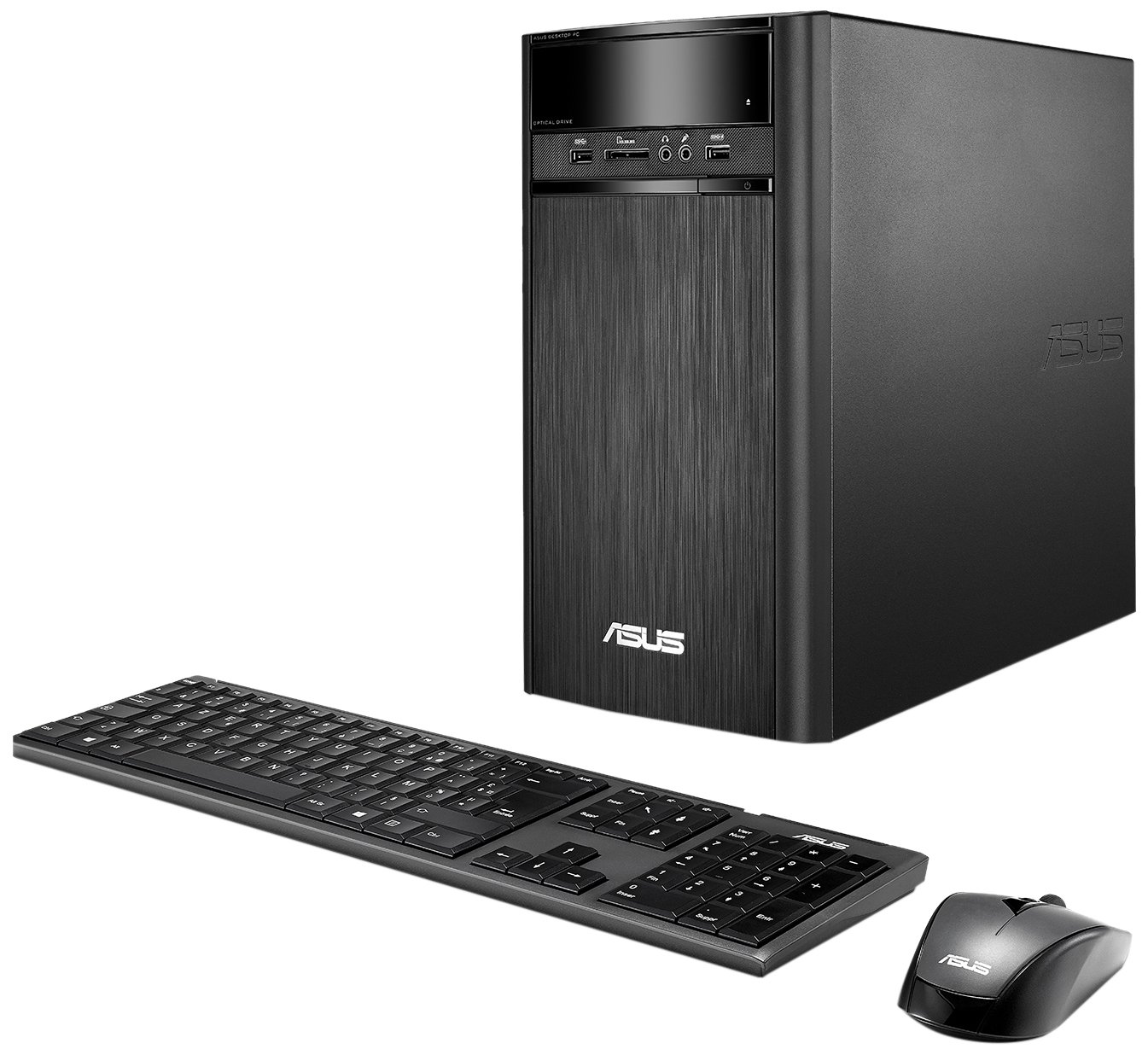
Figure 3.1: ASUS K31CD-DS71 VivoPC Desktop connected to a monitor.
3.2 Pierwsze włączenie i konfiguracja systemu Windows
Po podłączeniu wszystkich urządzeń peryferyjnych:
- Włączanie: Press the power button located on the front of the desktop. The system will boot up.
- Konfiguracja systemu Windows 10 Home: Follow the on-screen instructions to complete the initial Windows 10 Home setup. This includes selecting your region, language, accepting terms, and creating a user account.
- Instalacja sterownika: The system comes with pre-installed drivers. Windows Update will automatically download and install any necessary updates or additional drivers after connecting to the internet.
4. Instrukcja obsługi
4.1 Funkcje panelu przedniego
The front panel provides convenient access to frequently used ports and the optical drive.

Figure 4.1: Front panel of the desktop.
- Optical Drive (DVD-ROM): Insert CDs or DVDs for data access or media playback.
- Card Reader (6-in-1): Do odczytu różnych formatów kart pamięci.
- Gniazdo słuchawkowe: Connect headphones for private audio.
- Gniazdo mikrofonu: Podłącz mikrofon do wejścia audio.
- 3.0 USB Porty: Two ports for high-speed data transfer with compatible devices.
4.2 Łączność na tylnym panelu
The rear panel houses various ports for connecting monitors, network cables, and other peripherals.

Rysunek 4.2: Porty łączności na tylnym panelu.
- 3.1 USB Porty: Two high-speed USB ports.
- 3.0 USB Porty: Two additional high-speed USB ports.
- 2.0 USB Porty: Two standard USB ports.
- HDMI-Out Port: Connect to a monitor or TV for digital video and audio output.
- Port VGA: Connect to a monitor for analog video output.
- Port LAN RJ45: Do przewodowego połączenia sieciowego.
- 8-channel Audio I/O: Multiple audio jacks for surround sound systems.
4.3 Łączność bezprzewodowa
The desktop supports fast 802.11ac Wi-Fi for wireless internet access.
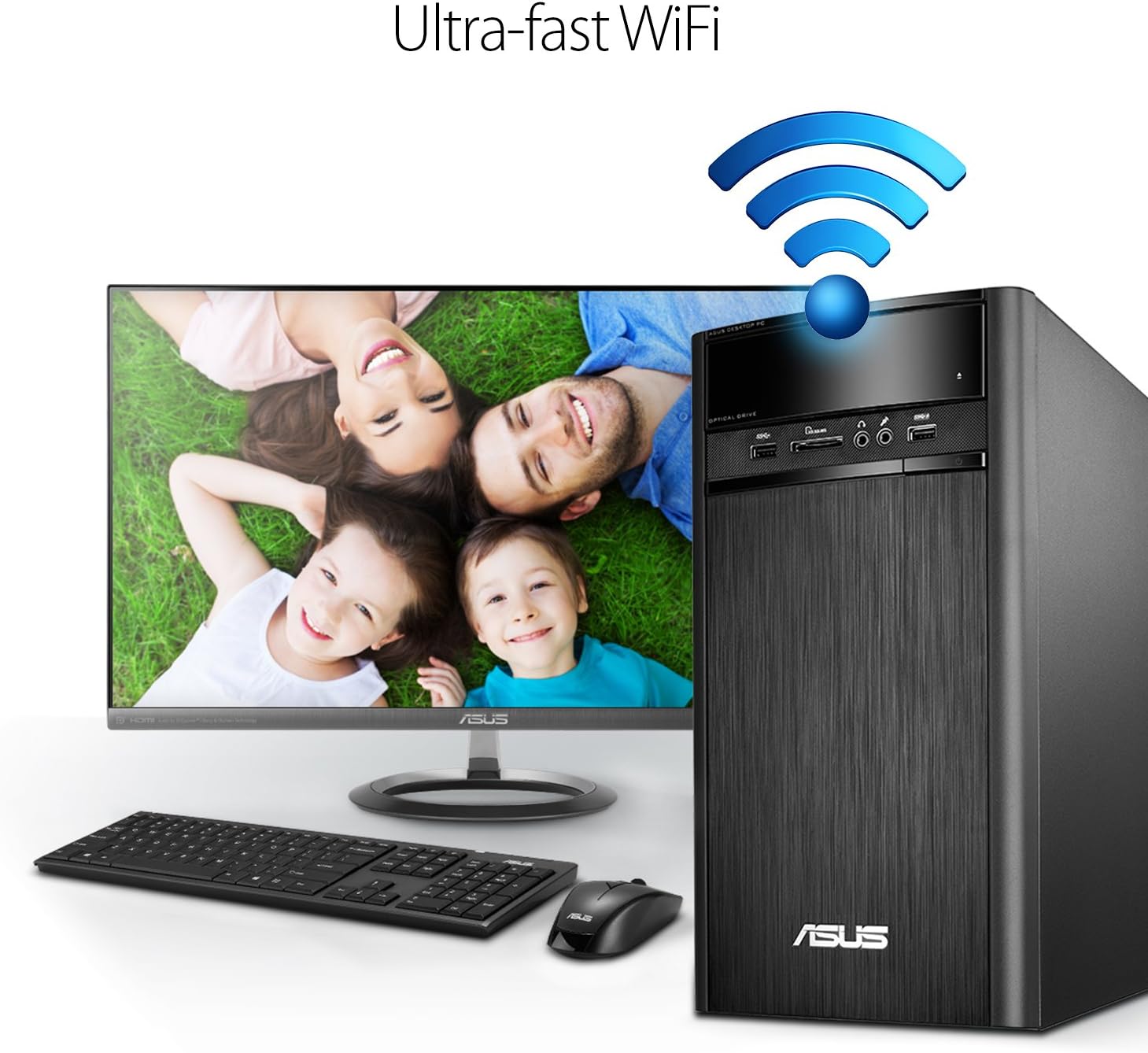
Figure 4.3: Wireless connectivity for the desktop.
To connect to a Wi-Fi network, navigate to the network settings in Windows 10, select your desired network, and enter the password if prompted.
4.4 Funkcje audio
The ASUS K31CD-DS71 incorporates SonicMaster Audio technology, which combines hardware, software, and tuning to deliver enhanced audio quality for various applications, including music, movies, and games.
5. Konserwacja
5.1 Ogólna opieka
- Aby zapobiec przegrzaniu, należy przechowywać komputer w dobrze wentylowanym pomieszczeniu.
- Avoid placing liquids or heavy objects on top of the unit.
- Czyść zewnętrzną część miękką, suchą ściereczką. Nie używaj silnych środków chemicznych.
- Regularly clean dust from the vents using compressed air to maintain optimal airflow.
5.2 Aktualizacje oprogramowania
Ensure your Windows 10 Home operating system is kept up-to-date. Windows Update automatically downloads and installs critical updates, security patches, and driver updates. You can manually check for updates by going to Ustawienia > Aktualizacja i zabezpieczenia > Windows Update.
5.3 Aktualizacje sterowników
While Windows Update handles most driver updates, you may occasionally need to update specific drivers (e.g., graphics or chipset) from the ASUS support website for optimal performance or to resolve compatibility issues. Always download drivers from the official ASUS support page for your specific model.
6. Rozwiązywanie Problemów
This section addresses common issues you might encounter with your ASUS K31CD-DS71 VivoPC Desktop.
6.1 Problemy z zasilaniem i rozruchem
- Brak zasilania: Ensure the power cord is securely connected to both the desktop and the electrical outlet. Verify the outlet is functional.
- System się nie uruchamia: If the system powers on but does not display anything on the screen, check the monitor's power and cable connections. Try restarting the computer. If the issue persists, it may indicate a hardware problem.
- System operacyjny nie ładuje się: If Windows 10 fails to load, try accessing the Windows Recovery Environment (usually by interrupting the boot process a few times) to perform startup repair or system restore.
6.2 Problemy z łącznością
- Brak połączenia internetowego (przewodowego): Check if the Ethernet cable is properly connected. Verify your router/modem is working correctly.
- Brak połączenia internetowego (bezprzewodowego): Ensure Wi-Fi is enabled in Windows settings. Check if your Wi-Fi network is visible and you are entering the correct password. Restart your router/modem.
- Nie wykryto urządzenia peryferyjnego: If a USB device is not recognized, try plugging it into a different USB port. Ensure the device's drivers are installed.
6.3 Problemy z dźwiękiem
- Brak dźwięku: Check volume levels in Windows and on your speakers/headphones. Ensure audio cables are correctly plugged into the appropriate jacks. Verify audio drivers are installed and up-to-date in Device Manager.
W przypadku powtarzających się problemów należy skontaktować się z pomocą techniczną ASUS webodwiedź witrynę lub skontaktuj się z obsługą klienta.
7. Specyfikacje
Below are the detailed specifications for the ASUS K31CD-DS71 VivoPC Desktop:
| Część | Specyfikacja |
|---|---|
| Marka | ASUS |
| Numer modelu | K31CD-DS71 |
| System operacyjny | Windows 10 Home |
| Model procesora | Procesor Intel Core i7-7700 |
| Prędkość procesora | 3.6 GHz |
| Zainstalowana pamięć RAM | 16 GB DDR4 |
| Opis dysku twardego | 2TB (7200 RPM) HDD |
| Optical Storage Device | Płyta DVD-RW |
| Koprocesor graficzny | Karta graficzna Intel HD 630 (zintegrowana) |
| Technologia łączności | HDMI, VGA, LAN, USB, Wi-Fi (802.11ac) |
| Porty USB | 2x USB 3.1, 4x USB 3.0, 2x USB 2.0 |
| Wejście/wyjście audio | 1x Headphone, 1x Microphone, 1x 8-channel Audio I/O |
| Czytnik kart | 6 w 1 |
| Wymiary produktu (DxSxW) | 15.4 x 7.1 x 13.8 cala |
| Waga przedmiotu | 13.7 funtów |
| Kolor | Czarny |
8. Gwarancja i wsparcie
8.1 Informacje o gwarancji
The ASUS K31CD-DS71 VivoPC Desktop comes with a 1-Year Domestic Warranty, which includes 1-way free shipping for service. Please refer to the included Warranty Card for detailed terms and conditions, including coverage, limitations, and how to initiate a warranty claim.
8.2 Obsługa klienta
For technical assistance, troubleshooting beyond this manual, or warranty service, please contact ASUS customer support. You can find contact information and additional resources on the official ASUS support website. Have your product model number (K31CD-DS71) and serial number ready when contacting support.


