
1. Koniec produktuview
The J-Tech Digital ProAV Unlimited HDMI Extender Transmitter (TX) is designed to extend 1080P HDMI signals over a single Cat5e/6 cable up to 400 feet (120 meters). This device facilitates flexible audio-video distribution, supporting various configurations including point-to-point, point-to-many, and many-to-many broadcasting when used with compatible receivers and an Ethernet switch. It converts HDMI signals to standard TCP/IP for transmission over an internet cable or local area network (LAN). The system supports 1080p resolution, 3D content, HDCP, and wideband IR control (38-56 kHz).
2. Zawartość opakowania
Sprawdź, czy w opakowaniu znajdują się wszystkie elementy:
- 1x J-Tech Digital ProAV Unlimited HDMI Extender Transmitter (TX)
- 1x Instrukcja obsługi
- 1x kabel IR TX
- 1x Power Adapter DC 5V/1A

3. Funkcje produktu
- Supports Point-to-Point, Point-to-Many, and Many-to-Many Broadcasting configurations.
- Extends 1080P HDMI signals up to 120m (394ft) over a single Cat5e/6 cable.
- Converts HDMI signals to standard TCP/IP for transmission over Ethernet or LAN.
- Compatible with 1080p, 3D, and HDCP content.
- Features wideband IR (38-56 kHz) control for remote device management.
- Can be cascaded for multiple layers by integrating additional Ethernet switches.
- Android application available for matrix switching control (search "J-Tech Digital Matrix" on Google Play).

4. Konfiguracja i instalacja
4.1. Transmitter Interface
Familiarize yourself with the ports and indicators on the Transmitter unit:
- Prąd stały/5V: Power Input Port.
- Reset: Przycisk resetowania urządzenia.
- Transmisja podczerwieni: IR Transmitter Port for sending IR signals to the source device.
- Wejście HDMI: Connect your HDMI source device here.
- Status: LED indicator for signal status.
- Moc: LED indicator for power status.
- Ethernet: RJ45 port for Cat5e/6 cable connection to the network switch or receiver.
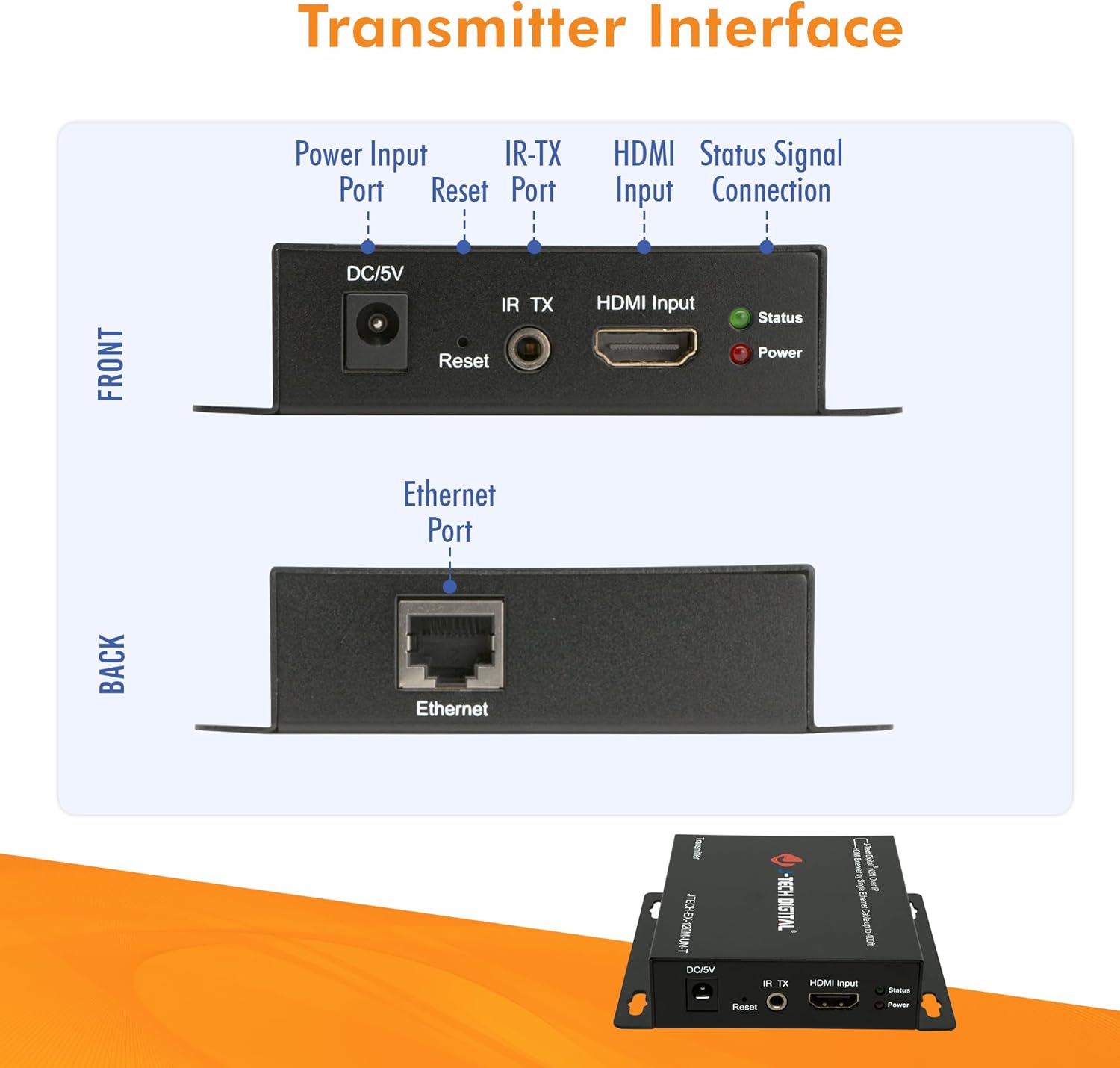
4.2. Tryby połączenia
The J-Tech Digital HDMI Extender system supports various connection modes:
4.2.1. One-to-One Connection
In a point-to-point setup, a single Transmitter connects directly to a single Receiver via a Cat5e/6 cable. This extends the HDMI signal from one source to one display.

4.2.2. Many-to-Many Connection (Matrix Setup)
For more complex installations, multiple Transmitters and Receivers can be connected through one or more Gigabit Ethernet switches to create a flexible HDMI matrix. This allows any source to be routed to any display, or multiple displays simultaneously.

4.3. Podstawowe kroki instalacji
- Connect your HDMI source (e.g., Blu-Ray Player, Gaming Console) to the HDMI Input port of the Transmitter unit using an HDMI cable.
- Connect a Cat5e/6 Ethernet cable from the Ethernet port of the Transmitter to a Gigabit Ethernet switch (for matrix setup) or directly to a Receiver unit (for point-to-point).
- If using a matrix setup, connect Receiver units to the same or cascaded Gigabit Ethernet switches using Cat5e/6 cables.
- Connect your HDMI display (e.g., Monitor, Projector, Television) to the HDMI Output port of each Receiver unit using an HDMI cable.
- Connect the provided power adapters to all Transmitter and Receiver units, then plug them into a power outlet.
- For IR control, connect the IR TX cable to the Transmitter unit and position the IR emitter near the IR sensor of your source device.
5. Instrukcja obsługi
5.1. Matrix Switching via Web Interfejs
When using the J-Tech Digital ProAV Unlimited HDMI Extender system with a compatible Gigabit Ethernet switch, you can manage input-to-output routing via a web-based interface. Connect a computer to the same network as the switch to access its configuration menu.
5.2. Android App Control
An Android application is available for convenient control of the matrix switching functionality. Szukaj "J-Tech Digital Matrix" on Google Play to download and install the app. This allows for intuitive management of your HDMI sources and displays from a mobile device.
6. Specyfikacje
| Funkcja | Specyfikacja |
|---|---|
| Marka | Cyfrowy J-Tech |
| Model | ProAV Unlimited HDMI Extender Transmitter (TX) |
| Kolor | Czarny |
| Typ złącza | HDMI |
| Kompatybilne urządzenia | Blu-Ray Player, Gaming Console, Monitor, Projector, Television |
| Typ kabla | Ethernet, HDMI |
| Odległość przedłużenia | Up to 120m (394ft) over Cat5e/6 cable |
| Wsparcie rozdzielczości | 1080p, 3D |
| Wsparcie HDCP | Tak |
| Sterowanie IR | Wideband IR (38-56 kHz) |
| UPC | 766150278057 |
| ASIN | B01C3HCZPK |

7. Rozwiązywanie Problemów
- Brak obrazu/sygnału:
- Sprawdź, czy wszystkie kable HDMI i Ethernet są solidnie podłączone.
- Verify that both the Transmitter and Receiver units are powered on.
- Check the status LEDs on the units; refer to the manual for their meaning.
- Test with shorter, certified Cat5e/6 cables to rule out cable issues.
- Ensure your display supports the output resolution (e.g., 1080p).
- Picture Flickering/Intermittent Signal:
- Sprawdź, czy nie ma luźnych połączeń kablowych.
- Ensure the Cat5e/6 cable is of good quality and within the specified length limit (up to 400ft).
- Minimize electromagnetic interference by keeping cables away from power lines or other electronic devices.
- Sterowanie IR nie działa:
- Ensure the IR TX cable is correctly plugged into the Transmitter and the IR emitter is directly facing the IR sensor of the source device.
- Verify that the remote control is functioning correctly.
- Matrix Switching Issues:
- Ensure the Gigabit Ethernet switch is compatible and properly configured.
- Verify network connectivity to the switch and the extender units.
- Sprawdź web interface settings to ensure correct input-to-output routing.
8. Konserwacja
To ensure optimal performance and longevity of your J-Tech Digital HDMI Extender Transmitter, follow these maintenance guidelines:
- Przechowywać urządzenie w chłodnym, suchym i dobrze wentylowanym miejscu.
- Avoid exposing the unit to excessive heat, moisture, or direct sunlight.
- Clean the unit with a soft, dry cloth. Do not use liquid or aerosol cleaners.
- Sprawdź, czy wszystkie połączenia kablowe są solidne i nieuszkodzone.
- Periodically check for firmware updates from the J-Tech Digital website to ensure compatibility and improved performance.
9. Gwarancja i wsparcie
J-Tech Digital products are designed for reliability and performance. For warranty information and technical support, please refer to the official J-Tech Digital website or contact their customer service. Their knowledgeable employees are based in Stafford, TX, and are available to assist with product inquiries and troubleshooting.
Aby uzyskać dalszą pomoc, odwiedź stronę J-Tech Digital Store.


