
1. Wprowadzenie
The CHERRY KC 1000 is a reliable wired keyboard designed for professional office use and everyday computing. It features a full-size Italian QWERTY layout, a flat design, and quiet keystrokes for comfortable and efficient typing. This manual provides essential information for setting up, operating, maintaining, and troubleshooting your keyboard.
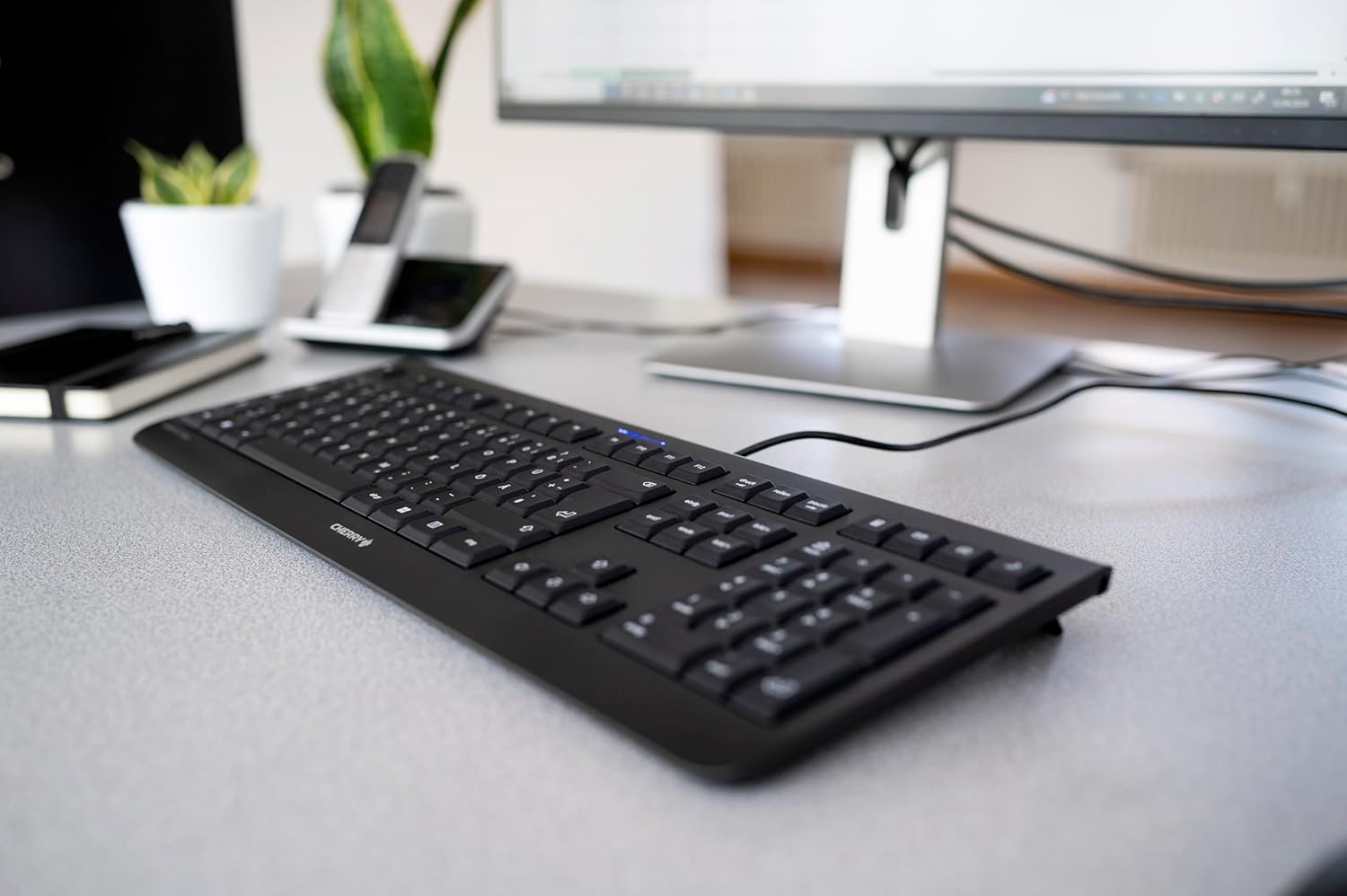
Image 1.1: The CHERRY KC 1000 keyboard in a typical office setup.
2. Konfiguracja
The CHERRY KC 1000 keyboard is designed for simple Plug & Play installation. No additional drivers are required for most operating systems.
2.1 Podłączanie klawiatury
- Locate an available USB-A port on your computer (desktop PC, laptop, or compatible device).
- Insert the USB connector of the CHERRY KC 1000 keyboard into the USB-A port.
- Your operating system will automatically detect and install the necessary drivers. This process usually takes a few seconds.
- Klawiatura jest teraz gotowa do użycia.
The keyboard features a 180 cm (approximately 5.9 feet) long cable, providing ample flexibility for desk arrangements.

Image 2.1: The USB cable connection of the CHERRY KC 1000 keyboard.
3. Obsługa klawiatury
The CHERRY KC 1000 offers a standard Italian QWERTY layout with additional function keys for enhanced productivity.
3.1 Układ klawiszy i funkcje
The keyboard includes a full-size layout with a dedicated numeric keypad and cursor keys. The Italian QWERTY layout supports specific characters and symbols commonly used in the Italian language.

Obraz 3.1: Koniecview of the CHERRY KC 1000 Italian QWERTY key layout.
3.2 Specjalne klawisze funkcyjne
The keyboard features 4 additional keys located above the numeric keypad for quick access to common functions:
- Kalkulator: Opens the default calculator application.
- E-mail: Launches your default email client.
- Przeglądarka: Otwiera domyślne web przeglądarka.
- Tryb uśpienia: Przełącza komputer w tryb uśpienia.
3.3 diod LED stanu
Three blue status LEDs are located above the function keys to indicate the status of:
- DUŻE LITERY: Świeci się, gdy klawisz Caps Lock jest aktywny.
- NUM: Illuminates when Num Lock is active.
- ZWÓJ: Świeci się, gdy funkcja Scroll Lock jest aktywna.

Image 3.2: User interacting with the CHERRY KC 1000 keyboard.
4. Konserwacja
Proper care and maintenance will ensure the longevity and optimal performance of your CHERRY KC 1000 keyboard.
4.1 Czyszczenie klawiatury
- Przed czyszczeniem odłącz klawiaturę od komputera.
- Użyj miękkiej, niestrzępiącej się ściereczki, lekko wyczyśćampened with water or a mild cleaning solution (e.g., isopropyl alcohol) to wipe the keycaps and keyboard surface.
- Avoid using abrasive cleaners, solvents, or harsh chemicals, as these can damage the keyboard's finish or key legends.
- Do usuwania kurzu i zanieczyszczeń spomiędzy klawiszy należy użyć sprężonego powietrza lub małej szczoteczki.
- Przed ponownym podłączeniem klawiatury do komputera należy upewnić się, że jest ona całkowicie sucha.
4.2 Ogólna opieka
- Unikaj rozlewania płynów na klawiaturę.
- Nie wystawiaj klawiatury na działanie ekstremalnych temperatur ani bezpośredniego światła słonecznego przez dłuższy czas.
- Nie należy podejmować prób demontażu klawiatury, gdyż może to spowodować unieważnienie gwarancji.
5. Rozwiązywanie Problemów
If you encounter issues with your CHERRY KC 1000 keyboard, refer to the following common troubleshooting steps.
5.1 Klawiatura nie odpowiada
- Sprawdź połączenie USB: Ensure the USB cable is securely plugged into both the keyboard and the computer's USB port. Try a different USB port.
- Restart komputera: Czasami proste ponowne uruchomienie komputera może rozwiązać problemy z łącznością.
- Przetestuj na innym komputerze: If possible, connect the keyboard to another computer to determine if the issue is with the keyboard or the original computer.
- Ponowna instalacja sterownika: Although Plug & Play, sometimes reinstalling drivers can help. Disconnect the keyboard, restart the computer, and then reconnect the keyboard.
5.2 Klawisze nie działają prawidłowo
- Czyste klucze: Dust or debris under the keycaps can cause keys to stick or not register. Refer to the cleaning instructions in Section 4.1.
- Konflikty oprogramowania: Ensure no other software or keyboard utilities are interfering with the keyboard's operation.
5.3 Status LEDs Not Working
- Verify that the corresponding lock function (Caps Lock, Num Lock, Scroll Lock) is activated.
- If the keyboard is otherwise functional, a minor software glitch might be preventing the LED from lighting up. A computer restart may resolve this.
6. Specyfikacje
Below are the technical specifications for the CHERRY KC 1000 Wired Keyboard.
| Funkcja | Szczegół |
|---|---|
| Nazwa modelu | WIŚNIA KC 1000 |
| Numer modelu | JK-0800IT-2 |
| Łączność | Przewodowy USB-A |
| Układ klawiatury | Italian QWERTY |
| Liczba kluczy | 109 |
| Kluczowa technologia | Membrane or Rubber Dome |
| Cechy specjalne | Whisper-quiet keystroke, 4 additional function keys (Calculator, Email, Browser, Sleep Mode), 3 blue status LEDs |
| Długość kabla | 1.8 metrów (5.9 stóp) |
| Tworzywo | Plastikowy |
| Kolor | Czarny |
| Waga | 530 gram |
| Kompatybilne urządzenia | Laptop, komputer osobisty |
| Certyfikaty | c-tick, cULus, CE, FCC, BSMI, TÜV/GS, Blue Angel eco-label |
7. Gwarancja i wsparcie
CHERRY products are manufactured to high-quality standards. For information regarding warranty coverage, please refer to the warranty card included with your product or visit the official CHERRY website. For technical support or further assistance, please contact CHERRY customer service through their official channels.
The product package includes: 1 CHERRY KC 1000 keyboard and a printed instruction manual.