
Wstęp
This manual provides essential information for the proper setup, operation, and maintenance of your Verbatim 49041 Wireless Blue LED Mouse. Please read these instructions carefully before using the product to ensure optimal performance and longevity.
The Verbatim 49041 Deluxe 8-Button Wireless Mouse features advanced Blue LED technology, enabling precise tracking on a wide variety of surfaces, including glass and granite. Its 2.4 GHz wireless technology ensures a stable and responsive cursor movement without lag. The mouse connects to your computer via a compact nano receiver, designed for convenience and portability. The ergonomic design and easy-grip surface are crafted to provide comfort during extended periods of use.
Instrukcje konfiguracji
- Włóż baterie: Open the battery compartment located on the underside of the mouse. Insert the two included AA batteries, ensuring correct polarity. Close the battery compartment securely.
- Podłącz odbiornik Nano: Locate the nano receiver, typically stored within the mouse's battery compartment or packaged separately. Plug the nano receiver into an available USB port on your computer.
- Włączanie: Slide the power switch, usually found on the underside of the mouse, to the "ON" position. Your computer should automatically detect and install the necessary drivers.
- Funkcjonalność testu: Move the mouse to confirm cursor movement. If the mouse does not respond, refer to the Troubleshooting section.
Image: Underside of the Verbatim 49041 mouse with the battery compartment open, showing two AA batteries being inserted. The nano receiver storage slot is also visible.
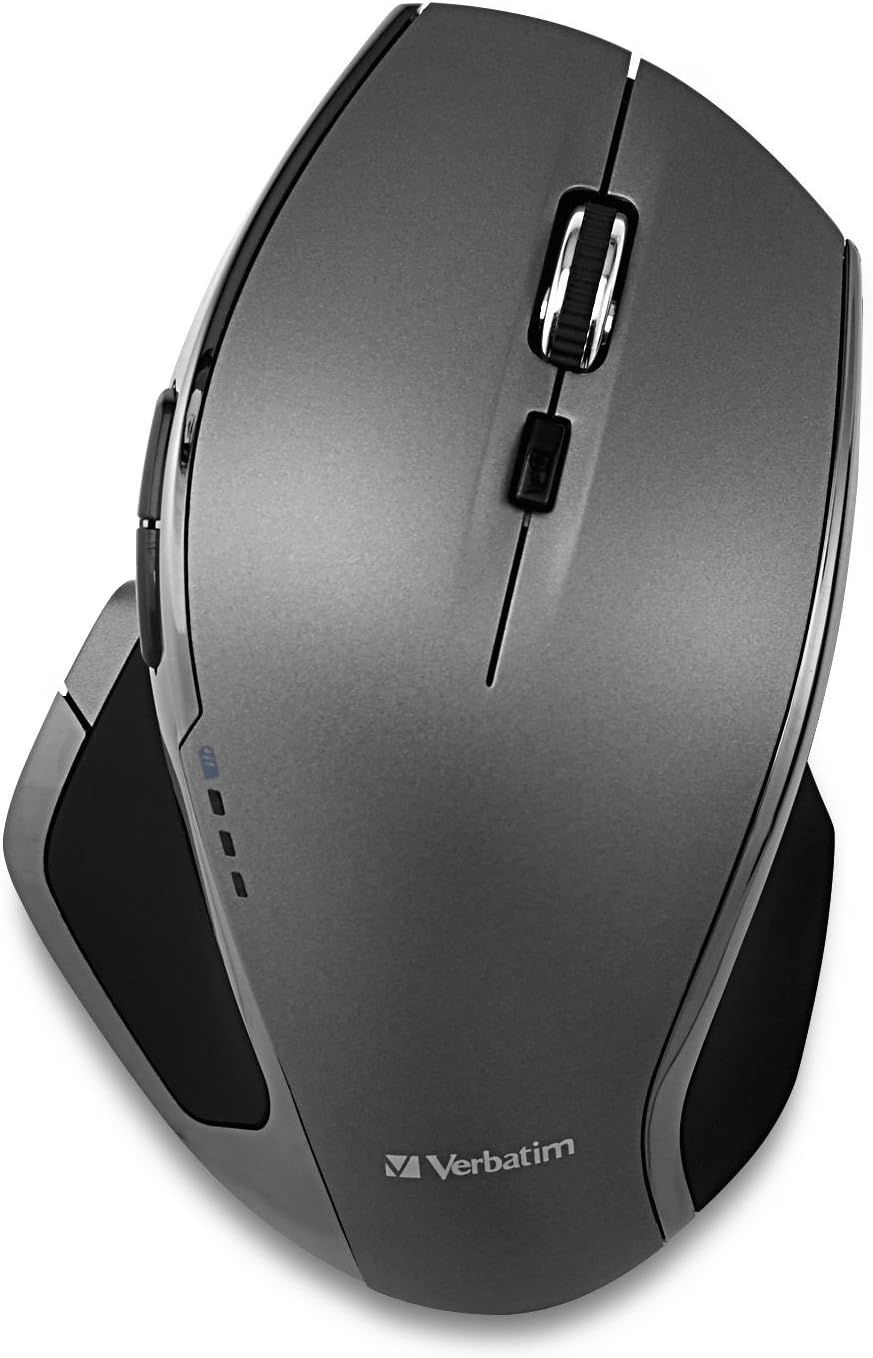
Image: The Verbatim 49041 wireless mouse positioned next to its compact USB nano receiver, ready for connection to a computer.

Instrukcja obsługi
The Verbatim 49041 mouse is designed for intuitive use with its 8-button configuration and advanced tracking technology.
- Podstawowe funkcje: Use the left and right click buttons for standard selections and context menus. The scroll wheel allows for vertical scrolling through documents and web stron.
- Blue LED Tracking: The Blue LED sensor enables the mouse to track accurately on almost any surface, including reflective materials like glass or polished granite, without requiring a mouse pad.
- Funkcjonalność 8 przycisków: In addition to standard buttons, this mouse features dedicated buttons for enhanced navigation. These buttons can facilitate web browser navigation (forward/back), zoom functions, and quick access to Windows features. Specific button assignments may vary or be customizable via your operating system's mouse settings.
- Regulacja DPI: The mouse operates at a sensitivity of 1600 DPI, providing precise control for various tasks.
Obraz: Góra view of the Verbatim 49041 mouse, highlighting the ergonomic shape, scroll wheel, and multiple buttons for enhanced control.

Konserwacja
- Czyszczenie: To clean the mouse, gently wipe its surface with a soft, dry cloth. Avoid using harsh chemicals or abrasive materials. Ensure the optical sensor on the underside is free from dust and debris for optimal tracking.
- Wymiana baterii: When the mouse performance degrades or stops responding, replace the AA batteries. Always replace both batteries at the same time with new ones.
- Przechowywanie nanoodbiornika: For travel or when the mouse is not in use, store the nano receiver in its dedicated slot within the battery compartment to prevent loss.
Rozwiązywanie problemów
| Problem | Rozwiązanie |
|---|---|
| Mysz nie reaguje |
|
| Nieregularny ruch kursora |
|
| Problemy z łącznością |
|
Specyfikacje
| Numer modelu | 49041 |
| Marka | Dosłownie |
| Technologia łączności | 2.4 GHz Radio-frequency (RF) Wireless |
| Technologia wykrywania ruchu | Niebieska dioda LED |
| Max Mouse Sensitivity | 1600 DPI (punktów na cal) |
| Liczba przycisków | 8 |
| Orientacja dłoni | Oburęczny |
| Źródło zasilania | Zasilany bateryjnie |
| Wymagane baterie | Yes (2 AA) |
| Baterie w zestawie | Tak |
| Kompatybilne urządzenia | Office computers |
| System operacyjny | Okna |
| Waga przedmiotu | 82 gram |
| Wymiary przedmiotu (dł. x szer.) | 23 cm dł. x 14 cm szer. |
| Zawartość pudełka | Mysz bezprzewodowa |
| Kraj pochodzenia | Chiny |
| UPC / GTIN | 023942490418 |
Informacje o gwarancji
Warranty terms and conditions for the Verbatim 49041 Wireless Blue LED Mouse are typically provided at the point of purchase or can be found on the official Verbatim website. Please retain your proof of purchase for any warranty claims. Information regarding spare parts availability and guaranteed software updates is not available in the provided product details.
Obsługa klienta
For further assistance, technical support, or to access updated drivers and software, please visit the official Verbatim website. You may also find FAQs and additional resources there to help resolve any issues you encounter.


