
1. Wprowadzenie
The ASUS Z170-DELUXE is a high-performance desktop motherboard designed for Intel Z170 chipset and LGA 1151 socket processors. It offers advanced features for enhanced speed, stability, and connectivity, making it suitable for demanding computing tasks and gaming. This manual provides essential information for setting up, operating, and maintaining your motherboard.
Główne cechy obejmują:
- Optymalizacja 5-etapowa: Dynamic system tuning for performance, efficiency, digital power, fan control, and networking.
- ASUS PRO Clock Technology: Dedicated base-clock generator for extended overclocking margins.
- Kryształowy dźwięk 3: Advanced audio solution for clear and immersive sound.
- 3x3 Dual-Band 802.11ac Wi-Fi + BT4.0: Integrated high-speed wireless connectivity.
- NVME U.2 Device Support and Hyper M.2 x4 Mini Card Support: Next-generation storage options for ultra-fast data transfer.
- USB 3.1 Type-A and Type-C Ports: High-speed USB connectivity with reversible Type-C.
- 5X Protection II: Hardware-level safeguards for long-term durability and reliability.
- Intel Ethernet: Optimized network performance with reduced CPU overhead.
2. Konfiguracja i instalacja
This section guides you through the physical installation of the ASUS Z170-DELUXE motherboard and its components.
2.1. Przygotowanie systemu
- Upewnij się, że zasilacz jest odłączony od gniazdka ściennego.
- Prepare your computer case and ensure adequate space for installation.
- Gather necessary tools, including a Phillips head screwdriver.
2.2. Instalacja płyty głównej
- Carefully place the motherboard into your computer case, aligning it with the standoffs.
- Przymocuj płytę główną za pomocą śrub.
- Install the CPU (Intel LGA 1151) into the socket, ensuring correct orientation.
- Nałóż pastę termoprzewodzącą i zamontuj chłodnicę procesora.
- Install DDR4 RAM modules into the designated slots (4 available). For optimal performance, refer to your CPU and RAM manufacturer's guidelines for dual-channel configuration.
- Connect the 24-Pin main power connector and the 8-Pin CPU power connector from your power supply to the motherboard.
- Connect front panel headers (power button, reset button, USB ports, audio jacks) using the provided Q-Connector for easier installation.

Figure 1: ASUS Z170-DELUXE Motherboard layout.
2.3. Storage and Expansion Card Installation
- Urządzenia SATA: Connect SATA storage drives (HDDs/SSDs) to the available SATA 3 ports (6 total).
- M.2/U.2 Devices: For NVMe M.2 SSDs, insert the module into the M.2 slot and secure it. The motherboard supports NVMe U.2 devices via an adapter (sold separately).
- PCIe Cards: Install graphics cards or other expansion cards into the appropriate PCIe slots (7 total).
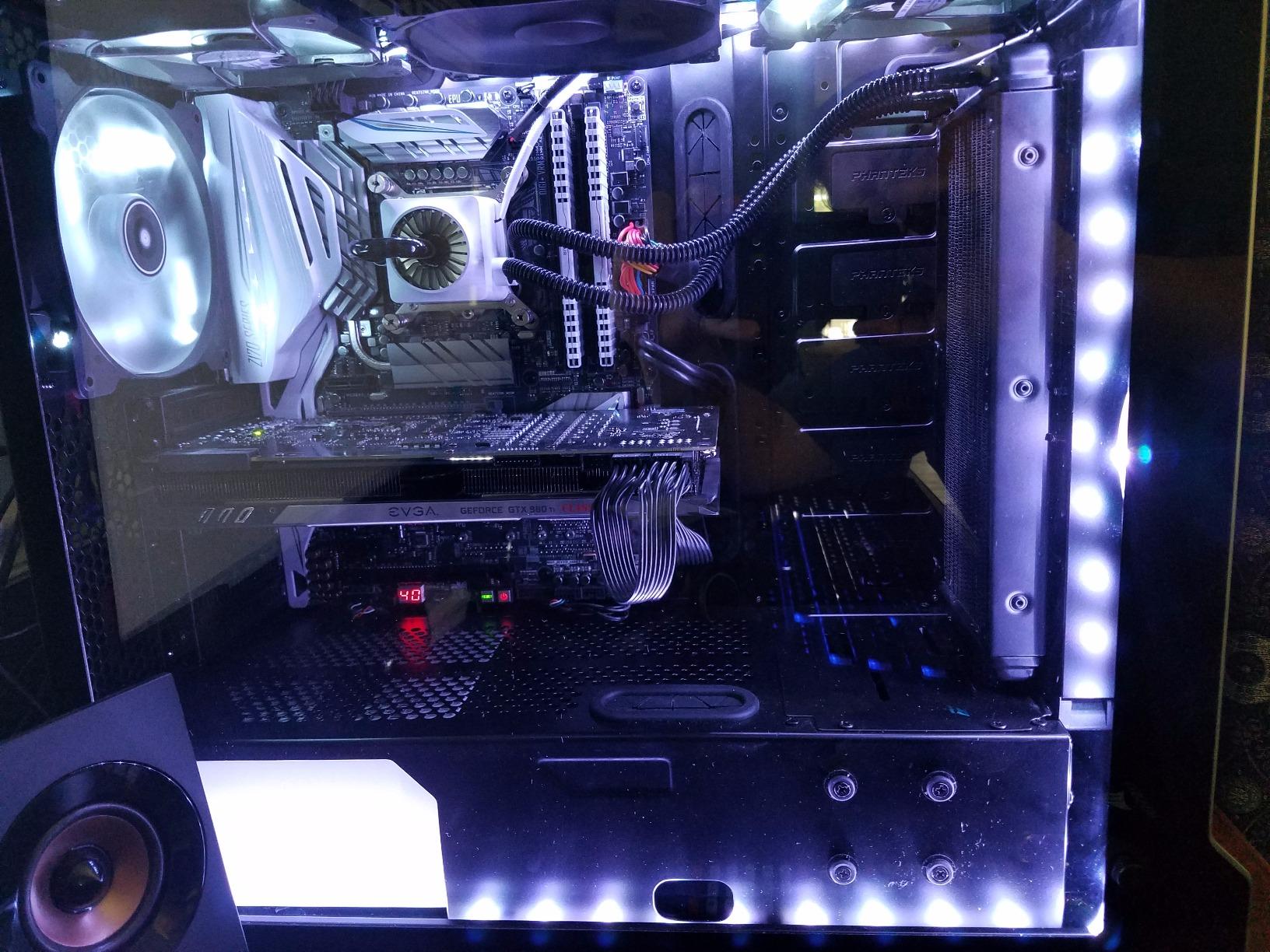
Figure 2: ASUS Z170-DELUXE Motherboard installed in a system, showcasing component layout.
3. Instrukcja obsługi
This section covers the basic operation and key features of your ASUS Z170-DELUXE motherboard.
3.1. Początkowy rozruch i konfiguracja BIOS-u
- After connecting all components and peripherals, power on your system.
- Naciśnij USUNĄĆ or F2 klawisz podczas uruchamiania, aby wejść do BIOS-u UEFI.
- In the BIOS, you can configure boot order, enable XMP for RAM, adjust fan speeds, and manage other system settings.
- The ASUS UEFI BIOS provides an intuitive interface for easy navigation and configuration.
3.2. Instalacja oprogramowania i sterowników
- Install your operating system (e.g., Windows 10).
- Install the latest drivers for the Z170 chipset, audio, LAN, Wi-Fi, and other integrated components from the ASUS support webwitrynę lub dostarczoną płytę ze sterownikami.
- Utilize ASUS utilities like Pakiet AI 3, który obejmuje FAN Expert for advanced fan control and Optymalizacja 5-drożna for system tuning.
3.3. Funkcje łączności
- USB 3.1: Utilize the high-speed USB 3.1 Type-A and reversible Type-C ports for fast data transfer with compatible devices.
- Wi-Fi i Bluetooth: Connect to wireless networks using the integrated 3x3 Dual-Band 802.11ac Wi-Fi. Bluetooth 4.0 allows connection to wireless peripherals.
- Intel Ethernet: Benefit from stable and high-throughput wired network connections.
4. Konserwacja
Właściwa konserwacja zapewnia długowieczność i optymalną wydajność płyty głównej.
- Zachowaj czystosc: Regularly clean dust from the motherboard and case interior using compressed air. Ensure fans are free of obstructions.
- Aktualizacje BIOS-u: Okresowo sprawdzaj wsparcie techniczne ASUS website for BIOS updates. Updating the BIOS can improve compatibility, stability, and performance. Use the ASUS EZ Flash utility for safe BIOS updates.
- Aktualizacje sterowników: Keep all drivers (chipset, audio, LAN, etc.) updated to their latest versions for optimal performance and security.
- Zasilanie: Ensure your power supply provides stable and sufficient power to all components. Unstable power can lead to system instability.
5. Rozwiązywanie Problemów
This section addresses common issues you might encounter with your ASUS Z170-DELUXE motherboard.
- No POST (Power-On Self-Test) / Error Code 55:
- Error code 55 typically indicates a memory issue.
- Upewnij się, że moduły pamięci RAM są dokładnie osadzone w gniazdach.
- Try booting with only one RAM stick, testing each slot and module individually to identify a faulty stick or slot.
- Verify RAM compatibility with the motherboard's QVL (Qualified Vendor List) on the ASUS webstrona.
- Update the BIOS to the latest version, as this often includes memory compatibility improvements.
- Brak wyjścia wideo:
- Ensure your monitor is connected to the correct video output (integrated graphics or dedicated graphics card).
- If using integrated graphics with a 4K display at 60Hz via HDMI, you might experience a blank screen. The integrated HDMI port on the Z170 chipset may be limited to 30Hz at 4K resolution. Consider using a DisplayPort connection or a dedicated graphics card for 4K 60Hz output.
- Reseat your graphics card if applicable.
- Sprawdź wybór wejścia monitora.
- Niestabilność systemu / awarie:
- Sprawdź, czy wszystkie złącza zasilania są solidnie podłączone.
- Sprawdź temperaturę procesora i karty graficznej. Przegrzanie może spowodować niestabilność.
- Sprawdź stabilność pamięci RAM przy użyciu narzędzi diagnostycznych pamięci.
- If using RAID, ensure Intel Rapid Storage Technology (IRST) drivers are compatible. Some IRST driver versions (e.g., 14.8.1.1042 or 15.2.0.1020) have been reported to cause issues with certain configurations. Try using an older stable version (e.g., 14.0.0.1143 or 14.5.0.1081) or uninstall IRST if not using RAID.
- Ensure your power supply is sufficient for your components.
- Nie wykryto urządzenia peryferyjnego:
- Check physical connections.
- Zainstaluj lub zaktualizuj odpowiednie sterowniki.
- Test the peripheral on another port or system.
6. Specyfikacje
| Funkcja | Szczegół |
|---|---|
| Marka | ASUS |
| Nazwa modelu | Z170-DELUXE |
| Gniazdo procesora | LGA 1151 |
| Typ chipsetu | Intel Z170 |
| Kompatybilne procesory | Intel Celeron, Core i7 (and other LGA 1151 compatible CPUs) |
| Technologia pamięci RAM | DDR4 |
| Prędkość zegara pamięci | 2133 MHz (podstawowa, obsługuje wyższe częstotliwości przez XMP) |
| Dostępne gniazda pamięci | 4 |
| Maksymalny rozmiar pamięci RAM | 64 GB |
| Total SATA Ports | 6 |
| Łączna liczba portów USB | 15 (including USB 3.1 Type-A and Type-C) |
| Liczba portów Ethernet | 2 (Intel Ethernet) |
| Total Number of HDMI Ports | 1 |
| Total PCIe Ports | 7 |
| Interfejs karty graficznej | Zintegrowany, PCI Express |
| Waga przedmiotu | 0.8 kilograma |
7. Gwarancja i wsparcie
Aby uzyskać szczegółowe informacje dotyczące gwarancji, zapoznaj się z kartą gwarancyjną dołączoną do produktu lub odwiedź oficjalną stronę pomocy technicznej ASUS webStrona internetowa. ASUS zapewnia wsparcie techniczne i zasoby, które pomogą w przypadku pytań dotyczących produktów.
- Wsparcie ASUS Webstrona: www.asus.com/pl/support/
- Informacje kontaktowe: Sprawdź ASUSa website for regional contact details and customer service options.
Uwaga: Warunki gwarancji mogą się różnić w zależności od regionu. Zachowaj dowód zakupu na wypadek roszczeń gwarancyjnych.