
1. Koniec produktuview
The BUFFALO DriveStation Ultra is a high-performance, high-capacity direct attached storage (DAS) solution designed for demanding data transfer needs, such as high-resolution video editing. This 10-drive desktop model offers a 40 TB storage capacity and features multi-interface support for both Mac and PC systems.
Główne cechy obejmują:
- Industry-leading throughput: Up to 972 MB/s Read and 737 MB/s Write speeds.
- Multi-interface support: Thunderbolt 2 for Mac, and eSATA/USB 3.0 for Windows.
- Advanced data protection: Supports RAID 6 configurations, allowing for up to two drive failures without data loss.
- Equipped with enterprise or NAS hard drives for continuous operation.
1.1 Zawartość pudełka
- DriveStation™ Ultra unit
- Kabel Thunderbolt
- Kabel USB 3.0
- kabel eSATA
- Krótki przewodnik konfiguracji
- Oświadczenie o gwarancji
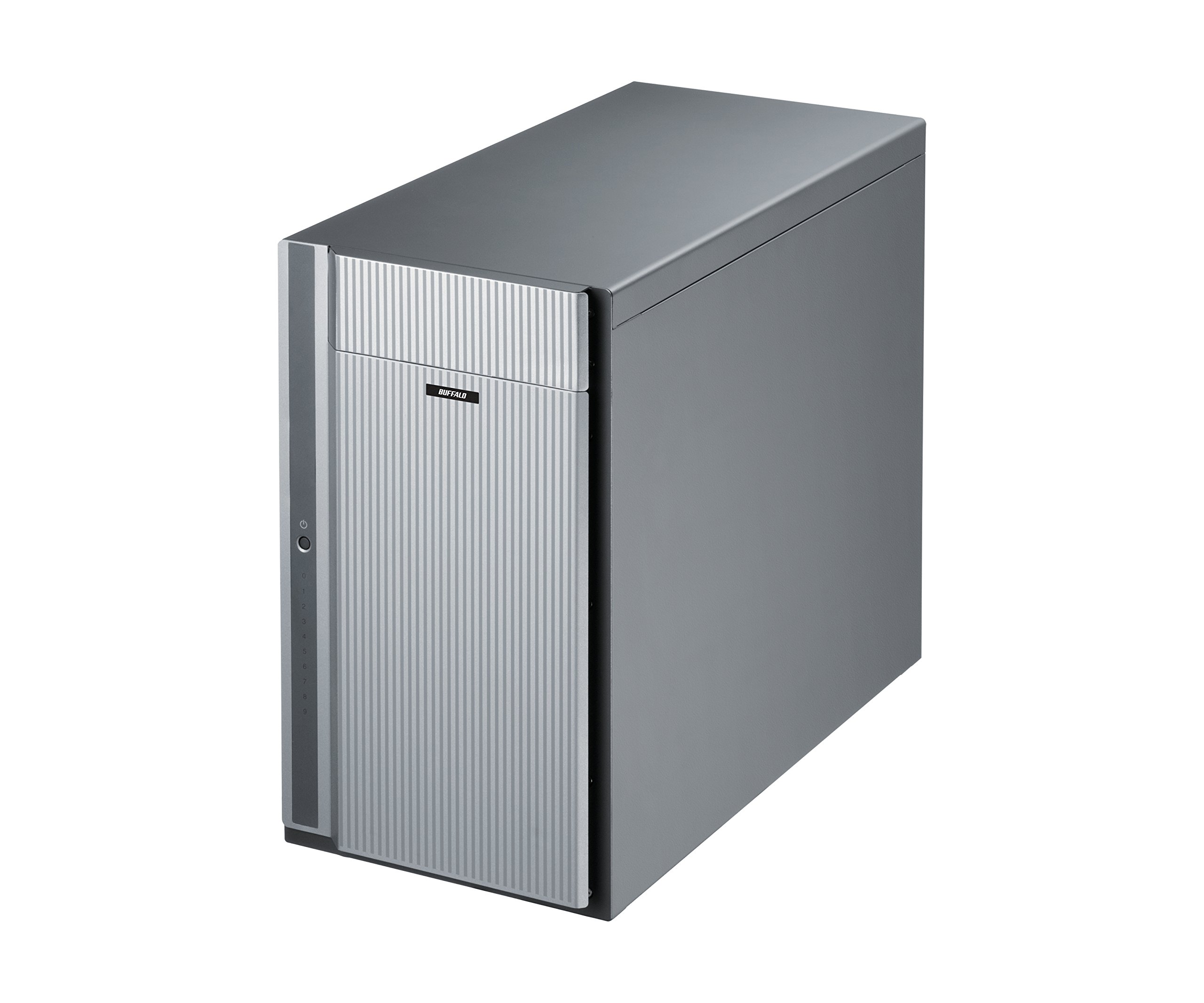
Rycina 1: Przód view of the BUFFALO DriveStation Ultra unit.
2. Instrukcje konfiguracji
Follow these steps to set up your DriveStation Ultra:
- Rozpakuj urządzenie: Carefully remove the DriveStation Ultra and all accessories from its packaging.
- Pozycja urządzenia: Place the unit on a stable, flat surface with adequate ventilation. Ensure no vents are obstructed.
- Podłącz zasilanie: Connect the power cable to the unit and then to a power outlet. Do not power on the device yet.
- Połącz z komputerem: Wybierz jedną z następujących metod połączenia:
- Thunderbolt 2 (Mac): Use the provided Thunderbolt cable to connect the DriveStation Ultra to your Mac's Thunderbolt port.
- USB 3.0 (PC/Mac): Use the provided USB 3.0 cable to connect the DriveStation Ultra to your computer's USB 3.0 port.
- eSATA (PC): Use the provided eSATA cable to connect the DriveStation Ultra to your computer's eSATA port.
- Włączanie: Once connected, press the power button on the DriveStation Ultra. The device will initialize.
- Instalacja sterownika (jeśli to konieczne): Your operating system should automatically detect the device. If prompted, install any necessary drivers from the included software or BUFFALO's support webstrona.
- Konfiguracja RAID: The DriveStation Ultra comes pre-configured. For advanced RAID configurations (e.g., changing from default RAID 6), refer to the detailed software manual available on the BUFFALO support webstrona.

Rysunek 2: Tył view of the DriveStation Ultra, highlighting Thunderbolt, USB 3.0, and eSATA ports.
3. Instrukcja obsługi
Once the DriveStation Ultra is set up and recognized by your computer, it functions as an external storage device. You can access it like any other connected drive.
- Transfer danych: Przeciągnij i upuść files to and from the DriveStation Ultra. For optimal performance, use the Thunderbolt 2 connection on Mac systems or USB 3.0/eSATA on PC systems.
- Wydajność: Expect high-speed data transfers, particularly with large files, due to the optimized hardware and RAID configuration.
- Bezpieczne usuwanie: Always safely eject the DriveStation Ultra from your operating system before disconnecting the cables or powering down the unit to prevent data corruption.
- Zarządzanie energią: The device is designed for continuous operation. If you need to power it off, use the power button on the unit after safely ejecting it from your computer.
4. Konserwacja
Proper maintenance ensures the longevity and reliability of your DriveStation Ultra:
- Czyszczenie: Do czyszczenia zewnętrznej części urządzenia należy używać miękkiej, suchej ściereczki. Nie należy używać płynnych środków czyszczących ani aerozoli bezpośrednio na urządzeniu.
- Wentylacja: Aby zapobiec przegrzaniu, należy upewnić się, że otwory wentylacyjne są czyste, bez kurzu i przeszkód.
- Aktualizacje oprogramowania układowego: Periodically check the BUFFALO support website for firmware updates. Keeping the firmware updated can improve performance and stability.
- Kopia zapasowa danych: While the DriveStation Ultra offers RAID 6 for data protection, it is always recommended to maintain separate backups of critical data.
- Kieruj zdrowiem: Monitor the health of the drives using the included utility software or your operating system's disk management tools.
5. Rozwiązywanie Problemów
If you encounter issues with your DriveStation Ultra, try the following steps:
- Urządzenie nie zostało wykryte:
- Sprawdź, czy kabel zasilający jest prawidłowo podłączony i czy urządzenie jest włączone.
- Verify that the data cable (Thunderbolt, USB, or eSATA) is firmly connected to both the DriveStation Ultra and your computer.
- Try connecting to a different port on your computer or using a different cable.
- Restart your computer and the DriveStation Ultra.
- Niska wydajność:
- Ensure you are using the correct high-speed interface (Thunderbolt 2, USB 3.0, or eSATA) and compatible cables.
- Check for background processes on your computer that might be consuming resources.
- Verify that the DriveStation Ultra has adequate ventilation to prevent thermal throttling.
- Drive Failure Indication:
- The DriveStation Ultra's RAID 6 configuration provides protection against up to two drive failures. Consult the detailed manual or BUFFALO support for drive replacement procedures.
- Do not attempt to replace drives without proper guidance to avoid data loss.
- Inne problemy: If the problem persists after trying these steps, refer to the comprehensive user manual on the BUFFALO support webodwiedź witrynę lub skontaktuj się z pomocą techniczną.
6. Specyfikacje
| Funkcja | Szczegół |
|---|---|
| Pojemność dysku twardego | 40 TB dysk twardy mechaniczny |
| Marka | BAWÓŁ |
| Szereg | DriveStation Ultra |
| Numer modelu | HD-DN040T/R6 |
| Platforma sprzętowa | Mac, PC |
| Waga przedmiotu | 39.7 funta |
| Wymiary produktu (dł. x szer. x wys.) | 15.24 x 7.48 x 12.6 cala |
| Kolor | Srebrny |
| Interfejs dysku twardego | eSATA |
| Prędkość obrotowa dysku twardego | 7200 obr./min. |
| Technologia łączności | Thunderbolt, USB, eSATA |
| Typ instalacji | Dysk twardy zewnętrzny |
| Pierwsza dostępna data | 22 lipca 2015 r. |
7. Informacje o gwarancji
The BUFFALO DriveStation Ultra 10-Drive Thunderbolt Desktop DAS 40 TB (Model HD-DN040T/R6) comes with a 3-roczna ograniczona gwarancja.
For detailed terms and conditions of the warranty, please refer to the warranty statement included in your product packaging or visit the official BUFFALO webstrona.
8. Wsparcie
For technical assistance, additional documentation, or to download the latest drivers and firmware, please visit the official BUFFALO support webstrona.
You can typically find support resources by searching for your product model (HD-DN040T/R6) on the BUFFALO support portal.
Contact information for customer service may also be available on the BUFFALO website or in your product's quick setup guide.