
1. Wprowadzenie
This manual provides essential instructions for the setup, operation, maintenance, and troubleshooting of your IBM Lenovo Preferred Pro USB Wired Keyboard and Mouse Set. Please read this manual thoroughly before using the product to ensure proper functionality and longevity.
2. Koniec produktuview
The IBM Lenovo Preferred Pro USB Wired Keyboard and Mouse Set offers a reliable input solution for your computer. The keyboard features a standard layout with a numeric keypad, while the mouse is a 2-button optical mouse with a scroll wheel. Both devices connect via a standard USB interface, providing plug-and-play compatibility with most operating systems.

Rysunek 2.1: Góra view of the IBM Lenovo Preferred Pro USB Wired Keyboard.
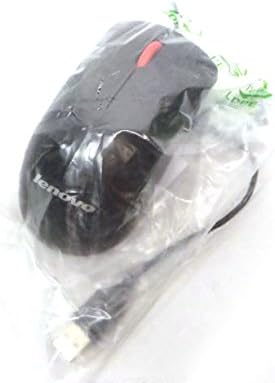
Rysunek 2.2: Góra view of the Lenovo USB 2-Button Optical Mouse.
Główne cechy:
- USB Wired Connectivity: Ensures a stable and reliable connection.
- Plug-and-Play: No additional drivers typically required for basic functionality.
- Standard Keyboard Layout: Full-size keyboard with numeric keypad.
- Optical Mouse: Precise tracking with a scroll wheel for easy navigation.
3. Konfiguracja
Follow these steps to connect your keyboard and mouse to your computer.
- Rozpakuj urządzenia: Ostrożnie wyjmij klawiaturę i mysz z opakowania.
- Identify USB Connectors: Locate the USB connectors at the end of the keyboard and mouse cables.
- Połącz z komputerem: Insert the USB connector of the keyboard into an available USB port on your computer. Repeat this step for the mouse.
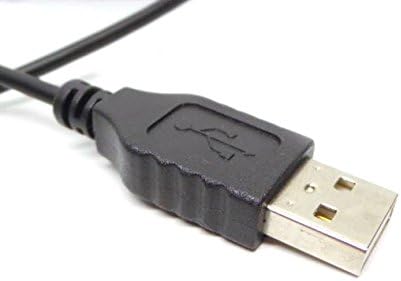
Figure 3.1: Close-up of a standard USB Type-A connector, used for connecting the keyboard and mouse.
Your computer should automatically detect and install the necessary drivers for the keyboard and mouse. No additional software installation is typically required for basic functionality.
4. Instrukcja obsługi
4.1 Korzystanie z klawiatury
- Pisanie na maszynie: Do wprowadzania tekstu użyj klawiszy alfanumerycznych.
- Klawisze funkcyjne (F1-F12): Klawisze te pełnią różne funkcje w zależności od aplikacji lub systemu operacyjnego.
- Klawiatura numeryczna: Use the dedicated numeric keypad for efficient data entry. Ensure the "Num Lock" indicator light is on.
- Klucze specjalne: Utilize keys like "Print Screen", "Scroll Lock", "Pause/Break", "Insert", "Home", "Page Up", "Delete", "End", and "Page Down" for their respective functions.
4.2 Korzystanie z myszy
- Ruch: Move the mouse across a flat surface to control the cursor on the screen.
- Lewy przycisk myszy: Naciśnij lewy przycisk, aby wybrać elementy, otworzyć łącza lub aktywować funkcje.
- Kliknij prawym przyciskiem myszy: Naciśnij prawy przycisk, aby otworzyć menu kontekstowe.
- Kółko przewijania: Przesuwaj kółko przewijania w górę lub w dół, aby poruszać się po dokumentach lub web stron. Kółko przewijania może również pełnić funkcję środkowego przycisku kliknięcia.
5. Konserwacja
Proper care and maintenance will extend the life of your keyboard and mouse.
- Czyszczenie:
- Disconnect devices from the computer before cleaning.
- Użyj miękkiego, damp cloth with a mild cleaning solution (e.g., water or isopropyl alcohol) to wipe surfaces.
- Avoid excessive moisture, especially near keycaps and optical sensors.
- Use compressed air to remove dust and debris from between keyboard keys.
- Składowanie: Store the devices in a clean, dry environment away from extreme temperatures and direct sunlight.
- Unikaj wycieków: Trzymaj klawiaturę i mysz z dala od płynów, aby zapobiec ich uszkodzeniu.
6. Rozwiązywanie Problemów
If you encounter issues with your keyboard or mouse, refer to the following common problems and solutions:
| Problem | Możliwa przyczyna | Rozwiązanie |
|---|---|---|
| Klawiatura/mysz nie reaguje | Luźne połączenie USB, uszkodzony port USB, problem ze sterownikiem. |
|
| Keys not working or typing incorrectly | Debris under keys, software conflict, keyboard settings. |
|
| Kursor myszy jest niestabilny lub nie porusza się | Dirty optical sensor, unsuitable surface, software issue. |
|
If the problem persists after trying these solutions, contact customer support or your reseller for further assistance.
7. Specyfikacje
| Funkcja | Szczegół |
|---|---|
| Keyboard Model Numbers | 54Y9400, 41A5289, SK-8825, KB1021 |
| Mouse Model Numbers | 45J4888, 25011476, 45J4889, M-U0025-O |
| Marka | IBM/Lenovo |
| Kolor | Czarny |
| Technologia łączności | Przewodowy USB |
| Typ klawiatury | Preferred Pro USB Wired Keyboard |
| Typ myszy | 2-Button Black Red Scroll Wheel Optical Mouse |
| Wymiary opakowania | 22 x 10.2 x 4.7 cale (w przybliżeniu) |
| Waga przedmiotu | 1 funt (w przybliżeniu) |
| Producent | Lenovo |
8. Gwarancja i wsparcie
For warranty information, please refer to the documentation provided at the time of purchase or contact your reseller. IBM and Lenovo products typically come with a standard manufacturer's warranty.
For technical support or further inquiries, please contact the product's manufacturer or the authorized reseller from whom you purchased the item. Keep your purchase receipt and product model numbers handy for faster service.