
1. Wprowadzenie
This manual provides essential information for the proper installation, operation, and maintenance of your IBM 20GB IDE 2.5 Hard Drive, model IC25N020ATCS04-0. This internal hard drive is designed for use in compatible laptop systems and other devices requiring a 2.5-inch IDE storage solution. Please read this manual thoroughly before proceeding with installation or use.
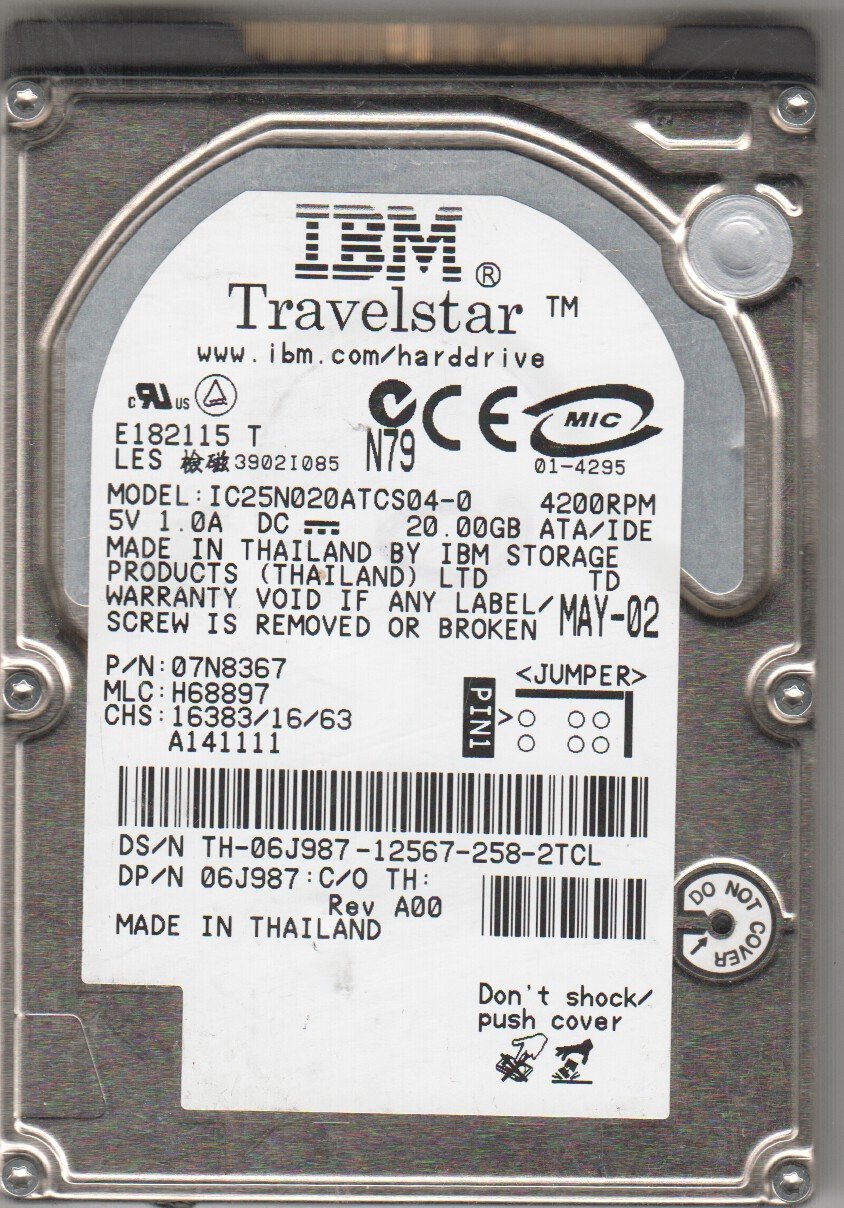
Figure 1: IBM 20GB IDE 2.5 Hard Drive (Model IC25N020ATCS04-0). This image displays the physical appearance of the hard drive, including its label with model and serial numbers, and the IDE connector interface.
2. Konfiguracja i instalacja
Before beginning installation, ensure your computer is powered off and disconnected from all power sources. It is recommended to wear an anti-static wrist strap to prevent electrostatic discharge (ESD) damage to the drive or other components.
2.1 Fizyczna instalacja
- Przygotuj urządzenie: Open your laptop or compatible device's hard drive bay. Refer to your device's specific service manual for instructions on accessing the hard drive bay.
- Usuń stary dysk (jeśli dotyczy): Carefully disconnect the existing hard drive from its IDE connector and power cable. Remove any mounting screws or brackets.
- Set Jumper (if necessary): For IDE drives, jumpers may need to be set for Master, Slave, or Cable Select. Consult your system's motherboard manual or the drive's label for the correct setting. For a single drive, "Master" or "Cable Select" is typically used.
- Install New Drive: Gently slide the IBM 20GB IDE 2.5 Hard Drive into the drive bay. Ensure the IDE connector pins align correctly with the receptacle. Do not force the connection.
- Zabezpiecz dysk: Secure the drive with any mounting screws or brackets removed earlier.
- Zamknij urządzenie: Reassemble your laptop or device, ensuring all covers are properly secured.
2.2 Initial System Recognition
- Włączanie: Connect your device to power and turn it on.
- Sprawdzenie BIOS-u/UEFI: Access your system's BIOS/UEFI settings (usually by pressing F2, Del, or F10 during startup) to confirm the hard drive is detected.
- Operating System Installation/Configuration: If installing a new operating system, follow the OS installation instructions. If replacing a drive, you may need to restore from a backup or reinstall your operating system.
- Partycja i formatowanie: For a new drive, you will need to partition and format it before it can be used for data storage. This can be done through your operating system's disk management tools.
3. Obsługa dysku twardego
Once installed and configured, the IBM 20GB IDE 2.5 Hard Drive functions as a primary or secondary storage device for your computer.
- Przechowywanie danych: Store operating system files, applications, documents, and other digital data.
- Wydajność: The drive operates at standard IDE speeds. Actual performance may vary based on system configuration and workload.
- Zarządzanie energią: The drive's power consumption is managed by the host system. Ensure your system's power settings are configured for optimal performance and longevity.
4. Konserwacja i pielęgnacja
Proper maintenance can extend the lifespan and reliability of your hard drive.
- Kopia zapasowa danych: Regularly back up important data to an external storage device or cloud service. Hard drives can fail, and backups are crucial for data recovery.
- Unikaj szoku fizycznego: Hard drives are sensitive to physical impact. Avoid dropping or jarring the device in which the drive is installed, especially when it is operating.
- Kontrola temperatury: Ensure your device has adequate ventilation to prevent overheating, which can degrade drive performance and lifespan.
- Prawidłowe wyłączenie: Zawsze wyłączaj komputer prawidłowo. Unikaj nagłej utraty zasilania, która może prowadzić do uszkodzenia danych lub dysku.
- Disk Defragmentation (for older OS): If using an older operating system (e.g., Windows XP/Vista) that benefits from defragmentation, perform it periodically. Modern operating systems often manage this automatically.
- Sprawdzanie błędów dysku: Periodically run disk error checking utilities provided by your operating system to identify and repair minor file błędy systemowe.
5. Rozwiązywanie Problemów
If you encounter issues with your hard drive, consider the following common troubleshooting steps:
- Napęd nie został wykryty:
- Verify physical connections (IDE cable, power cable) are secure.
- Check BIOS/UEFI settings to ensure the drive is recognized.
- Confirm jumper settings (Master/Slave/Cable Select) are correct.
- Test the drive in another compatible system or with a different IDE cable if possible.
- Niska wydajność:
- Sprawdź, czy na dysku jest wystarczająca ilość wolnego miejsca.
- Run disk defragmentation (if applicable for your OS).
- Przeskanuj w poszukiwaniu złośliwego oprogramowania i wirusów.
- Ensure the system's cooling is adequate to prevent thermal throttling.
- Nietypowe dźwięki:
- Clicking, grinding, or repetitive beeping sounds often indicate a failing drive. Back up data immediately and consider replacing the drive.
- Uszkodzenie/błędy danych:
- Run your operating system's disk error checking utility (e.g.,
chkdskon Windows). - Ensure proper system shutdowns.
- Run your operating system's disk error checking utility (e.g.,
Jeśli powyższe czynności nie rozwiążą problemu, konieczne może być skorzystanie z pomocy specjalisty.
6. Specyfikacje
Key technical specifications for the IBM 20GB IDE 2.5 Hard Drive (Model IC25N020ATCS04-0):
| Funkcja | Szczegół |
|---|---|
| Numer modelu | IC25N020ATCS04-0 |
| Numer części (PN) | 07N8367 |
| MLC | H68997 |
| Pojemność pamięci cyfrowej | 20 GB |
| Interfejs dysku twardego | IDE (Integrated Drive Electronics) |
| Współczynnik kształtu dysku twardego | 2.5 cali |
| Kompatybilne urządzenia | Laptop |
| Typ instalacji | Wewnętrzny dysk twardy |
| Waga przedmiotu | 3.19 uncji |
| Wymiary opakowania | 3.8 x 3.6 x 1.7 cala |
| Producent | IBM |
Uwaga: Specyfikacje mogą ulec zmianie bez powiadomienia.
7. Gwarancja i wsparcie
For information regarding the warranty period and terms for your IBM 20GB IDE 2.5 Hard Drive, please refer to the documentation provided at the time of purchase or contact the seller directly.
For technical support, it is recommended to consult the support resources available from IBM or the vendor from whom the product was acquired.