
Wstęp
This manual provides detailed instructions for the installation, operation, maintenance, and troubleshooting of your Clarion NX514 Car Navigation System. The NX514 is an advanced AV navigation unit featuring a 6.2-inch VGA display, SmartAccess Link for smartphone integration, Google Voice Search, Mapple Navi 5 for comprehensive navigation, and various media playback options including DVD, USB, SD, and Bluetooth.
Przed użyciem produktu należy dokładnie przeczytać instrukcję, aby zagwarantować bezpieczeństwo i optymalną wydajność.
Organizować coś
Proper installation is crucial for the performance and safety of your navigation system. It is highly recommended that installation be performed by a qualified professional.
1. Rozpakowanie i sprawdzenie komponentów
Sprawdź, czy wszystkie komponenty są obecne:
- Jednostka główna Clarion NX514
- Antena GPS
- Wiring Harnesses (Power, Speaker, etc.)
- Sprzęt montażowy
- Instrukcja obsługi (ten dokument)
2. Połączenia okablowania
Connect the wiring harness to your vehicle's power supply, ground, and speaker outputs. Ensure all connections are secure to prevent malfunctions. The GPS antenna should be mounted in a location with a clear view nieba w celu optymalnego odbioru sygnału.
For SmartAccess Link functionality, connect your smartphone via the HDMI input. An appropriate adapter may be required for certain iPhone models (e.g., iPhone 5s/5c/5).
3. Wkładanie karty SD
Insert the provided 8GB SD card containing map data into the designated SD card slot on the unit. Ensure it is inserted correctly and securely.

Rycina 1: Przód view of the Clarion NX514 unit. This image shows the main display and control buttons, illustrating the general appearance of the device during setup.
Instrukcja obsługi
1. Basic Interface and Touchscreen
The Clarion NX514 features a 6.2-inch VGA touchscreen for intuitive control. Tap icons and menus to navigate through functions. Physical buttons are also available for common operations like volume control and menu access.
2. Google Voice Search
The system integrates Google Voice Szukaj hands-free operation. To activate, press the voice command button (if available on your steering wheel or unit) and speak your command. You can search for destinations, points of interest, or control navigation functions. A smartphone is required for full voice recognition capabilities.
- ExampPolecenia: "Find a Japanese restaurant," "Navigate to [address]," "Change route."
- Gourmet Search: Access restaurant information from services like Gurunavi, Hot Pepper Gourmet, and Yahoo! JAPAN. You can narrow down destinations, view details, make calls (requires Bluetooth pairing with a smartphone), and set routes via voice.

Figure 2: Clarion NX514 demonstrating Google Voice Search. The image shows the navigation unit displaying a map, with speech bubbles illustrating voice commands for searching for Japanese food and filtering by price.
3. SmartAccess Link (Smartphone Integration)
Connect your iPhone or Android smartphone to the NX514 via the HDMI input to access various popular apps directly on the navigation screen. This allows for playback of music, videos, and other content from your smartphone. Ensure your smartphone is compatible and any necessary adapters are used.
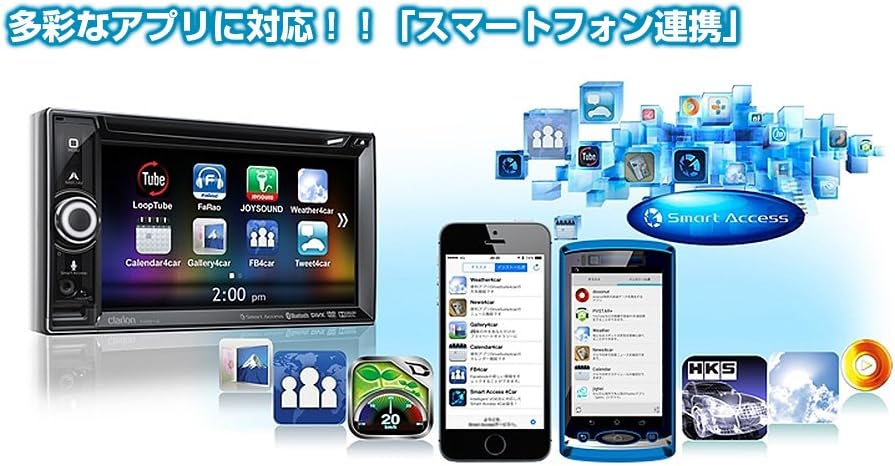
Figure 3: Clarion NX514 displaying various smartphone applications via SmartAccess Link. The image shows the unit's screen mirroring apps like YouTube, Calendar, and Weather, alongside two smartphones.
4. Navigation (Mapple Navi 5)
The Mapple Navi 5 system provides comprehensive navigation features designed to enhance your driving experience.
- Wyszukiwanie miejsca docelowego: Szukaj destinations by address, name, or category.
- Tourism Navigation: Access a vast database of tourist spots, including recommended drive courses, seasonal attractions (flowers, seasonal fish, fruit picking), and local gourmet information.
- SA/PA & Roadside Stations: Find information on service areas, parking areas, and roadside stations across Japan.
- Wskazówki dotyczące trasy: Follow clear visual and voice prompts for turn-by-turn directions.

Figure 4: Clarion NX514 showcasing Mapple Navi 5 features. This image highlights various tourism-related functions such as recommended drive courses, spot search, and information on SA/PA and local gourmet.
5. Odtwarzanie multimediów
The NX514 supports various media formats:
- Odtwarzanie DVD: Insert a DVD into the disc slot for video and audio playback.
- Karta USB/SD: Odtwarzaj dźwięk i wideo files stored on USB devices or SD cards.
- Bluetooth Audio: Stream music wirelessly from your Bluetooth-enabled smartphone or other devices.
- One-Seg TV: Watch digital terrestrial television broadcasts (where available).

Figure 5: Clarion NX514 demonstrating Bluetooth phone and audio functions. The image shows the unit's screen displaying a phone dialer and a music playback interface, along with a smartphone connected via NaviCon and Bluetooth.
6. Zdalne sterowanie z kierownicy
If your vehicle is equipped with steering wheel controls, the NX514 can be integrated to allow safe and convenient operation of audio and navigation functions without taking your hands off the wheel. This includes volume adjustment, track skipping, and activating voice commands.
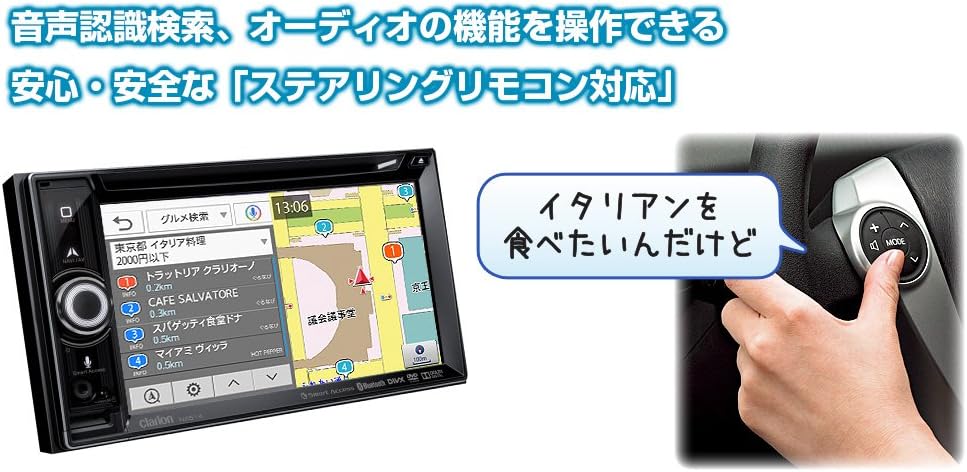
Figure 6: Clarion NX514 unit shown alongside a steering wheel with integrated remote controls. This illustrates the convenience of operating the navigation system using steering wheel buttons, including voice recognition activation.
Konserwacja
To ensure the longevity and optimal performance of your Clarion NX514, follow these maintenance guidelines:
- Czyszczenie ekranu: Gently wipe the touchscreen with a soft, dry cloth. For stubborn smudges, use a cloth lightly dampened with a screen cleaner specifically designed for electronic displays. Avoid abrasive materials or harsh chemicals.
- Ogólne sprzątanie: Utrzymuj urządzenie w czystości, usuwając kurz i zanieczyszczenia. Do czyszczenia wokół przycisków i szczelin używaj miękkiej szczotki lub sprężonego powietrza.
- Pielęgnacja karty SD: Handle the SD card carefully. Avoid exposing it to extreme temperatures, moisture, or static electricity. Always ensure the unit is powered off or in a safe state before inserting or removing the SD card to prevent data corruption.
- Aktualizacje oprogramowania układowego: Periodically check the official Clarion webodwiedź naszą witrynę, aby uzyskać dostęp do aktualizacji oprogramowania sprzętowego i mieć pewność, że Twój system będzie posiadał najnowsze funkcje i poprawki błędów.
Rozwiązywanie problemów
If you encounter issues with your Clarion NX514, refer to the following common problems and solutions:
Brak zasilania / Urządzenie nie włącza się
- Check all power connections to ensure they are securely attached.
- Verify the vehicle's fuse related to the car audio system.
- Upewnij się, że zapłon pojazdu jest w pozycji ACC lub ON.
No GPS Signal / Incorrect Position
- Upewnij się, że antena GPS jest zamontowana w miejscu, gdzie nie ma przeszkód. view nieba.
- Avoid placing objects near the antenna that could block the signal.
- Allow a few minutes for the system to acquire satellites after starting the vehicle.
SD Card Errors / Map Data Not Loading
- Ensure the SD card is fully and correctly inserted into the slot.
- The SD card contains critical map data. Avoid removing it while the unit is operating or during power fluctuations.
- If data corruption is suspected, contact Clarion support for assistance. Do not attempt to modify the SD card contents yourself, as this may void the warranty.
Problemy z połączeniem Bluetooth
- Ensure Bluetooth is enabled on both the NX514 and your smartphone.
- Usuń poprzednie sparowania na obu urządzeniach i spróbuj sparować je ponownie.
- Move your smartphone closer to the NX514 unit.
Ekran dotykowy nie reaguje
- Wykonaj miękki reset urządzenia (skorzystaj z procedury resetowania konkretnego urządzenia, zwykle za pomocą małego przycisku resetowania).
- Upewnij się, że ekran jest czysty i wolny od zanieczyszczeń.
Specyfikacje
| Funkcja | Specyfikacja |
|---|---|
| Marka | Ostry |
| Nazwa modelu | NX514 |
| Rozmiar ekranu | 6.2 cali |
| Typ wyświetlacza | LCD (VGA with high-brightness LED) |
| Cechy | Voice Operation, Touchscreen |
| Łączność | Bluetooth, USB, HDMI |
| Typ mapy | City Tour (Mapple Navi 5) |
| Typ montażu | Montaż na desce rozdzielczej |
| Pamięć masowa | 8 GB (karta SD) |
| Waga produktu | 2000 gramów |
| Compatible Satellite System | GPS |
| Zgodny typ pojazdu | Samochód osobowy |
Gwarancja i wsparcie
Your Clarion NX514 Car Navigation System is covered by a manufacturer's warranty. Please refer to the warranty card included with your product for specific terms and conditions, including the warranty period and coverage details.
For technical support, service, or further inquiries, please contact Clarion customer service or visit the official Clarion webstrona:
Clarion Official Product Page (Japanese)
When contacting support, please have your product model number (NX514) and purchase information readily available.