
1. Koniec produktuview
The TP-Link TL-WA750RE is a 150Mbps Universal Wireless Range Extender designed to expand the coverage of an existing wireless network. It eliminates Wi-Fi dead zones by boosting the wireless signal to previously unreachable or hard-to-wire areas. Its compact, wall-mounted design allows for flexible deployment and easy relocation within your home or office.
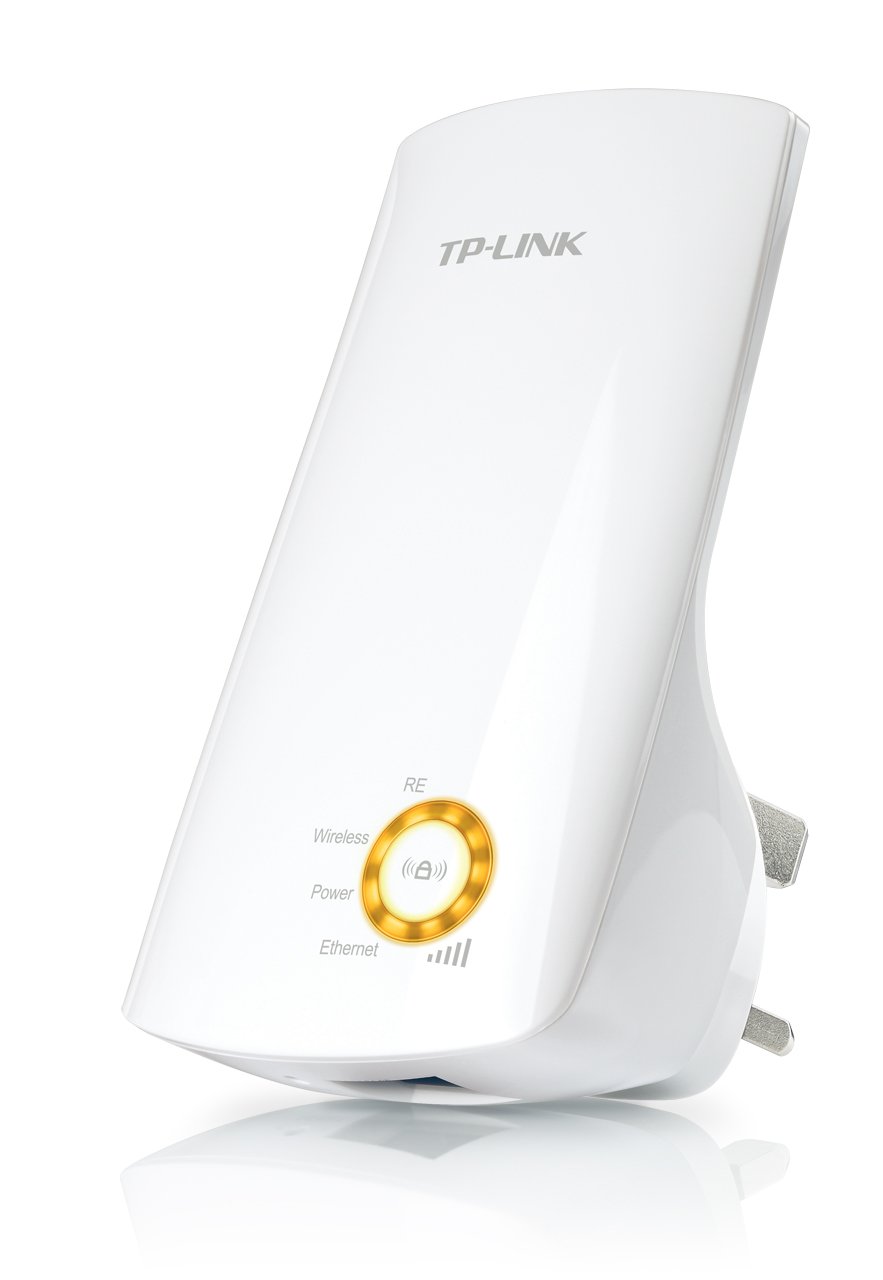
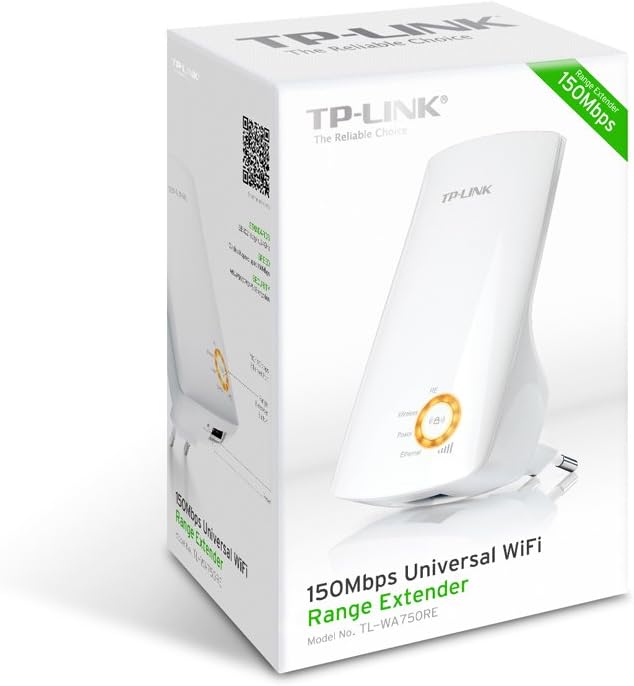
Rysunek 1: TP-Link TL-WA750RE Universal Wireless Range Extender. This image shows the device in its retail packaging, highlighting its compact design and wall-plug form factor.
2. Główne cechy
- Tryb przedłużacza zasięgu: Boosts wireless signal to eliminate Wi-Fi dead zones and extend network coverage.
- Kompaktowa konstrukcja: Small size and wall-mounted design for easy deployment and flexible movement.
- Przycisk WPS: Allows for instant setup and secure connection with compatible routers.
- Inteligentny wskaźnik sygnału: Helps users find the optimal location for placing the range extender for best performance.
- Uniwersalna kompatybilność: Works seamlessly with all 802.11n/g/b wireless devices.
3. Zawartość opakowania
Opakowanie produktu zazwyczaj zawiera następujące elementy:
- TP-Link TL-WA750RE 150Mbps Universal Wireless Range Extender
- Instrukcja obsługi
4. Przewodnik konfiguracji
4.1. Szybka konfiguracja za pomocą przycisku WPS
- Włączać do kontaktu: Plug the TL-WA750RE into an electrical outlet near your wireless router.
- Aktywuj WPS na routerze: Press the WPS button on your main wireless router. Refer to your router's manual for the exact location and procedure.
- Aktywuj WPS na urządzeniu Extender: Within two minutes, press the WPS button on the TL-WA750RE. The Signal LED on the extender should begin to flash.
- Poczekaj na połączenie: The Signal LED will turn solid blue or green when a successful connection is established.
- Przenieś przedłużacz: Unplug the extender and move it to a location between your router and the Wi-Fi dead zone. Ensure the Signal LED indicates a strong connection (e.g., solid blue or green) in the new location.
4.2. Konfiguracja ręczna za pomocą Web Przeglądarka
- Włączać do kontaktu: Plug the TL-WA750RE into an electrical outlet near your computer.
- Połącz z wzmacniaczem: Connect your computer to the extender's Wi-Fi network (e.g., "TP-LINK_Extender_XXXXXX"). No password is required initially.
- Dostęp Web Interfejs: Otwórz web przeglądarka i typ http://tplinkrepeater.net or the extender's default IP address (usually 192.168.0.254) into the address bar.
- Zaloguj się: Gdy zostaniesz o to poproszony, wpisz nazwę użytkownika i hasło „admin”.
- Postępuj zgodnie z instrukcjami wyświetlanymi na ekranie: Use the Quick Setup wizard to select your main Wi-Fi network and enter its password.
- Przenieś przedłużacz: Once configured, unplug the extender and move it to an optimal location between your router and the desired coverage area.
Rysunek 2: Strona view of the TL-WA750RE. This image illustrates the physical layout of the device, including the WPS button and Ethernet port, which are crucial for setup and operation.
5. Obsługa wzmacniacza zasięgu
Once the TL-WA750RE is successfully set up, it will automatically extend your existing Wi-Fi network. Devices within the extended range can connect to the network name created by the extender (e.g., "YourNetworkName_EXT").
5.1. Smart Signal Indicator
The Smart Signal Indicator LEDs on the front of the device provide real-time feedback on the signal strength received from your main router. This helps you determine the best placement for the extender:
- Stały niebieski/zielony: Excellent signal strength.
- Jednolity czerwony: Weak signal strength. Consider relocating the extender closer to your router.
- Wyłączony: No connection to the main router.
5.2. Wykorzystanie portu Ethernet
The TL-WA750RE includes an Ethernet port. This port can be used to connect a wired device, such as a desktop computer, gaming console, or smart TV, to your wireless network, providing a stable wired connection in the extended Wi-Fi area.
6. Konserwacja
- Czyszczenie: Do czyszczenia urządzenia należy używać miękkiej, suchej ściereczki. Nie należy używać środków czyszczących w płynie ani aerozolu.
- Umieszczenie: Avoid placing the extender in direct sunlight, near heat sources, or in areas with high humidity.
- Aktualizacje oprogramowania układowego: Okresowo sprawdzaj oficjalną stronę TP-Link webwitryna z aktualizacjami oprogramowania sprzętowego, zapewniająca optymalną wydajność i bezpieczeństwo.
- Cykl zasilania: If the device experiences issues, try unplugging it from the power outlet for 10 seconds and then plugging it back in.
7. Rozwiązywanie Problemów
- Q1: What should I do if I cannot access the extender's web strona zarządzania?
- A1: Ensure your computer is connected to the extender's network. Verify that http://tplinkrepeater.net is correctly typed in the browser. If issues persist, try using the extender's IP address (e.g., 192.168.0.254) or reset the extender to factory defaults.
- Q2: My extended network has poor signal or frequent disconnections.
- A2: Check the Smart Signal Indicator on the extender. If it's red or off, the extender is too far from your main router. Relocate the extender to a position where the indicator shows a strong signal (solid blue/green). Ensure there are no major obstructions between the router and the extender.
- Q3: How do I reset the extender to factory default settings?
- A3: With the extender powered on, use a pin to press and hold the Reset button (usually a small hole) for approximately 5-10 seconds until all LEDs flash briefly. The extender will then restart with factory default settings.
8. Specyfikacje
| Marka | TP-Link |
| Numer modelu | TL-WA750RE |
| standard bezprzewodowy | 802.11b/g/n |
| Szybkość przesyłu danych | 150 Mb/s |
| Częstotliwość | 2.4 GHz |
| Cechy specjalne | Smart Signal Indicator, WPS Button |
| Typ złącza | RJ45 (port Ethernet) |
| Waga przedmiotu | 0.4 funtów |
| Kolor | Biały |
9. Gwarancja i wsparcie
9.1. Informacje o gwarancji
This TP-Link TL-WA750RE device comes with a 2-letnia gwarancja od daty zakupu. Prosimy zachować dowód zakupu na wypadek roszczeń gwarancyjnych. Gwarancja obejmuje wady materiałowe i wykonawcze powstałe w wyniku normalnego użytkowania.
9.2. Wsparcie techniczne
Aby uzyskać pomoc techniczną, rozwiązać problemy lub zadać dalsze pytania, odwiedź oficjalną stronę pomocy technicznej TP-Link website or contact their customer service. You can find detailed support resources, FAQs, and contact information at www.tp-link.com/support.