1. Koniec produktuview
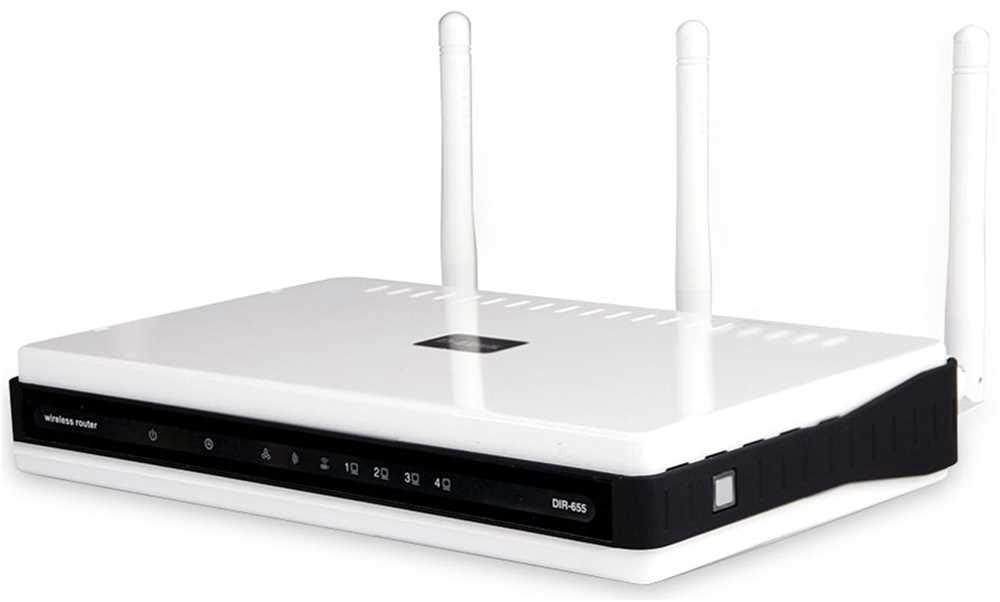
The D-Link DIR-655 Xtreme N Gigabit Router is an IEEE 802.11n (draft) compliant device designed to deliver faster speeds and extended range compared to IEEE 802.11g, while maintaining backward compatibility with IEEE 802.11g and IEEE 802.11b devices. This router enables high-speed internet access for multiple computers, game consoles, and media players when connected to a cable or DSL modem. It facilitates the creation of a secure wireless network for sharing photos, files, music, videos, printers, and network storage.
2. Przewodnik konfiguracji
Follow these steps to set up your D-Link DIR-655 Xtreme N Wireless Router:
2.1. Rozpakowanie i ustawienie
- Ostrożnie wyjmij wszystkie przedmioty z opakowania.
- Place the router in a central location in your home or office for optimal wireless coverage. Avoid placing it near large metal objects, concrete walls, or devices that emit radio frequency interference (e.g., microwave ovens, cordless phones).
- Ensure proper ventilation around the router.
2.2. Połączenie sprzętowe
- Podłącz anteny: Podłącz trzy anteny zewnętrzne do złączy z tyłu routera. Upewnij się, że są dobrze dokręcone.
- Połącz z modemem:
- Power off your cable or DSL modem.
- Connect one end of an Ethernet cable to the Internet (WAN) port on the back of the DIR-655 router.
- Connect the other end of this Ethernet cable to the Ethernet port on your cable or DSL modem.
- Power on your modem and wait for its indicator lights to stabilize (usually indicating an active internet connection).
- Podłącz zasilanie: Plug the power adapter into the power port (12V===2A) on the back of the router, then plug the other end into a wall outlet or power strip. The power LED on the front of the router should illuminate.
- Podłącz urządzenia (opcjonalnie przewodowo): For wired connections, connect Ethernet cables from your computers or other network devices to any of the four LAN ports (1-4) on the back of the router.
Rysunek 1: Tył view of the D-Link DIR-655 router, highlighting the LAN, Internet, USB, Reset, and Power ports, along with the three external antennas.

Rycina 2: Przód view of the D-Link DIR-655 router, displaying the D-Link logo and various status indicator lights.
2.3. Konfiguracja początkowa (bezprzewodowa)
To connect wirelessly and configure your router:
- Znajdź nazwę sieci (SSID): Look for the Wi-Fi network name (SSID) printed on a label on the bottom or back of your router.
- Połącz się z Wi-Fi: On your computer or mobile device, search for available Wi-Fi networks and select the SSID of your D-Link DIR-655.
- Wprowadź hasło: Enter the Wi-Fi password (also known as the network key or passphrase) found on the same label as the SSID.
- Interfejs routera dostępowego: Otwórz web przeglądarka i typ
http://dlinkrouter.localor192.168.0.1(default IP address) into the address bar. - Login: Enter the default username (usually
admin) and password (often blank oradmin). Refer to your router's label for default login credentials. - Uruchom kreatora konfiguracji: Follow the on-screen instructions of the D-Link setup wizard to configure your internet connection and personalize your Wi-Fi network name and password.
3. Instrukcja obsługi
The D-Link DIR-655 is designed for high-performance wireless networking:
- Wireless N Technology: Utilizes IEEE 802.11n (draft) for enhanced speed and range, ideal for streaming HD video, online gaming, and large file przelewy.
- Porty Gigabit Ethernet: Four LAN ports provide 10x faster wired connections than standard Ethernet, ensuring high-speed data transfer for connected devices.
- Obsługa dwóch pasm: The router supports dual-band operation, allowing for flexible network configurations and reduced interference.
- Multiple Antennas: Three external antennas help to optimize wireless signal strength and coverage throughout your home or office.
- USB SharePort: The USB port allows you to connect a USB storage device or printer and share it across your network.
4. Konserwacja
Aby zapewnić optymalną wydajność i długą żywotność routera:
- Aktualizacje oprogramowania układowego: Regularly check the D-Link support webStrona z aktualizacjami oprogramowania sprzętowego. Aktualizacja oprogramowania sprzętowego może poprawić wydajność, dodać nowe funkcje i naprawić luki w zabezpieczeniach.
- Czyszczenie fizyczne: Utrzymuj router w czystości i zapobiegaj jego zakurzeniu. Do czyszczenia zewnętrznej części używaj miękkiej, suchej ściereczki. Upewnij się, że otwory wentylacyjne nie są zablokowane.
- Okresowe ponowne uruchamianie: Ponowne uruchomienie routera co kilka tygodni może pomóc wyczyścić jego pamięć i rozwiązać drobne problemy sieciowe, poprawiając ogólną wydajność.
- Bezpieczne umieszczenie: Ensure the router is placed in a secure location where it won't be easily knocked over or exposed to extreme temperatures or moisture.
5. Rozwiązywanie Problemów
If you encounter issues with your D-Link DIR-655 router, try these common troubleshooting steps:
- Brak połączenia z internetem:
- Check all cable connections (power, Ethernet to modem, Ethernet to devices).
- Uruchom ponownie modem, następnie router i podłączone urządzenia.
- Sprawdź, czy połączenie z Twoim dostawcą usług internetowych (ISP) jest aktywne.
- Niska prędkość bezprzewodowa:
- Upewnij się, że Twoje urządzenia znajdują się w optymalnym zasięgu routera.
- Zminimalizuj zakłócenia ze strony innych urządzeń elektronicznych.
- Consider changing your Wi-Fi channel in the router settings to avoid congestion.
- Zaktualizuj sterowniki sieci bezprzewodowej swojego urządzenia.
- Nie można uzyskać dostępu do ustawień routera:
- Upewnij się, że Twoje urządzenie jest podłączone do sieci routera (przewodowo lub bezprzewodowo).
- Try using the default IP address
192.168.0.1orhttp://dlinkrouter.local. - Wyczyść pamięć podręczną i pliki cookie przeglądarki lub spróbuj użyć innej przeglądarki.
- If you forgot your password, perform a factory reset (see below).
- Przywrócenie ustawień fabrycznych: To restore the router to its factory default settings, locate the "Reset" button on the back of the router. With the router powered on, use a paperclip or similar pointed object to press and hold the reset button for about 10 seconds. Release the button and wait for the router to restart. Notatka: Spowoduje to usunięcie wszystkich ustawień niestandardowych, łącznie z nazwą sieci Wi-Fi i hasłem.
6. Specyfikacje
| Funkcja | Szczegół |
|---|---|
| Nazwa modelu | DIR-655 |
| Typ bezprzewodowy | 802.11n |
| Marka | D-Link |
| Numer modelu przedmiotu | DIR-655/E |
| System operacyjny | ZyNOS |
| Waga przedmiotu | 2.65 uncji (75 grama) |
| Wymiary produktu | 47.44 x 77.95 x 12.6 cala |
| Tomtage | 110 wolty |
| Funkcja specjalna | WPS |
| Klasa pasma częstotliwości | Dwuzakresowy |
| Standard komunikacji bezprzewodowej | 802.11n |
| Kompatybilne urządzenia | Konsola do gier, drukarka |
| Zalecane zastosowania | Biznes, Gry, Dom |
| Technologia łączności | Sieć Ethernetowa |
| Typ anteny | Naprawił |
7. Gwarancja i wsparcie
For detailed warranty information and technical support, please refer to the official D-Link website or the documentation included with your product. You can also visit the D-Link support portal for FAQs, firmware downloads, and contact options.
Wsparcie online: www.dlink.com/support