
1. Wprowadzenie
The SteelSeries Kana Optical Gaming Mouse is engineered for precision and versatility, designed to accommodate all three primary grip styles: palm, claw, and fingertip. This ambidextrous mouse features an ergonomic button layout and size, developed in collaboration with professional gaming teams to ensure consistent performance and accuracy in competitive environments. This manual provides comprehensive instructions for setup, operation, maintenance, and troubleshooting to help you maximize your gaming experience.
2. Zawartość opakowania
- SteelSeries Kana Optical Gaming Mouse (White)
- Quick Start Guide (integrated into this manual)
3. Koniec produktuview
Familiarize yourself with the key components of your SteelSeries Kana mouse:
- Lewy przycisk myszy: Główny przycisk akcji.
- Przycisk prawego przycisku myszy: Drugorzędny przycisk akcji.
- Kółko przewijania: For scrolling and a clickable middle button. The scroll wheel is illuminated.
- CPI Toggle Button: Located centrally, allows quick switching between sensitivity settings.
- Przyciski boczne (x2): One on each side, large and easily accessible for rapid-fire actions. These can be customized or disabled via software.
- Czujnik optyczny: Umieszczony na spodzie, umożliwia precyzyjne śledzenie.
- Złącze USB: Do podłączenia myszy do komputera.
- Braided Cable: Durable, tangle-free nylon cord.
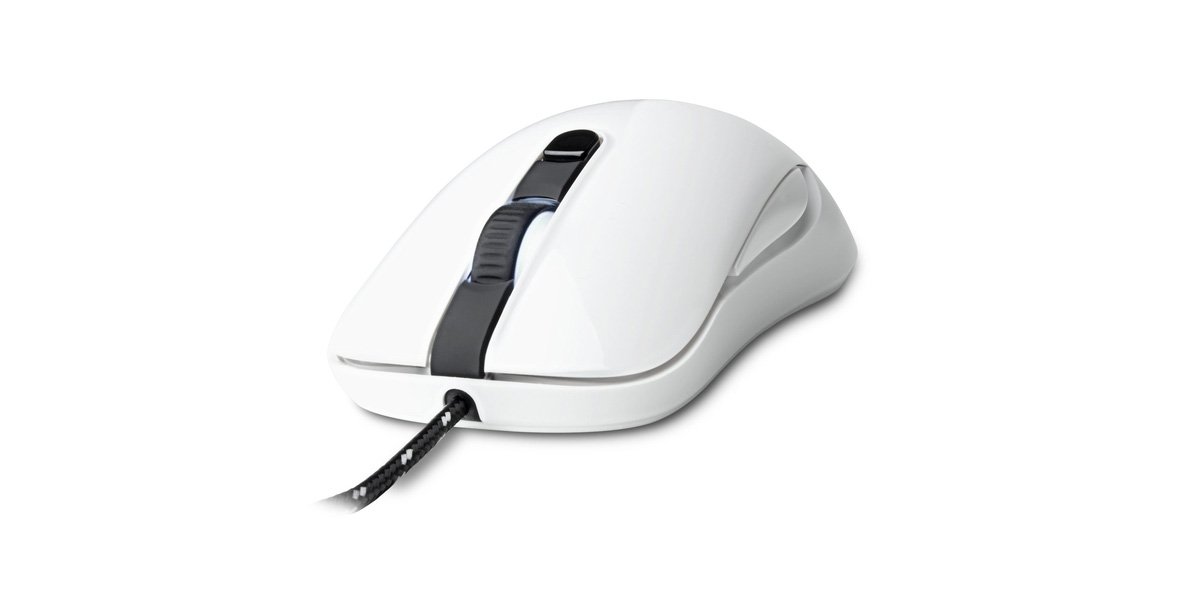
Image of the SteelSeries Kana Optical Gaming Mouse in white, showcasing its ambidextrous design, illuminated scroll wheel, and side buttons.
4. Konfiguracja
4.1 Połączenie sprzętowe
- Znajdź dostępny port USB na swoim komputerze.
- Plug the USB connector of the SteelSeries Kana mouse into the USB port.
- Your operating system should automatically detect and install basic drivers for the mouse.
4.2 Software Installation (SteelSeries Engine)
To unlock the full customization potential of your SteelSeries Kana mouse, including CPI settings, button programming, macros, and LED intensity, install the SteelSeries Engine software.
- Visit the official SteelSeries webstrona: steelseries.com/silnik
- Download the SteelSeries Engine software compatible with your operating system (Windows or macOS).
- Aby dokończyć instalację, postępuj zgodnie z instrukcjami wyświetlanymi na ekranie.
- Once installed, launch the SteelSeries Engine to configure your mouse settings.
Uwaga dla użytkowników komputerów Mac: Compatibility with macOS versions 10.9 and later for SteelSeries Engine 2.0 (required for Kana) has historically been inconsistent. Please check the official SteelSeries website for the latest software updates and compatibility information before installation.
5. Instrukcja obsługi
5.1 Podstawowa funkcjonalność
- Ruch: Move the mouse across a surface to control the cursor on your screen.
- Kliknięcie: Użyj przycisków lewego i prawego do akcji podstawowych i drugorzędnych.
- Przewijanie: Rotate the scroll wheel to navigate documents and web pages. Press the scroll wheel for its assigned middle-click function.
5.2 Adjusting CPI (Counts Per Inch)
The centrally located CPI toggle button allows you to switch between two pre-defined sensitivity settings instantly. The default CPI settings are optimized for gaming, but can be customized using the SteelSeries Engine software. The maximum CPI supported is 3200.
- Press the CPI toggle button once to switch to the alternate CPI setting.
- Press it again to revert to the previous setting.
5.3 Customizing with SteelSeries Engine
The SteelSeries Engine software provides extensive customization options:
- CPI Settings: Fine-tune or set custom CPI values beyond the pre-defined options.
- Programowanie przycisków: Assign custom functions, keyboard shortcuts, or macros to any of the 6 programmable buttons (including side buttons and scroll wheel click).
- Makra: Create and assign complex sequences of commands with precise timing control.
- LED Intensity: Adjust the brightness of the illuminated scroll wheel.
- Zawodowiecfiles: Utwórz i zapisz wiele profiles for different games or applications, with automatic switching based on game triggers.
6. Konserwacja
6.1 Czyszczenie myszy
To ensure optimal performance and longevity, keep your mouse clean.
- Zewnętrzny: Użyj miękkiej, niestrzępiącej się ściereczki, lekko wyczyśćampPrzetrzyj powierzchnię myszy wodą lub delikatnym środkiem czyszczącym. Unikaj stosowania silnych środków chemicznych i materiałów ściernych.
- Czujnik optyczny: Gently clean the optical sensor lens on the underside of the mouse with a dry cotton swab or compressed air to remove dust or debris.
- Stopki myszy: Ensure the mouse feet are clean and free of obstructions for smooth gliding.
Ostrożność: Do not immerse the mouse in water or any cleaning solution. Avoid spraying liquids directly onto the mouse.
7. Rozwiązywanie Problemów
| Problem | Możliwe rozwiązanie |
|---|---|
| Mouse not detected / Not responding |
|
| Inaccurate or erratic tracking |
|
| Buttons not responding or performing incorrectly |
|
| SteelSeries Engine software not recognizing mouse (Mac OS) |
|
8. Specyfikacje
| Marka | Stalowa seria |
| Numer modelu | 62029 |
| Kolor | Biały |
| Technologia wykrywania ruchu | Optyczny |
| Liczba przycisków | 6 (Programowalne) |
| Orientacja dłoni | Ambidextrous (Left, Right) |
| Platforma sprzętowa | PC |
| Typ kabla | Nylon pleciony |
| Waga przedmiotu | 0.16 kilograma |
| Funkcja specjalna | Ergonomic Design, Illuminated Scroll Wheel |
9. Gwarancja i wsparcie
9.1 Informacje o gwarancji
The SteelSeries Kana Optical Gaming Mouse comes with a 1-roczna ograniczona gwarancja od daty zakupu. Niniejsza gwarancja obejmuje wady produkcyjne i wykonawcze przy normalnym użytkowaniu. Nie obejmuje uszkodzeń spowodowanych niewłaściwym użytkowaniem, wypadkami, nieautoryzowanymi modyfikacjami ani normalnym zużyciem. Prosimy zachować dowód zakupu na potrzeby roszczeń gwarancyjnych.
9.2 Obsługa klienta
For technical assistance, warranty claims, or further information, please visit the official SteelSeries support webstrona:
You can find FAQs, driver downloads, and contact information for customer service on their webstrona.