
Wstęp
This manual provides detailed instructions for the setup, operation, maintenance, and troubleshooting of your Avaya 9640G IP Phone. Please read this manual thoroughly before using the device to ensure proper functionality and to prevent damage.
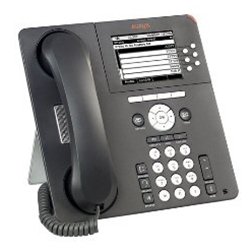
Rysunek 1: Przód view of the Avaya 9640G IP Phone, showing the display, keypad, and function buttons.
1. Konfiguracja
1.1 Rozpakowanie
Ostrożnie wyjmij wszystkie elementy z opakowania. Sprawdź, czy znajdują się w nim następujące elementy:
- Avaya 9640G IP Phone unit
- Słuchawka
- Przewód słuchawki
- Kabel Ethernetowy
- Desk stand (if applicable)
- Zasilacz (jeśli nie używasz zasilania przez Ethernet - PoE)
1.2 Podłączanie telefonu
Follow these steps to connect your IP phone:
- Podłącz słuchawkę: Podłącz jeden koniec spiralnego przewodu słuchawkowego do słuchawki, a drugi koniec do portu słuchawki w podstawie telefonu (zazwyczaj oznaczonego ikoną słuchawki).
- Podłącz zestaw słuchawkowy (opcjonalnie): If using a headset, plug it into the headset port (usually marked with a headset icon).
- Połącz z siecią:
- Plug one end of the Ethernet cable into the LAN port on the phone (often labeled with a network icon or "LAN").
- Plug the other end of the Ethernet cable into a network jack or a network switch/router.
- If your network provides Power over Ethernet (PoE), the phone will power on automatically.
- Podłącz zasilanie (jeśli nie używasz PoE): If PoE is not available, connect the power adapter to the phone's power port and then plug the adapter into a wall outlet.
- Pierwsze uruchomienie: The phone will power on and begin its boot-up sequence. This may take a few minutes. The display will show progress and eventually indicate readiness for use.
1.3 Konfiguracja początkowa
Upon first boot-up or after a factory reset, the phone may require network configuration or login credentials. Consult your network administrator for specific settings such as IP address, subnet mask, gateway, and SIP server details.
2. Instrukcja obsługi
2.1 Podstawowe funkcje wywołań
- Nawiązywanie połączenia:
- Lift the handset, press the Speaker button, or press a Line button.
- Wybierz żądany numer za pomocą klawiatury.
- Press the "Call" or "Dial" softkey, or wait for the call to connect automatically.
- Odbieranie połączenia:
- Lift the handset, press the Speaker button, or press the flashing Line button.
- Zakończenie połączenia:
- Replace the handset, press the Speaker button again, or press the "End Call" softkey.
2.2 Advanced Call Functions
- Trzymać: During an active call, press the "Hold" button. The call will be placed on hold, and the line button may flash. To resume, press the flashing line button again.
- Transfer: During an active call, press the "Transfer" button. Dial the number to which you want to transfer the call. You can either announce the call (wait for the other party to answer) or perform a blind transfer (press "Transfer" again before they answer).
- Konferencja: During an active call, press the "Conference" button. Dial the number of the third party. Once they answer, press "Conference" again to join all parties.
2.3 Poczta głosowa
To access your voicemail, press the "Message" or "Voicemail" button (often indicated by an envelope icon). Follow the audio prompts to listen to, save, or delete messages. You may need to enter a PIN.
2.4 Directory/Contacts
The phone may have a local directory or access to a corporate directory. Press the "Directory" or "Contacts" button to access these lists. Use the navigation buttons to scroll and select entries, then press "Dial" to call.
2.5 Feature Buttons and Display Navigation
The Avaya 9640G features a color display and several programmable buttons. Use the navigation cluster (up, down, left, right arrows, and Select button) to move through menus and options on the display. Softkeys (buttons directly below the display) change their function based on the current context.
3. Konserwacja
3.1 Czyszczenie
Do czyszczenia telefonu należy używać miękkiej,amp, lint-free cloth. Do not use abrasive cleaners, solvents, or aerosol sprays directly on the phone. Disconnect the phone from power before cleaning.
3.2 Aktualizacje oprogramowania i oprogramowania sprzętowego
Software and firmware updates are typically managed by your system administrator. Do not attempt to manually update the phone's software unless instructed to do so by qualified personnel. Regular updates ensure optimal performance and security.
4. Rozwiązywanie Problemów
| Problem | Możliwa przyczyna | Rozwiązanie |
|---|---|---|
| Brak sygnału wybierania | Phone not powered, network cable loose, network issue. | Check power connection (PoE or adapter). Ensure Ethernet cable is securely connected. Contact your network administrator. |
| Nie można wykonywać/odbierać połączeń | Network connectivity issues, incorrect configuration, account not registered. | Verify network connection. Check phone's IP address and registration status. Contact your system administrator. |
| Wyświetlacz jest pusty lub zamrożony | Problem z zasilaniem, błąd oprogramowania. | Disconnect and reconnect power. If the issue persists, contact technical support. |
| Słaba jakość dźwięku | Network congestion, faulty cable, handset/headset issue. | Check network activity. Try a different handset or headset. Report to network administrator if problem persists. |
For issues not listed here, or if the suggested solutions do not resolve the problem, please contact your IT or network support department.
5. Specyfikacje
- Marka: Avaja
- Model: 9640G
- ASIN: B003P5AA8Y
- Typ systemu zgłoszeniowego: Cyfrowy
- Identyfikacja dzwoniącego: NIE
- Łączność: Ethernet (PoE capable)
- Wyświetlacz: Wyświetlacz kolorowy
- Słuchawka: Przewodowy
- Obsługa zestawu słuchawkowego: Tak
Uwaga: Specyfikacje mogą ulec zmianie bez powiadomienia.
6. Gwarancja i wsparcie
6.1 Informacje o gwarancji
The Avaya 9640G IP Phone typically comes with a limited manufacturer's warranty. Please refer to the warranty card included with your product or visit the official Avaya webSzczegółowe warunki gwarancji, jej okres obowiązywania i procedury reklamacyjne znajdziesz na stronie. Zachowaj dowód zakupu na potrzeby gwarancji.
6.2 Wsparcie techniczne
For technical assistance, troubleshooting beyond this manual, or service requests, please contact your authorized Avaya reseller or your organization's IT support department. You may also find additional resources and support documentation on the official Avaya support webstrona: support.avaya.com.