
Wstęp
The Microsoft Optical Desktop Elite for Bluetooth provides a wireless keyboard and mouse solution designed for use with Windows PCs. This combo utilizes Bluetooth wireless technology for connectivity, offering enhanced range and reliability. It enables synchronization and information sharing between your PC and other Bluetooth-enabled devices.
Co jest w pudełku
- Klawiatura Bluetooth firmy Microsoft
- Microsoft Bluetooth Optical Mouse
- USB Bluetooth Transceiver
- Baterie (zainstalowane fabrycznie lub dołączone osobno)
- Dokumentacja produktu

Image: The retail packaging for the Microsoft Optical Desktop Elite for Bluetooth, showing the keyboard, mouse, and USB transceiver.
Organizować coś
Zainstaluj baterie
Ensure fresh batteries are installed in both the keyboard and the mouse. Refer to the battery compartment markings for correct polarity.
Connect USB Transceiver
Plug the included USB Bluetooth transceiver into an available USB port on your Windows PC. The system will typically install the necessary drivers automatically.
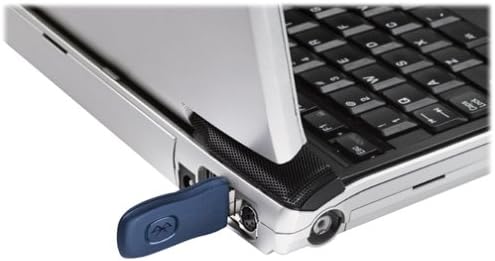
Image: A blue USB Bluetooth transceiver plugged into the side of a laptop computer.
Sparuj urządzenia
Follow the on-screen prompts or refer to your Windows Bluetooth settings to pair the keyboard and mouse with the transceiver. This usually involves pressing a connect button on the devices and the transceiver.
Install Software (Optional)
For advanced customization of keyboard shortcuts and mouse buttons, install the Microsoft IntelliPoint and IntelliType Pro software from the official Microsoft website or the included CD (if applicable).
Instrukcja obsługi
The Microsoft Optical Desktop Elite for Bluetooth offers a range of features for enhanced productivity.

Image: The Microsoft Optical Desktop Elite keyboard and mouse, showcasing their ergonomic design and wireless nature.
Funkcje klawiatury:
- Standardowy układ QWERTY: Full-size keyboard with a standard QWERTY layout.
- Programmable Hot Keys: Utilize the customizable hot keys for quick access to applications, documents, or web stron.
- Sterowanie multimediami: Dedykowane klawisze do regulacji głośności, odtwarzania/pauzy i nawigacji po utworach.
- Side-to-Side Scrolling: The keyboard features a scroll wheel or button for horizontal scrolling in documents and web stron.
Funkcje myszy:
- Śledzenie optyczne: Provides precise and smooth cursor control on various surfaces.
- Kółko przewijania: For vertical scrolling and button functionality.
- Side-to-Side Scrolling: The mouse scroll wheel also supports horizontal scrolling.
- Przyciski programowalne: Customize side buttons for specific functions using the IntelliPoint software.
- Dłuższa żywotność baterii: Designed for extended use between battery replacements.

Image: A detailed diagram highlighting various features and buttons on the Microsoft Optical Desktop Elite keyboard and mouse.
Konserwacja
Czyszczenie:
- Klawiatura: Użyj miękkiej, niestrzępiącej się ściereczki, lekko wyczyśćampCzyścić wodą lub łagodnym środkiem czyszczącym. Unikać nadmiernej wilgoci.
- Mysz: Clean the optical sensor area on the bottom of the mouse with a dry cotton swab. Wipe the body with a soft, damp płótno.
- Do not immerse devices in liquid.
Wymiana baterii:
- When battery indicators on the keyboard or mouse signal low power, replace batteries promptly.
- Open the battery compartment, remove old batteries, and insert new ones, ensuring correct polarity.
- Stare baterie należy utylizować zgodnie z lokalnymi przepisami.
Rozwiązywanie problemów
- Devices not connecting or frequently disconnecting:
- Ensure the USB Bluetooth transceiver is securely plugged into a working USB port.
- Check battery levels in both the keyboard and mouse. Replace if low.
- Re-pair the devices with the transceiver. Refer to the "Pair Devices" step in the Setup section.
- Ensure no other strong wireless signals (e.g., Wi-Fi routers, other Bluetooth devices) are causing interference. Try moving the transceiver closer to the devices.
- Uruchom ponownie komputer.
- Kursor myszy porusza się nieregularnie lub nie reaguje:
- Wyczyść czujnik optyczny znajdujący się na spodzie myszy.
- Upewnij się, że używasz myszy na odpowiedniej powierzchni. Powierzchnie silnie odblaskowe lub przezroczyste mogą powodować problemy.
- Sprawdź poziom naładowania baterii.
- Keyboard keys are not responding:
- Sprawdź poziom naładowania baterii.
- Ensure the keyboard is paired correctly.
- Verify that the keyboard is not in a sleep mode. Press any key to wake it.
- Side-to-side scrolling not working:
- Ensure the IntelliPoint/IntelliType Pro software is installed and configured correctly.
- Verify that the application you are using supports horizontal scrolling.
Specyfikacje
| Funkcja | Szczegół |
|---|---|
| Marka | Microsoft |
| Model | Optical Desktop Elite for Bluetooth |
| Technologia łączności | Bluetooth, USB, bezprzewodowy |
| Kompatybilne urządzenia | Personal Computer (Windows OS) |
| Wykrywanie ruchu | Optical (Mouse) |
| Układ klawiatury | QWERTY (105 Keys) |
| Źródło zasilania | Zasilany bateryjnie |
| Waga przedmiotu | 4 funta (w przybliżeniu) |
| Kolor | Czarny/Niebieski |
Gwarancja i wsparcie
For warranty information and technical support, please refer to the documentation included with your product or visit the official Microsoft support webZachowaj dowód zakupu na wypadek roszczeń gwarancyjnych.
Wsparcie online: support.microsoft.com